
If you’re a Slack user like myself, you can use PowerShell to send messages to your Slack channel. This is very useful for scripts that run during the day on which you want to receive information. This is done using the Invoke-Webrequest method, and in this blog post, I will show you how you can use it in your scripts.
Configuring the Slack application
You can send messages using a Token. To be able to do this, you need to register an application. You can do this by following the following steps:
- Go to https://api.slack.com/apps?new_app=1
- Select From scratch
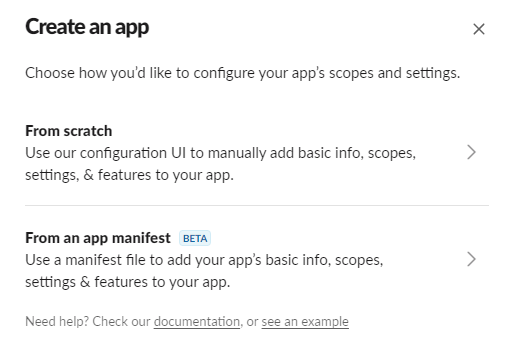
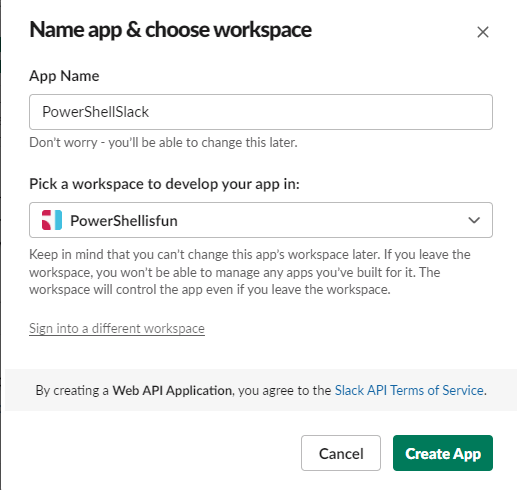
- Enter an App Name, PowerShellSlack in this example, select the Slack workspace the app should be a member of, and select Create App
- Select Incoming Webhooks

- Push the slider to On and select Add New Webhook to Workspace

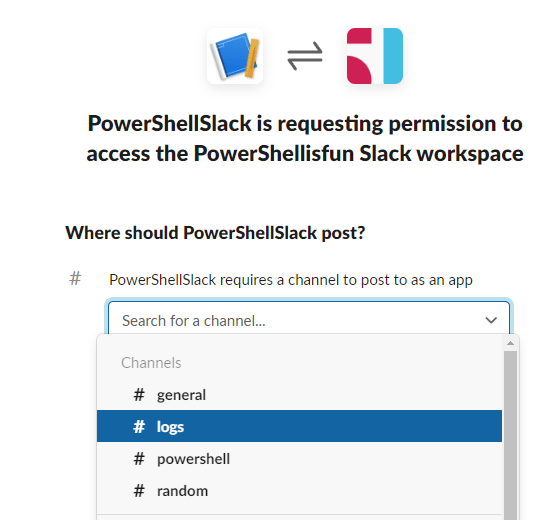
- Select the channel that you want to post messages in, for this example I created a logs channel
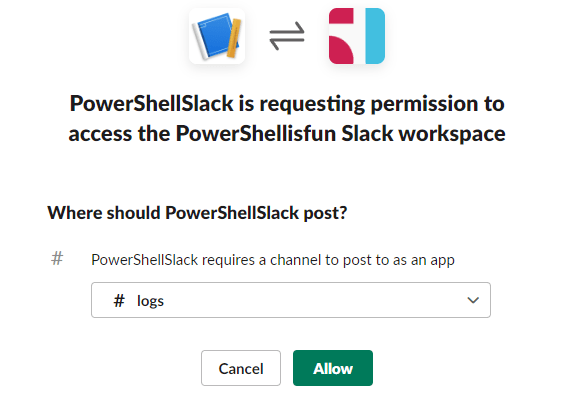
- Select Allow
- You will return to the app, and you can copy the Webhook URL that you will need in your scripts by using the Copy button, paste the URL somewhere safe 🙂

- Now you need to set permissions for the OAth token by scrolling down the page and selecting OAuth & Permissions
- In the Scopes section, you must add chat:write, chat:write:public and files:write. The incoming webhook should already be present because we said that earlier. Choose to Add an Oath Scope and type/browse/select these three permissions.

- After adding them, a notification banner will appear at the top of your browser. Select Reinstall your app so that the permissions are added.

- Select the channel again and choose Allow

- Copy the Bot User OAuth Token using the Copy button. (Keep this information safe too 🙂 )

Send your first message to the Slack channel
Now that the registration is done, you can start posting your first message. The most basic way to send a message is by using this : (I removed a part of the URL and replaced it with xxx)
$url = 'https://slack.com/api/chat.postMessage'
$message = 'Hello World!'
$token = 'xoxb-xxx'
$channel = 'logs'
$body = @{token = $token; channel = $channel; text = $message; pretty = 1 }
Invoke-WebRequest -Uri $url -Method POST -Body $body
If all goes well, you should see this output with an HTTP status code 200:

In Slack, you should see this:

Send a message to the Slack channel containing an attachment
Note:
files.upload is deprecated and will stop functioning on March 11, 2025. Use files.getUploadURLExternal and files.completeUploadExternal to upload files instead. Newly created apps will be unable to use files.upload beginning May 8, 2024. See Uploading files for more details on the process and this changelog for more on the deprecation.
You can also send, for example, a log file together with the message to a Slack channel. First, you will have to invite PowerShellSlack-bot to the channel. You can do this by mentioning the bot using the @-sign and selecting the app:

After pressing Enter, you select Add to Channel

You will get a notification in the channel if it succeeds:

The next step is to copy the Channel ID. You can find this in the properties of the Channel:

The Channel ID is down left. You can click the icon next to it to copy the ID.

Now you can use the script below to send a message with the contents of a log file to a Slack channel.
$url = "https://slack.com/api/files.upload"
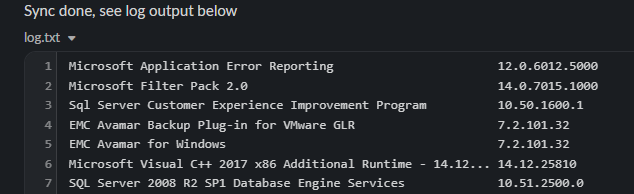
$initialcomment = "Sync done, see log output below"
$token = "xoxb-3xxx"
$channels = "C03ETRXS0AC"
$content = get-content d:\scripts\software_inventory\log.txt | Out-String
$title = "log.txt"
$body = @{
    token           = $token;
    initial_comment = $initialcomment;
    channels        = $channels;
    content         = $content;
    title           = $title ;
    pretty          = 1
}
Invoke-WebRequest -Uri $url -Method POST -Body $body
After running the above script, you should see this output:

And the message will look like this:
And that’s it 🙂 You can find more information about the possibilities of the Slack API methods here: https://api.slack.com/methods. Happy PowerShell Slacking!
Hello, I tried your method to send message to Slack but it always says Invalid Token.
That’s strange, I will try it later today by recreating it myself on my Slack subscription
I removed my registration and followed the procedure like in the blog post, it still works… Not sure what your issue is, you did change the token to the one from your app?
The file upload method is deprecated, saw that during testing, and perhaps I will rewrite that part later (I placed that on my To-Do list)
how do you tag someone in the slack message?
Not tried it myself yet, but like this?
To mention a user in app-published text, provide their user ID in the following syntax:
Hey <@U012AB3CD>, thanks for submitting your report.
View this example
Your app can get this user ID from an interaction request payload, from the Event API payload sent when one of the event types occurs, or by looking them up via the users.list Web API using another unique piece of information you have about them, such as their email address.
You can also manually retrieve a specific user’s ID by clicking the overflow button in their Slack profile, and choosing the Copy member ID option.
https://api.slack.com/reference/surfaces/formatting#mentioning-users