
Measuring is always a good idea for grasping things, such as how long it sometimes takes, how many objects there are in a specific directory, how much space something takes up on a hard drive, etc. In this blog post, I will show you how the Measure-Command and Measure-Object cmdlets work and how you can use them to your advantage.
What is Measure-Command?
“The Measure-Command cmdlet runs a script block or cmdlet internally, times the execution of the operation, and returns the execution time.”
What is Measure-Object?
“The Measure-Object cmdlet calculates the property values of certain types of object. Measure-Object performs three types of measurements, depending on the parameters in the command.
The Measure-Object cmdlet performs calculations on the property values of objects. You can use Measure-Object to count objects or count objects with a specified Property. You can also use Measure-Object to calculate the Minimum, Maximum, Sum, StandardDeviation and Average of numeric values. For String objects, you can also use Measure-Object to count the number of lines, words, and characters.”
Examples
Execution time
If you want to know how long a cmdlet or script takes to execute, you can use Measure-Command to clock that like this:

This will output the time needed to scan all the files in c:\temp and the subfolders in various formats, like Days, Hours, Minutes, Seconds, etc.
File or folder size
To return the size of the files in a folder in Gigabytes, you can use Measure-Object to display that. For example:
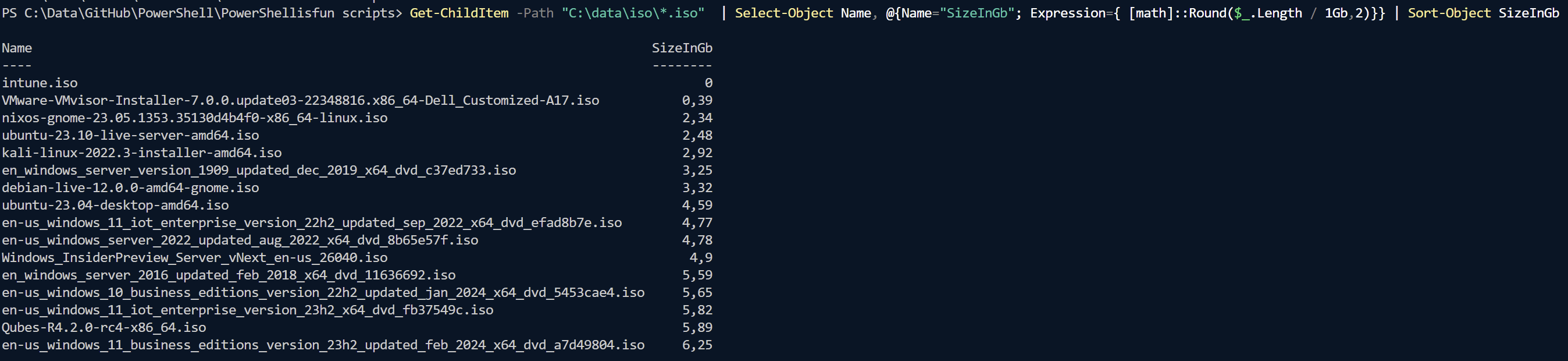
In this example, I retrieved all the ISO files from C:\Data\ISO and displayed them sorted by size in gigabytes using the length object. I showed that with two decimals behind the comma using [math].
You can also retrieve the total size of a specific folder like this:

This will show how many gigabytes the folder size is, in this case, almost 85 gigabytes of ISO files.
Number of items
If you want to know how many objects were returned, you can pipe that into the Measure-Object cmdlet like this:
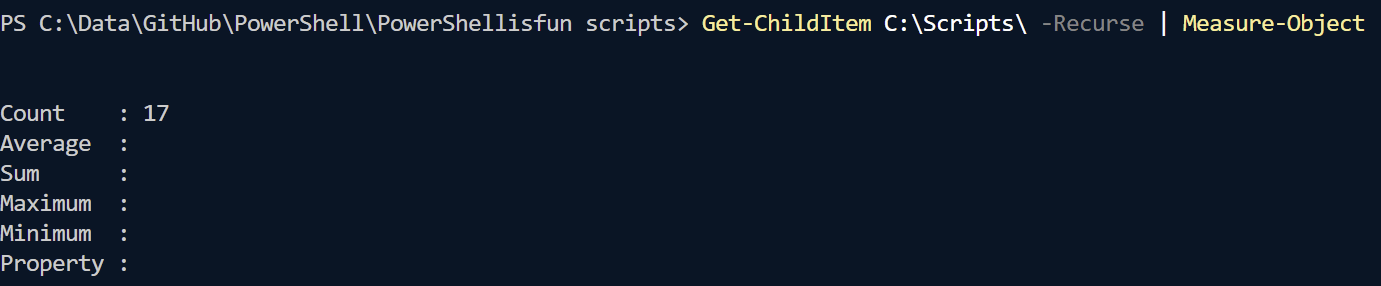
Piping the Get-Childitem output into Measure-Object will return the number of files and directories in this case:

15 + 2 = 17, which matches the Count from the Measure-Object output 🙂
Text in a file
You can also count the number of words in a text file. In the example, I use Measure-Object to count the number of words in the c:\temp\services.txt file that contains all the names of the services on my system:

And yes, Linux People, this is the same as using ‘wc -l‘ 😉 (Or ‘wc -lwc‘ for all types)

You can also filter the output first using Select-String and count the occurrences found from there like this:

I searched for the word Microsoft in the services.txt file in this example.
Wrapping up
I showed you examples of using the Measure-Command and Measure-Object cmdlets in PowerShell to gain insight into a text file’s size, time, and occurrences. For more information, check out the links in the first two chapters from Microsoft Learn.