
This is sometimes forgotten, the easy way of accessing or checking network drives, certificates, registry, variables, etc. In this blog post, I will show you what a PSDrive does and some examples of its use.
What is a PSDrive?
“Gets the following types of drives:
Windows logical drives on the computer, including drives mapped to network shares.
Drives exposed by PowerShell providers (such as the Certificate:, Function:, and Alias: drives) and the HKLM: and HKCU: drives that are exposed by the Windows PowerShell Registry provider.
Session-specified temporary drives and persistent mapped network drives that you create by using the New-PSDrive cmdlet.”
What PSDrives are available?
When you run Get-PSDrive in a PowerShell session, it will return the following:
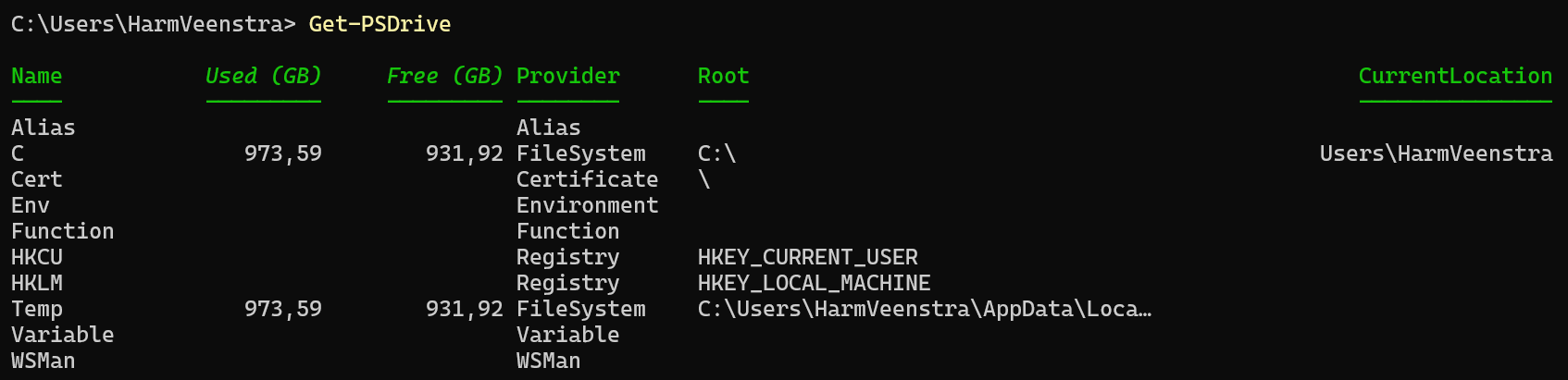
The Name column shows you what you can access as a regular drive. I will detail them in the chapters below.
Alias
Using Get-Childitem Alias: will return all the aliases in your session. For example:

C
C (Or other physical or network-mapped drives) will be shown without the colon sign on the list. You can, of course, use Get-ChildItem C:\ to show the root contents of that drive:

Cert
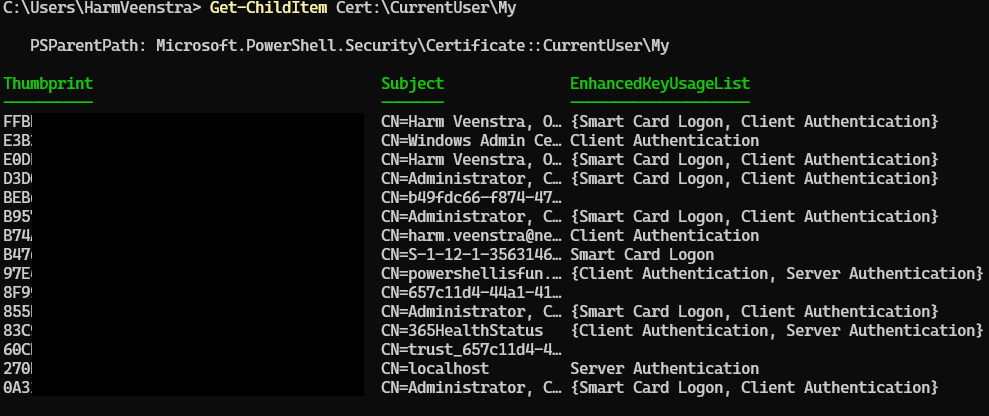
Using Get-ChildItem Cert: will show you the CurrentUser and LocalMachine certificate stores. Using Get-ChildItem Cert:\CurrentUser\My will show you all the personal certificates for your user (I changed the Thumbprint for security reasons in the picture 🙂 ):
Env
Using Get-ChildItem Env: will show you all the environment variables:

Function
Using Get-ChildItem Function: will display all the Functions in your PowerShell session. That can be your functions or ones available because a Module was loaded. (It will also show you all the drive letters even though they are not connected or mapped)

HKCU
Using Get-ChildItem HKCU: will show you the contents of your User Registry; you can browse it like your regular filesystem. For example, using Get-ChildItem HKCU:\Software\Microsoft\Office\16.0\ will show you:

There is no provider for HKEY_Users, Guy Leech posted a solution for that on Twitter/X:
HKLM
Just like HKCU, you can also use Get-ChildItem HKLM: to show the contents of your System Registry. For example, using Get-ChildItem HKLM:\SOFTWARE\Microsoft\Windows will show you:

Temp
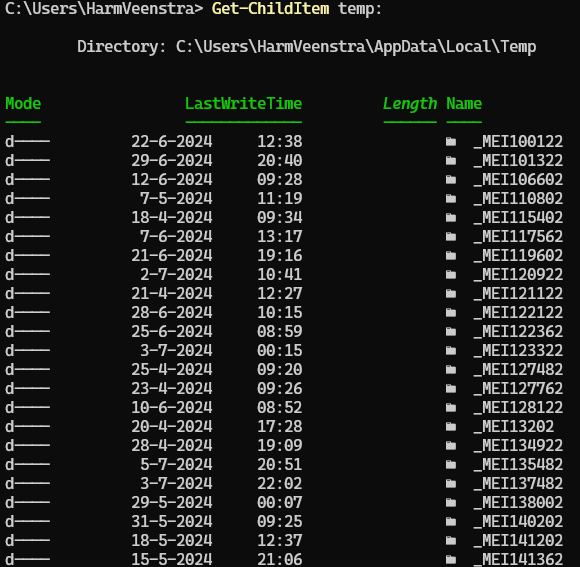
Using Get-ChildItem Temp: will show you the contents of your user Temp folder. For example:
Variable
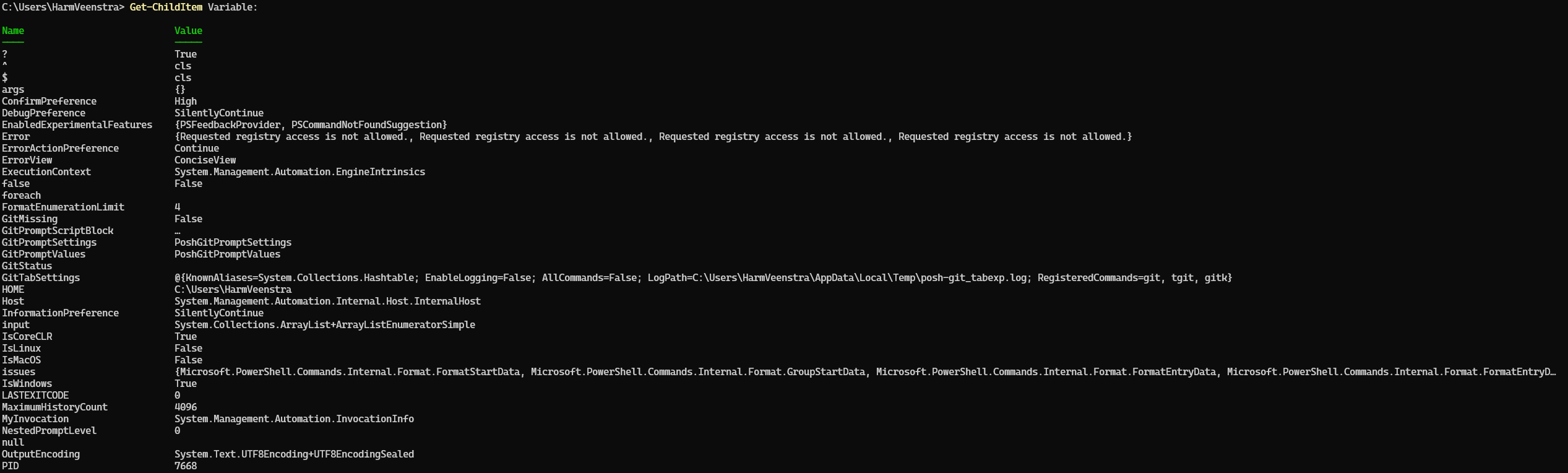
Using Get-ChildItem Variable: will show you all the variables in your current PowerShell session. Very useful for an excellent overview of your current state! For example:
WSMAN
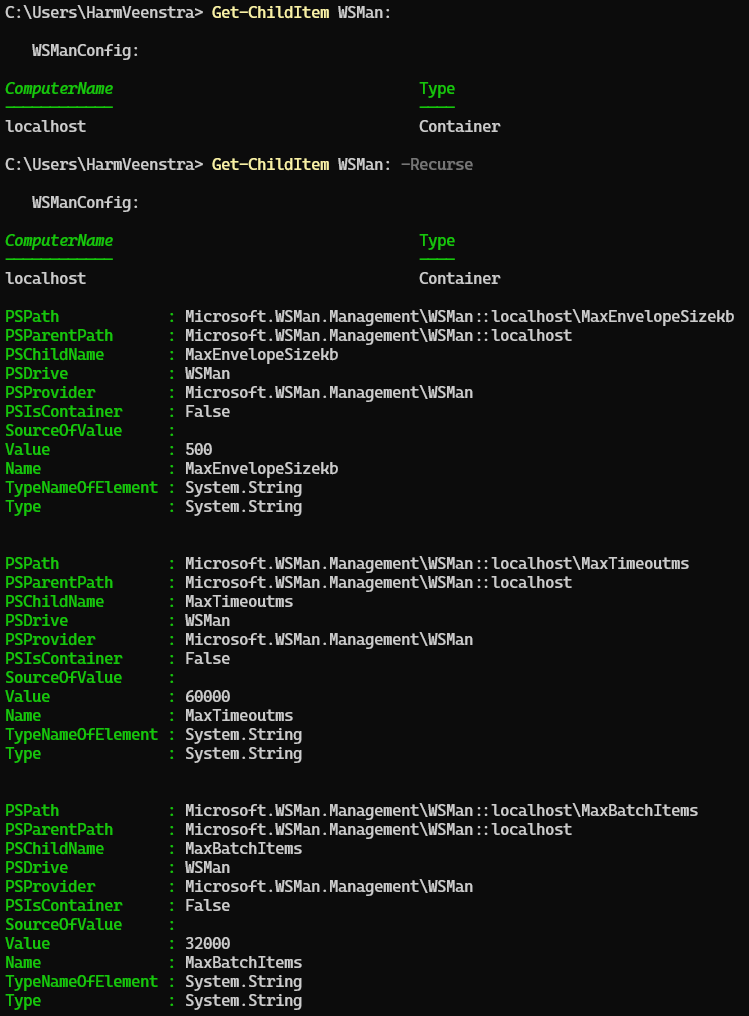
Using Get-ChildItem WSMan: will show the available configuration. Using Get-ChildItem WSMan: -Recurse will show you the details per item:
New-PSDrive
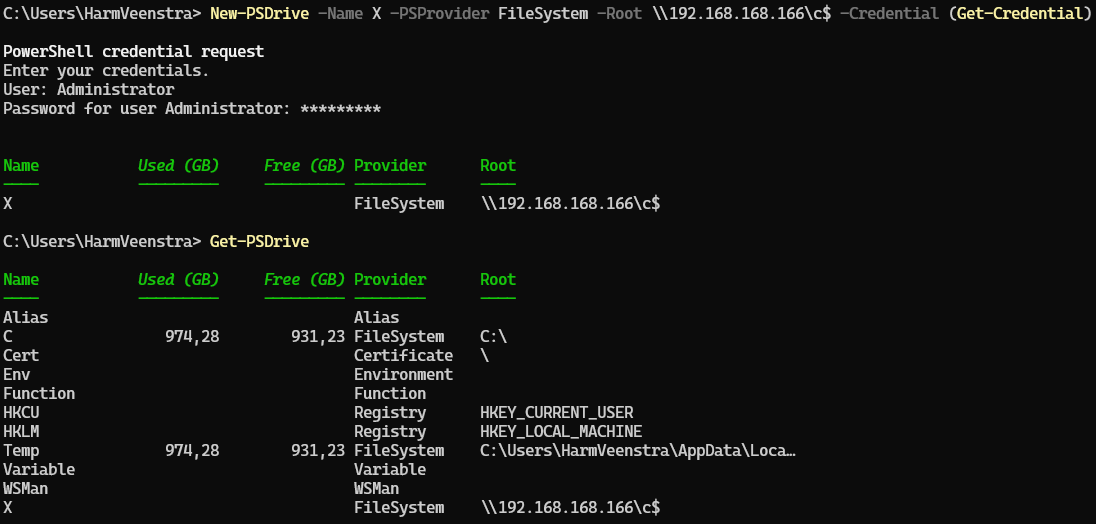
You can use New-PSDrive to create a map of a network drive and a Registry location. For example, to create a mapping to a location on a server, you can use New-PSDrive -Name X -PSProvider FileSystem -Root \192.168.168.166\c$ -Credential (Get-Credential) to generate an X:\ drive letter to \\192.168.166\c$ while being prompted for credentials. You can add -Persist to store it so that it’s available after rebooting again.
However, you can also create a PSDrive for a registry location. For example, using New-PSDrive -Name “Windows” -PSProvider “Registry” -Root “HKLM:\Software\Microsoft\Windows” will make a Windows PSDrive which you can access:

You can remove a drive using the Remove-PSDrive cmdlet. For example, I just created a registry and network drive, which I can remove using Remove-PSDrive X, Windows

More information can be found here.
Providers
There could be more providers available on your system other than the ones shown in the previous chapter. You can verify the ones available by running Get-PSProvider, for example:

More information about this here.
Wrapping up
In the chapters above, I showed you which PSDrives are available on your system and what you can do with them. It is potent to check things and easily forgotten 🙁
For more information about PSDrive, please check this link.