
Everyone uses If statements in their scripts: If this, then that. Or If not this, then that, multiple If, and even Elseif. But there is another option, Switch. In this blog post, I will show you how you can use Switch and make your scripts more readable in the process 🙂
What is Switch?
“To check a condition in a script or function, use an if statement. The if statement can check many types of conditions, including the value of variables and the properties of objects.
To check multiple conditions, use a switch statement. The switch statement is equivalent to a series of if statements, but it is simpler. The switch statement lists each condition and an optional action. If a condition obtains, the action is performed.
The switch statement can use the $_ and $switch automatic variables. For more information, see about_Automatic_Variables.”
Examples
Below are two examples of how you can use Switch:
Comparing one value to multiple conditions
In the example below, I compare “PowerShell” to multiple conditions. I changed from PowerShell to VBScript, and it outputs the corresponding string from in between the brackets. Finally, “Python” which isn’t in the conditions list, returns nothing:
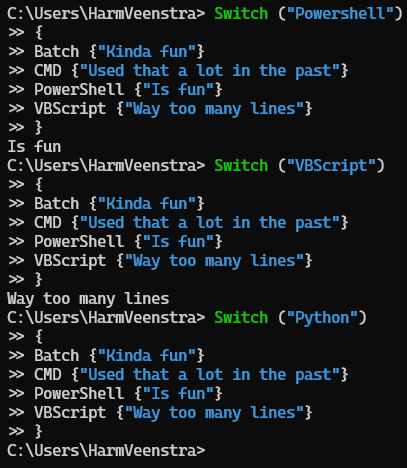
Comparing multiple values to multiple conditions
But you can also check multiple values at once to multiple conditions. It will return or do anything you specify in the brackets for that condition. For example:

In the example above, it checked for PowerShell (Which returned “Is fun”), Python (Which returned nothing because there was no condition for that), and VBScript (Which returned “Way too many lines”)
Using Break to stop checking all values or conditions
Default Switch will check all conditions from top to bottom, which might not be what you want. That could be for performance reasons and to keep it from checking multiple values if supplied. In the example below, I added a break for the PowerShell condition to make it stop checking the other two values (Python and VBScript):

Switch Parameters
The Switch statement also has Parameters, six in total:
CaseSensitive
Using Switch -CaseSensitive, you can check for the case sensitivity of a value. For example:
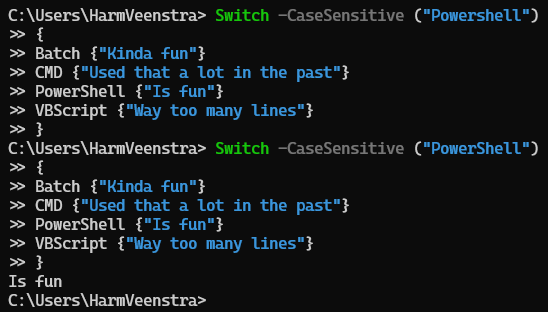
The first Switch statement returned nothing because of the –CaseSensitive Parameter and incorrect spelling of PowerShell with only a capital P. The second Switch –CaseSensitive statement returned “Is fun” because the S was capitalized also.
Exact
This Exact parameter doesn’t need to be specified because the value must match the specified conditions exactly by default. For example:

The first Switch -Exact statement returned nothing because PowerShell was spelled PowerShell (Missing the last letter “l”). The second Switch -Exact statement returned “Is fun” because it was correctly spelled.
File
The File Parameter can specify a file containing the values that should be checked against the conditions. For example:

In the example above, I created a file containing three separate lines. (PowerShell, Python, and VBScript) The Switch -File statement read the file’s contents, matched that against the conditions, and returned “Is Fun” and “Way too many lines”.
Note: Each line of the file is read and evaluated by the Switch statement. The comparison is case-insensitive.
Parallel
The Parallel Parameter is reserved for future use. I tried using it, hoping it would run things in parallel (As PS7 can do for Foreach (See here for more information)), but no 🙂
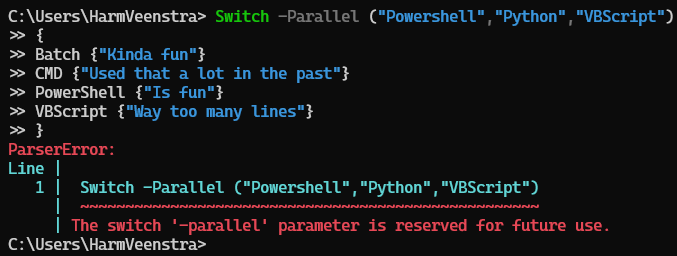
RegEx
The RegEx Parameter can be used to check the value against RegEx conditions. I copied and changed the example below using the help document from Microsoft Learn:
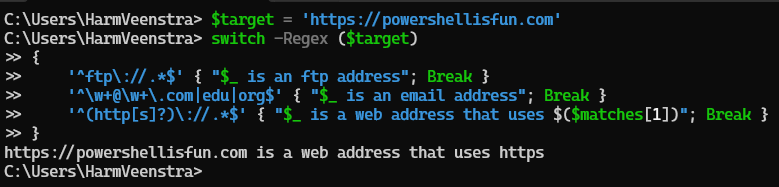
In the example above, the Switch -RegEx checks the RegEx conditions and returns “https://powershellisfun.com is a web address that uses https” because of that.
Wildcard
The Wildcard parameter can obviously be used to match the value in the conditions. For example:

The Switch-Wildcard returned “Is fun” and “Way too many lines” because PowerShell was matched because of the Power* condition (Matching is to anything starting with Power and followed by any amount of characters), and VBScript was matched because of VBScrip? condition. (Matching it to anything beginning with VBScrip and any last character specified by the question mark)
Wrapping up
In the chapters above, I showed you how to use the Switch statement with single or multiple values matching one or more conditions. The six Parameters (Actually five because one is for future use 😉 ) are excellent for matching conditions in a case-sensitive, wildcard, exact, RegEx way, or even from reading values from a file.
You can use any action in the condition enclosed by the brackets; in the examples above, I used a string to display which condition the value hit.
Using Switch is not faster, but your code looks better than multiple If statements, in my opinion :). Have a lovely weekend!