
Using clear-text passwords in PowerShell scripts is, of course, a bad thing to do. But sometimes, you need to use credentials in a script to connect to a server, service, etc. In this blog post, I will show you how you can use Export/Import-Clixml to do that.
What is Export/Import-Clixml?
“The Import-Clixml cmdlet imports objects that have been serialized into a Common Language Infrastructure (CLI) XML file. A valuable use of Import-Clixml on Windows computers is to import credentials and secure strings that were exported as secure XML using Export-Clixml“
and
“The Export-Clixml cmdlet serialized an object into a Common Language Infrastructure (CLI) XML-based representation stores it in a file. You can then use the Import-Clixml cmdlet to recreate the saved object based on the contents of that file. For more information about CLI, see Language independence.
This cmdlet is similar to ConvertTo-Xml, except that Export-Clixml stores the resulting XML in a file. ConvertTo-XML returns the XML, so you can continue to process it in PowerShell.
A valuable use of Export-Clixml on Windows computers is to export credentials and secure strings securely as XML”
Source: https://learn.microsoft.com/en-us/powershell/module/microsoft.powershell.utility/import-clixml?view=powershell-7.4 and https://learn.microsoft.com/en-us/powershell/module/microsoft.powershell.utility/export-clixml?view=powershell-7.4 .
How does it work?
Export-Clixml allows you to export credentials to an encrypted file, which can only be decrypted by the user who encrypted it on the same machine that it was created on. This makes it a safe(r) way to store and retrieve those credentials using Import-Clixml without adding them in clear text inside a script. (Another option is using the SecretManagement module I wrote about here.)
Export-Clixml
In the example below, I use Export-Clixml to encrypt my test.local\Administrator account to the c:\scripts\administrator.cred file:
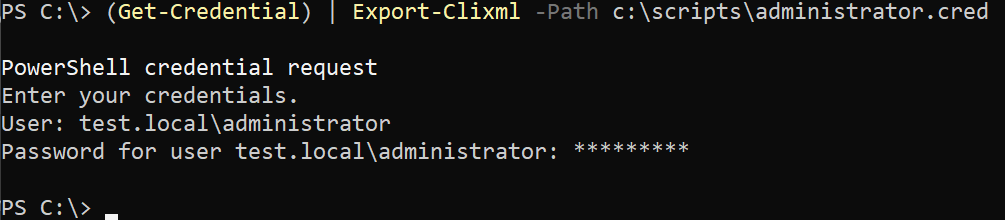
After the export using Export-Clixml, the file contents will look like this:

Import-Clixml
Now, you might think that if you have the file… You can use it to start processes as the test.local\administrator account using that administrator.cred file when you’re logged in as another account on any machine in the test.local domain. Well… That’s the beauty of it: it’s bound to the account and the machine on which the encrypted file was created.
In the example below, I try to use the file while logged in as test.local\administrator to run powershell_ise.exe, and it throws an error that it can’t decrypt the file because the test.local\psif account encrypted the file and can’t be decrypted by the test.local\administrator account even though it’s on the same machine. (It will also not work when you use the file on another machine using the test.local\psif account.)

In the example below, I use the same c:\scripts\administrator.cred file while logged in with the test.local\psif account on the machine that the file was created on, and it opens the powershell_ise.exe process because of that:
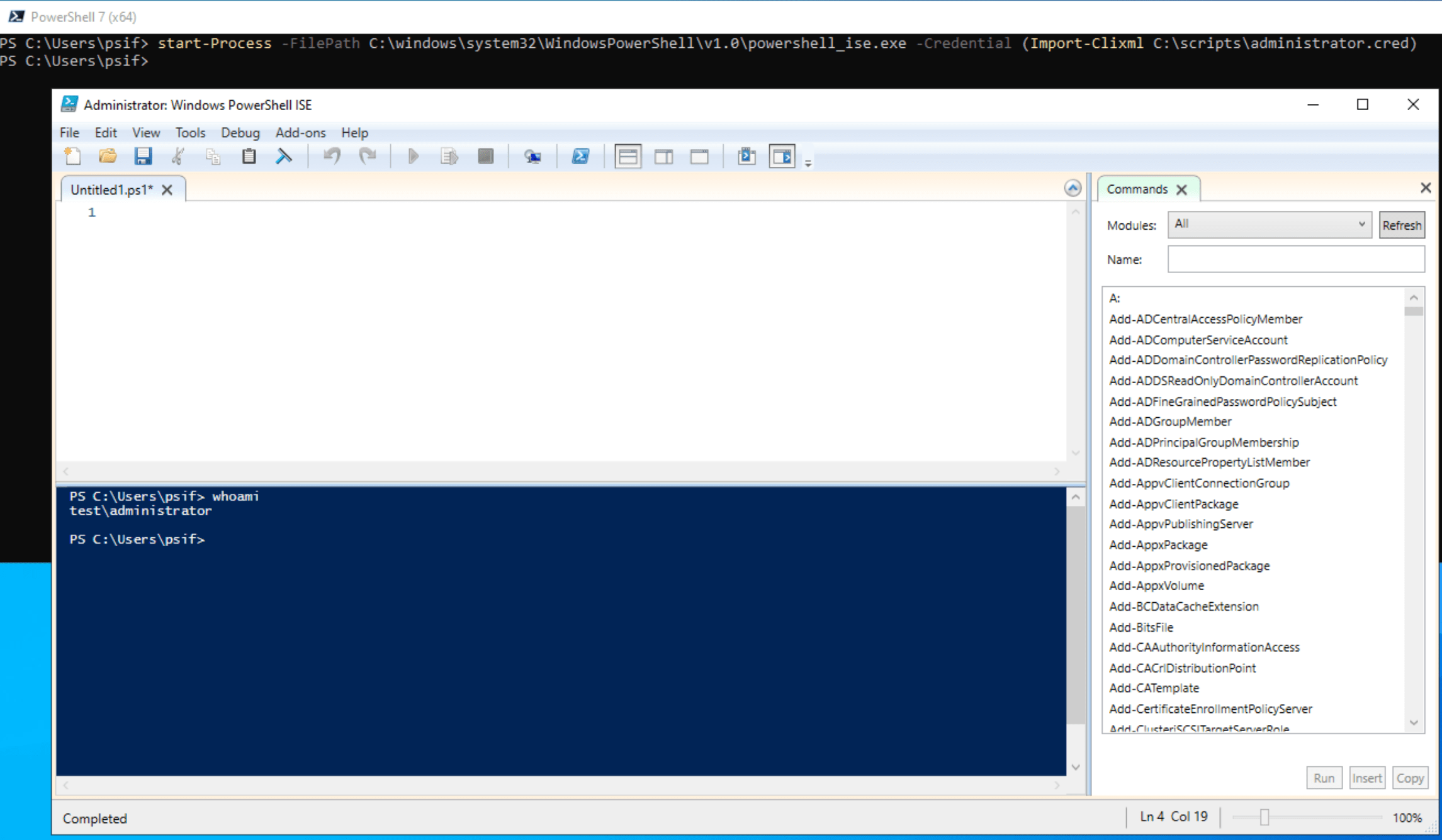
And, as you can see, running whoami shows that PowerShell ISE is running as test\administrator.
Wrapping up
In the chapters above, I showed you how to use Export-Clixml to save credentials to a file, which can only be used by the account that created the file on the machine where the file was created. This makes creating a PowerShell script that uses Import-Clixml to import that file easily. You can use a service account to create that file and that same account to run a Scheduled Task on that server to run the PowerShell script.
If you want to learn more about this, please check the links in the first chapter. Have a lovely weekend!