
Every Windows device has PowerShell installed by default. (Sadly, it’s still only version 5, not version 7.) However, you want to configure the devices’ security and log settings. In this blog post, I will show you how to do that using Microsoft Intune or Group Policy.
What settings are available?
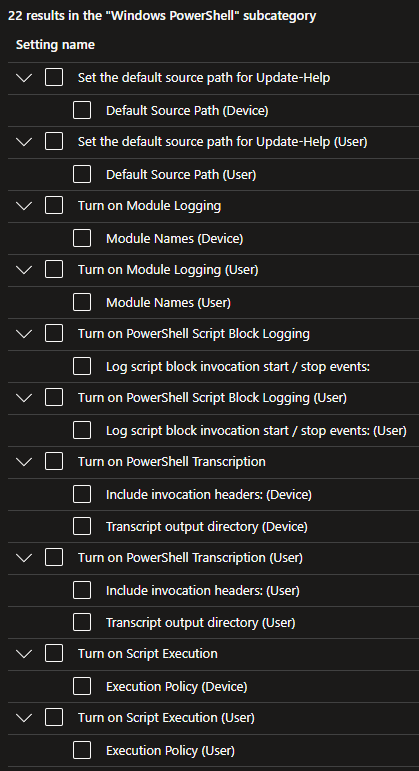
These are the available settings for Intune, and most are available for both Device and User:
For Group Policy, it depends. For Windows PowerShell (Version 5), these settings are available for both Computer and User Configuration:
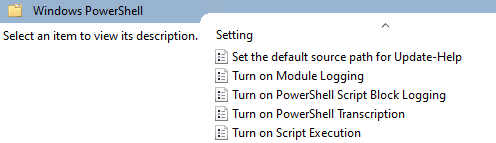
However, for PowerShell version 7, you must add the .admx and .adml files to your “\\domain. name\SYSVOL\domain. name\PolicyDefinitions” folder (.admx goes there, .adml goes in the en-US subfolder), which can be found in the “C:\Program Files\PowerShell\7” folder.

After adding those files, the Group Policy Editor will (Both for Computer and User Configuration) show you a PowerShell Core option:

Creating the policy
Group Policy
After adding the .admx and .adml files (See chapter above), you can follow these steps to create a Group Policy for the PowerShell configuration settings:
- Start the Group Policy Management console(Start, Run, gpmc.msc)
- Expand your Forest, Domains, Domain, and Group Policy Objects
- Right-click Group Policy Objects and select New
- Enter PowerShell Configuration as Name and click OK
- (Optionally) Select the Details tab and change the GPO status to either Enabled (Default), Computer configuration settings disabled, or User configuration settings disabled
- Right-click the PowerShell Configuration Group Policy and select Edit
You can start configuring settings, which are explained in the chapter below. You can link the Group Policy to your OU structure or Domain when done.
Microsoft Intune
You can add a Device Configuration profile to Microsoft Intune by following these steps:
- Go to Devices – Microsoft Intune admin center
- Click Create, select New Policy
- Select Windows 10 and later, select Settings Catalog and click Create
- Enter PowerShell Configuration as name, enter a Description if needed, and click Next
- Click Add settings, enter PowerShell in the Search for a setting bar, and click Search
- Select Administrative Templates\Windows Components\Windows PowerShell, and click Select all these settings
The settings will appear on the left, and you can configure them by using the slider to switch from Disabled to Enabled. The settings are explained in the chapter below. When done, follow these steps to complete the policy’s creation.
- Click Next
- Select a scope tag if needed and click Next
- Assign the policy to a group, exclude a group if required, and click Next
- Check the settings and click Create to finish
Available settings
Console session configuration
You can use this to specify a configuration endpoint in which PowerShell is run so that the device or user has specific role capabilities. More about that here.
Set the default source path for Update-Help
You can configure a path to store the help files when using Update-Help. The default location is in the DocumentsPowerShellHelp folder in your OneDrive or module folders. You can do this for both the Device and the user. In Group Policy, you can also select PowerShell Core/7 to follow the settings from Windows PowerShell version 5.
Turn on Module Logging
This setting for pipeline execution events is off by default, but you can turn it on for the whole system or the user in Microsoft Intune and specify what modules should be logged. In Group Policy, you can configure it to follow the Windows PowerShell version 5 settings or enable it to log specific modules for both Computer and User Configuration.
Turn on PowerShell Script Block Logging
This will enable logging all PowerShell script input into the Microsoft-Windows-PowerShell/Operational event log. If you enable this policy setting,
PowerShell Core/7 will log the processing of commands, script blocks, functions, and scripts—whether invoked interactively or through automation. When this setting is enabled, you can also configure Log script block invocation start/stop events. In Group Policy, you can select PowerShell Core/7 to follow the settings from Windows PowerShell version 5. The setting can be applied to both Computer and User Configuration.
Turn on PowerShell Transcription
This policy setting lets you capture the input and output of Windows PowerShell commands into text-based transcripts. If you enable this policy setting, Windows PowerShell will enable transcripting for Windows PowerShell, the Windows PowerShell ISE, and any other applications that leverage the Windows PowerShell engine. By default, Windows PowerShell will record transcript output to each users’ My Documents directory, with a file name that includes ‘PowerShell_transcript’, along with the computer name and time started. Enabling this policy is equivalent to calling the Start-Transcript cmdlet on each Windows PowerShell session. The setting can be applied to both Computer and User Configuration. You can also select “add Include invocation headers” to make the logging even more complete.
If you use the OutputDirectory setting to enable transcript logging to a shared location, limit access to that directory to prevent users from viewing the transcripts of other users or computers.
Turn on Script Execution
With this setting, you can configure the Execution-Policy of the scripts for either the device or the user. (Or both, but the device settings win). In Group Policy, you can configure it to follow the Windows PowerShell version 5 settings. Available settings are:
- Allow only signed scripts (This will require you to sign all scripts)
- Allow local scripts and remote signed scripts; this will allow local scripts to be run, and a trusted publisher must sign other scripts.
- Allow all scripts
Without configuring this, the default setting is “Allow local scripts and remote signed scripts.”
Constrained Mode
With the default Group Policy and Settings Catalog, you can’t configure Constrained Mode. If you want to configure this, then you can follow the steps below to configure that Intune or Group Policy:
Group Policy
- Start the Group Policy Management console(Start, Run, gpmc.msc)
- Expand your Forest, Domains, Domain, and Group Policy Objects
- Right-click the PowerShell Configuration Group Policy and select Edit (Assuming you already created that Group Policy in the previous chapter)
- Expand Computer Configuration, Preferences, Windows Settings
- Right-Click Environment, select New, Environment Variable
- Selecte Update for Action, System Variable and add __PSLockdownPolicy with a value of 4 and click Ok
Source: https://techexpert.tips/windows/gpo-powershell-constrained-mode/
Microsoft Intune
- Created a .ps1 script file containing (One line)
reg add “HKLM\System\CurrentControlSet\Control\Session Manager\Environment” /v “__PSLockDownPolicy” /t reg_SZ /d “4” /f - Go to Devices – Microsoft Intune admin center
- Click Add, select Windows 10 and later
- Enter PowerShell Constrained Mode as name, enter a Description if needed, and click Next
- Click the folder icon, browse to the .ps1 file you just created
- Make sure that Run this script using the logged on credentials is configured for Yes, Enforce script signature check for No, and Run script in 64 bit PowerShell Host to No
- Select Next
- Select a scope tag if needed and click Next
- Assign the policy to a group, exclude a group if required, and click Next
- Check the settings and click Create to finish
This script will run once on every system that you assign it to. If you want to revert the change, create a new .ps1 script file containing (One line)
reg add “HKLM\System\CurrentControlSet\Control\Session Manager\Environment” /v “__PSLockDownPolicy” /t reg_SZ /d “0” /f . Add this to Intune like above and replace the existing script file in the Platform script with this one. (It will revert to FullLanguage again)
Wrapping up
I showed the options for configuring PowerShell on Intune or Group policy-managed devices, which will help secure the device and enable more PowerShell logging. Using Constrained mode, you can lock the systems down even further, but be aware: Things might break. Test this carefully!
Nice guide. Thank you.
How would you configure / enforce PowerShell Constrained Language Mode?
Nice addition, I just added that as well using Registry preference for Group Policy and Platform script for Intune. Thanks!