
Microsoft Graph can be difficult sometimes. There are loads of PowerShell Microsoft Graph Modules and cmdlets that require different permissions. In this blog post, I will show you how to query the permissions for a cmdlet, multiple cmdlets, or all cmdlets from a specific Microsoft Graph module.
What is Microsoft Graph?
“Microsoft Graph is the gateway to data and intelligence in Microsoft 365. It provides a unified programmability model that you can use to access the tremendous amount of data in Microsoft 365, Windows, and Enterprise Mobility + Security. Use the wealth of data accessible through Microsoft Graph to build apps for organizations and consumers that interact with millions of users.”
Source: https://learn.microsoft.com/en-us/graph/overview
What is the best practice for permissions?
You can read, delete, and update many things using Microsoft Graph regarding Entra ID, Microsoft 365 services, and Intune. When you connect to it, you can specify the scope of the connection. The scope will include the service you want to communicate with and whether it should be reading or writing. (And sometimes on different levels, too… Read basic information, read all information, etc.) The best practice is to connect with the least amount of permissions; the security team will love you for that, and you won’t break things unintentionally 😉
What does the script do?
In a previous blog post, I showed you how you could determine the permissions in a few ways. Some cmdlets can help you, as mentioned in that blog post, but this script will make it easier to search through permissions for one or more cmdlets or complete modules. It can output the information to your screen in three ways (In your console using a Format-Table, in a pop-up Out-GridView way (Using PowerShell_ISE), or a TUI (Terminal User Interface) using Out-ConsoleGridView (Which only works in PowerShell version 7)
The script has a few parameters which you can use:
- All: This will query all your installed Microsoft Graph PowerShell modules and retrieve all the permissions from all cmdlets. Be aware: This will take a long time!
- Cmdlet: You can specify one cmdlet, namely, -Cmdlet Search-MgUserDrive, for example, or multiple by separating them with a comma: -Cmdlet Search-MgUserDrive, Invoke-MgTimeUserOutlook, for instance. Also, wildcards are allowed in the cmdlet names.
- Filename: You can specify a path to export the results to a .csv or .xlsx file. For example, -Filename c:\data\graphpermissions.xlsx will save it to that location in an Excel format. Note: Existing files will be appended!
- Module: You can specify one module, namely, -Module Microsoft.Graph.Calendar, for example, or multiple separating them with a comma: -Module Microsoft.Graph.Calendar, Microsoft.Graph.Users.Functions, for example. Also, wildcards are allowed in the module names.
- Output: This parameter has three tab-complete options: Console, ConsoleGridView, and GridView. For example, -Output ConsoleGridView will output the results to a TUI in your terminal.
Running the script
As a Function or a Script
I wrote it as a Function. This way, you can link it in your PowerShell profile like this for easy access in each PowerShell session that you start:
- Notepad $profile
- Add ". c:\scripts\Get-MicrosoftGraphPermissions.ps1" to the profile and save/quit
- Start a new PowerShell version, Get-MicrosoftGraphPermissions is now available to use.
Alternatively, you can remove the first line (“function Get-MicrosoftGraphPermissions {“) and the last line (“}) and save it like that. By doing so, you can call it a regular .ps1 file with parameters like this, for example:
c:\scripts\Get-MicrosoftGraphPermissions.ps1 -Module Microsoft.Graph.Users.Functions -Output GridView
Using the -All parameter
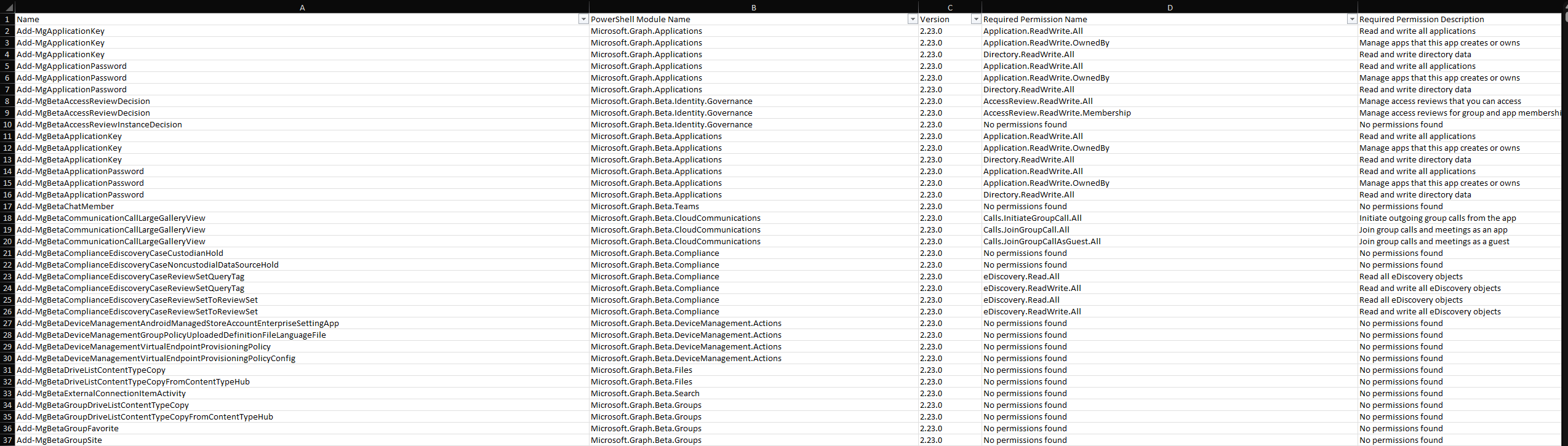
In this example, I combined the -All parameter with the -Filename parameter to save the results to c:\temp\All Microsoft Graph Permissions.xlsx. This took over an hour and a half on my AMD 7840U 8-Core CPU/64Gb RAM machine. The result is an Excel sheet with 37K lines but only 1Mb in size 😛 (Not very efficient, apparently). I stored the Excel sheet next to the script on my GitHub Page, so you don’t have to export them all (But the cmdlets and permissions will change, eventually, and the sheet will be outdated)
Using the -Cmdlet parameter
In this example, I used the -Cmdlet parameter to search for the permissions of two cmdlets, which were returned to the console as the default option because I didn’t specify the -Output parameter:

The columns show the name, module, version, permission name, and descriptions. Not all return permissions; if that’s the case, they will be filled with “No permission found.”
Using the -Filename parameter
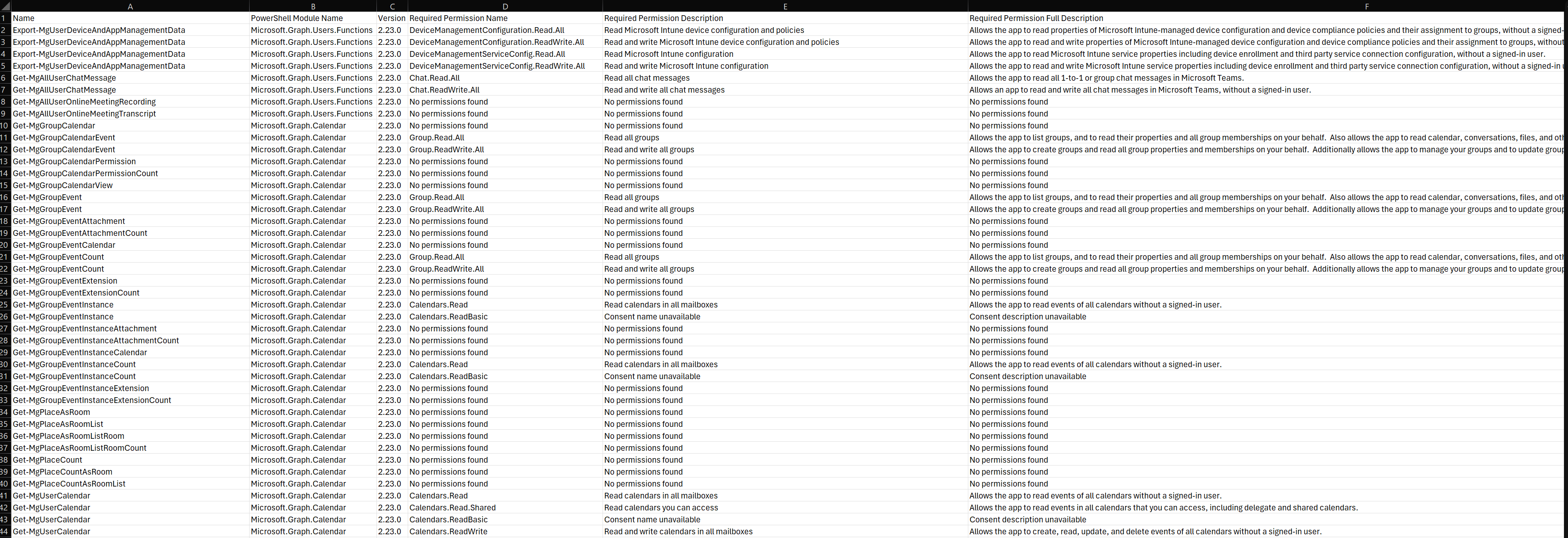
This will export the results to the specified filename, check if the file ends with .csv or .xlsx, and output it in that format. If you don’t have the ImportExcel module installed created by Doug Finke, the script will do that for you. For example, this is how it looks when exported to a .csv file:
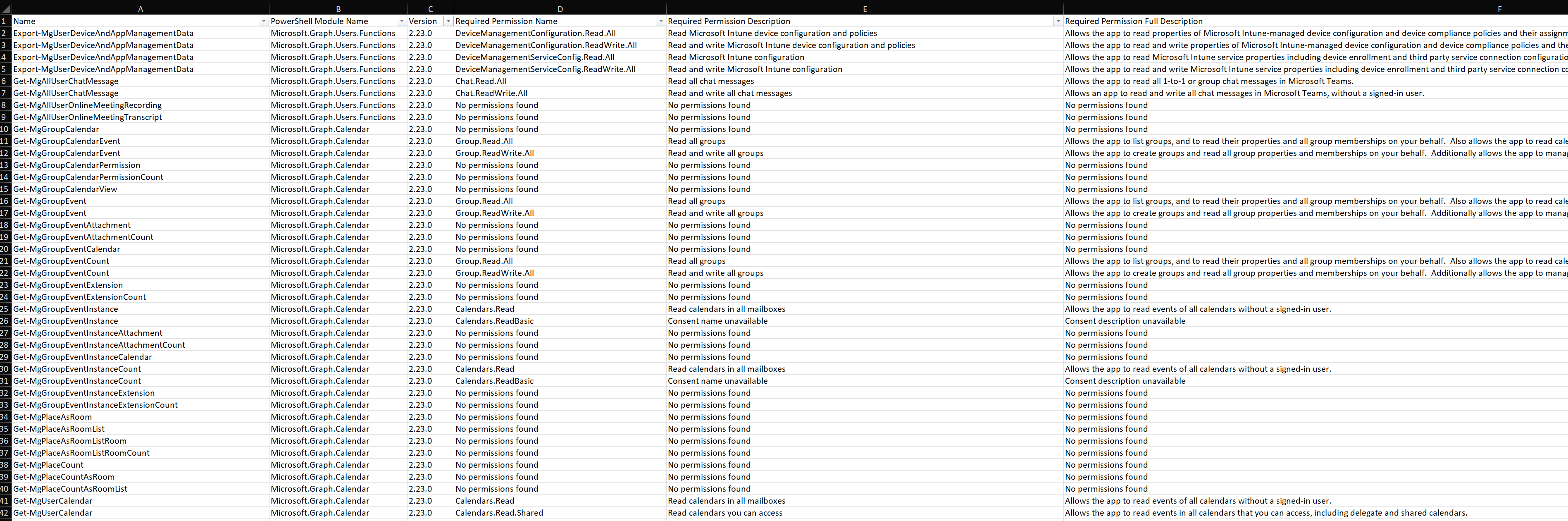
It will look like this when exported to an Excel file with AutoFilter and AutoSize turned on when exporting it:
Using the -Module parameter
You can specify one or more modules of which all cmdlets will be checked for the required Microsoft Graph Permissions. In the example below, I used the -Module parameter to search for two modules and their cmdlet permissions. (If a lot of cmdlets are searched, you will see a progress bar)

As you can see, both modules were searched for their cmdlets, and the details are shown. The Full Description column is wrapped using Format-Table -AutoSize -Wrap, but it is sometimes not easy to read. That’s why there are Output formats like those mentioned in the next chapter, and the Filename option is there 😉
Using the three -Output parameters
You can output the information to your screen using the three different -Output options. The Console option is the default, but as seen in the screenshot above… It’s not always nicely formatted…
Next to the default Output Console option are the -Output ConsoleGridView and -Output GridView options. For example, the ConsoleGridView option will look like this: (Note: Works only in PowerShell 7; it will automatically install the Microsoft.PowerShell.ConsoleGuiTools PowerShell module if needed.)
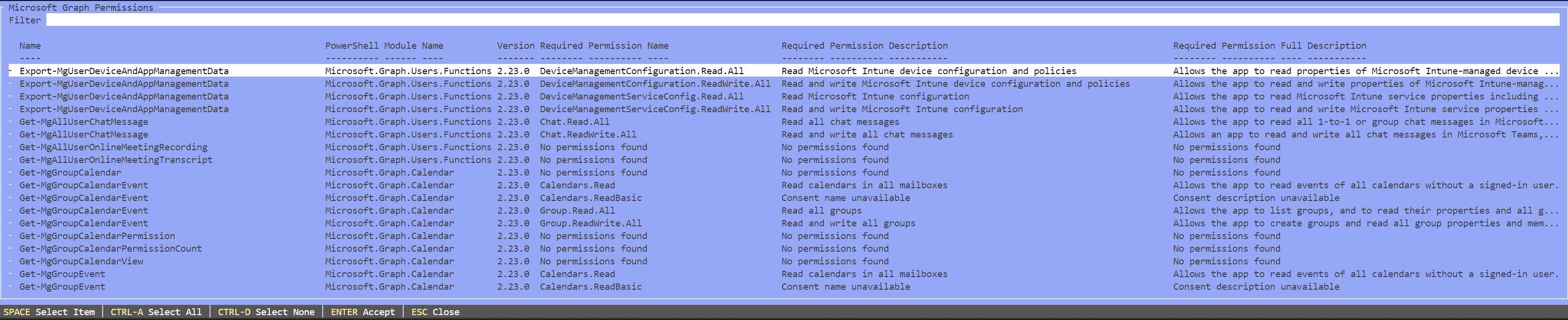
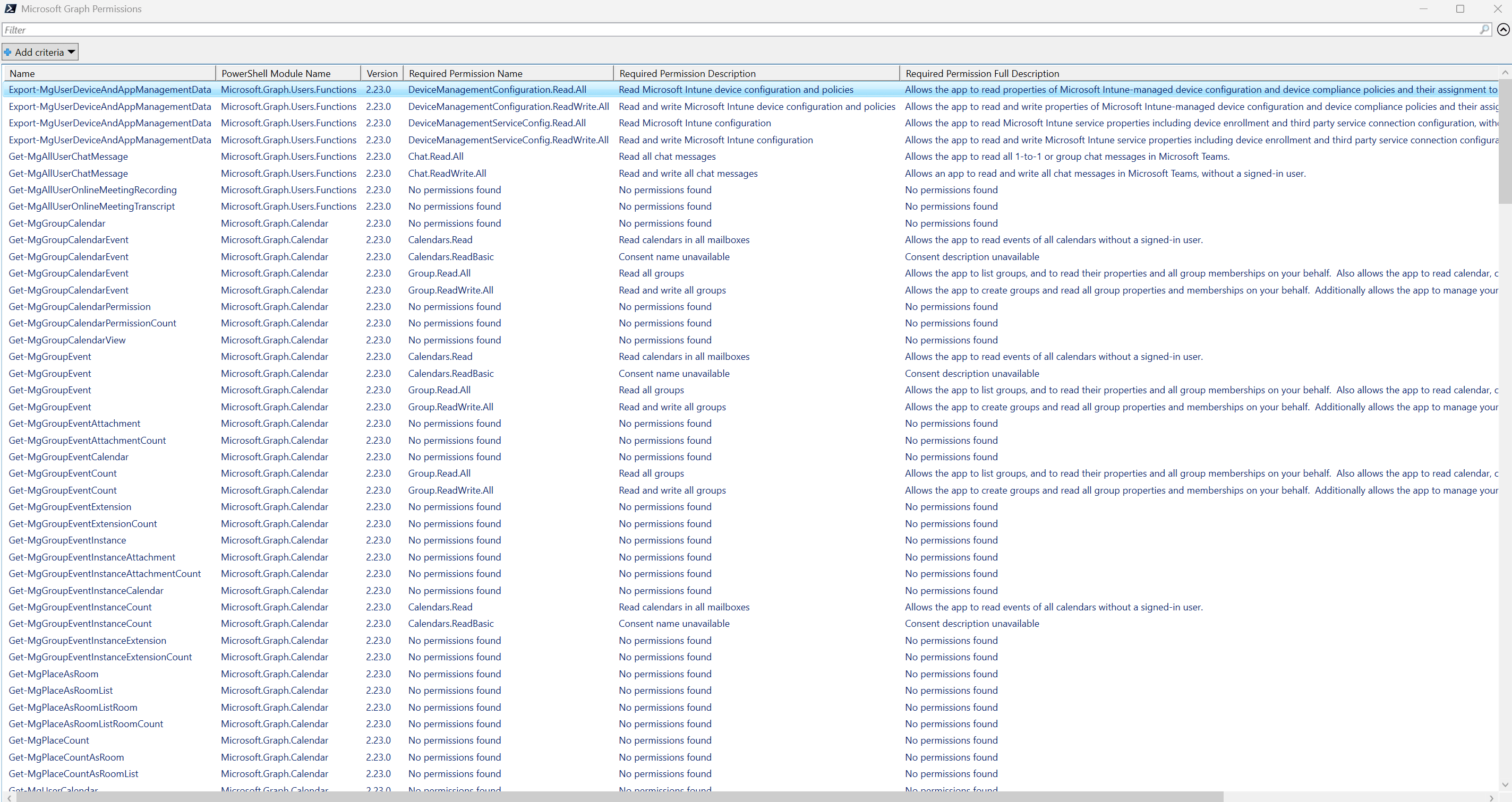
And with the GridView option, it will look like this and is easier to scroll and resize:
Wrapping up
In this blog post, I showed you how to quickly retrieve the required Microsoft Graph permissions for the cmdlets you want to use. The different output options, especially the ones that output to your console or in a TUI, are my favorite 🙂 (Not having to switch to another window is always lovely, IMHO)
The script
The script’s contents are below. Save it somewhere and run it, or add it to your PowerShell profile.
function Get-MicrosoftGraphPermissions {
    param (
        [parameter(Mandatory = $false, ParameterSetName = 'All')][switch]$All,
        [Parameter(Mandatory = $false, ParameterSetName = 'Cmdlet')][String[]]$Cmdlet,
        [Parameter(Mandatory = $false)][string]$Filename,
        [Parameter(Mandatory = $false, ParameterSetName = 'Module')][String[]]$Module,
        [Parameter(Mandatory = $false)][validateset('Console', 'ConsoleGridView', 'GridView')][string]$Output = 'Console'
    )

    #Check if required modules are installed for when using ConsoleGridView or XLSX
    if ($Output -eq 'ConsoleGridView') {
        if ($host.Version.Major -eq 7) {
            if (-not (Get-Module Microsoft.PowerShell.ConsoleGuiTools -ListAvailable)) {
                try {
                    Install-Module Microsoft.PowerShell.ConsoleGuiTools -Scope CurrentUser -ErrorAction Stop
                    Import-Module Microsoft.PowerShell.ConsoleGuiTools -ErrorAction Stop
                    Write-Host ('Installed missing PowerShell Module Microsoft.PowerShell.ConsoleGuiTools which is needed for ConsoleGridView output') -ForegroundColor Green
                }
                catch {
                    Write-Warning ('Could not install missing PowerShell Module Microsoft.PowerShell.ConsoleGuiTools which is needed for ConsoleGridView output, exiting...')
                    return
                }
            }
        }
        else {
            Write-Warning ('The ConsoleGridView parameter only works on PowerShell v7, version {0} was found. Exiting...' -f $host.Version.Major)
            return
        }
    }

    #Build list of cmdlet(s) or all Microsoft Graph cmdlets to query
    if ($all) {
        $cmdlets = foreach ($item in (Get-Module Microsoft.Graph* -ListAvailable | Where-Object ModuleType -NE Manifest).ExportedCommands.Values) {
            [PSCustomObject]@{
                'Name'                   = $item.Name
                'PowerShell Module Name' = $item.Source
                'Version'                = $item.Version
            }
        }
        if ($null -eq $cmdlets) {
            Write-Warning ('No Microsoft Graph Modules were not found, exiting...')
            return
        }
    }

    if ($Cmdlet -and -not $all) {
        try {
            $cmdlets = foreach ($item in Get-Command $cmdlet -ErrorAction Stop) {
                [PSCustomObject]@{
                    'Name'                   = $item.Name
                    'PowerShell Module Name' = $item.Source
                    'Version'                = $item.Version
                }
            }
        }
        catch {
            Write-Warning ('One or more specified Cmdlets are not found, exiting...')
            return
        }
    }

    if ($Module) {
        if (Get-Module $Module -ListAvailable) {
            $cmdlets = foreach ($item in (Get-Module $Module -ListAvailable | Where-Object ModuleType -NE Manifest).ExportedCommands.Values) {
                [PSCustomObject]@{
                    'Name'                   = $item.Name
                    'PowerShell Module Name' = $item.Source
                    'Version'                = $item.Version
                }
            }
        }
        else {
            Write-Warning ('One or more Module names were specified but not found, exiting...')
            return
        }
    }

    #Build the $report variable containing all cmdlets and the required permissions
    #Show a Progress bar it there more than 1 cmdlets to be processed
    if ($cmdlets.Name.Count -gt 0) {
        [int]$processed = '1'
        $total = foreach ($item in $cmdlets | Select-Object Name, 'PowerShell Module Name', Version -Unique) {
            if ($cmdlets.count -gt 1) {
                Write-Progress ('Processing cmdlets...') -PercentComplete (($processed * 100) / $cmdlets.count) -Status "$(([math]::Round((($processed)/$cmdlets.count * 100),0))) %"
            }
            foreach ($command in Find-MgGraphCommand -Command $item.Name -ErrorAction SilentlyContinue | Select-Object -First 1) {
                if ($command.permissions.Length -gt 0) {
                    foreach ($permission in $command.permissions) {
                        [PSCustomObject]@{
                            'Name'                                 = $item.Name
                            'PowerShell Module Name'               = $item.'PowerShell Module Name'
                            'Version'                              = $item.Version
                            'Required Permission Name'             = $permission.Name
                            'Required Permission Description'      = $permission.Description
                            'Required Permission Full Description' = $permission.FullDescription
                        }
                    }
                }
                else {
                    [PSCustomObject]@{
                        'Name'                                 = $item.Name
                        'PowerShell Module Name'               = $item.'PowerShell Module Name'
                        'Version'                              = $item.Version
                        'Required Permission Name'             = 'No permissions found'
                        'Required Permission Description'      = 'No permissions found'
                        'Required Permission Full Description' = 'No permissions found'
                    }
                }
            }
            $processed++
        }

        #If $total has items, output it to display or file
        if ($null -ne $total) {

            #Display $total to the chosen $ouput value if $FileName was not used
            if ($Output -and -not $Filename) {
                switch ($Output) {
                    Console { $total | Sort-Object Name, 'PowerShell Module Name', Version, 'Required Permission Name' | Format-Table -AutoSize -Wrap }
                    ConsoleGridView { $total | Sort-Object Name, 'PowerShell Module Name', Version, 'Required Permission Name' | Out-ConsoleGridView -Title 'Microsoft Graph Permissions' }
                    GridView { $total | Sort-Object Name, 'PowerShell Module Name', Version, 'Required Permission Name' | Out-GridView -Title 'Microsoft Graph Permissions' }
                }
            }

            #Export to file if $FileName was specified
            if ($Filename) {
                if ($Filename.EndsWith('csv')) {
                    try {
                        $total | Sort-Object Name, 'PowerShell Module Name', Version, 'Required Permission Name' | Export-Csv -Path $Filename -Encoding UTF8 -NoTypeInformation -Delimiter ';' -Append:$true -Force:$true -ErrorAction Stop
                        Write-Host ('Exported Microsoft Graph Permissions to {0}' -f $Filename) -ForegroundColor Green
                    }
                    catch {
                        Write-Warning ('Could not write {0}, check path and permissions. Exiting...' -f $Filename)
                        return
                    }
                }
                if ($Filename.EndsWith('xlsx')) {
                    if (-not (Get-Module ImportExcel -ListAvailable)) {
                        try {
                            Install-Module ImportExcel -Scope CurrentUser -ErrorAction Stop
                            Import-Module ImportExcel -ErrorAction Stop
                            Write-Host ('Installed missing PowerShell Module ImportExcel which is needed for XLSX output') -ForegroundColor Green
                        }
                        catch {
                            Write-Warning ('Could not install missing PowerShell Module ImportExcel which is needed for XLSX output, exiting...')
                            return
                        }
                    }
                    try {
                        $total | Sort-Object Name, 'PowerShell Module Name', Version, 'Required Permission Name' | Export-Excel -Path $Filename -AutoSize -AutoFilter -Append:$true -ErrorAction Stop
                        Write-Host ('Exported Microsoft Graph Permissions to {0}' -f $Filename) -ForegroundColor Green
                    }
                    catch {
                        Write-Warning ('Could not write {0}, check path and permissions. Exiting...' -f $Filename)
                        return
                    }
                }
            }
        }
    }
    else {
        Write-Warning ('Specified cmdlets were not found / or no cmdlets found in the specified module(s), exiting...')
        return
    }
}
Download the script(s) and the Excel file from GitHub here.