
I posted my Windows Terminal this week on social media channels, including LinkedIn, and received some responses about the login banner screen. In this blog post, I will show you an easy way to pimp your PowerShell Console 😉
What is ASCII Art?
“ASCII art is a graphic design technique that uses computers for presentation and consists of pictures pieced together from the 95 printable (from a total of 128) characters defined by the ASCII Standard from 1963 and ASCII compliant character sets with proprietary extended characters (beyond the 128 characters of standard 7-bit ASCII). The term is also loosely used to refer to text-based visual art in general. ASCII art can be created with any text editor, and is often used with free-form languages. Most examples of ASCII art require a fixed-width font (non-proportional fonts, as on a traditional typewriter) such as Courier for presentation.”
Resouce: https://en.wikipedia.org/wiki/ASCII_art
How does my login banner look?
The one that I use currently is pretty basic compared to the other examples I received in the comments of my post, but it looks like this:

How to create and use your own ASCII Art
There are a few ways that you can use in the chapters below.
Using asciiart.eu
This was the first one I found, and it was pretty basic. I used https://www.asciiart.eu/text-to-ascii-art, where I typed in “PowerShell is fun!” followed by Copy to Clipboard. Then I started a new PowerShell session, ran notepad $profile, typed two ” signs, and pasted the copied ASCII art between it like this:

Afterward, I saved the profile and started a new session, as in the picture of the start of this chapter. You can use the same site to create other ones with different borders, comment styles, fonts, sizes, etc.
You can also use the image to ASCII converter, I used that to convert a PowerShell Logo picture, and that looked like this after adding it to my profile:

The image should be as clean as simple as possible, more complex pictures will not give that great of a result 🙂
Using the WriteAscii PowerShell Module
Joakim Svendsen wrote the WriteAscii module, which outputs text to ASCII art from the command line. Install it using Install-Module WriteAscii, and you can create ASCII text like this:
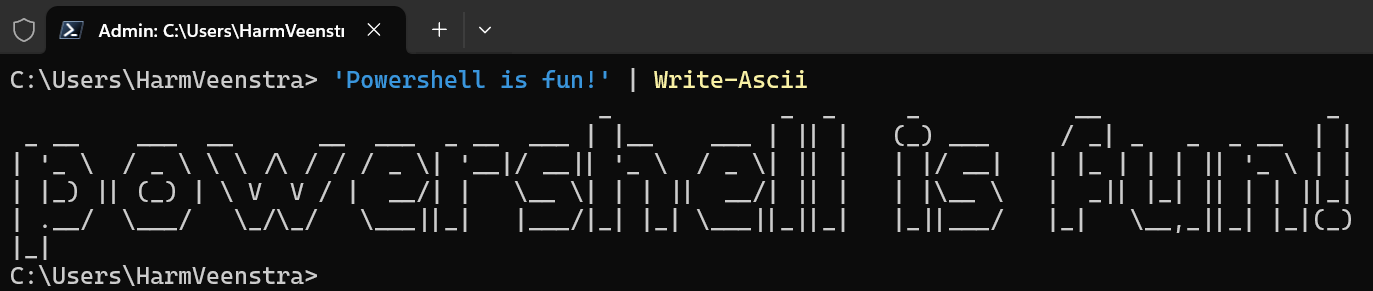
It has a few parameters that you can use as well:
- PrependChar: This makes the script prepend an apostrophe.
- Compress: Align text correctly if needed
- ForegroundColor: You can specify the foreground color of the text or rainbow
- BackgroundColor: You can specify the background color of the text
Using the Compress and ForeGroundColor parameters, it looks like this, for example:
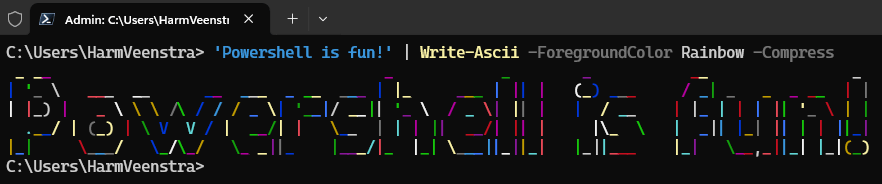
You can add the command to your PowerShell profile by running notepad $Profile and adding ‘Powershell is fun!’ | Write-Ascii -ForegroundColor Rainbow -Compress, for example.
Wrapping up
In this blog post, I showed a simple way to show some ASCII art to your terminal when you start it. I’m curious about your results. Have a lovely weekend!