
Sometimes, you have to compare specific values in your PowerShell output, and although you can stare at your screen to do that… You can also use Compare-Object. In this blog post, I will show you how it works and how it makes things a lot easier 🙂
What is Compare-Object?
“The Compare-Object cmdlet compares two sets of objects. One set of objects is the reference, and the other set of objects is the difference.
Compare-Object checks for available methods of comparing a whole object. If it can’t find a suitable method, it calls the ToString() methods of the input objects and compares the string results. You can provide one or more properties to be used for comparison. When properties are provided, the cmdlet compares the values of those properties only.”
Aliases
These are two aliases for Compare-Object that might be familiar to you:
- Compare
- Diff
But, as always, only use alias in the command line and not in scripts 🙂 #Readability
Parameters
Compare-Object has a set of Parameters which you can use:
CaseSensitive
Using this parameter makes it possible to switch to case sensitivity while comparing objects; PowerShell isn’t case-sensitive by default, allowing values to be checked based on case sensitivity.
Culture
You can use this to specify the culture, and it might be that the source object is in another culture than the destination object. Values are the ones you can retrieve from running, for example, nl-NL or en-US
[System.Globalization.CultureInfo]::GetCultures([System.Globalization.CultureTypes]::AllCultures).Name
DifferenceObject
This is the Parameter to specify the object that will be compared against the RefenceObject.
ExcludeDifferent
You can use this Parameter to show only the equal values instead of the different values.
IncludeEqual
The matches between the ReferenceObject and the DifferenceObject will be shown using this Parameter.
PassThru
When using this Parameter, Compare-Object omits the PSCustomObject wrapper around the compared object and will return unchanged objects.
Property
You can use this to specify an array of properties of the ReferenceObject and DifferenceObject instead of comparing all properties.
ReferenceObject
This Parameter will specify the array as the reference for comparing it with the DifferenceObject.
SyncWindow
This Parameter will specify the adjacent objects that Compare-Object inspects while checking for matches. This will speed up the process if Compare-Object doesn’t find the object in the same position inside a collection. However, using this might be less accurate!
Examples
Comparing values in a text file
In the example below, I compare the contents of two text files called a.txt and b.txt:

You can see the SideIndicator with an arrow indicator. => tells you that the value is only in the DifferenceObject, <= will indicate that the value is only in the ReferenceObject. If the IncludeEqual Parameter is used, == will suggest that the value exists in the ReferenceObject and the DifferenceObject.
Comparing simple objects
You can also compare simple objects like this:

This compares both strings (12345 and 67890) on the property Length. Both are 5 in Length, so the == SideIndactor is returned (Equal)
Comparing complex objects
You can also compare more complex objects; in the example below, I created a $before containing all the files of my Scripts folder. I then added “Test” to b.txt and stored all the files in $after. Comparing those two showed that the file was changed by the LastWriteTime object.

Output in a more readable format
The examples above are excellent for checking things that are changed, but you can make the output more readable by selecting more Properties and creating a PSCustomObject. For example, this script will output the same as above but more readable:
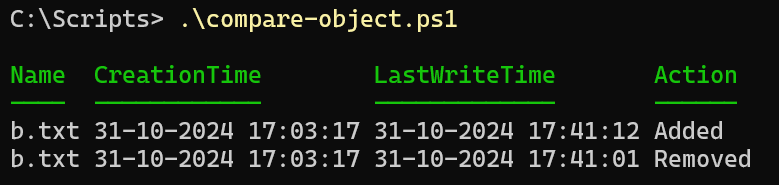
The script:
$before = Get-ChildItem
"test" | Out-File .\b.txt -Append
$after = Get-ChildItem
$compare = Compare-Object -ReferenceObject $before -DifferenceObject $after -Property Name, CreationTime, LastWriteTime
if ($null -ne $compare) {
    $differencetotal = foreach ($change in $compare) {
        if ($change.SideIndicator -match ">") {
            $action = 'Added'
        }
        if ($change.SideIndicator -match "<") {
            $action = 'Removed'
        }

        if ($change.SideIndicator -eq "==") {
            $action = 'Not changed'
        }

        [PSCustomObject]@{
            Name          = $change.name
            CreationTime  = $change.CreationTime
            LastWriteTime = $change.LastWriteTime
            Action        = $action
        }
    }
}

$differencetotal
Wrapping up
In the blog post, I showed how to use Compare-Object to check and report differences between objects; some scripts take it a few steps further, making it easier to check all objects instead of specifying them all beforehand. For example, check out this article from Jeffery Hicks https://jdhitsolutions.com/blog/powershell/8196/comparing-powershell-property-names/.