
I often encounter this issue. I dock my laptop at a customer’s location and start a Teams call with someone. No idea what audio device my microphone in Teams will be or what output device it will use, the built-in speakers of the monitor attached to the docking station? My Sony earplugs? In this small blog post, I will show you how you can search and disable a lot of (audio) devices at once using PowerShell 🙂
The PnPDevice Module
There is a PowerShell module called PnPDevice, which has a few cmdlets in it:

It’s a built-in module in PowerShell, and you can use the four cmdlets to disable, enable, and query your Plug And Play (PnP) devices.
Cmdlets and examples
Get-PnPDevice
Running this cmdlet will list all PnP devices on your system. For example:

The list is pretty big, on my system there were 866 items 😀 It has a few Parameters which you can use:
NAME
    Get-PnpDevice

SYNOPSIS
    Returns information about PnP devices.


SYNTAX
    Get-PnpDevice [[-InstanceId] <String[]>] [-AsJob] [-CimSession <CimSession[]>] [-Class <String[]>] [-PresentOnly] [-Status {OK | ERROR | DEGRADED | UNKNOWN}] [-ThrottleLimit <Int32>] [<CommonParameters>]

    Get-PnpDevice [-AsJob] [-CimSession <CimSession[]>] [-Class <String[]>] [-FriendlyName <String[]>] [-PresentOnly] [-Status {OK | ERROR | DEGRADED | UNKNOWN}] [-ThrottleLimit <Int32>] [<CommonParameters>]

    Get-PnpDevice [-AsJob] [-CimSession <CimSession[]>] [-Class <String[]>] [-PresentOnly] [-Status {OK | ERROR | DEGRADED | UNKNOWN}] [-ThrottleLimit <Int32>] [<CommonParameters>]

    Get-PnpDevice [-AsJob] [-CimSession <CimSession[]>] [-Class <String[]>] [-PresentOnly] [-ThrottleLimit <Int32>] [<CommonParameters>]

    Get-PnpDevice [-AsJob] [-CimSession <CimSession[]>] [-Status {OK | ERROR | DEGRADED | UNKNOWN}] [-ThrottleLimit <Int32>] [<CommonParameters>]


DESCRIPTION
    The Get-PnpDevice cmdlet returns basic information about Plug and Play (PnP) devices. The values returned are common to all devices.


PARAMETERS
    -AsJob [<SwitchParameter>]
        Runs the cmdlet as a background job. Use this parameter to run commands that take a long time to complete.

        Required?                    false
        Position?                    named
        Default value                False
        Accept pipeline input?       False
        Aliases                      none
        Accept wildcard characters?  false

    -CimSession <CimSession[]>
        Runs the cmdlet in a remote session or on a remote computer. Enter a computer name or a session object, such as the output of a New-CimSession (https://go.microsoft.com/fwlink/p/?LinkId=227967) or [Get-CimSession](https://go.mi
        crosoft.com/fwlink/p/?LinkId=227966)cmdlet. The default is the current session on the local computer.

        Required?                    false
        Position?                    named
        Default value                None
        Accept pipeline input?       False
        Aliases                      Session
        Accept wildcard characters?  false

    -Class <String[]>
        Specifies an array of PnP classes for devices. Some example values for this parameter are Monitor, DiskDrive, and Processor.

        Required?                    false
        Position?                    named
        Default value                None
        Accept pipeline input?       False
        Aliases                      none
        Accept wildcard characters?  false

    -FriendlyName <String[]>
        Specifies an array of friendly names for devices.

        Required?                    false
        Position?                    named
        Default value                None
        Accept pipeline input?       True (ByPropertyName)
        Aliases                      none
        Accept wildcard characters?  false

    -InstanceId <String[]>
        Specifies an array of unique instance ID of devices.

        Required?                    false
        Position?                    0
        Default value                None
        Accept pipeline input?       True (ByPropertyName)
        Aliases                      DeviceId
        Accept wildcard characters?  false

    -PresentOnly [<SwitchParameter>]
        Indicates that this cmdlet gets only those devices that are present when you issue the command. Present devices are physically in the system or attached to it.

        Required?                    false
        Position?                    named
        Default value                False
        Accept pipeline input?       False
        Aliases                      none
        Accept wildcard characters?  false

    -Status <String[]>
        Specifies an array of current status values of devices. The acceptable values for this parameter are:

        - OK

        - ERROR

        - UNKNOWN

        - DEGRADED

        Required?                    false
        Position?                    named
        Default value                None
        Accept pipeline input?       False
        Aliases                      none
        Accept wildcard characters?  false

    -ThrottleLimit <Int32>
        Specifies the maximum number of concurrent operations that can be established to run the cmdlet. If this parameter is omitted or a value of `0` is entered, then Windows PowerShell® calculates an optimum throttle limit for the c
        mdlet based on the number of CIM cmdlets that are running on the computer. The throttle limit applies only to the current cmdlet, not to the session or to the computer.

        Required?                    false
        Position?                    named
        Default value                None
        Accept pipeline input?       False
        Aliases                      none
        Accept wildcard characters?  false

    <CommonParameters>
        This cmdlet supports the common parameters: Verbose, Debug,
        ErrorAction, ErrorVariable, WarningAction, WarningVariable,
        OutBuffer, PipelineVariable, and OutVariable. For more information, see
        about_CommonParameters (https://go.microsoft.com/fwlink/?LinkID=113216).

INPUTS

OUTPUTS
    Microsoft.Management.Infrastructure.CimInstance#ROOT/Cimv2/Win32_PnPEntity[]
        The `Microsoft.Management.Infrastructure.CimInstance` object is a wrapper class that displays Windows Management Instrumentation (WMI) objects. The path after the pound sign (`#`) provides the namespace and class name for the u
        nderlying WMI object.


NOTES
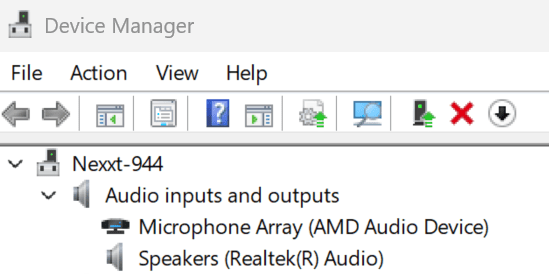
For example, running this will show all the current active audio devices on your system:

Which is the same as the output of Device Manager:
Disable-PnpDevice
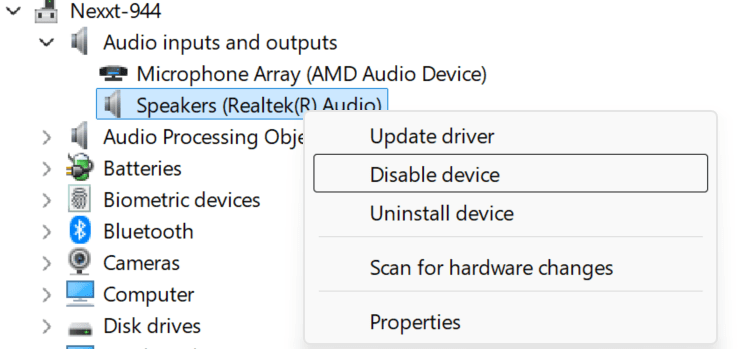
This will allow you to disable devices you don’t want to use. In the example below, I did a query for all present Audio Devices, filtered for “Realtek”, and disabled that afterwards using Disable-PnPDevice -Confirm:$false

The “Speakers (Realtek(R) Audio)” device is in an Error state now and no longer outputs audio. You can also use this to filter any connected device on your system and disable it, and the command line works faster than using Device Manager or the Settings panel:
or

Enable-PnpDevice
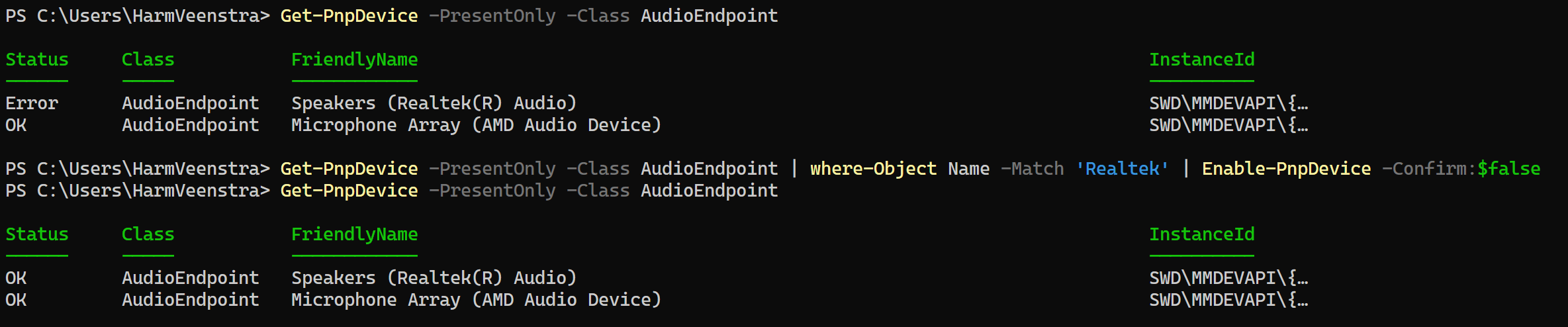
If you disabled the wrong device or want to enable it again, you can use the Enable-PnpDevice cmdlet. For example:
Get-PnpDeviceProperty
You can use this cmdlet to query the properties of a device, for example:
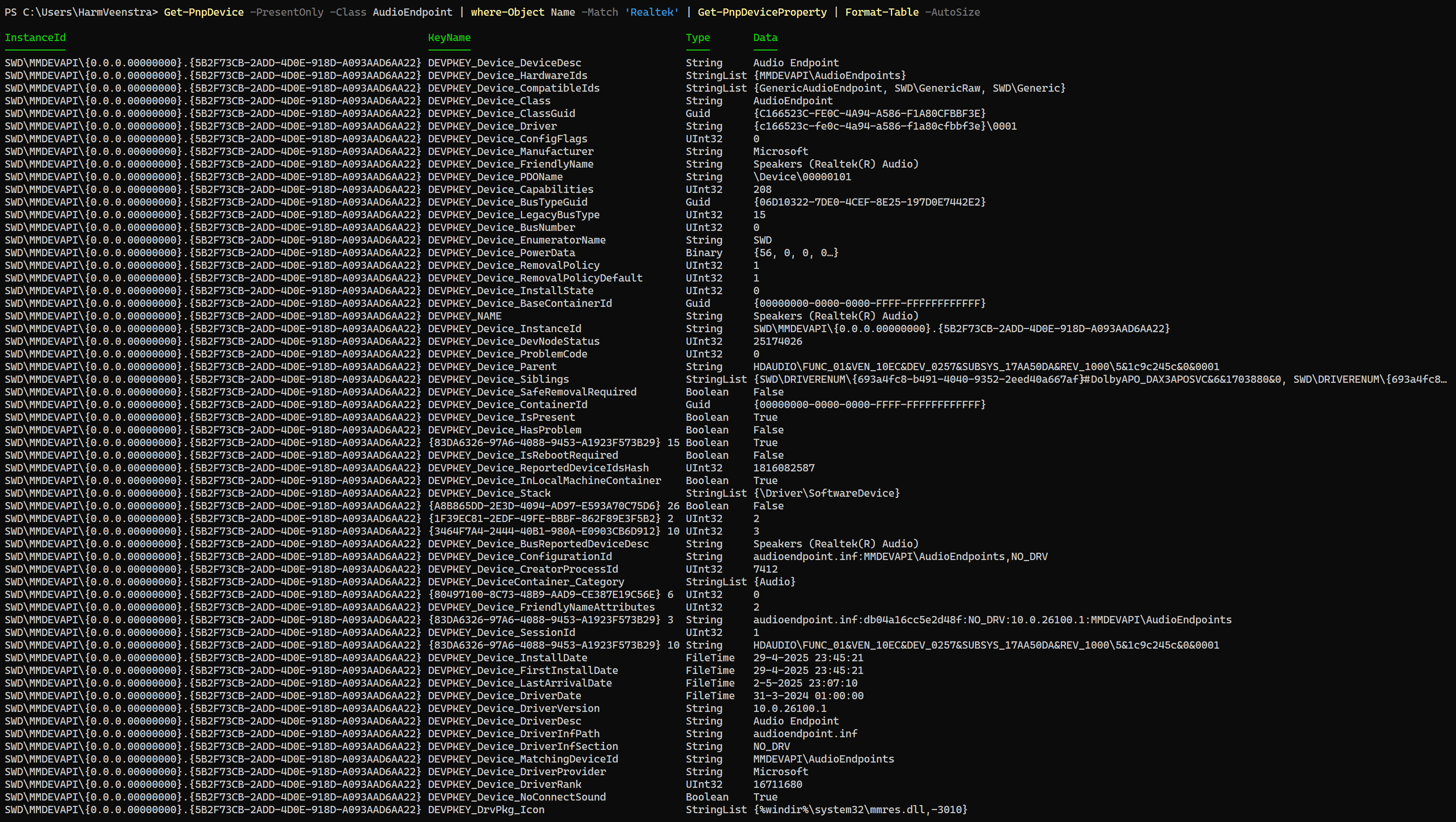
This shows all the hardware and driver information of the device.
Wrapping up
In this small blog post, I showed you how to query, enable, or disable devices from the command line. I took the audio devices as an example, but you can also use the PnPDevice module for other classes/devices. Have a lovely weekend!
Under your table of contents, the header has ppndevice instead of pnpdevice.
Having a play with the module now, thanks for the writeup
Thanks for mentioning that, fixed 😅 Nice module to play with, gives a lot of information