
In this blog post, I will show you how to use PowerShell and the WinGet module to install a specific or the latest version of software using Intune Win32 Detection and install scripts. This solution will automatically update your apps if updates are available without using Remediation, Enterprise App Catalog, or third-party tools.
- What is WinGet?
- Built-in options for deploying WinGet apps in Intune
- 3rd party tools
- The PowerShell way
- How do the scripts work?
- Adding a package to Intune
- Prerequistists
- WinGet package with Parameter Version value Latest
- WinGet package with Parameter Version value set to a specific version
- Example screenshots of WinGet package installation
- Retrieving the WinGet logs from an Intune system
- Wrapping up
- The scripts
What is WinGet?
“WinGet is a command line tool enabling users to discover, install, upgrade, remove and configure applications on Windows 10, Windows 11, and Windows Server 2025 computers. This tool is the client interface to the Windows Package Manager service.”
Source: https://learn.microsoft.com/en-us/windows/package-manager/winget/
Built-in options for deploying WinGet apps in Intune
In Intune, you have two solutions to deploy WinGet applications without having to create .intunewin files yourself:
- Microsoft Store (New)
- Enterprise App Catalog
The first one is free but limited in the number of apps and is still in preview. The applications are not up-to-date compared to the public WinGet repository. The second one is about €1.96 per user per month, has more applications, and has version control.
3rd party tools
PatchMyPC, Robopack, NinjaOne, and other third-party tools can also deploy and update applications in Intune for you, but these are not free.
The PowerShell way
I checked the installation issues with a colleague using WinGet.exe to install and update applications. He was having problems getting it to work. At the same time, I was asked if I would like to present a session at the next WorkplaceNinjas NL event. Being a PowerShell guy, I thought about using the Microsoft WinGet Client PowerShell module that could install and update applications. I said yes and submitted a session, which was accepted:)
The basic scripts were done in a few hours of testing, and then I began running into issues, a lot of issues:
- WinGet doesn’t like running as SYSTEM while installing applications
- The Microsoft.WinGet.Client cmdlets kept crashing
- Not reliable in detecting and updating
I doubted whether I should present my session because I couldn’t get it to work as I wanted. After reading a lot of GitHub issues about it in the WinGet repository, I finally got it to work! The things that made it work were:
- The Microsoft.WinGet.Client cmdlets do work in PowerShell v5, but not as SYSTEM.
- They work in PowerShell v7, but only when you start pwsh.exe with the -MTA Parameter (Multi-Threaded Apartment) instead of the Default Single-Threaded Apartment setting, which causes the cmdlets to crash.
- The Install-WinGetPackage cmdlet must be used with the -Scope SystemOrUnknown Parameter to install applications for all users.
Note: This solution works for applications installed for all users, not for Current user-based installations. Some applications, such as Spotify, can only be installed as the Current User. You can verify that by running the installation in an Administrative prompt, which will reflect that requirement:
C:\Users\HarmVeenstra> winget install spotify.spotify
The installer cannot be run from an administrator context
To work around these issues, you can use the -InstallerType Parameter with one of these values:
-Inno- Wix- Msi- Nullsoft- Zip- Msix- Exe- Burn- MSStore- Portable
You can add that Parameter to the WinGet.ps1 file behind ” Install-WinGetPackage -Id $Id -Force:$true -Mode Silent -MatchOption EqualsCaseInsensitive -Scope SystemOrUnknown -Source WinGet” if needed.
How do the scripts work?
The solution I created and demonstrated at the Workplace Ninjas NL event works like this:
Detection
The Detection script contains two Variables at the top of the script. The $Id Variable configures the WinGet package you want to install, Notepad++. Notepad++, for example. The value in the $Version Variable can be either Latest, which will install the latest version and keep it up-to-date automatically using the Detection interval of Win32 apps in Intune, or a specific version, such as 8.7.8.
It will then start Transcript logging to C:\ProgramData\Microsoft\IntuneManagementExtension\Logs in a text file with the same name as $Id. For example, notepad++.notepad++.txt. The log file contains all the Detection, Installation, and Uninstallation action messages.
The script will continue if PowerShell v7 is found (“C:\Program Files\PowerShell\7\pwsh.exe”), it will exit with an error code 1 if not.
It will then check and store all WinGet capable/installed items on your system in a $Software Variable. This will be done in a separate PowerShell v7 session in Multi-Threaded Apartment mode, in which it will check if the Microsoft.WinGet.Client PowerShell module is installed (it will install it if not, or update if an older version is already installed), and if the WinGet PackageManager is installed correctly (and fix it if not).
After retrieving all the items and checking if the specified $ID is in the list of installed software, it will either exit the script with error code 1 or tell Intune to start the installation. Or it will log an entry that the software was found but needs updating (if $Version is configured to ‘Latest’). It will also mention if the installed version exceeds the configured value when not using ‘Latest’ for $Version. In that case, it will do nothing.
If it finds an installed version of the software that needs updating, it will also exit with error code 1, telling Intune to start installing a newer version if $Version was configured as ‘Latest’
If you configured the application to be uninstalled, it will also mention that in the log inside C:\ProgramData\Microsoft\IntuneManagementExtension\Logs.
Install/Uninstall Script
The WinGet.ps1 script can install or uninstall WinGet packages from your system. It has four Parameters that can be used from within the install or uninstall command options inside the Intune application settings:
- -ID, use this to specify the software. notepad++.notepad++, for example
- -Version: Use this to specify the version, 8.7.8, for example, or Latest to install the latest version. It must be used together with the -Install Parameter. It can’t be used together with the -Uninstall Parameter.
- -Install, use this to specify that you want to install a specific WinGet package. It must be used together with the -Version Parameter.
- -Uninstall, use this to specify that you want to uninstall a specific WinGet package.
It will start Transcript logging to C:\ProgramData\Microsoft\IntuneManagementExtension\Logs in a text file with the same name as $Id. notepad++.notepad++.txt, for example. You can find all the messages for the Detection, Install, and Uninstall actions in the log file.
After the Microsoft.WinGet.The client module is imported, and the installation will be started using the Install-WinGetPackage cmdlet. This will install either the latest version or the version you specified.
Specifying the -Uninstall Parameter will uninstall the WinGet package you selected in the $Id Variable.
If you included a Custom.ps1 file in the package, see the chapter below for instructions on how to use it. It will run the custom install or uninstall commands after the WinGet package is installed or uninstalled.
If everything is successful, it will exit with error code 0 and stop the transaction logging in C:\ProgramData\Microsoft\IntuneManagementExtension\Logs.
Custom script
If you have software that needs to be installed or uninstalled after the installation, you can add that to a Custom.ps1 script inside the intunewin package. This script has three Parameters:
- -ID, use this to specify the software. notepad++.notepad++, for example
- -Install, use this to specify that you want to run a custom action after installation
- -Uninstall: Use this to specify that you want to run a custom action after installation.
It will start logging transcripts to C:\ProgramData\Microsoft\IntuneManagementExtension\Logs in a text file with the same name as $Id, but with “_Custom” appended to it. For example, notepad++.notepad++_Custom.txt. The log file contains all custom Installation or Uninstallation action messages.
RequirementRulePS7 script
This is an additional Requirement rule that you can use so that the install or uninstall script will only run if PowerShell v7 is installed. It will check if PowerShell v7 is found (“C:\Program Files\PowerShell\7\pwsh.exe”), and return that in a Write-Output string that can be checked by Intune to determine if PowerShell v7 is installed or not.
Adding a package to Intune
Prerequistists
IntuneWinAppUtil
You need this to create .intunewin files. Go to https://github.com/microsoft/Microsoft-Win32-Content-Prep-Tool/blob/master/IntuneWinAppUtil.exe, press the Download icon, and save the file to c:\temp, for example.
PowerShell v7
As mentioned, the scripts require PowerShell v7 to be installed on the device. Below are the steps to add and deploy it using Intune:
- Download the latest MSI of PowerShell V7 (https://github.com/PowerShell/PowerShell/releases/download/v7.5.2/PowerShell-7.5.2-win-x64.msi , for example ) and save it to c:\temp\PS7
- Start a Command Prompt
- Run c:\temp\intunewinapputil.exe
- Specify c:\temp\package\PS7 as the source folder
- Specify PowerShell-7.5.2-win-x64.msi as the setup file
- Specify c:\temp\PS7 again, but as the output folder.
- Enter N not to specify a catalog folder (Only needed for Windows 10 S mode)
- Go to Windows – Microsoft Intune admin center (Login with an Intune Administrator account, if prompted)
- Click Create
- Select Windows app (Win32) and click Select
- Click Select app package file, select the previously created PowerShell-7.5.2-win-x64.intunewin file from c:\temp\PS7, and click OK
- Enter Microsoft as the Publisher
- Click Next
- Verify that msiexec /i “PowerShell-7.5.2-win-x64.msi” /qn is being used as the Install Command, adjust if not.
- Verify that msiexec /x “{FEC29E44-BB89-4669-91C1-7E93C3EE177A}” /qn is being used as the Uninstall Command, adjust if not.
- Click Next
- Select 64-bit as the Operating system architecture
- Select Windows 10 22H2 as the Minimum operating system
- Click Next
- Select Manually configure detection rules as Rule Format
- Click Add
- Select File
- Enter “C:\Program Files\PowerShell\7” as
- Enter “pwsh.exe” as File or folder
- Select File or folder exists as the Detection method
- Click OK
- Click Next
- Click Next in the Dependencies tab
- Click Next in the Supersedence tab
- Select Add group and specify the group that contains the devices you want to deploy the WinGet Package to (Use Required to install it automatically)
- Click Next
- Click Create
Note: If you use blocking apps on your Enrollment Status page (or when using Pre-provisioning) and want them installed using the scripts from this blog post, add the newly created PowerShell v7 Win32 package as a Dependency for those apps.
Retrieving the correct package name and version
To find the correct ID of the software you want to install (Which you specify in the Install command line and Detection script), you can use the WinGet.exe command utility on your machine to query for it. For example, to search for Adobe Reader, you can use this command-line:
winget search adobe --source winget
This will return a few Adobe products. “Adobe Acrobat Reader (64-bit)” has the ID Adobe.Acrobat.Reader.64-bit, which you can use in the scripts later to install that software product. If you don’t want to install the latest version, you can check the available versions by running:
winget search Adobe.Acrobat.Reader.64-bit --versions
You will get a list of available versions, sorted from newest to oldest.
WinGet package with Parameter Version value Latest
To create a package that will install a specific WinGet package which will be kept up-to-date, follow the steps below:
Creating the .intunewin package file
- Download the scripts from the Scripts chapter below (Or clone/fork my GitHub Repository to retrieve them from that) to c:\temp\package, for example.
- Create a subfolder for your package, c:\temp\package\notepad++, for instance.
- Adjust the Detection.ps1 with the correct $Id value, check if $Version is configured as ‘Latest‘, and save the file elsewhere. (Keep the original one)
- Optional: If needed, configure the Custom.ps1 with the actions you would like to be executed when installing or uninstalling the WinGet package, and save it to c:\temp\package\notepad++
- Save the WinGet.ps1 file to c:\temp\package\notepad++
- You should now have a folder c:\temp\package\notepad++ containing either one file, WinGet.ps1, or two files (WinGet.ps1 and Custom.ps1 if you needed custom commands)
- Start a Command Prompt (cmd.exe)
- Run c:\temp\intunewinapputil.exe
- Specify c:\temp\package\notepad++ as the source folder
- Specify WinGet.ps1 as the setup file
- Specify c:\temp\package\notepad++ again, but as the output folder.
- Enter N not to specify a catalog folder (Only needed for Windows 10 S mode)
Adding the package to Intune
- Go to Windows – Microsoft Intune admin center (Login with an Intune Administrator account, if prompted)
- Click Create
- Select Windows app (Win32) and click Select
- Click Select app package file, select the previously created winget.intunewin package file from c:\temp\package\notepad++, and click OK
- Change the name from winget.ps1 to Notepad++
- Change the Description from winget.ps1 to Notepad++
- Enter Don Ho as Publisher
- Enter the Latest as App Version
- Click Next
- Enter “C:\Program Files\PowerShell\7\pwsh.exe” -Executionpolicy Bypass -MTA -file .\Winget.ps1 -Install -Id notepad++.notepad++ -Version Latest as the Install Command
- Enter “C:\Program Files\PowerShell\7\pwsh.exe“ -Executionpolicy Bypass -MTA -file .\Winget.ps1 -Uninstall -Id notepad++.notepad++ as the Uninstall Command
- Click Next
- Select 64-bit as the Operating system architecture
- Select Windows 10 22H2 as the Minimum operating system
- Click Add
- Select Script as Requirement type
- Click the Script file and browse and select the downloaded RequirementRulePS7.ps1 file
- Select String as output data type
- Select Equals as Operator
- Enter “Required_PowerShell_v7_Found” as Value
- Click OK
- Click Next
- Select Use a custom detection script as Rule Format
- Click Script file and browse and select the modified Detection.ps1 in c:\temp\package\notepad++
- Click Next
- Click Next in the Dependencies tab
- Click Next in the Supersedence tab
- Select Add group and specify the group that contains the devices you want to deploy the WinGet Package to (Use Required to automatically install it, or Available for enrolled devices to show it in the Company Portal for manual installation)
- Click Next
- Click Create
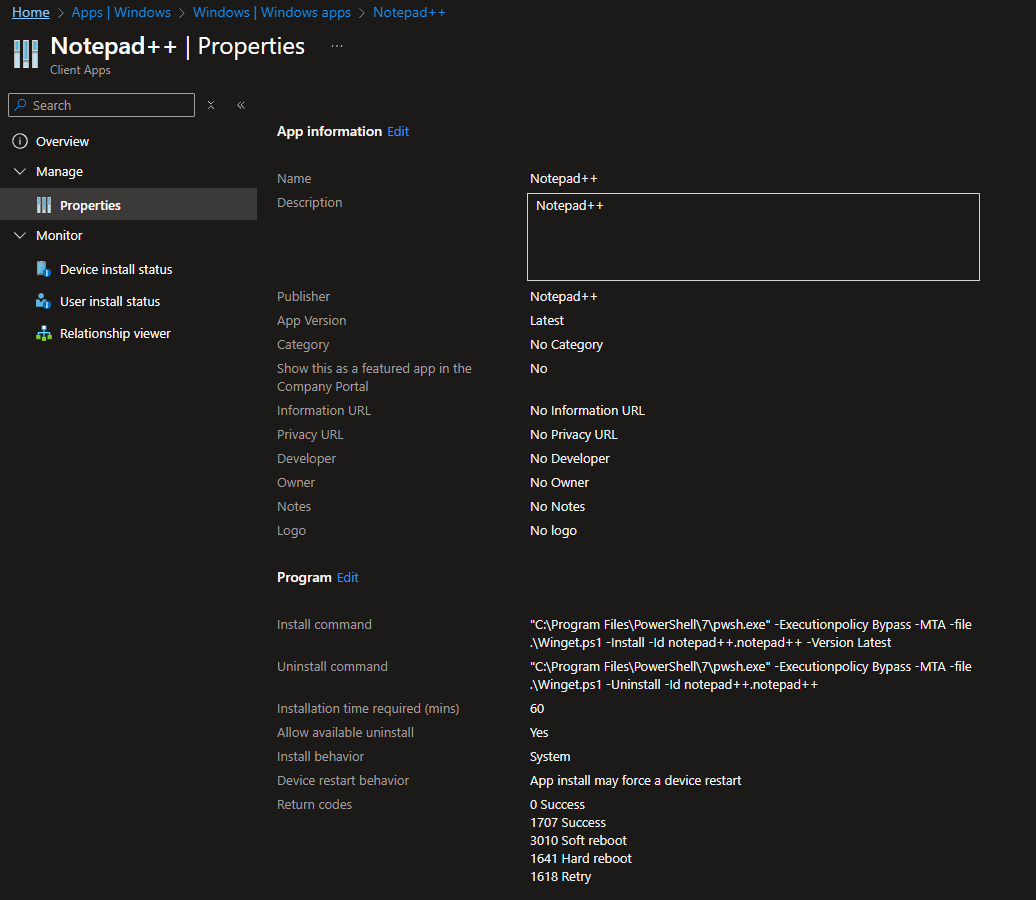
You should now have a new Windows App available, looking like this:
WinGet package with Parameter Version value set to a specific version
To create a package that will install a particular WinGet package and version, which will not be updated automatically, follow the steps below:
Creating the .intunewin package file
- Download the scripts from the Scripts chapter below (Or clone/fork my GitHub Repository to retrieve them from that) to c:\temp\package, for example.
- Create a subfolder for your package, c:\temp\package\notepad++, for instance.
- Adjust the Detection.ps1 with the correct $Id value, configure the $Version to be ‘8.7.8′ (For example), and save the file elsewhere. (Keep the original one)
- Optional: If needed, configure the Custom.ps1 with the actions you would like to be executed when installing or uninstalling the WinGet package, and save it to c:\temp\package\notepad++
- Save the WinGet.ps1 file to c:\temp\package\notepad++
- You should now have a folder c:\temp\package\notepad++ containing either one file, WinGet.ps1, or two files (WinGet.ps1 and Custom.ps1 if you needed custom commands)
- Start a Command Prompt (cmd.exe)
- Run c:\temp\intunewinapputil.exe
- Specify c:\temp\package\notepad++ as the source folder
- Specify WinGet.ps1 as the setup file
- Specify c:\temp\package\notepad++ again, but as the output folder.
- Enter N not to specify a catalog folder (Only needed for Windows 10 S mode)
Adding the package to Intune
- Go to Windows – Microsoft Intune admin center (Login with an Intune Administrator account, if prompted)
- Click Create
- Select Windows app (Win32) and click Select
- Click Select app package file, select the previously created winget.intunewin package file from c:\temp\package\notepad++, and click OK
- Change the name from winget.ps1 to Notepad++
- Change the Description from winget.ps1 to Notepad++
- Enter Don Ho as Publisher
- Enter 8.7.8 as App Version
- Click Next
- Enter “C:\Program Files\PowerShell\7\pwsh.exe” -Executionpolicy Bypass -MTA -file .\Winget.ps1 -Install -Id notepad++.notepad++ -Version 8.7.8 as the Install Command
- Enter “C:\Program Files\PowerShell\7\pwsh.exe” -Executionpolicy Bypass -MTA -file .\Winget.ps1 -Uninstall -Id notepad++.notepad++ as the Uninstall Command
- Click Next
- Select 64-bit as the Operating system architecture
- Select Windows 10 22H2 as the Minimum operating system
- Click Add
- Select Script as Requirement type
- Click Script file and browse and select the downloaded RequirementRulePS7.ps1 file
- Select String as output data type
- Select Equals as Operator
- Enter “Required_PowerShell_v7_Found” as Value
- Click OK
- Click Next
- Select Use a custom detection script as Rule Format
- Click Script file and browse and select the modified Detection.ps1 in c:\temp\package\notepad++
- Click Next
- Click Next in the Dependencies tab
- Click Next in the Supersedence tab
- Select Add group and specify the group that contains the devices you want to deploy the WinGet Package to (Use Required to automatically install it, or Available for enrolled devices to show it in the Company Portal for manual installation)
- Click Next
- Click Create
You should now have a new Windows App available, looking like this:

Note: If you want to install a newer version, you only need to upload a changed Detection.ps1 (With a higher version number) to the application in Intune inside the Detection properties. Don’t forget to change the Install Command to reflect the version specified in the modified Detection script. Intune will update the application to the specified version at the next Detection interval.
Example screenshots of WinGet package installation
After adding the package to Intune, the installation will appear as follows for a Notepad++ version using the latest version. (I configured the application as Available in this example)
After opening the Company Portal, I selected Apps and Notepad++, and I pressed Install.

The downloading pending status bar appears:

A notification appears: (In Dutch, sorry 🙂 )

And the software is installed:

You can check the log file in C:\ProgramData\WinGetIntune, which will look like this:

The log shows that it scans for Notepad++. Since it wasn’t found in the software scan results, it started the WinGet.ps1 installation command, installed the software, and detected it after the installation.
Retrieving the WinGet logs from an Intune system
If you’re troubleshooting installation issues and cannot remote control the affected device, you can use Intune’s Collect Diagnostics feature. You can do that by following these steps:
- Go to Windows – Microsoft Intune admin center (Login with an Intune Administrator account, if prompted)
- Select the Device
- Select Yes to start collecting the logs
- Select Download on the line with your Admin name in it and the timestamp of the request

- Select Open File

You should see a lot of files, open the one with FoldersFiles ProgramData_Microsoft_IntuneManagementExtension_Logs:

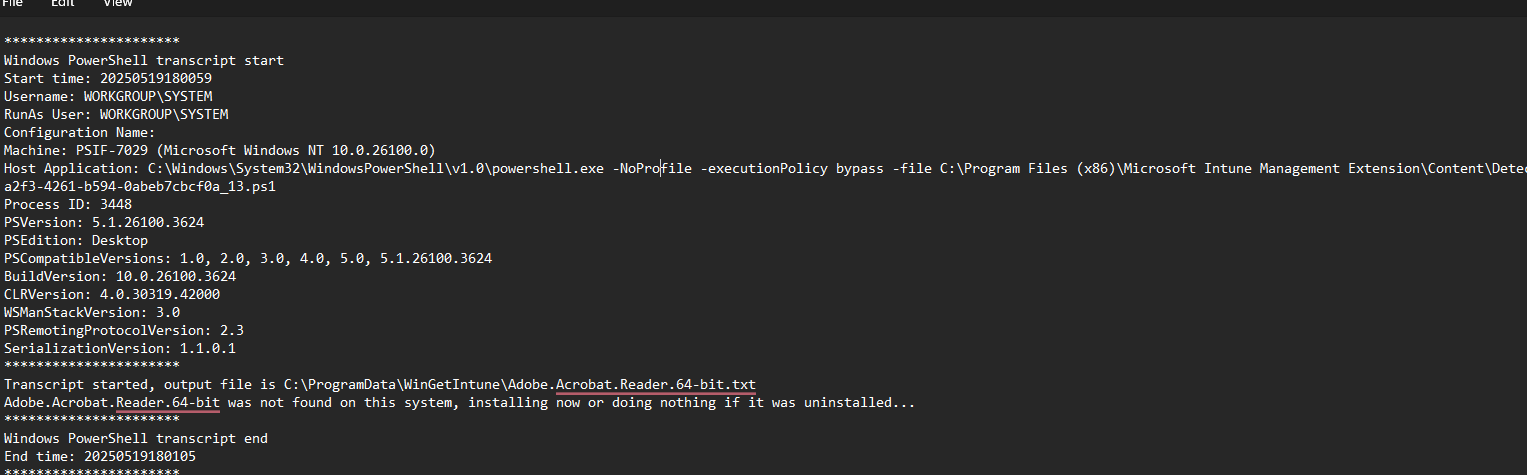
You should see the contents of that folder now from the affected device, including, for example, the Adobe Acrobat Reader installation logs:

Which will look like this :
Wrapping up
That’s how installing WinGet packages and updating them works; it’s a simple application deployment method that does the job. But it’s not as lovely as third-party solutions, which have more features, like allowing users to postpone the installation, etc. (You could use PSAppDeployToolkit for that, for example)
Play around with these scripts, do a pull request if you want to add something, or leave a comment, and have a lovely weekend!
The scripts
The scripts are provided below; you can download/save them to your system or access them via the GitHub link below.
Custom.ps1
param (
    [parameter(Mandatory = $true)][string]$Id,
    [parameter(Mandatory = $false)][switch]$Install,
    [parameter(Mandatory = $false)][switch]$Uninstall
)

#Start Transcript logging to C:\ProgramData\Microsoft\IntuneManagementExtension\Logs\$Id_Custom.txt
Start-Transcript -Path "C:\ProgramData\Microsoft\IntuneManagementExtension\Logs\$($Id)_Custom.txt" -Append:$true -Force:$true

#Add the command in the try section and use -ErrorAction Stop behind the command(s)
# For example, "Remove-Item "C:\Users\Public\Desktop\Firefox.lnk" -Force:$true -Confirm:$false -ErrorAction Stop"
# Or "if (Get-Process -Name 'Greenshot' -ErrorAction SilentlyContinue) {Stop-Process -Name 'greenshot' -Force:$true -ErrorAction Stop}"

#For install
if ($Install) {
    try {

        Write-Host ("{0} - Executed Custom install command(s)" -f $(Get-Date -Format "dd-MM-yy HH:mm") )
        Stop-Transcript
    }
    catch {
        Write-Warning ("{0} - Error executing Custom install command(s), check syntax/permissions!" -f $(Get-Date -Format "dd-MM-yy HH:mm"))
        Stop-Transcript
    }
}

#For Uninstall
if ($Uninstall) {
    try {

        Write-Host ("{0} - Executed Custom uninstall command(s)" -f $(Get-Date -Format "dd-MM-yy HH:mm"))
        Stop-Transcript
    }
    catch {
        Write-Warning ("{0} - Error executing Custom uninstall command(s), check syntax/permissions!" -f $(Get-Date -Format "dd-MM-yy HH:mm"))
        Stop-Transcript
    }
}
Detection.ps1
#Running Get-WinGetPackage and Repair-WinGetPackageManager in PowerShell v7 because the WinGet cmdlets don't work in SYSTEM context in PowerShell v5
#See https://github.com/microsoft/winget-cli/issues/4820
#Supply the ID and version of the WinGet package here, use Latest if version is not important
#For example $Id = 'notepad++.notepad++' / $Version = '8.7.8' or $Id = '7zip.7zip' / $Version = 'Latest'
$Id = 'insert_package_id_here'
$Version = 'Latest'

#Start Transcript logging to C:\ProgramData\Microsoft\IntuneManagementExtension\Logs\$Id.txt
Start-Transcript -Path "C:\ProgramData\Microsoft\IntuneManagementExtension\Logs\$($Id).txt" -Append:$true -Force:$true

#Check if PowerShell v7 is installed before continuing the Detection
if (-not (Test-Path -LiteralPath 'C:\Program Files\PowerShell\7\pwsh.exe')) {
    Write-Host ("{0} - PowerShell v7 was not found at 'C:\Program Files\PowerShell\7\pwsh.exe', exiting..." -f $(Get-Date -Format "dd-MM-yy HH:mm"))
    Stop-Transcript
    exit 1
}

#Check if software is installed
$software = & 'C:\Program Files\PowerShell\7\pwsh.exe' -MTA -Command {
    #Import the Microsoft.WinGet.Client module, install it if it's not found or update if outdated
    try {
        if (Get-Module Microsoft.WinGet.Client -ListAvailable) {
            if ((Get-Module Microsoft.WinGet.Client -ListAvailable | Sort-Object Version -Descending | Select-Object -First 1).Version -lt (Find-Module Microsoft.WinGet.Client).Version) {
                Update-Module Microsoft.WinGet.Client -Force:$true -Confirm:$false -Scope AllUsers
            }
        }
        Import-Module Microsoft.WinGet.Client -ErrorAction Stop
    }
    catch {
        Install-Module Microsoft.WinGet.Client -Force:$true -Confirm:$false -Scope AllUsers
        Import-Module Microsoft.WinGet.Client
    }
    #Repair/Install WinGetPackagemanager if not found
    try {
        Assert-WinGetPackageManager -ErrorAction Stop
    }
    catch {
        Repair-WinGetPackageManager -AllUsers -Force:$true -Latest:$true
    }
    #Get all WinGetPackages
    Get-WinGetPackage -Source WinGet
} | Where-Object Id -EQ $Id

#If $Id was not found, stop and exit, and let Intune install it, or do nothing if it was uninstalled
if ($null -eq $software) {
    Write-Host ("{0} - {1} was not found on this system, installing now or doing nothing if it was uninstalled..." -f $(Get-Date -Format "dd-MM-yy HH:mm"), $Id)
    Stop-Transcript
    exit 1
}

#Check version and exit 1 if the version is not the same as the installed version or when there's an update available
if ($Version -ne 'Latest') {
    if ([version]$version -le [version]$software.InstalledVersion) {
        Write-Host ("{0} - Installed version {1} of {2} is higher or equal than specified version {3}, nothing to do..." -f $(Get-Date -Format "dd-MM-yy HH:mm"), [version]$software.InstalledVersion, $Id, [version]$Version)
        Stop-Transcript
        exit 0
    }
    if ([version]$version -gt [version]$software.InstalledVersion) {
        Write-Host ("{0} - {1} version is {2}, which is lower than specified {3} version, updating now..." -f $(Get-Date -Format "dd-MM-yy HH:mm"), $Id, $software.InstalledVersion, $Version)
        Stop-Transcript
        exit 1
    }
}

if ($version -eq 'Latest') {
    if ($software.IsUpdateAvailable -eq $false) {
        Write-Host ("{0} - {1} version is current (Version {2}), nothing to do..." -f $(Get-Date -Format "dd-MM-yy HH:mm"), $Id, $software.InstalledVersion)
        Stop-Transcript
        exit 0
    }
    else {
        Write-Host ("{0} - {1} was found with version {2}, but there's an update available for it ({3}), updating now..." -f $(Get-Date -Format "dd-MM-yy HH:mm"), $Id, $software.InstalledVersion, $($software.AvailableVersions | Select-Object -First 1))
        Stop-Transcript
        exit 1
    }
}
RequirementRulePS7.ps1
if (Test-Path -LiteralPath 'C:\Program Files\PowerShell\7\pwsh.exe') {
    Write-Output 'Required_PowerShell_v7_Found'
    exit 0
}
else {
    Write-Output 'Required_PowerShell_v7_Not_Found'
    exit 1
}
WinGet.ps1
[CmdletBinding(DefaultParameterSetName = 'None')]
param (
    [parameter(Mandatory = $true)][string]$Id,
    [parameter(Mandatory = $true, ParameterSetName = 'Install')][string]$Version,
    [parameter(Mandatory = $true, ParameterSetName = 'Install')][switch]$Install,
    [parameter(Mandatory = $true, ParameterSetName = 'Uninstall')][switch]$Uninstall
)

#Start Transcript logging to C:\ProgramData\Microsoft\IntuneManagementExtension\Logs\$Id.txt
Start-Transcript -Path "C:\ProgramData\Microsoft\IntuneManagementExtension\Logs\$($Id).txt" -Append:$true -Force:$true

#Import the Microsoft.WinGet.Client module
Import-Module Microsoft.WinGet.Client
Write-Host ("{0} - Imported the Microsoft.WinGet.Client module" -f $(Get-Date -Format "dd-MM-yy HH:mm"))

#Install specified software with the latest or specified version
try {
    if ($Install -and $Version -eq 'Latest') {
        Write-Host ("{0} - Installing latest version of {1}" -f $(Get-Date -Format "dd-MM-yy HH:mm"), $Id)
        Install-WinGetPackage -Id $Id -Force:$true -Mode Silent -MatchOption EqualsCaseInsensitive -Scope SystemOrUnknown -Source WinGet -ErrorAction Stop
        if (Get-WinGetPackage -Id $Id -MatchOption EqualsCaseInsensitive -Source WinGet -ErrorAction Stop) {
            Write-Host ("{0} - Installed latest version of {1}" -f $(Get-Date -Format "dd-MM-yy HH:mm"), $Id)
        }
        else {
            Write-Host ("{0} - Error installing {1} with version {2} (Id or version not found?), exiting..." -f $(Get-Date -Format "dd-MM-yy HH:mm"), $Id, $Version)
            Stop-Transcript
            exit 1
        }
    }
    if ($Install -and $Version -ne 'Latest') {
        Write-Host ("{0} - Installing version {1} of {2}" -f $(Get-Date -Format "dd-MM-yy HH:mm"), $Version, $Id)
        Install-WinGetPackage -Id $Id -Version $Version -Force:$true -Mode Silent -MatchOption EqualsCaseInsensitive -Scope SystemOrUnknown -Source WinGet -ErrorAction Stop
        if (Get-WinGetPackage -Id $Id -MatchOption EqualsCaseInsensitive -Source WinGet -ErrorAction Stop) {
            Write-Host ("{0} - Installed version {1} of {2}" -f $(Get-Date -Format "dd-MM-yy HH:mm"), $Version, $Id)
        }
        else {
            Write-Host ("{0} - Error installing {1} with version {2} (Id or version not found?), exiting..." -f $(Get-Date -Format "dd-MM-yy HH:mm"), $Id, $Version)
            Stop-Transcript
            exit 1
        }
    }
}
catch {
    Write-Host ("{0} - Error installing {1} with version {2} (Id or version not found?), exiting..." -f $(Get-Date -Format "dd-MM-yy HH:mm"), $Id, $Version)
    Stop-Transcript
    exit 1
}

#If the file .\Custom.ps1 exists, it will be used to run additional commands after Install.
#Check c:\program data\wingetintune\$Id_custom.txt for logs
if ((Test-Path .\Custom.ps1) -and $Install) {
    Write-Host ("{0} - Executing Custom install command from .\Custom.ps1" -f $(Get-Date -Format "dd-MM-yy HH:mm"))
    .\Custom.ps1 -Id $Id -Install
    Write-Host ("{0} - Executed Custom install command from .\Custom.ps1" -f $(Get-Date -Format "dd-MM-yy HH:mm"))
}

#Uninstall specified software
if ($uninstall) {
    try {
        Write-Host ("{0} - Uninstalling {1}" -f $(Get-Date -Format "dd-MM-yy HH:mm"), $Id)
        Uninstall-WinGetPackage -Id $Id -Force:$true -MatchOption EqualsCaseInsensitive -Mode Silent -Source WinGet -ErrorAction Stop
        Write-Host ("{0} - Uninstalled {1}" -f $(Get-Date -Format "dd-MM-yy HH:mm"), $Id)
    }
    catch {
        Write-Host ("{0} - Error uninstalling {1}, exiting..." -f $(Get-Date -Format "dd-MM-yy HH:mm"), $Id)
        Stop-Transcript
        exit 1
    }
}

#If the file .\Custom.ps1 exists, it will be used to run additional commands after Uninstall.
#Check C:\ProgramData\Microsoft\IntuneManagementExtension\Logs\$Id_custom.txt for logs
if ((Test-Path .\Custom.ps1) -and $Uninstall) {
    Write-Host ("{0} - Executing Custom uninstall command from .\Custom.ps1" -f $(Get-Date -Format "dd-MM-yy HH:mm"))
    .\Custom.ps1 -Id $Id -Uninstall
    Write-Host ("{0} - Executed Custom uninstall command from .\Custom.ps1" -f $(Get-Date -Format "dd-MM-yy HH:mm"))
}

#Stop Transcript logging to C:\ProgramData\Microsoft\IntuneManagementExtension\Logs\$Id.txt
Stop-Transcript
exit 0
Hi, This is great. I tried implementing it the same way as documented but it keeps failing. The log repeatedly says. any lead would be helpful. thanks.
Windows PowerShell transcript start
Start time: 20250521165618
Username: CONDENAST\SYSTEM
RunAs User: CONDENAST\SYSTEM
Configuration Name:
Machine: IN-FDB46ASRCL2B (Microsoft Windows NT 10.0.19045.0)
Host Application: C:\Windows\System32\WindowsPowerShell\v1.0\powershell.exe -NoProfile -executionPolicy bypass -file C:\Program Files (x86)\Microsoft Intune Management Extension\Content\DetectionScripts\c1e1ae03-e673-41dc-b3fd-40baeadd2cc5_2.ps1
Process ID: 2100
PSVersion: 5.1.19041.5737
PSEdition: Desktop
PSCompatibleVersions: 1.0, 2.0, 3.0, 4.0, 5.0, 5.1.19041.5737
BuildVersion: 10.0.19041.5737
CLRVersion: 4.0.30319.42000
WSManStackVersion: 3.0
PSRemotingProtocolVersion: 2.3
SerializationVersion: 1.1.0.1
Transcript started, output file is C:\ProgramData\WinGetIntune\Notepad++.Notepad++.txt
Notepad++.Notepad++ was not found on this system, installing now or doing nothing if it was uninstalled…
I updated the scripts today, actually, but more for logging and timestamps in that. If the detection detects that it should install the software, and that’s all you see in the log, then the install command-line for the Win32 Intune App might not be correct. Could you copy/paste that here? Mine is : “C:\Program Files\PowerShell\7\pwsh.exe” -Executionpolicy Bypass -MTA -file .\Winget.ps1 -Install -Id notepad++.notepad++ -Version Latest
I’m getting the same error, here’s the error.
Transcript started, output file is C:\ProgramData\Microsoft\IntuneManagementExtension\Logs\notepad++.notepad++.txt
10-06-25 11:08 – notepad++.notepad++ was not found on this system, installing now or doing nothing if it was uninstalled…
Here’s my command-line install:
“C:\Program Files\PowerShell\7\pwsh.exe” -Executionpolicy Bypass -MTA -file .\Winget.ps1 -Install -Id notepad++.notepad++ -Version Latest
And the same error is? Just the line that the Detection ran and didn’t find Notepad++ on the system and installing now? Is pwsh.exe on your system in C:\Program Files\PowerShell\7 ? If you don’t see any install comments in your logfile, than it can’t execute pwsh.exe
Sorry, pwsh.exe should already be there because otherwise the Detection wouldn’t return that. Did you use the additional requirement script or not?
Were you ever able to get this issue figured out?
I’m running into the same issue where the detection script appears to exit correctly,
However, the install script never actually runs.
Wonderful article Harm. Thank you for posting. I myself had been testing deploying apps with Winget using PowerShell scripts, but I ran into too much challenges and decided to stick to regular win32 msi packages for now.
One thing that worked for me when installing in system context with Windows PowerShell 5.1 was to use the full path to the winget executable, as this path was not part of the PATH environment variable in system context.
However, I did not use PowerShell 7 and the Microsoft.Winget.Client module, so results might have been different, but still I see some caveats with this solution:
Using winget to install latest version will result in different versions of packages in the environment. Yes, you can update them automatically, but reporting which versions are around will become more troublesome. Basically you will be less in control of installed apps and versions.
What if PSResourceGet was being used to manage modules on the client system? I will become messy with different installation methods.
The Managed App reports of a Device will have no relevant version info if you publish winget apps with the latest version, you would have to use the discovered apps view to see the actual installed version.
Some winget packages – like 7-zip – opens up a user survey when you start the uninstall to why you want to remove the app, which is hard to script or bypass and will result in a package uninstall hanging or failing.
Sometimes a winget app might say “the install technology is different from the current version installed” when you try to update and you are forced to uninstall the old version first to be able to install the latest version. That’s the main reason I’m still not using winget in my Intune production enviroment for app deployment.
But apart from that, wonderful script and blog post and I wish I could attend your session at WP Ninjas NL 🙂
Thanks Marco, and yes… There are some challenges with it but by specifying a version you know the version that is installed. By specifying latest, it’s always the latest if there are no install errors. But you have to use the custom script for those things like 7zip, although it did not encounter that issue. And yes, would have been nice! Are you also at Experts Live NL?
Hi Harm.
Yes I will be at Experts Live, so perhaps we’ll meet each other there ^^
First off, let me say thank you for posting this, it’s quite a fun solution. Unfortunately, it failed for me. Based on my transcript log, it looks like it never actually tries to run in PS7 (which I definitely have installed at the correct path): The Host Application shows the standard PowerShell installation (PSVersion 5.1.26100.4202)
Could you share the transcript log? Does it work without the additional requirements?
Thanks for replying to quickly! Here is my latest transcript log:
Transcript started, output file is C:\ProgramData\Microsoft\IntuneManagementExtension\Logs\Notepad++.Notepad++.txt
26-06-25 10:58 – Notepad++.Notepad++ was not found on this system, installing now or doing nothing if it was uninstalled…
Windows PowerShell transcript end
End time: 20250626105814
Windows PowerShell transcript start
Start time: 20250626105840
Username: WORKGROUP\SYSTEM
RunAs User: WORKGROUP\SYSTEM
Configuration Name:
Machine: BAKERTEK-26 (Microsoft Windows NT 10.0.26100.0)
Host Application: C:\Windows\System32\WindowsPowerShell\v1.0\powershell.exe -NoProfile -executionPolicy bypass -file C:\Program Files (x86)\Microsoft Intune Management Extension\Content\DetectionScripts\5f8cf350-65c2-4703-95a6-30bf20d3818a_1.ps1
Process ID: 6576
PSVersion: 5.1.26100.4202
PSEdition: Desktop
PSCompatibleVersions: 1.0, 2.0, 3.0, 4.0, 5.0, 5.1.26100.4202
BuildVersion: 10.0.26100.4202
CLRVersion: 4.0.30319.42000
WSManStackVersion: 3.0
PSRemotingProtocolVersion: 2.3
SerializationVersion: 1.1.0.1
Transcript started, output file is C:\ProgramData\Microsoft\IntuneManagementExtension\Logs\Notepad++.Notepad++.txt
26-06-25 10:58 – Notepad++.Notepad++ was not found on this system, installing now or doing nothing if it was uninstalled…
Windows PowerShell transcript end
End time: 20250626105848
Windows PowerShell transcript start
Start time: 20250626105905
Username: WORKGROUP\SYSTEM
RunAs User: WORKGROUP\SYSTEM
Configuration Name:
Machine: BAKERTEK-26 (Microsoft Windows NT 10.0.26100.0)
Host Application: C:\Windows\System32\WindowsPowerShell\v1.0\powershell.exe -NoProfile -executionPolicy bypass -file C:\Program Files (x86)\Microsoft Intune Management Extension\Content\DetectionScripts\5f8cf350-65c2-4703-95a6-30bf20d3818a_1.ps1
Process ID: 17628
PSVersion: 5.1.26100.4202
PSEdition: Desktop
PSCompatibleVersions: 1.0, 2.0, 3.0, 4.0, 5.0, 5.1.26100.4202
BuildVersion: 10.0.26100.4202
CLRVersion: 4.0.30319.42000
WSManStackVersion: 3.0
PSRemotingProtocolVersion: 2.3
SerializationVersion: 1.1.0.1
Transcript started, output file is C:\ProgramData\Microsoft\IntuneManagementExtension\Logs\Notepad++.Notepad++.txt
26-06-25 10:59 – Notepad++.Notepad++ was not found on this system, installing now or doing nothing if it was uninstalled…
Windows PowerShell transcript end
End time: 20250626105913
You will see powershell 5 starting which should spawn powershell 7. Could you add a new Start-Transcript in the Powershell v7 part of the detection script and log to another logfile name at the same location? Just to verify that PowerShell v7 is actually being started? Do a stop-transcript a few lines before it searches for the software using get-wingetpackage
Sorry it’s not letting me reply to thread any further, but your detection script already has a Start-Transcript in the PowerShell v7 part before it checks for the software using Get-WinGetPackage:
#Start Transcript logging to C:\ProgramData\Microsoft\IntuneManagementExtension\Logs\$Id.txt
Start-Transcript -Path “C:\ProgramData\Microsoft\IntuneManagementExtension\Logs\$($Id).txt” -Append:$true -Force:$true
#Check if PowerShell v7 is installed before continuing the Detection
if (-not (Test-Path -LiteralPath ‘C:\Program Files\PowerShell\7\pwsh.exe’)) {
Write-Host (“{0} – PowerShell v7 was not found at ‘C:\Program Files\PowerShell\7\pwsh.exe’, exiting…” -f $(Get-Date -Format “dd-MM-yy HH:mm”))
Stop-Transcript
exit 1
}
Where would I need to add another one?
After #Import the Microsoft.WinGet.Client module, install it if it’s not found or update if outdated and then before #Get all WinGetPackages
Just to see what happens there
#Check if software is installed
$software = & ‘C:\Program Files\PowerShell\7\pwsh.exe’ -MTA -Command {
#Import the Microsoft.WinGet.Client module, install it if it’s not found or update if outdated
Start-Transcript -Path “C:\ProgramData\Microsoft\IntuneManagementExtension\Logs\ps7detectionlog.txt” -Append:$true -Force:$true
try {
if (Get-Module Microsoft.WinGet.Client -ListAvailable) {
if ((Get-Module Microsoft.WinGet.Client -ListAvailable | Sort-Object Version -Descending | Select-Object -First 1).Version -lt (Find-Module Microsoft.WinGet.Client).Version) {
Update-Module Microsoft.WinGet.Client -Force:$true -Confirm:$false -Scope AllUsers
}
}
Import-Module Microsoft.WinGet.Client -ErrorAction Stop
}
catch {
Install-Module Microsoft.WinGet.Client -Force:$true -Confirm:$false -Scope AllUsers
Import-Module Microsoft.WinGet.Client
}
#Repair/Install WinGetPackagemanager if not found
try {
Assert-WinGetPackageManager -ErrorAction Stop
}
catch {
Repair-WinGetPackageManager -AllUsers -Force:$true -Latest:$true
}
Stop-Transcript
#Get all WinGetPackages
Get-WinGetPackage -Source WinGet
} | Where-Object Id -EQ $Id
Just posting that block of the script to verify I added that on the correct lines. Going to add this new detection script to Intune, will update when the device syncs again. Thanks again!
PowerShell transcript start
Start time: 20250626115537
Username: WORKGROUP\BAKERTEK-26$
RunAs User: WORKGROUP\BAKERTEK-26$
Configuration Name:
Machine: BAKERTEK-26 (Microsoft Windows NT 10.0.26100.0)
Host Application: C:\Program Files\PowerShell\7\pwsh.dll -MTA -encodedCommand DQAKACAAIAAgACAAIwBJAG0AcABvAHIAdAAgAHQAaABlACAATQBpAGMAcgBvAHMAbwBmAHQALgBXAGkAbgBHAGUAdAAuAEMAbABpAGUAbgB0ACAAbQBvAGQAdQBsAGUALAAgAGkAbgBzAHQAYQBsAGwAIABpAHQAIABpAGYAIABpAHQAJwBzACAAbgBvAHQAIABmAG8AdQBuAGQAIABvAHIAIAB1AHAAZABhAHQAZQAgAGkAZgAgAG8AdQB0AGQAYQB0AGUAZAANAAoAUwB0AGEAcgB0AC0AVAByAGEAbgBzAGMAcgBpAHAAdAAgAC0AUABhAHQAaAAgACIAQwA6AFwAUAByAG8AZwByAGEAbQBEAGEAdABhAFwATQBpAGMAcgBvAHMAbwBmAHQAXABJAG4AdAB1AG4AZQBNAGEAbgBhAGcAZQBtAGUAbgB0AEUAeAB0AGUAbgBzAGkAbwBuAFwATABvAGcAcwBcAHAAcwA3AGQAZQB0AGUAYwB0AGkAbwBuAGwAbwBnAC4AdAB4AHQAIgAgAC0AQQBwAHAAZQBuAGQAOgAkAHQAcgB1AGUAIAAtAEYAbwByAGMAZQA6ACQAdAByAHUAZQANAAoAIAAgACAAIAB0AHIAeQAgAHsADQAKACAAIAAgACAAIAAgACAAIABpAGYAIAAoAEcAZQB0AC0ATQBvAGQAdQBsAGUAIABNAGkAYwByAG8AcwBvAGYAdAAuAFcAaQBuAEcAZQB0AC4AQwBsAGkAZQBuAHQAIAAtAEwAaQBzAHQAQQB2AGEAaQBsAGEAYgBsAGUAKQAgAHsADQAKACAAIAAgACAAIAAgACAAIAAgACAAIAAgAGkAZgAgACgAKABHAGUAdAAtAE0AbwBkAHUAbABlACAATQBpAGMAcgBvAHMAbwBmAHQALgBXAGkAbgBHAGUAdAAuAEMAbABpAGUAbgB0ACAALQBMAGkAcwB0AEEAdgBhAGkAbABhAGIAbABlACAAfAAgAFMAbwByAHQALQBPAGIAagBlAGMAdAAgAFYAZQByAHMAaQBvAG4AIAAtAEQAZQBzAGMAZQBuAGQAaQBuAGcAIAB8ACAAUwBlAGwAZQBjAHQALQBPAGIAagBlAGMAdAAgAC0ARgBpAHIAcwB0ACAAMQApAC4AVgBlAHIAcwBpAG8AbgAgAC0AbAB0ACAAKABGAGkAbgBkAC0ATQBvAGQAdQBsAGUAIABNAGkAYwByAG8AcwBvAGYAdAAuAFcAaQBuAEcAZQB0AC4AQwBsAGkAZQBuAHQAKQAuAFYAZQByAHMAaQBvAG4AKQAgAHsADQAKACAAIAAgACAAIAAgACAAIAAgACAAIAAgACAAIAAgACAAVQBwAGQAYQB0AGUALQBNAG8AZAB1AGwAZQAgAE0AaQBjAHIAbwBzAG8AZgB0AC4AVwBpAG4ARwBlAHQALgBDAGwAaQBlAG4AdAAgAC0ARgBvAHIAYwBlADoAJAB0AHIAdQBlACAALQBDAG8AbgBmAGkAcgBtADoAJABmAGEAbABzAGUAIAAtAFMAYwBvAHAAZQAgAEEAbABsAFUAcwBlAHIAcwANAAoAIAAgACAAIAAgACAAIAAgACAAIAAgACAAfQANAAoAIAAgACAAIAAgACAAIAAgAH0ADQAKACAAIAAgACAAIAAgACAAIABJAG0AcABvAHIAdAAtAE0AbwBkAHUAbABlACAATQBpAGMAcgBvAHMAbwBmAHQALgBXAGkAbgBHAGUAdAAuAEMAbABpAGUAbgB0ACAALQBFAHIAcgBvAHIAQQBjAHQAaQBvAG4AIABTAHQAbwBwAA0ACgAgACAAIAAgAH0ADQAKACAAIAAgACAAYwBhAHQAYwBoACAAewANAAoAIAAgACAAIAAgACAAIAAgAEkAbgBzAHQAYQBsAGwALQBNAG8AZAB1AGwAZQAgAE0AaQBjAHIAbwBzAG8AZgB0AC4AVwBpAG4ARwBlAHQALgBDAGwAaQBlAG4AdAAgAC0ARgBvAHIAYwBlADoAJAB0AHIAdQBlACAALQBDAG8AbgBmAGkAcgBtADoAJABmAGEAbABzAGUAIAAtAFMAYwBvAHAAZQAgAEEAbABsAFUAcwBlAHIAcwANAAoAIAAgACAAIAAgACAAIAAgAEkAbQBwAG8AcgB0AC0ATQBvAGQAdQBsAGUAIABNAGkAYwByAG8AcwBvAGYAdAAuAFcAaQBuAEcAZQB0AC4AQwBsAGkAZQBuAHQADQAKACAAIAAgACAAfQANAAoAIAAgACAAIAAjAFIAZQBwAGEAaQByAC8ASQBuAHMAdABhAGwAbAAgAFcAaQBuAEcAZQB0AFAAYQBjAGsAYQBnAGUAbQBhAG4AYQBnAGUAcgAgAGkAZgAgAG4AbwB0ACAAZgBvAHUAbgBkAA0ACgAgACAAIAAgAHQAcgB5ACAAewANAAoAIAAgACAAIAAgACAAIAAgAEEAcwBzAGUAcgB0AC0AVwBpAG4ARwBlAHQAUABhAGMAawBhAGcAZQBNAGEAbgBhAGcAZQByACAALQBFAHIAcgBvAHIAQQBjAHQAaQBvAG4AIABTAHQAbwBwAA0ACgAgACAAIAAgAH0ADQAKACAAIAAgACAAYwBhAHQAYwBoACAAewANAAoAIAAgACAAIAAgACAAIAAgAFIAZQBwAGEAaQByAC0AVwBpAG4ARwBlAHQAUABhAGMAawBhAGcAZQBNAGEAbgBhAGcAZQByACAALQBBAGwAbABVAHMAZQByAHMAIAAtAEYAbwByAGMAZQA6ACQAdAByAHUAZQAgAC0ATABhAHQAZQBzAHQAOgAkAHQAcgB1AGUADQAKACAAIAAgACAAfQANAAoAUwB0AG8AcAAtAFQAcgBhAG4AcwBjAHIAaQBwAHQADQAKACAAIAAgACAAIwBHAGUAdAAgAGEAbABsACAAVwBpAG4ARwBlAHQAUABhAGMAawBhAGcAZQBzAA0ACgAgACAAIAAgAEcAZQB0AC0AVwBpAG4ARwBlAHQAUABhAGMAawBhAGcAZQAgAC0AUwBvAHUAcgBjAGUAIABXAGkAbgBHAGUAdAANAAoA -inputFormat xml -outputFormat xml
Process ID: 11896
PSVersion: 7.4.10
PSEdition: Core
GitCommitId: 7.4.10
OS: Microsoft Windows 10.0.26100
Platform: Win32NT
PSCompatibleVersions: 1.0, 2.0, 3.0, 4.0, 5.0, 5.1, 6.0, 7.0
PSRemotingProtocolVersion: 2.3
SerializationVersion: 1.1.0.1
WSManStackVersion: 3.0
PowerShell transcript end
End time: 20250626115549
So it does appear that PowerShell 7 is being started… curious…
🤔 I will check later, flying back from PSConfEU
The status message in Intune is “The system cannot find the file specified. (0x80070002)”
I re-checked the install command: “C:\Program Files\PowerShell\7\pwsh.exe” -Executionpolicy Bypass -MTA -file .\Winget.ps1 -Install -Id notepad++.notepad++ -Version Latest
Have a safe flight!
Last thing I notice is that running the script manually in PS7 works to install the package. Maybe the intunewin file uploaded with errors. Unsure.
It usually does, the challenge is running the processes as SYSTEM. Are there any Applocker or similar restrictions?
No AppLocker Rule Collections are present. I’m using Windows Defender for Endpoint (Intune deployed, cloud managed) but it doesn’t appear to be blocking anything either.
I see PowerShell v7.4.10, could you try to upgrade that the 7.5.x? (v7.5.2 is the latest)
Can you confirm, or deny, that is does work in 7.5?
It still has not worked since updating PowerShell to 7.5. System cannot find one or more files, based on the error shown on the install status page in Intune, but I do not know what file. If I did, I could maybe (possibly? lol) use Resolve-Path to deal with that, but as of now I am a bit stuck.
C:\ProgramData\Microsoft\IntuneManagementExtension\Logs\AgentExecutor.log doesn’t tell anything?
If it does, I’m not seeing the root cause. Parsed through the log line by line but not finding the solution. May be out of my depth a bit here. This is the log from the last attempt:
<![LOG[Revert Wow64FsRedirection]LOG]!><time=”23:48:47.3877138″ date=”7-6-2025″ component=”AgentExecutor” context=”” type=”1″ thread=”1″ file=””>
<![LOG[Agent executor completed.]LOG]!><time=”23:48:47.3877138″ date=”7-6-2025″ component=”AgentExecutor” context=”” type=”1″ thread=”1″ file=””>
<![LOG[ExecutorLog AgentExecutor gets invoked]LOG]!><time=”23:49:03.2616465″ date=”7-6-2025″ component=”AgentExecutor” context=”” type=”1″ thread=”1″ file=””>
<![LOG[Creating command line parser, name delimiter is – and value separator is .]LOG]!><time=”23:49:03.2616465″ date=”7-6-2025″ component=”AgentExecutor” context=”” type=”1″ thread=”1″ file=””>
<![LOG[Getting Ordered Parameters]LOG]!><time=”23:49:03.2616465″ date=”7-6-2025″ component=”AgentExecutor” context=”” type=”1″ thread=”1″ file=””>
<![LOG[Parsing Ordered Parameters.]LOG]!><time=”23:49:03.2616465″ date=”7-6-2025″ component=”AgentExecutor” context=”” type=”1″ thread=”1″ file=””>
<![LOG[Adding argument powershellDetection with value C:\Program Files (x86)\Microsoft Intune Management Extension\Content\DetectionScripts\e5e3a081-dde1-4d14-8c5d-ff5fd065d341_1.ps1 to the named argument list.]LOG]!><time=”23:49:03.2616465″ date=”7-6-2025″ component=”AgentExecutor” context=”” type=”1″ thread=”1″ file=””>
<![LOG[PowershellDetection option gets invoked]LOG]!><time=”23:49:03.2773709″ date=”7-6-2025″ component=”AgentExecutor” context=”” type=”1″ thread=”1″ file=””>
<![LOG[C:\Program Files (x86)\Microsoft Intune Management Extension\Content\DetectionScripts\e5e3a081-dde1-4d14-8c5d-ff5fd065d341_1.ps1]LOG]!><time=”23:49:03.2773709″ date=”7-6-2025″ component=”AgentExecutor” context=”” type=”1″ thread=”1″ file=””>
<![LOG[C:\Program Files (x86)\Microsoft Intune Management Extension\Content\DetectionScripts\e5e3a081-dde1-4d14-8c5d-ff5fd065d341_1.ps1quotedResultFilePath.txt]LOG]!><time=”23:49:03.2773709″ date=”7-6-2025″ component=”AgentExecutor” context=”” type=”1″ thread=”1″ file=””>
<![LOG[C:\Program Files (x86)\Microsoft Intune Management Extension\Content\DetectionScripts\e5e3a081-dde1-4d14-8c5d-ff5fd065d341_1.ps1quotedErrorFilePath.txt]LOG]!><time=”23:49:03.2773709″ date=”7-6-2025″ component=”AgentExecutor” context=”” type=”1″ thread=”1″ file=””>
<![LOG[C:\Program Files (x86)\Microsoft Intune Management Extension\Content\DetectionScripts\e5e3a081-dde1-4d14-8c5d-ff5fd065d341_1.ps1quotedTimeoutFilePath.txt]LOG]!><time=”23:49:03.2773709″ date=”7-6-2025″ component=”AgentExecutor” context=”” type=”1″ thread=”1″ file=””>
<![LOG[C:\Program Files (x86)\Microsoft Intune Management Extension\Content\DetectionScripts\e5e3a081-dde1-4d14-8c5d-ff5fd065d341_1.ps1quotedExitCodeFilePath.txt]LOG]!><time=”23:49:03.2773709″ date=”7-6-2025″ component=”AgentExecutor” context=”” type=”1″ thread=”1″ file=””>
<![LOG[Prepare to run Powershell Script ..]LOG]!><time=”23:49:03.2773709″ date=”7-6-2025″ component=”AgentExecutor” context=”” type=”1″ thread=”1″ file=””>
<![LOG[cmd line for running powershell is -NoProfile -executionPolicy bypass -file “C:\Program Files (x86)\Microsoft Intune Management Extension\Content\DetectionScripts\e5e3a081-dde1-4d14-8c5d-ff5fd065d341_1.ps1″ ]LOG]!><time=”23:49:03.2773709″ date=”7-6-2025″ component=”AgentExecutor” context=”” type=”1″ thread=”1″ file=””>
<![LOG[runAs32BitOn64 = False, so Disable Wow64FsRedirection]LOG]!><time=”23:49:03.2773709″ date=”7-6-2025″ component=”AgentExecutor” context=”” type=”1″ thread=”1″ file=””>
<![LOG[PowerShell path is C:\Windows\System32\WindowsPowerShell\v1.0\powershell.exe]LOG]!><time=”23:49:03.2773709″ date=”7-6-2025″ component=”AgentExecutor” context=”” type=”1″ thread=”1″ file=””>
<![LOG[[Executor] created powershell with process id 16164]LOG]!><time=”23:49:03.3033903″ date=”7-6-2025″ component=”AgentExecutor” context=”” type=”1″ thread=”1″ file=””>
<![LOG[Powershell exit code is 1]LOG]!><time=”23:49:19.9337867″ date=”7-6-2025″ component=”AgentExecutor” context=”” type=”1″ thread=”1″ file=””>
<![LOG[length of out=359]LOG]!><time=”23:49:19.9337867″ date=”7-6-2025″ component=”AgentExecutor” context=”” type=”1″ thread=”1″ file=””>
<![LOG[length of error=2]LOG]!><time=”23:49:19.9337867″ date=”7-6-2025″ component=”AgentExecutor” context=”” type=”1″ thread=”1″ file=””>
<![LOG[error from script =
]LOG]!><time=”23:49:19.9337867″ date=”7-6-2025″ component=”AgentExecutor” context=”” type=”1″ thread=”1″ file=””>
<![LOG[Powershell script is failed to execute]LOG]!><time=”23:49:19.9337867″ date=”7-6-2025″ component=”AgentExecutor” context=”” type=”1″ thread=”1″ file=””>
<![LOG[write output done. output = Transcript started, output file is C:\ProgramData\Microsoft\IntuneManagementExtension\Logs\Notepad++.Notepad++.txt
06-07-25 23:49 – Notepad++.Notepad++ was not found on this system, installing now or doing nothing if it was uninstalled…
Transcript stopped, output file is C:\ProgramData\Microsoft\IntuneManagementExtension\Logs\Notepad++.Notepad++.txt
, error =
]LOG]!><time=”23:49:19.9504843″ date=”7-6-2025″ component=”AgentExecutor” context=”” type=”1″ thread=”1″ file=””>
<![LOG[Revert Wow64FsRedirection]LOG]!><time=”23:49:19.9504843″ date=”7-6-2025″ component=”AgentExecutor” context=”” type=”1″ thread=”1″ file=””>
<![LOG[Agent executor completed.]LOG]!><time=”23:49:19.9504843″ date=”7-6-2025″ component=”AgentExecutor” context=”” type=”1″ thread=”1″ file=””>
<![LOG[ExecutorLog AgentExecutor gets invoked]LOG]!><time=”23:49:20.7858643″ date=”7-6-2025″ component=”AgentExecutor” context=”” type=”1″ thread=”1″ file=””>
<![LOG[Creating command line parser, name delimiter is – and value separator is .]LOG]!><time=”23:49:20.7873725″ date=”7-6-2025″ component=”AgentExecutor” context=”” type=”1″ thread=”1″ file=””>
<![LOG[Getting Ordered Parameters]LOG]!><time=”23:49:20.7873725″ date=”7-6-2025″ component=”AgentExecutor” context=”” type=”1″ thread=”1″ file=””>
<![LOG[Parsing Ordered Parameters.]LOG]!><time=”23:49:20.7873725″ date=”7-6-2025″ component=”AgentExecutor” context=”” type=”1″ thread=”1″ file=””>
<![LOG[Adding argument toast with value ToastFailureMessage to the named argument list.]LOG]!><time=”23:49:20.7873725″ date=”7-6-2025″ component=”AgentExecutor” context=”” type=”1″ thread=”1″ file=””>
Anything about the additional requirement rule in the intune management extension log?
The requirement script appears to be working:
<![LOG[Adding argument powershellDetection with value C:\Program Files (x86)\Microsoft Intune Management Extension\Content\DetectionScripts\e5e3a081-dde1-4d14-8c5d-ff5fd065d341_1.ps1 to the named argument list.]LOG]!><time=”23:48:22.7142640″ date=”7-6-2025″ component=”AgentExecutor” context=”” type=”1″ thread=”1″ file=””>
<![LOG[PowershellDetection option gets invoked]LOG]!><time=”23:48:22.7142640″ date=”7-6-2025″ component=”AgentExecutor” context=”” type=”1″ thread=”1″ file=””>
<![LOG[C:\Program Files (x86)\Microsoft Intune Management Extension\Content\DetectionScripts\e5e3a081-dde1-4d14-8c5d-ff5fd065d341_1.ps1]LOG]!><time=”23:48:22.7142640″ date=”7-6-2025″ component=”AgentExecutor” context=”” type=”1″ thread=”1″ file=””>
<![LOG[C:\Program Files (x86)\Microsoft Intune Management Extension\Content\DetectionScripts\e5e3a081-dde1-4d14-8c5d-ff5fd065d341_1.ps1quotedResultFilePath.txt]LOG]!><time=”23:48:22.7142640″ date=”7-6-2025″ component=”AgentExecutor” context=”” type=”1″ thread=”1″ file=””>
<![LOG[C:\Program Files (x86)\Microsoft Intune Management Extension\Content\DetectionScripts\e5e3a081-dde1-4d14-8c5d-ff5fd065d341_1.ps1quotedErrorFilePath.txt]LOG]!><time=”23:48:22.7142640″ date=”7-6-2025″ component=”AgentExecutor” context=”” type=”1″ thread=”1″ file=””>
<![LOG[C:\Program Files (x86)\Microsoft Intune Management Extension\Content\DetectionScripts\e5e3a081-dde1-4d14-8c5d-ff5fd065d341_1.ps1quotedTimeoutFilePath.txt]LOG]!><time=”23:48:22.7142640″ date=”7-6-2025″ component=”AgentExecutor” context=”” type=”1″ thread=”1″ file=””>
<![LOG[C:\Program Files (x86)\Microsoft Intune Management Extension\Content\DetectionScripts\e5e3a081-dde1-4d14-8c5d-ff5fd065d341_1.ps1quotedExitCodeFilePath.txt]LOG]!><time=”23:48:22.7142640″ date=”7-6-2025″ component=”AgentExecutor” context=”” type=”1″ thread=”1″ file=””>
<![LOG[Prepare to run Powershell Script ..]LOG]!><time=”23:48:22.7227228″ date=”7-6-2025″ component=”AgentExecutor” context=”” type=”1″ thread=”1″ file=””>
<![LOG[cmd line for running powershell is -NoProfile -executionPolicy bypass -file “C:\Program Files (x86)\Microsoft Intune Management Extension\Content\DetectionScripts\e5e3a081-dde1-4d14-8c5d-ff5fd065d341_1.ps1″ ]LOG]!><time=”23:48:22.7227228″ date=”7-6-2025″ component=”AgentExecutor” context=”” type=”1″ thread=”1″ file=””>
<![LOG[runAs32BitOn64 = False, so Disable Wow64FsRedirection]LOG]!><time=”23:48:22.7227228″ date=”7-6-2025″ component=”AgentExecutor” context=”” type=”1″ thread=”1″ file=””>
<![LOG[PowerShell path is C:\Windows\System32\WindowsPowerShell\v1.0\powershell.exe]LOG]!><time=”23:48:22.7227228″ date=”7-6-2025″ component=”AgentExecutor” context=”” type=”1″ thread=”1″ file=””>
<![LOG[[Executor] created powershell with process id 2408]LOG]!><time=”23:48:22.7425423″ date=”7-6-2025″ component=”AgentExecutor” context=”” type=”1″ thread=”1″ file=””>
<![LOG[Powershell exit code is 0]LOG]!><time=”23:48:23.4573509″ date=”7-6-2025″ component=”AgentExecutor” context=”” type=”1″ thread=”1″ file=””>
<![LOG[length of out=32]LOG]!><time=”23:48:23.4583930″ date=”7-6-2025″ component=”AgentExecutor” context=”” type=”1″ thread=”1″ file=””>
<![LOG[length of error=2]LOG]!><time=”23:48:23.4583930″ date=”7-6-2025″ component=”AgentExecutor” context=”” type=”1″ thread=”1″ file=””>
<![LOG[error from script =
]LOG]!><time=”23:48:23.4596174″ date=”7-6-2025″ component=”AgentExecutor” context=”” type=”1″ thread=”1″ file=””>
<![LOG[Powershell script is successfully executed.]LOG]!><time=”23:48:23.4596174″ date=”7-6-2025″ component=”AgentExecutor” context=”” type=”1″ thread=”1″ file=””>
<![LOG[write output done. output = Required_PowerShell_v7_Found
, error =
]LOG]!><time=”23:48:23.4633921″ date=”7-6-2025″ component=”AgentExecutor” context=”” type=”1″ thread=”1″ file=””>
One thing I noticed is that the AgentExecutor log often references scripts and logs at this path: “C:\Program Files (x86)\Microsoft Intune Management Extension\Content\DetectionScripts”
But this directory appears empty.
Correct, it downloads and executes the detection scripts from there and cleans them afterwards. You can, just to verify, screenshot the application in Intune (every tab/setting) and chat them in LinkedIN with me?
Seems good, curious!
So I seem to be having trouble with only one package, Id is Anysphere.Cursor
all other winget apps install fine, with same scripts except for this app, if i run it locally, it works fine, even when run as system using psexec, for some reason it logs that it completes the install but the app never appears and the folder and install files are not anywhere in program files as they normally are. I am curious, are there just some installers that don’t work using this because if i run winget install –Id Anysphere.Cursor locally it installs fine
ok a great lesson to learn here is to ensure windowspackagemanagerserver.exe is not blocked by anything and is set to allow in defender
correction….haha this is brilliant! the website https://downloads.cursor.com is blocked by defender (somebody has been altering webfilters) over the week!
😅 Nice that it’s a explainable thing
Your mileage may vary, seen others not work but mostly when they are user installs
Might be an issue with Winget Cli as I have similar behaviour. Application is installed and appears for users when -Scope System is used but doesn’t appear when -Scope SystemOrUnknown is used.
Also seen the very issue of the application not found in the system context as using Get-WingetPackage isn’t detecting the application is installed ( i tested this using psexec -s and the application are not seen in system context) but I have the application opened in front of me
It still needs a lot or work I’m afraid, most software runs fine but there are packages which just don’t work when installing or detecting in a SYSTEM context 🙁
The detection script no longer works without modification using Powershell 7.5.3 & the current Microsoft.WinGet.Client module.
The detection command:
Get-WinGetPackage -Source WinGet
Now returns with the variables ‘ID’. ‘Version’ and ‘Avaialble’
Rather than what the script exepcts – ‘InstalledVersion’ & ‘IsUpdateAvailable’
Ok, the module was updated recently. I will check ✅
Seems like things are returning like they should, what version of the module are you using?
C:\Users\HarmVeenstra> get-wingetpackage -source WinGet -Id 7zip.7zip
Name Id Version Available Source
—- — ——- ——— ——
7-Zip 7zip.7zip 25.01 winget
C:\Users\HarmVeenstra> get-wingetpackage -source WinGet -Id 7zip.7zip | fl
InstalledVersion : 25.01
Name : 7-Zip
Id : 7zip.7zip
IsUpdateAvailable : False
Source : winget
AvailableVersions : {25.01, 25.00, 24.09, 24.08…}
C:\Users\HarmVeenstra> Get-Module Microsoft.Winget.Client
ModuleType Version PreRelease Name ExportedCommands
———- ——- ———- —- —————-
Binary 1.11.460 Microsoft.WinGet.Client {Add-WinGetSource, Assert-WinGetPackageManager, D
I don’t reliably get he same output as you:
PS C:\Users\MartinJeffreys> Set-ExecutionPolicy Unrestricted -Scope Process
PS C:\Users\MartinJeffreys> $PSVersionTable.PSVersion
Major Minor Patch PreReleaseLabel BuildLabel
7 5 3
PS C:\Users\MartinJeffreys> get-wingetpackage -source WinGet -Id 7zip.7zip
ID Version
— ——-
7zip.7zip 25.01
7zip.7zip 25.01.00.0
PS C:\Users\MartinJeffreys> Get-Module Microsoft.Winget.Client
PS C:\Users\MartinJeffreys> Import-Module Microsoft.Winget.Client
PS C:\Users\MartinJeffreys> Get-Module Microsoft.Winget.Client
ModuleType Version PreRelease Name ExportedCommands
———- ——- ———- —- —————-
Binary 1.11.460 Microsoft.Winget.Client {Add-WinGetSource, Assert-WinGetPackageManager, Disab…
PS C:\Users\MartinJeffreys> get-wingetpackage -source WinGet -Id 7zip.7zip
ID Version
— ——-
7zip.7zip 25.01
7zip.7zip 25.01.00.0
What does get-wingetpackage -source WinGet -Id 7zip.7zip | Format-List show? It might return a few properties by default, but Format-List should show more…
Further testing, if starting with a PS 5 session, I can get your response:
PS C:\Users\MartinJeffreys> Set-ExecutionPolicy Unrestricted -Scope Process
PS C:\Users\MartinJeffreys> $PSVersionTable.PSVersion
Major Minor Build Revision
5 1 26100 6569
PS C:\Users\MartinJeffreys> $Id = ‘7zip.7zip’
$Version = ‘Latest’
PS C:\Users\MartinJeffreys> & ‘C:\Program Files\PowerShell\7\pwsh.exe’ -MTA -Command {
#Import the Microsoft.WinGet.Client module, install it if it’s not found or update if outdated
try {
if (Get-Module Microsoft.WinGet.Client -ListAvailable) {
if ((Get-Module Microsoft.WinGet.Client -ListAvailable | Sort-Object Version -Descending | Select-Object -First 1).Version -lt (Find-Module Microsoft.WinGet.Client).Version) {
Update-Module Microsoft.WinGet.Client -Force:$true -Confirm:$false -Scope AllUsers
}
}
Import-Module Microsoft.WinGet.Client -ErrorAction Stop
}
catch {
Install-Module Microsoft.WinGet.Client -Force:$true -Confirm:$false -Scope AllUsers
Import-Module Microsoft.WinGet.Client
}
#Repair/Install WinGetPackagemanager if not found
try {
Assert-WinGetPackageManager -ErrorAction Stop
}
catch {
Repair-WinGetPackageManager -AllUsers -Force:$true -Latest:$true
}
#Get all WinGetPackages
Get-WinGetPackage -Source WinGet
} | Where-Object Id -EQ $Id
InstalledVersion : 25.01
Name : 7-Zip
Id : 7zip.7zip
IsUpdateAvailable : False
Source : winget
AvailableVersions : {25.01, 25.00, 24.09, 24.08…}
And that’s how I started using it as system, but as admin in 7.5.3, I can see versions etc
OK, I can replicate this response, if the module Microsoft.WinGet.Client is specifically imported before calling ‘Get-WinGetPackage’
PS C:\Users\MartinJeffreys> Set-ExecutionPolicy Unrestricted -Scope Process
PS C:\Users\MartinJeffreys> $PSVersionTable.PSVersion
Major Minor Patch PreReleaseLabel BuildLabel
7 5 3
PS C:\Users\MartinJeffreys> Import-Module Microsoft.WinGet.Client
PS C:\Users\MartinJeffreys> get-wingetpackage -source WinGet -Id 7zip.7zip | fl
InstalledVersion : 25.01
Name : 7-Zip
Id : 7zip.7zip
IsUpdateAvailable : False
Source : winget
AvailableVersions : {25.01, 25.00, 24.09, 24.08…}
Ah, perhaps from the default module in Windows itself?
PS C:\Users\MartinJeffreys> get-wingetpackage -source WinGet -Id 7zip.7zip | fl
ID : 7zip.7zip
Version : 25.01
ID : 7zip.7zip
Version : 25.01.00.0
Admin or normal user? This is weird…
I’ve found some apps that don’t deploy nicely with Winget, but work with the:
–installer-type wix
switch added.
A repeatable app to test with is:
dotPDN.PaintDotNet
You may want to consider adding an error check for a failed install to the main WinGet.PS1, and then trying with the Wix install type.
Interesting, have to test that 👌
Added that as a note, that if you have a different type of installer and issues, that you can use that in the winget.ps1 script.
-InstallerType <Microsoft.WinGet.Client.PSObjects.PSPackageInstallerType>
A package may contain multiple installer types. Use this parameter to select the installer you want to use.
The parameter accepts the following values: – `Default`
- `Inno`- `Wix`
- `Msi`
- `Nullsoft`
- `Zip`
- `Msix`
- `Exe`
- `Burn`
- `MSStore`
- `Portable`
Required? false
Position? named
Default value None
Accept pipeline input? True (ByPropertyName)
Aliases none
Accept wildcard characters? false
Thanks for this info, my Paint.net was also failing to install, but works now with the wix switch.
What do you do for installs that require user install scope instead of machine. I was looking to replace our existing Microsoft Teams Win32 package with this WinGet method but it didn’t work.
Nice, good to hear! I actually don’t do a lot of user-based installs… The WinGet Teams install is user based, but I think it’s better to use the system-wide installer options? With the bootstrapper? https://learn.microsoft.com/en-us/microsoftteams/teams-client-bulk-install
Thanks for the reply.
Regarding Teams, yes that makes sense.
Regarding user-based installs, yes I’d always prefer to do system based installs, I was just wondering what the workaround/solution is for situations where the WinGet package only allows User scope?
I have only come across Teams so far as a user only package, but I’m guessing there will be others as I use WinGet more. Your blog suggests adding InstallerType but I don’t understand how that would help if the scope parameter is still set to SystemOrUnknown. I guess I will see when the situation arises.
You could run the scripts as user instead of system and change the installation scope, curious if that will work and if you’re not running into permission issues… Let me know if you have a use case or software item. Happy to help testing or adding more scripts if needed
A limitation of deploying with this method, is that Autopilot seems unable to install everything.
PS7 isn’t detected, so it won’t install the various WinGet apps deployed using this method during this phase.
You can use Dependency on your packages, that way it will first install powershell 7 before the software dependency itself?
I have Powershell 7 set as a dependency, yes.
I suspect it’s the requirement script that means the apps are skipped during this phase. I will do more testing.
Let me know, might be something ESP that’s not consistent
Small issue solved by ChatGPT :
I had trouble uninstalling a package, adding : “-Source WinGet” helped a lot !
Replace in Winget.ps1 line 61 :
Uninstall-WinGetPackage -Id $Id -Force:$true -MatchOption EqualsCaseInsensitive -Mode Silent -Source WinGet -ErrorAction Stop
Thanks for mentioning that, will update it today on Github and in the blog post!
Added it, thanks again!