
You can switch your Windows Theme using the Settings app and the Microsoft Store, but you can also download them from the Microsoft site using PowerShell to save them locally for easy switching between them. In this blog post, I will show you how.
What are Windows Themes?
It’s something you can apply to Windows to set as your wallpaper, sounds, mouse cursor, and colors to a specific theme. You can select default Windows Themes, but you can also browse the Microsoft Store from within the Settings App to browse and choose many others.


Microsoft also has quite a selection, which you can download from their site:
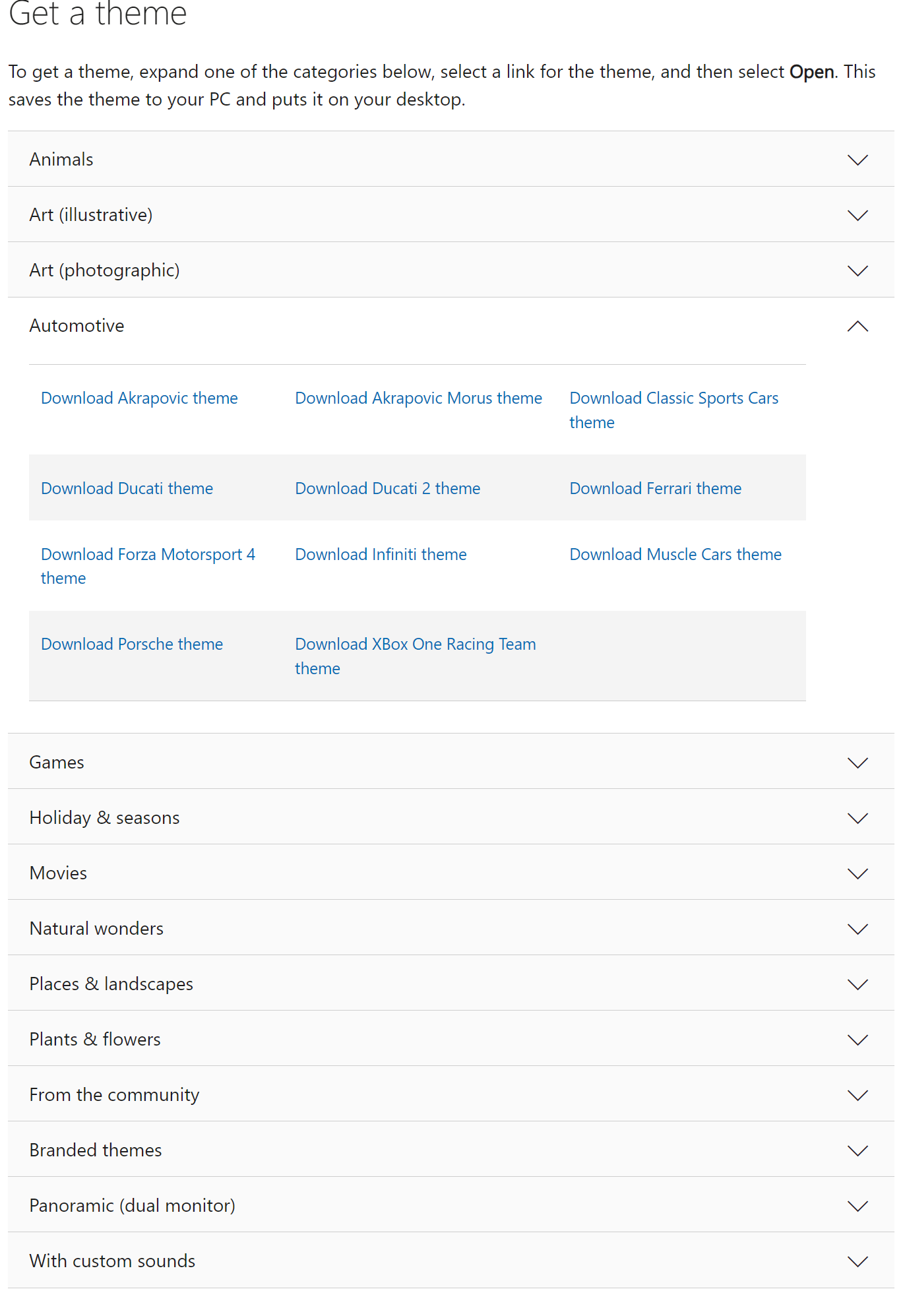
Clicking on one of them will download a “.Themepack” file, which you can open and use to change the look and feel of your Windows system.
Note: This page containing links to download Windows themes is now obsolete and will be retired soon. We recommend downloading the latest themes directly from the Microsoft Store for the best experience.
More information, and the link, can be found here: https://support.microsoft.com/en-us/windows/personalize-your-windows-experience-with-themes-09e3e0a6-02e3-5ecd-22a1-5d048e3cb0d3
What does the script do?
I received the script and the idea to write a blog post about it from Manas Dash, thanks and kudos to him 🙂 The script uses the URL from Microsoft above, fetches all the links, and saves all the “.Themepack” files to a folder in OneDrive.
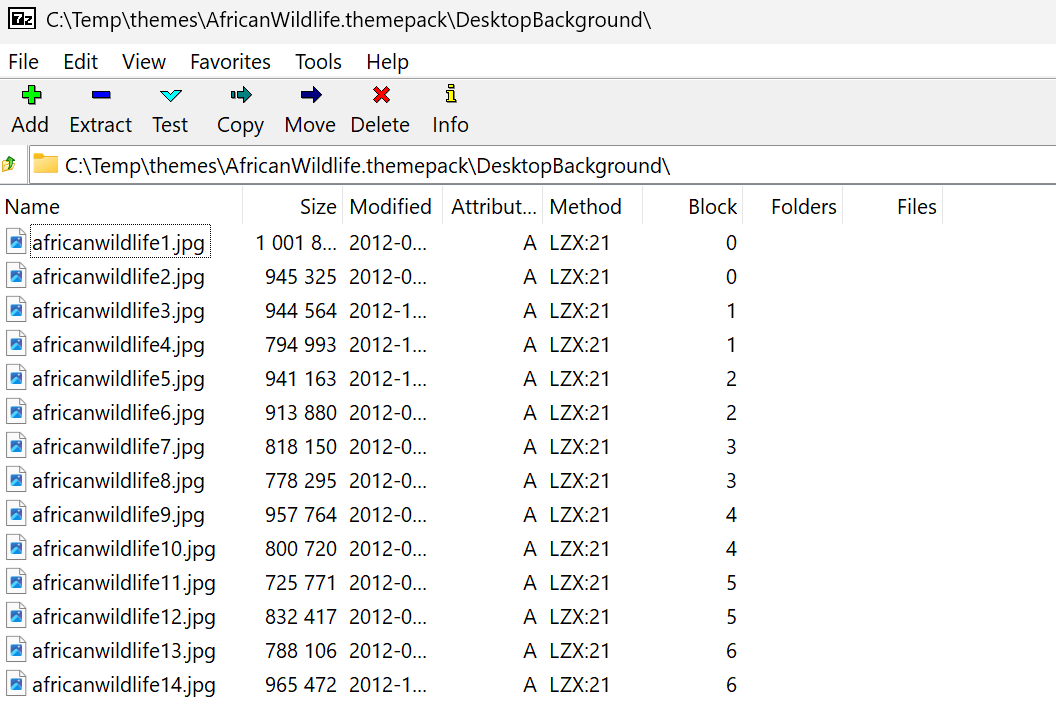
It’s a nice solution, mainly because the download link will be obsolete and retired soon. But also because you can download and open the “.Themepack” files in 7-Zip, for example, and browse the wallpapers in it, too 🙂
Updates to the script
While the script does what it’s supposed to do, I made a few changes to support saving it to a specific folder and include some error handling. The original script can be found at the bottom of this post, and the updated one is above it, as well as on my GitHub page.
Running the script
You can run the script by running the command below, which will save it to your OneDrive folder in a Pictures\Themes subfolder:
.\Download_Themes.ps1
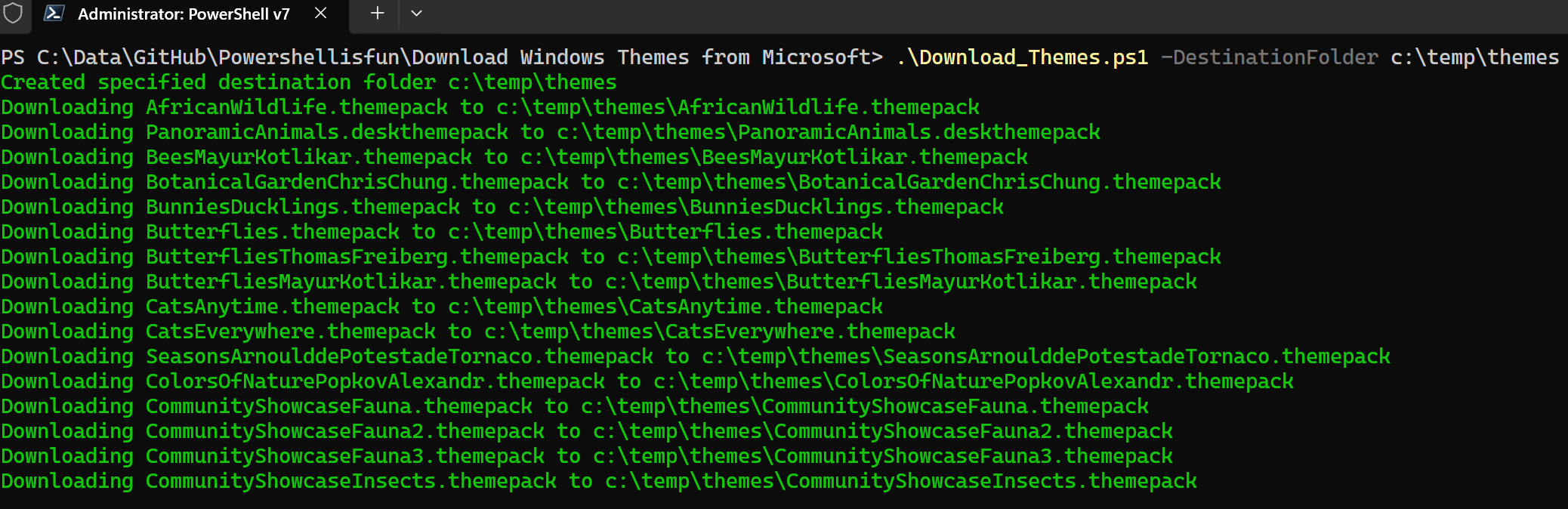
You can also start it with the -Destinationfolder Parameter to specify a download folder, C:\Temp\Themes, for example, which will look like this:
There might be unavailable links; these will display a warning:

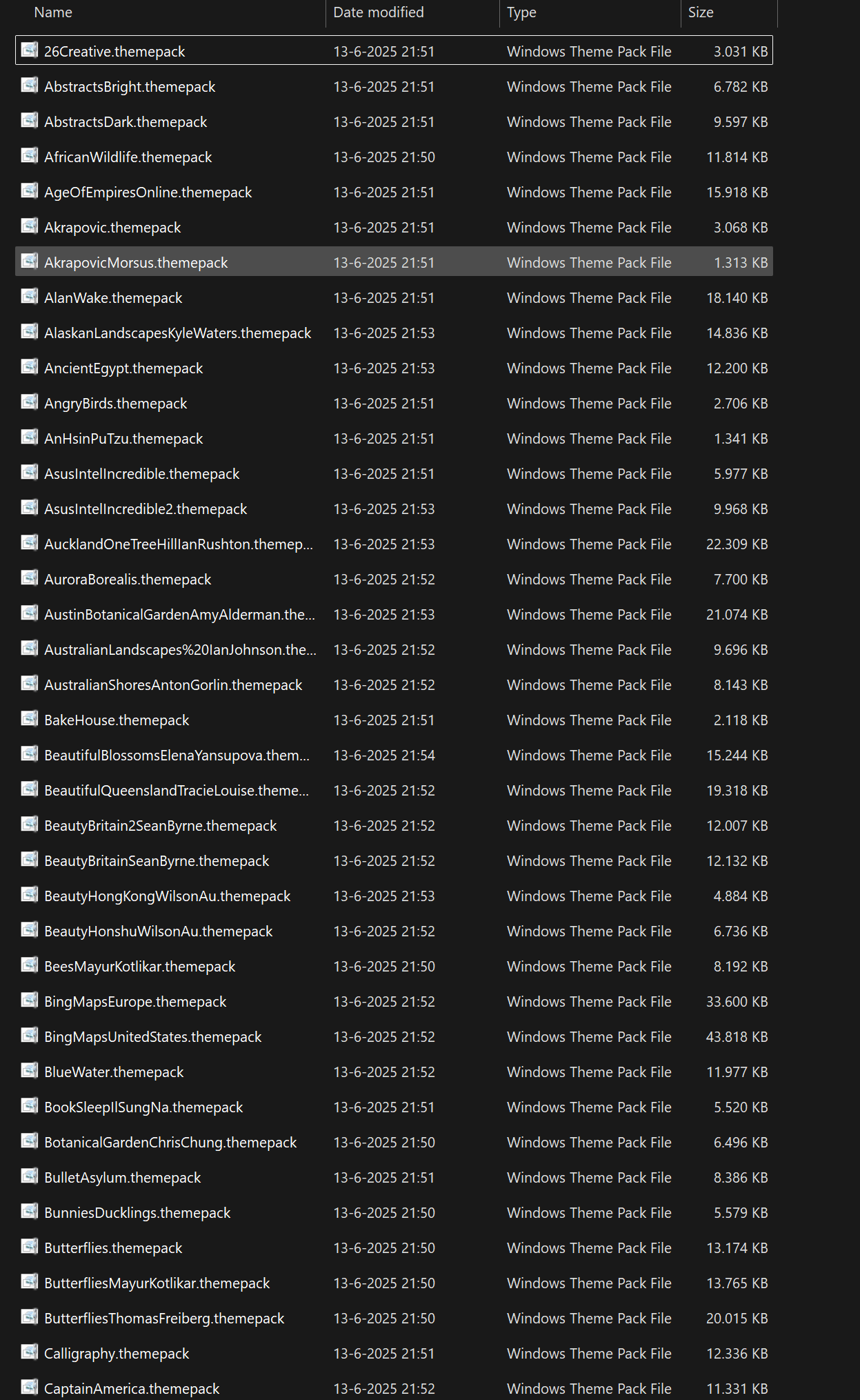
Downloading all, 330!, will take some time 🙂 I downloaded 317 Themepacks in total, 13 were not available, and that will result in 3.5 GB of data 😀
How to use the downloaded files
After downloading, you can browse and select the one you want by double-clicking it, which will result in Windows applying the Themepack and showing you the settings: (I did this in a Windows Sandbox because my work laptop has a preconfigured wallpaper, of course 🙂 )
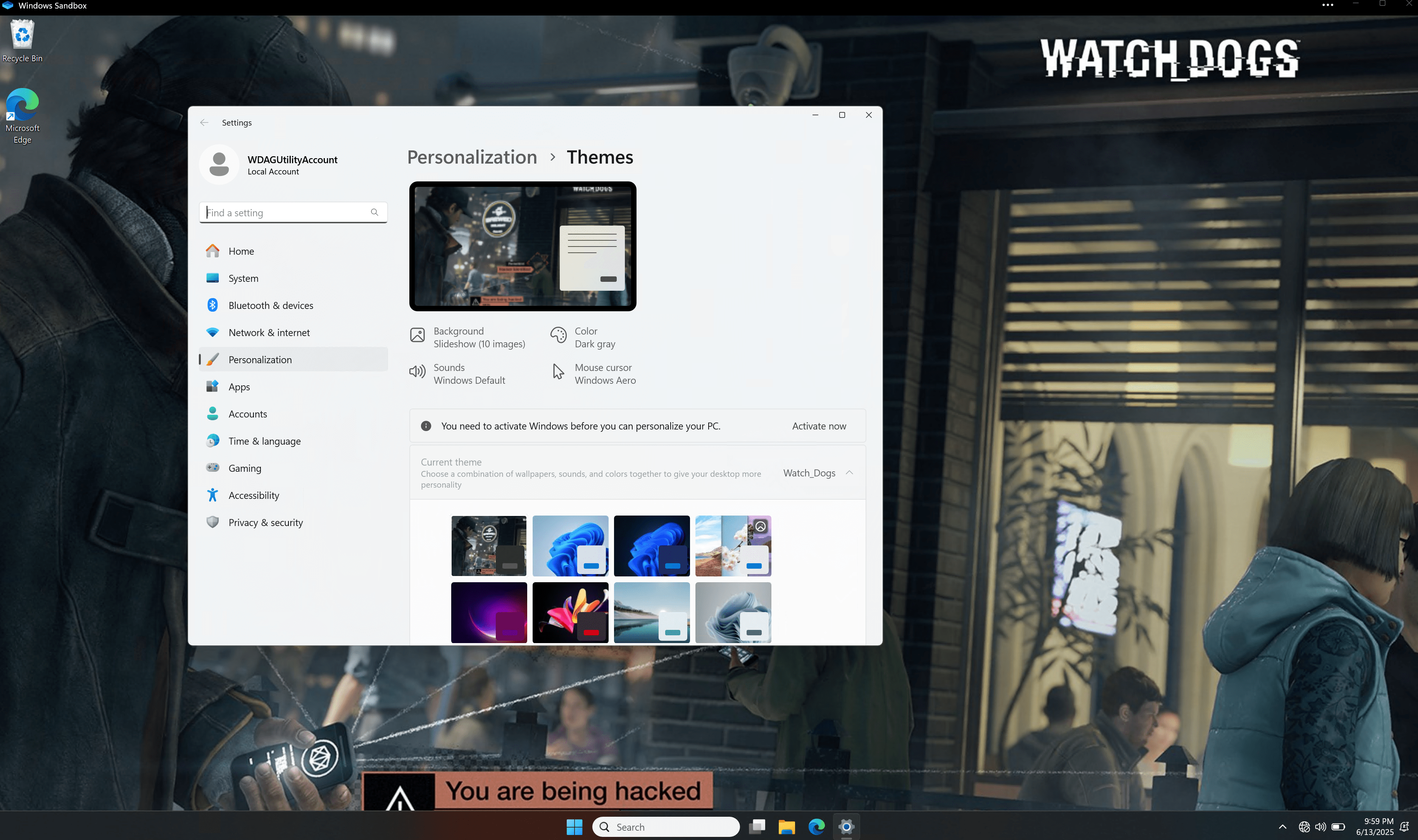
I chose the Watch Dogs one because I liked that game! And, because it has multiple background wallpapers, you can right-click on your desktop and select Next Desktop Background to switch to another one from the Themepack:

Wrapping up
And that’s how you can use PowerShell to download all the files from the links of a specific website, in this case, the Microsoft Themepacks 🙂 Don’t forget that the page will be obsolete soon, and then the script will no longer work, as mentioned in the first chapter. Have a lovely weekend!
The scripts
Below are the scripts, the one that I created based on the original one from Manas. Download and save it to c:\scripts\download_themes, for example.
Modified version
param (
    [parameter(Mandatory = $false, HelpMessage = "Enter the destination folder to save the .Themepack files")][string]$DestinationFolder = "$ENV:OneDrive\Pictures\Theme"
)

# Define the URL of the Microsoft Themes page
$URL = "https://support.microsoft.com/en-us/windows/windows-themes-94880287-6046-1d35-6d2f-35dee759701e"

# Set ProgressPreference to SilentlyContinue to avoid download status messages
$ProgressPreference = 'SilentlyContinue'

# Fetch the HTML content of the page
$Response = Invoke-WebRequest -Uri $URL -UseBasicParsing

# Extract all links ending with .themepack or .deskthemepack
$ThemeLinks = ($Response.Links | Where-Object { $_.href -match "\.themepack$" -or $_.href -match "\.deskthemepack$" }).href

# Remove duplicate links and sort
$UniqueLinks = $ThemeLinks | Select-Object -Unique

# Folder to store themes, create it if it doesn't exist
if (-not (Test-Path -LiteralPath $DestinationFolder)) {
    try {
        New-Item -ItemType Directory -Path $destinationFolder -Force -ErrorAction Stop | Out-Null
        Write-Host ("Created specified destination folder {0}" -f $DestinationFolder) -ForegroundColor Green
    }
    catch {
        Write-Warning ("Could create destination folder {0}, check permissions. Exiting..." -f $DestinationFolder)
    }
}

# Download all .themepack files and save them to specified destination folder
foreach ($url in $UniqueLinks) {
    $FileName = Split-Path -Path $URL -Leaf
    $DestinationPath = Join-Path -Path $destinationFolder -ChildPath $FileName
    try {
        Invoke-WebRequest -Uri $URL -OutFile $destinationPath -UseBasicParsing -ErrorAction Stop
        Write-Host ("Downloading {0} to {1}" -f $FileName, $DestinationPath) -ForegroundColor Green
    }
    catch {
        Write-Warning ("Error downloading/saving {0} to {1}" -f $FileName, $DestinationFolder)
    }
}
Original version
# Define the URL of the Microsoft Themes page
$url = "https://support.microsoft.com/en-us/windows/windows-themes-94880287-6046-1d35-6d2f-35dee759701e"

# Fetch the HTML content of the page
$response = Invoke-WebRequest -Uri $url -UseBasicParsing

# Extract all links ending with .themepack or .deskthemepack
$themeLinks = ($response.Links | Where-Object { $_.href -match "\.themepack$" -or $_.href -match "\.deskthemepack$" }).href

# Display each link
# $themeLinks

# Remove duplicate links and sort
$uniqueLinks = $themeLinks | Sort-Object -Unique

# Output the links
# $uniqueLinks

# Folder to store themes
$destinationFolder = "$env:OneDrive\Pictures\Theme"
New-Item -ItemType Directory -Path $destinationFolder -Force -ErrorAction SilentlyContinue

# Download loop
foreach ($url in $uniqueLinks)
    {
    $fileName = Split-Path -Path $url -Leaf
    $destinationPath = Join-Path -Path $destinationFolder -ChildPath $fileName

    Write-Host "Downloading $url to $destinationPath"
    Invoke-WebRequest -Uri $url -OutFile $destinationPath -ErrorAction SilentlyContinue
    }
Download the script(s) from GitHub here.
Hi Harm
Great and creative way to use PowerShell. I was just thinking about next step could be to unpack all the .themepack files to get all the great .jpg files. That could be used for other things than just a Windows theme.
Thanks! I could adjust that with an Extract parameter.. On my ToDo list 👍