
I just moved to my new house and reconfigured all my network equipment. I wanted to know which MAC address belongs to which Vendor and the corresponding IP details, as well as the open ports. In this blog post, I will demonstrate how to use Get-NetNeighbor and NMAP for this purpose.
What is MAC?
Not the food place, in this case, but the MAC address:
“A MAC address (short for medium access control address or media access control address) is a unique identifier assigned to a network interface controller (NIC) for use as a network address in communications within a network segment.”
Source: https://en.wikipedia.org/wiki/MAC_address
What is NMAP?
“Nmap (“Network Mapper”) is a free and open source utility for network discovery and security auditing. Many systems and network administrators also find it useful for tasks such as network inventory, managing service upgrade schedules, and monitoring host or service uptime. Nmap uses raw IP packets in novel ways to determine what hosts are available on the network, what services (application name and version) those hosts are offering, what operating systems (and OS versions) they are running, what type of packet filters/firewalls are in use, and dozens of other characteristics”
Source: https://nmap.org/
What is Get-NetNeighbor?
It’s a Cmdlet which is part of the NetTCPIP module in Windows:
“The Get-NetNeighbor cmdlet gets neighbor cache entries. The cmdlet returns information about IP addresses and link-layer addresses for the neighbor cache entries.
The neighbor cache maintains information for each on-link neighbor, including the IP address and the associated link-layer address. In IPv4, the neighbor cache is commonly known as the Address Resolution Protocol (ARP) cache.”
What does the script do?
It’s a Function that you can use with a full or partial MAC address to give you details about the IP address in your local address table and the Vendor. It can also be used to supply an IP address, which will provide the MAC address and vendor information. The Vendor information is retrieved from api.macvendors.com, which allows 1K requests and max 1 per second for free 🙂 In both cases, you can also use the -NMAP Parameter to port scan the address and obtain information about open ports, such as SSH and HTTPS.
Parameters that you can use are:
- -IP: Default Parameter, if nothing else was specified, use this to fill in the IP address that you need info on. If you use the IP Parameter, you can’t use the MAC Parameter.
- -MAC: Use this to enter the complete MAC address, or a part of it, to scan for. It doesn’t matter how you enter it, aa:bb:cc / aa-bb-cc / aa.bb.cc, it will convert it to the format that the Get-NetNeighbor Cmdlet uses. If you use the MAC Parameter, you can’t use the IP Parameter.
- -NMAP: Use this to scan the address, if possible, for open ports. You need to have NMAP installed on your Windows system; it expects it to be in C:\Program Files (x86)\Nmap.
Running the script
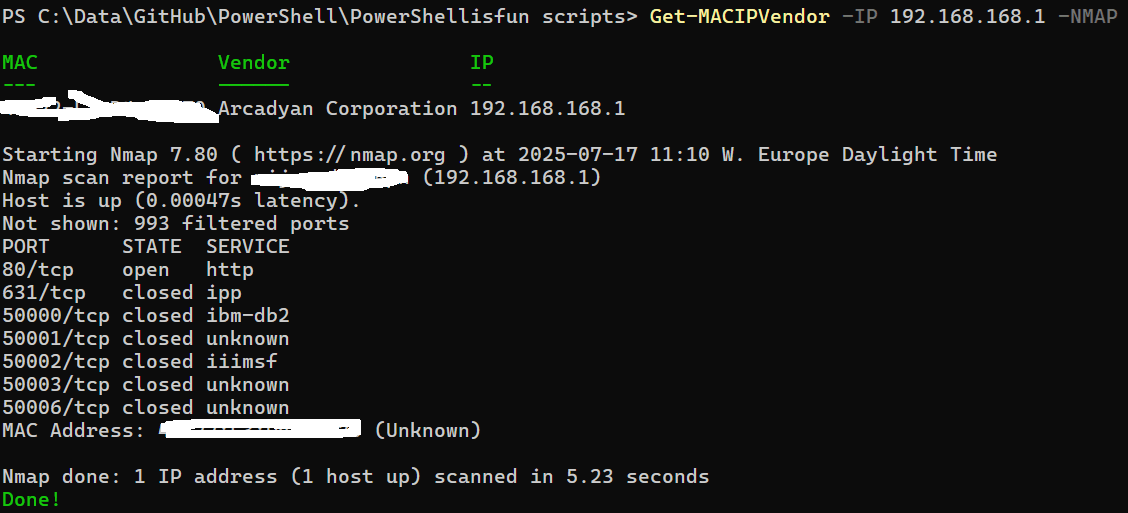
In the example below, I use it to give me details about my router from my internet provider and which ports are open on it by running Get-MACIPVendor -IP 192.168.168.1 -NMAP: (I blurred some information with Paint.exe 😀 )
In this example below, I use a part of the MAC address to scan for its vendor and my internal network details:

Wrapping up
And that’s how you can utilize Get-NetNeighbor information and NMAP to provide more details about devices on your network. There are tools available for this, such as Advanced IP Scanner, but I prefer to create and use PowerShell for these tasks. Enjoy your day!
The script
Below is the content of the function. Save it to C:\scripts\Get-MACIPVendor.ps1, for example. You can add it to your profile so that Get-MACIPVendor is available in each session by following these steps:
- Open a PowerShell prompt (v5 or v7)
- Notepad $profile
- Add “C:\scripts\Get-MACIPVendor.ps1”
- Close and Save
- Open a new prompt
- Run Get-MACIPVendor to check if the Cmdlet/Function is available
function Get-MACIPVendor {
    [CmdletBinding(DefaultParameterSetName = 'IP')]
    param(
        [parameter(Mandatory = $true, ParameterSetName = 'MAC')][string]$MAC,
        [parameter(Mandatory = $true, ParameterSetName = 'IP')][ValidatePattern('^((25[0-5]|2[0-4][0-9]|[01]?[0-9][0-9]?)\.){3}(25[0-5]|2[0-4][0-9]|[01]?[0-9][0-9]?)$')][string]$IP,
        [parameter(Mandatory = $false)][switch]$NMAP
    )

    #Replace : and . in MAC to - to have to Get-NetNeighbor format
    if ($MAC) {
        $MAC = $MAC.Replace(':.', '-')
    }

    #Retrieve MAC Address if $IP was used if possible, set it to "ZZ-ZZ-ZZ" if not.
    #Ping IP first, so that it will be added to the ARP table
    if ($IP) {
        try {
            $ProgressPreference = 'SilentlyContinue'
            Test-NetConnection -ComputerName $IP -ErrorAction Stop -WarningAction SilentlyContinue -InformationLevel Quiet | Out-Null
            $MAC = (Get-NetNeighbor -IPAddress $IP -ErrorAction Stop | Where-Object LinkLayerAddress -NE '00-00-00-00-00-00').LinkLayerAddress
        }
        catch {
            Write-Warning ("The MAC address for specified IP {0} was not found / {0} couldn't be pinged" -f $IP)
            $MAC = "ZZ-ZZ-ZZ"
        }
    }

    if ($MAC -and -not $IP) {
        try {
            $IP = (Get-NetNeighbor | Where-Object { $_.LinkLayerAddress -match $MAC -and $_.AddressFamily -eq 'IPV4' -and $_.LinkLayerAddress -ne '00-00-00-00-00-00' }).IPAddress
        }
        catch {
            Write-Warning ("The specified MAC address {0} was not found in ARP table" -f $MAC)
        }
    }

    #Use the macvendors.com API for retrieving information
    #Warning: 1K request max per day without API key and 1 per second limit
    if ($MAC -ne 'ZZ-ZZ-ZZ') {
        try {
            $Vendor = Invoke-RestMethod -Uri "https://api.macvendors.com/$($MAC)" -ErrorAction Stop
        }
        catch {
            Write-Warning ("Could not find information for specified MAC {0} or api.macvendors.com is not accessible." -f $MAC)
        }
    }

    #Store information object in $Info
    $Info = [PSCustomObject]@{
        MAC    = if ($MAC -ne 'ZZ-ZZ-ZZ') { $MAC } else { "Not found" }
        Vendor = if ($null -ne $Vendor) { $Vendor } else { "Not found" }
        IP     = if (Get-NetNeighbor -IPAddress $IP -ErrorAction SilentlyContinue) { (Get-NetNeighbor -IPAddress $IP | Where-Object LinkLayerAddress -NE '00-00-00-00-00-00').IPAddress } else { "Not found" }
    }
    $Info | Format-Table -AutoSize
    if ($NMAP) {
        if ($Info.IP -ne "Not found") {
            try {
                $NMAPINFO = & "C:\Program Files (x86)\Nmap\nmap.exe" $Info.IP
            }
            catch {
                Write-Warning ("NMAP.exe could not be started, is it installed on your system / in your PATH? https://nmap.org/download")
            }
        }
        else {
            Write-Warning ("No NMAP scan done because specified IP-Address was not found in network")
        }
        $NMAPINFO
    }

    Write-Host ("Done!") -ForegroundColor Green
}
Download the script(s) from GitHub here
Had nMap installed and in path, but script kept erroring that nmap.exe could neither be found nor executed. This worked:
try {
$NMAPINFO = (“C:\Program Files (x86)\Nmap\nmap.exe $Info.IP”)
That’s strange, tested it by renaming it to nmap1.exe in the script and the error was catched. Nmap is in the same location for me, too… But I didn’t nee to specify that. I will update the script with the complete path, thanks!
Changed it to $NMAPINFO = & “C:\Program Files (x86)\Nmap\nmap.exe” $Info.IP
Hi Harm
Nice little tool. I got it to work.
It would be nice if it could scan a range of IP addresses. Maybe that could be an idea for a version 2 of this script 🙂
Yes, thought about that, too 😀 I will add it to the To-Do list!