
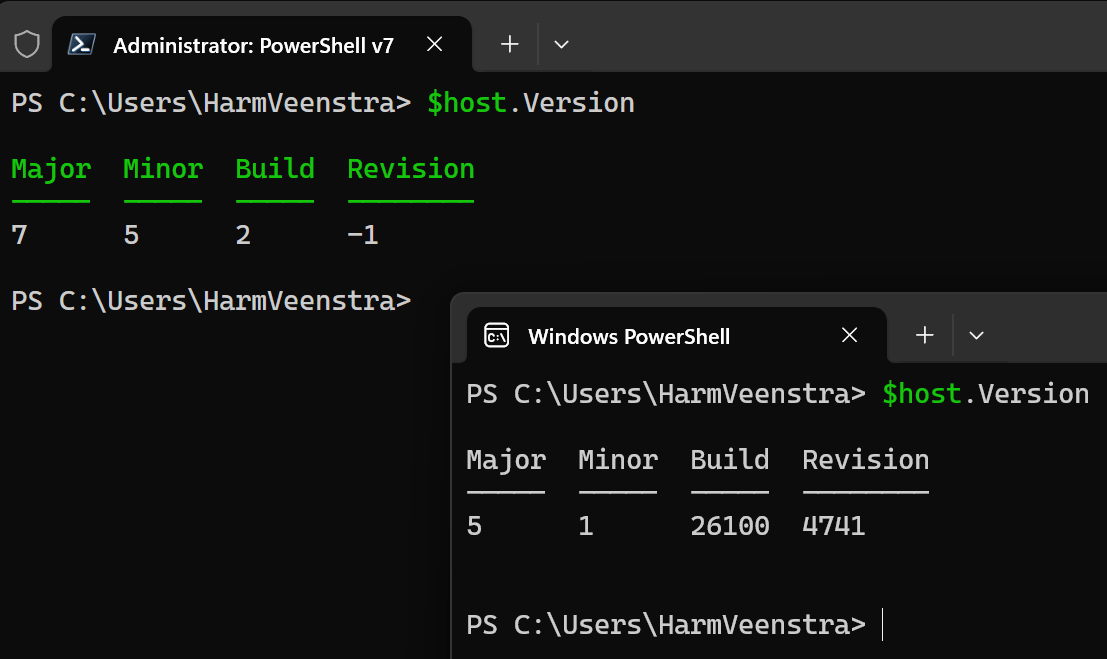
This is a question I often get: Why or when should I use PowerShell v5 or v7? In this blog post, I will highlight key points from the excellent Microsoft Learn article on this topic and share some personal experiences.
- Why should I care?
- Things missing in v7
- Modules
- PowerShell ISE
- Executable name
- UseWindowsPowerShell Switch
- WindowsUpdate support
- ErrorActionPreference
- Job Control
- String comparison
- New Cmdlets
- New Get-Uptime cmdlet
- New Remove-Alias cmdlet
- New cmdlet Remove-Service
- New Markdown cmdlets
- New Test-Json cmdlet
- New cmdlets to support Experimental Features
- Cmdlet changes
- Parallel execution added to ForEach-Object
- Remove
-ComputerNamefrom*-Servicecmdlets NoTypeInformation Is Thedefault onExport-Csv- Group-Object now sorts the groups
Get-PfxCertificate -Password- W
here-Object -Not - Remoting Support
- Wrapping up
Why should I care?
When you install Windows (Client or Server), you get PowerShell v5 out of the box. (Version 2 is going to be removed, too. See https://blogs.windows.com/windows-insider/2025/07/03/announcing-windows-11-insider-preview-build-27891-canary-channel/). And that’s fine, a lot of scripts work just fine in PowerShell v5. But… It depends on whether that’s acceptable to you and your organization. More and more features are only available in v7 and will no longer be developed for v5. Modules may only work in version 7, requiring you to install version 7 on servers and clients to keep your automation scripts running smoothly.
Personally, I develop everything in PowerShell v7. I do that because it’s faster, and all new modules work in that, too 🙂 The .NET versions from 7.4 and 7.5 (Version 8 and 9) are still supported, older v7 builds have older non-supported versions. However, there are some things missing or different in PowerShell v7. I will highlight some of those in the next chapter.
Things missing in v7
Modules
These modules are not shipped with v7:
- ISE
- Microsoft.PowerShell.LocalAccounts
- Microsoft.PowerShell.ODataUtils
- Microsoft.PowerShell.Operation.Validation
- PSScheduledJob
- PSWorkflow
- PSWorkflowUtility
This doesn’t mean that they are no longer supported in v7; I can still use Get-LocalUser from Microsoft.PowerShell.LocalAccounts module, for example. (The module is still in C:\WINDOWS\system32\WindowsPowerShell\v1.0\Modules) It might work, but it is not supported 😉
PowerShell ISE
You can’t develop v7 scripts in the PowerShell ISE editor natively; there are workarounds for that, but just use VSCode 😀
Executable name
PowerShell.exe starts v5, pwsh.exe starts v7. Other changes in running the command-line are: (Important for starting script from Task Scheduler of Intune Win32 commands)
- Changed the first positional parameter from
-Commandto-File. This change fixes the usage of#!(aka as a shebang) in PowerShell scripts that are being executed from non-PowerShell shells on non-Windows platforms. It also means that you can run commands likepwsh foo.ps1orpwsh fooScriptwithout specifying-File. However, this change requires that you explicitly specify-cor-Commandwhen trying to run commands likepwsh.exe -Command Get-Command. pwshaccepts the-i(or-Interactive) switch to indicate an interactive shell. This allows PowerShell to be used as a default shell on Unix platforms.- Removed parameters
-ImportSystemModulesand-PSConsoleFilefrompwsh.exe. - Changed
pwsh -Versionand built-in help forpwsh.exeto align with other native tools. - Invalid argument error messages for
-Fileand-Commandand exit codes consistent with Unix standards - Added
-WindowStyleparameter on Windows. Similarly, package-based installations updates on non-Windows platforms are in-place updates.
The shortened name is also consistent with naming of shells on non-Windows platforms.
UseWindowsPowerShell Switch
You can import older modules for v5 in v7 by running Import-Module nameofmodule -UseWindowsPowerShell. (This will create a proxy module in v7 in the background.) I used this a lot for SharePoint modules in v7.
WindowsUpdate support
Starting with PowerShell v7.2, you can enable automatic updates for PowerShell through Microsoft Update. Nice! But updating by using WinGet is my personal preference 😉
ErrorActionPreference
Previously, if -Verbose or -Debug were specified, it overrode the behavior of $ErrorActionPreference. With this change, -Verbose and -Debug no longer affect the behavior of $ErrorActionPreference.
Also, the -Debug parameter sets $DebugPreference to Continue instead of Inquire.
Job Control
Putting & at the end of a pipeline causes the pipeline to be run as a PowerShell job. When a pipeline is backgrounded, a job object is returned. Once the pipeline is running as a job, all of the standard *-Job cmdlets can be used to manage the job. Variables (ignoring process-specific variables) used in the pipeline are automatically copied to the job so Copy-Item $foo $bar & just works. The job is also run in the current directory instead of the user’s home directory.
String comparison
PowerShell 7.1 is built on .NET 5.0, which introduced the following breaking change:
As of .NET 5.0, culture invariant string comparisons ignore non-printing control characters.
For example, the following two strings are considered to be identical:
PowerShellCopy
# Escape sequence "`a" is Ctrl-G or [char]7
'Food' -eq "Foo`ad"
OutputCopy
True
New Cmdlets
New Get-Uptime cmdlet
The Get-Uptime cmdlet returns the time elapsed since the last boot of the operating system. The cmdlet was introduced in PowerShell 6.0.
New Remove-Alias cmdlet
The Remove-Alias cmdlet removes an alias from the current PowerShell session. The cmdlet was introduced in PowerShell 6.0.
New cmdlet Remove-Service
The Remove-Service cmdlet removes a Windows service in the registry and in the service database. The Remove-Service cmdlet was introduced in PowerShell 6.0.
New Markdown cmdlets
Markdown is a standard for creating readable plaintext documents with basic formatting that can be rendered into HTML.
The following cmdlets were added in PowerShell 6.1:
- ConvertFrom-Markdown – Convert the contents of a string or a file to a MarkdownInfo object.
- Get-MarkdownOption – Returns the current colors and styles used for rendering Markdown content in the console.
- Set-MarkdownOption – Sets the colors and styles used for rendering Markdown content in the console.
- Show-Markdown – Displays Markdown content in the console or as HTML
New Test-Json cmdlet
The Test-Json cmdlet tests whether a string is a valid JavaScript Object Notation (JSON) document and can optionally verify that the JSON document against a provided schema.
This cmdlet was introduced in PowerShell 6.1
New cmdlets to support Experimental Features
The following cmdlets were added in PowerShell 6.2 to support Experimental Features.
Cmdlet changes
Parallel execution added to ForEach-Object
Beginning in PowerShell 7.0, the ForEach-Object cmdlet, which iterates items in a collection, now has built-in parallelism with the new Parallel parameter.
By default, parallel script blocks use the current working directory of the caller that started the parallel tasks.
This example retrieves 50,000 log entries from 5 system logs on a local Windows machine:
PowerShellCopy
$logNames = 'Security','Application','System','Windows PowerShell','Microsoft-Windows-Store/Operational'
$logEntries = $logNames | ForEach-Object -Parallel {
    Get-WinEvent -LogName $_ -MaxEvents 10000
} -ThrottleLimit 5
$logEntries.Count
50000
The Parallel parameter specifies the script block that is run in parallel for each input log name.
The new ThrottleLimit parameter limits the number of script blocks running in parallel at a given time. The default is 5.
Use the $_ variable to represent the current input object in the script block. Use the Using: scope modifier to pass variable references to the running script block.
For more information, see ForEach-Object.
Remove -ComputerName from *-Service cmdlets
In order to encourage the consistent use of PSRP, the -ComputerName parameter was removed from *-Service cmdlets.
NoTypeInformation Is The default on Export-Csv
Previously, the Export-Csv cmdlet would output a comment as the first line containing the type name of the object. The change excludes the type information by default because it’s not understood by most CSV tools. This change was made to address customer feedback.
Use -IncludeTypeInformation to retain the previous behavior.
Group-Object now sorts the groups
As part of the performance improvement, Group-Object now returns a sorted listing of the groups. Although you should not rely on the order, you could be broken by this change if you wanted the first group. We decided that this performance improvement was worth the change since the impact of being dependent on previous behavior is low.
Get-PfxCertificate -Password
Get-PfxCertificate now has the Password parameter, which takes a SecureString. This allows you to use it non-interactively:
PowerShellCopy
$certFile = '\\server\share\pwd-protected.pfx'
$certPass = Read-Host -AsSecureString -Prompt 'Enter the password for certificate: '
$certThumbPrint = (Get-PfxCertificate -FilePath $certFile -Password $certPass ).ThumbPrint
Where-Object -Not
With the addition of -Not parameter to Where-Object, can filter an object at the pipeline for the non-existence of a property, or a null/empty property value.
For example, this command returns all services that don’t have any dependent services defined:
PowerShellCopy
Get-Service | Where-Object -Not DependentServices
Remoting Support
PowerShell Remoting (PSRP) using WinRM on Unix platforms requires NTLM/Negotiate or Basic Auth over HTTPS. PSRP on macOS only supports Basic Auth over HTTPS. Kerberos-based authentication is not supported for non-Windows platforms.
PowerShell also supports PowerShell Remoting (PSRP) over SSH on all platforms (Windows, macOS, and Linux). For more information, see SSH remoting in PowerShell.
Wrapping up
These were some of the highlights, but there are many more in the detailed post here: https://learn.microsoft.com/en-us/powershell/scripting/whats-new/differences-from-windows-powershell?view=powershell-7.5. Have a lovely weekend!
Could you comment on how 5x gui scripts using Windows Forms or other graphical functions need to either be abandoned or adjusted for 7.
Don’t do a lot of Gui things, but would recommend Spectre Console which I need to learn, too 😅