
I like my Lenovo hardware, and I want to keep it up to date with the latest drivers, firmware, and other software updates. In this brief blog post, I will demonstrate how to do that using the LSUClient module from Jantari.
What does the LSUClient do?
“Orchestrate driver, BIOS/UEFI and firmware updates for Lenovo computers – with PowerShell!
Highlight features
- Does driver, BIOS/UEFI, firmware and utility software updates
- Allows for fully silent and unattended update runs
- Work with updates and even their results as PowerShell objects to build any custom logic imaginable
- Fetch the latest updates directly from Lenovo or use an internal repository of your own for more control
- Can work alongside, but does not require Lenovo System Update or any other external program
- Run locally or manage/report on an entire fleet of computers remotely
- Full Web-Proxy support including authentication
- Supports not only business computers but consumer lines too (e.g. IdeaPad)
- Free and open-source!”
Source: https://github.com/jantari/LSUClient
Installing the module
You can install it on your system using:
Install-Module -Name 'LSUClient'
Or (When you have PSResourceGet on your system) by running:
Install-PSResource -Name LSUClient
Note: This Module only works on Windows Systems!
Cmdlets
After installation, these cmdlets are available for you:

Expand-LSUpdate
You can use this to expand a previously downloaded package (You can do that by using Save-LSUpdate). You can use the -Package Parameter to specify the package, or packages, whose installers you want to extract. Use the -Path Parameter to specify the folder in which the downloaded packages are located.
Get-LSUClientConfiguration
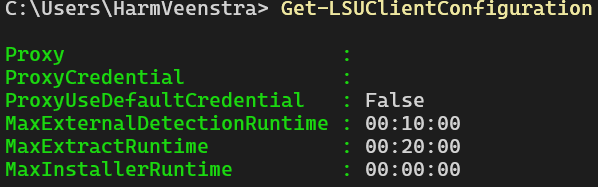
Use this to view your current configuration, which you configured using Set-LSUClientConfiguration. Running this will show you the details about Proxy settings, Detection, Extract, and Max installer time settings.
Get-LSUpdate
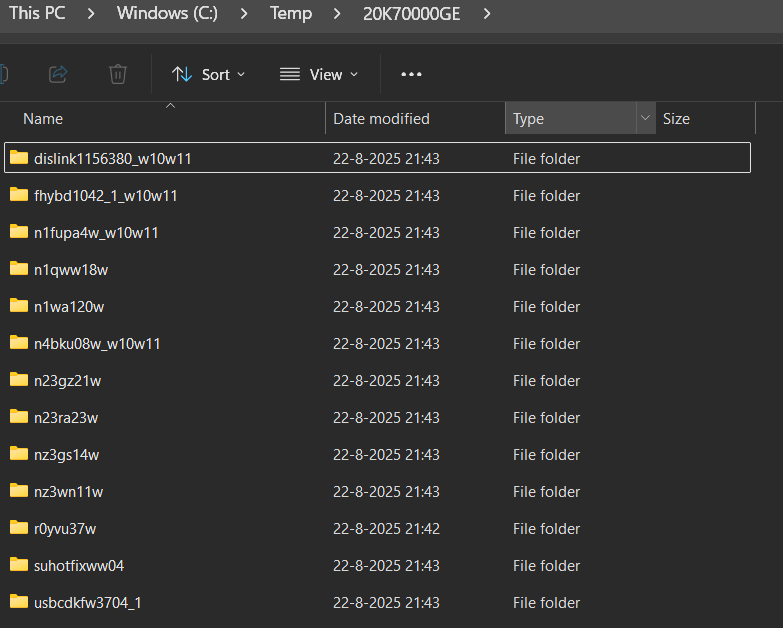
Running this will scan your local machine for available updates, if any, and display them. By default, it scans for updates for your hardware. However, you can use the -Model Parameter to specify a different model and save the found updates for that model to a folder. For example, Get-LSUpdate -Model 20K70000GE -All | Save-LSUpdate -Path c:\temp\20K70000GE will create a folder containing these subfolders: (Check the corresponding TXT or HTML files in them to see what they are for)
Install-LSUpdate
This will install an update from a specific folder when using the -Package and -Path Parameters. Still, I use it in combination with the Get-LSUpdate Cmdlet to install all found updates using Get-LSUpdate | Install-LSUpdate. Below is an example of an update found by running Get-LSUpdate and then followed by Get-LSUpdate | Install-LSUpdate to install it:

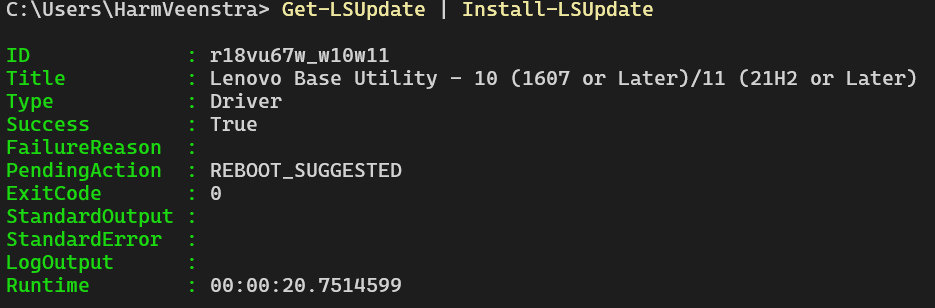
You can see that the update was installed, as exit code 0 indicates success, and the PendingAction is REBOOT_SUGGESTED.
Save-LSUpdate
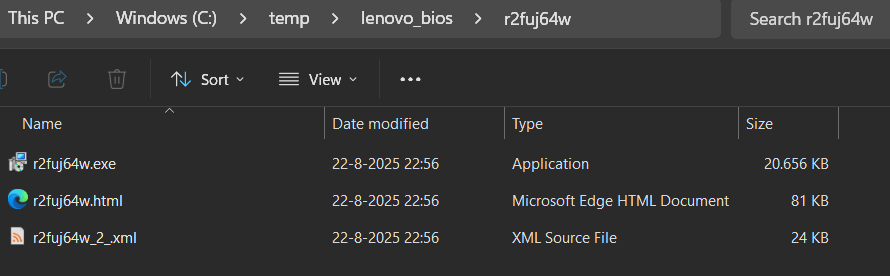
You can use this to save a specific package to a folder. For example, if you want to save the BIOS update utilities to c:\temp\lenovo_bios, you can use Get-LSUpdate -All | Where-Object Title -Match ‘Bios’ | Save-LSUpdate -Path c:\temp\lenovo_bios, which will result in a folder containing the latest BIOS update:
Set-LSUClientConfiguration
You can run this to configure the options that you want to use for the different Cmdlets, for example, Proxy settings, or RunTime settings. For example:
Set-LSUClientConfiguration -MaxInstallerRuntime (New-TimeSpan -Minutes 20)
This will configure the maximum number of minutes that an installer will run before timing out.
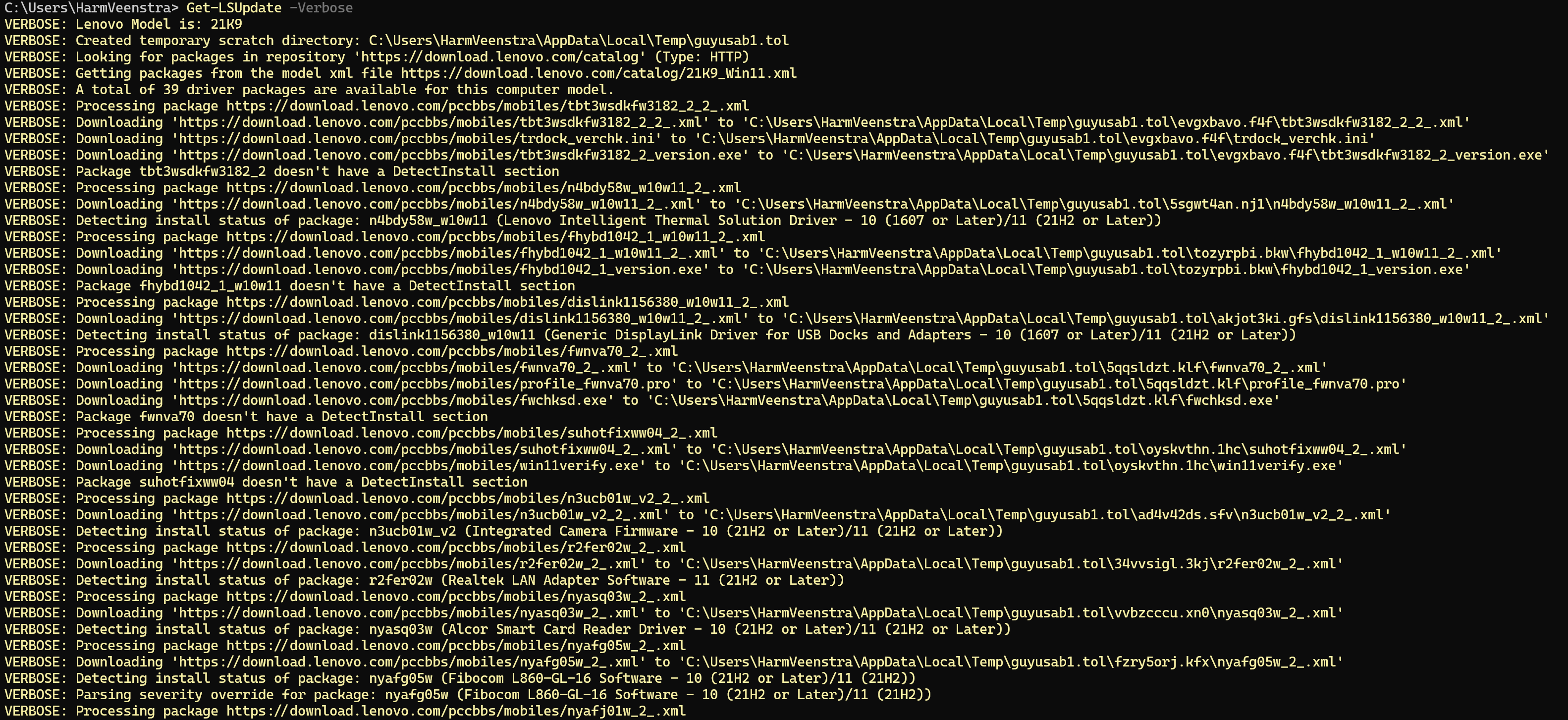
Verbose
With all the Cmdlets listed above, you should try the -Verbose Parameter to show you more details while processing things. For example, running Get-LSUpdate -Verbose will show you this:
More examples and tips
Check https://github.com/jantari/LSUClient?tab=readme-ov-file#examples-and-tips and use Get-Help Cmdlet -Full (For example, Get-Help Save-LSUpdate -Examples) to display all the help about that specific Cmdlet.
Wrapping up
I demonstrated how to use the LSUClient module for updating your system, saving installers, and more. You can use this to create packages and scripts in Intune or to keep your local system up-to-date. Have a lovely weekend!
As this uses Get-CimInstance, it would be helpful to add that this is for Windows and won’t work for those of us running Linux.
Yes, I will mention that in the blog now 👌–> Done!