
You can use the Microsoft Update Catalog site to search and download Microsoft Updates, but there’s also MSCatalogLTS 🙂 In this blog post, I will demonstrate how it works and explain why it’s superior to the traditional catalog site.
What is the Microsoft Update Catalog?
“It’s a service from Microsoft that provides a listing of updates that can be distributed over a corporate network. You can use it as a one-stop location for finding Microsoft software updates, drivers, and hotfixes.”
Source: https://www.catalog.update.microsoft.com/Faq.aspx
What does the MSCatalogLTS module do?
It picked up and continued where the MSCatalog (https://github.com/ryan-jan/MSCatalog) module left off; that one is no longer maintained and was archived on GitHub on July 24, 2025, and is now read-only.
MSCatalogLTS is a Long-term support module for searching and downloading updates from https://www.catalog.update.microsoft.com. It is cross-platform and runs on both Desktop and Core versions of PowerShell.
How to install
You can install it using:
Install-Module -Name MSCatalogLTS -Scope CurrentUser
Or, when you have PSResourceGet available on your system, using
Install-PSResouce -Name MSCatalogLTS -Scope CurrentUser
After installation, these Cmdlets are available:

How does it work?
Get-MSCatalogUpdate
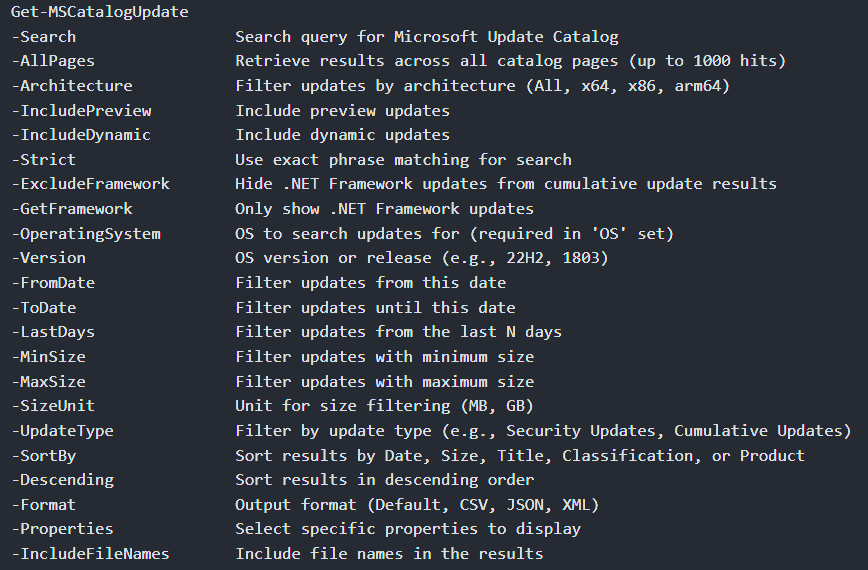
This Cmdlet will allow you to find a specific update, or updates, based on Architecture, Data, Size, Type (For example, Security Updates, Cumulative Updates, etc), Operating System, and more. These are the Parameters you can use:
Save-MSCatalogOutput
This allows you to save the result(s) to Excel; this requires the ImportExcel module to be installed on your system. For example:
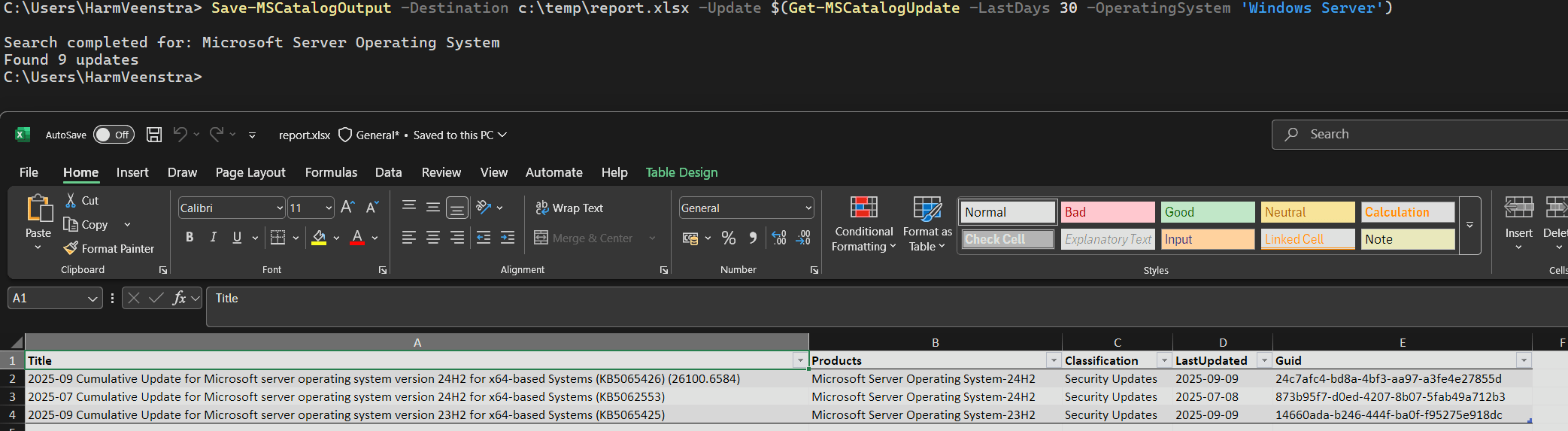
In the example above, I searched for updates from the last month and exported them to an Excel sheet in C:\Temp. It only has three unique updates, KB numbers, so three results instead of the nine in total. (It puts them together in unique ones)
Save-MSCatalogUpdate
This Cmdlet will save the download(s) for a specific Update to your local hard drive. These are the Parameters that you can use:

Examples
Searching for specific updates
In this example, I used Get-MSCatalogUpdate to search for all 25H2 updates, including Preview versions, and it returned this:

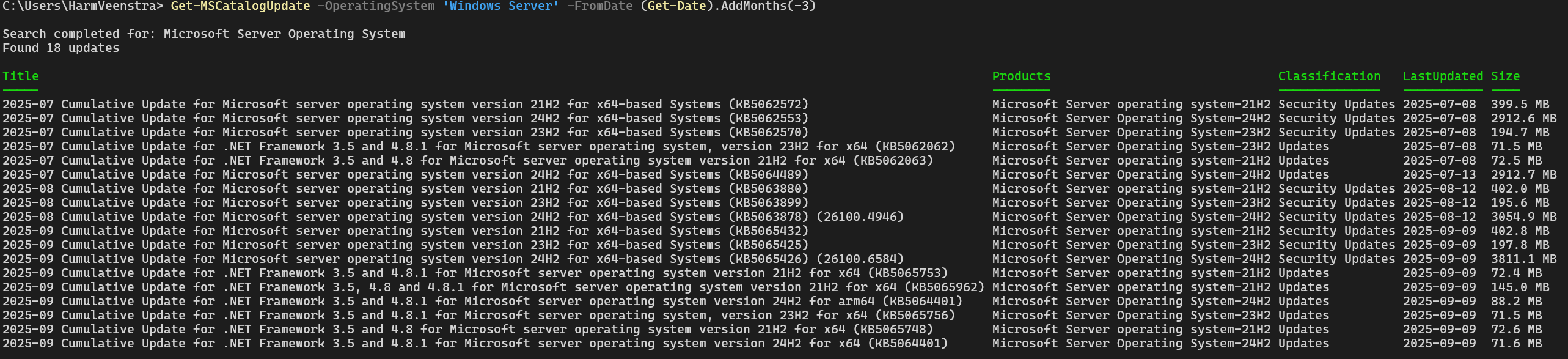
And these are all the updates for Windows Server from the last three months, for example:
Downloading updates
You can combine Get-MSCatalogUpdate with Save-MSCatalogUpdate to query and save the results to a folder. For example, running this will get updates for Windows Server from the last 30 days and will save them to c:\temp\Updates:
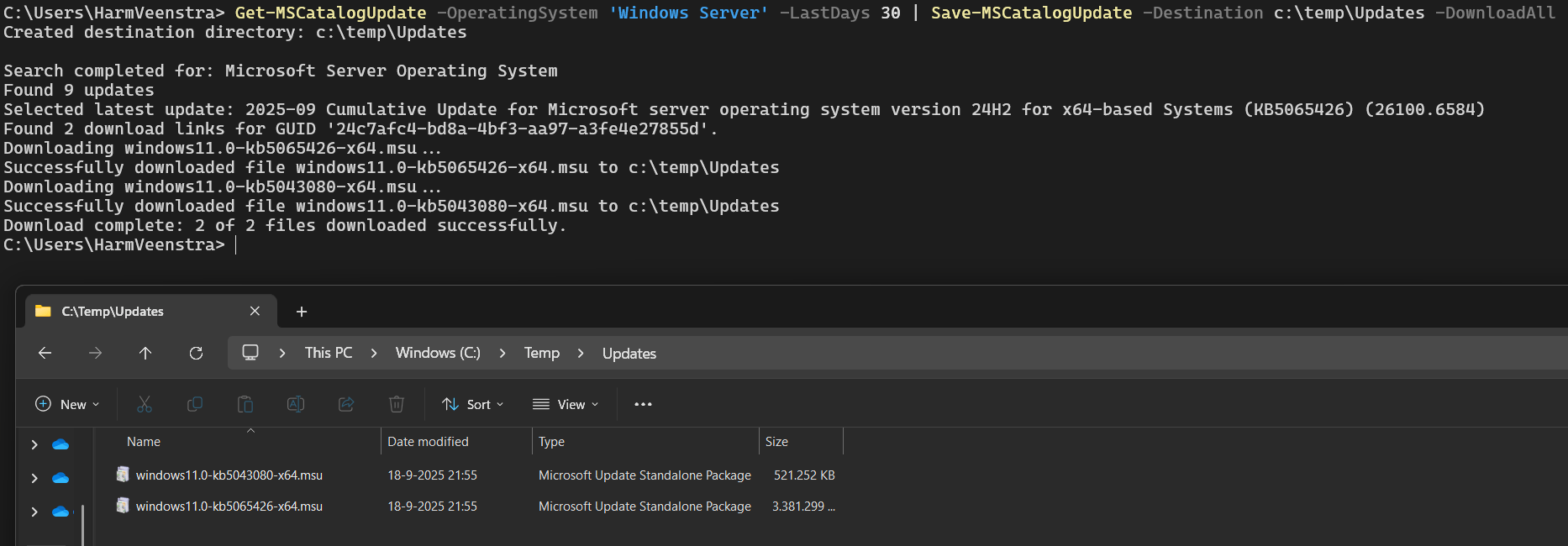
You can play around a bit with the search query so that it will save the updates you want and not too much (Diskspace 😉 )
More information
You can find more examples and information about the module on their Wiki on GitHub here: https://github.com/Marco-online/MSCatalogLTS/wiki/MSCatalogLTS
Wrapping up
And that’s how you can use this nice module to query and save updates 🙂 Have a lovely weekend!