
I use WSL instances on my machine in VSCode to test and develop scripts, as well as to easily test Linux-based applications on my Windows machine. In this blog post, I will show how the Module works and make managing WSL easier.
- What is WSL?
- Installing WSL on your Windows system
- What does the WSL Module do?
- Installing the Module
- Cmdlets
- Enter-WslDistribution
- Export-WslDistribution
- Get-WslDistribution
- Get-WslDistributionOnline
- Get-WslVersion
- Import-WslDistribution
- Invoke-WslCommand
- Remove-WslDistribution
- Set-WslDistribution
- Stop-Wsl
- Stop-WslDistribution
- More information
- Missing Cmdlets
- Wrapping up
What is WSL?
“Windows Subsystem for Linux (WSL) is a feature of Windows that allows you to run a Linux environment on your Windows machine, without the need for a separate virtual machine or dual booting. WSL is designed to provide a seamless and productive experience for developers who want to use both Windows and Linux at the same time.
- Use WSL to install and run various Linux distributions, such as Ubuntu, Debian, Kali, and more. Install Linux distributions and receive automatic updates from the Microsoft Store, import Linux distributions not available in the Microsoft Store, or build your own custom Linux distribution.
- Store files in an isolated Linux file system, specific to the installed distribution.
- Run command-line tools, such as BASH.
- Run common BASH command-line tools such as
grep,sed,awk, or other ELF-64 binaries. - Run Bash scripts and GNU/Linux command-line applications including:
- Tools: vim, emacs, tmux
- Languages: NodeJS, JavaScript, Python, Ruby, C/C++, C# & F#, Rust, Go, etc.
- Services: SSHD, MySQL, Apache, lighttpd, MongoDB, PostgreSQL.
- Install additional software using your own GNU/Linux distribution package manager.
- Invoke Windows applications using a Unix-like command-line shell.
- Invoke GNU/Linux applications on Windows.
- Run GNU/Linux graphical applications integrated directly to your Windows desktop
- Use your device GPU to accelerate Machine Learning workloads running on Linux.
WSL is an Open Source tool with source code available for download and contributions:
WSL repository on GitHub: github.com/Microsoft/wsl
Learn more about WSL open source components
WSL Open Source docs site: wsl.dev“
Source: What is Windows Subsystem for Linux | Microsoft Learn
Installing WSL on your Windows system
WSL can be installed on your Windows system, a lot easier than before, by running this in an Administrator command prompt:
wsl --install
This command will enable the features necessary to run WSL and install the Ubuntu distribution of Linux. (This default distribution can be changed.)
Note: Prerequisites are Windows 10 2004 and higher (no longer supported, but still functional), or Windows 11.
What does the WSL Module do?
“WSL Management for PowerShell is a PowerShell module that allows you to manage the Windows Subsystem for Linux (WSL), and its distributions. It provides PowerShell-friendly ways to retrieve information about distributions, change their settings, import and export them, terminate them, and remove them.
This module wraps the various functions of wsl.exe in PowerShell cmdlets, making it easier to script each operation. In addition, it provides tab completion of distribution names for all the commands.
This module has been tested using the inbox WSL version of Windows 10 21h2 (the oldest version still in mainstream support as of this writing), and using the most recent version of WSL from the Microsoft Store (version 1.2.5 as of this writing). If you find any problems with other versions (especially newer store versions), please file an issue.
This module supports both Windows PowerShell and cross-platform PowerShell. It can also be run on PowerShell on Linux inside WSL itself, although not all features are available in this mode.
Why use this Module?
This module offers the following advantages over plain wsl.exe:
- Easily perform operations on multiple distributions (e.g. stop or export/import multiple distributions with a single command, or run a Linux command on multiple distributions).
- Provides information in PowerShell objects to make it easier to access, filter, and script.
- Provides additional distribution information such as the the installation folder and VHD location.
- Tab completion and wildcard support for distribution names.
- Easily perform operations on multiple distributions (e.g. stop or export/import multiple distributions with a single command, or run a Linux command on multiple distributions).”
Source: https://github.com/SvenGroot/WslManagementPS
Installing the Module
You can install the module by running:
Install-Module WSL -Scope CurrentUser
After installation, the following Cmdlets are available:

Cmdlets
Enter-WslDistribution
The Enter-WslDistribution Cmdlet allows you to do an “Enter-PSSession“-like command to open a Shell into the Distribution you selected. In the example below, I enter my Ubuntu Distribution as Root using the -User Parameter and start in / instead of /root by using the -WorkingDirectory Parameter.

Export-WslDistribution
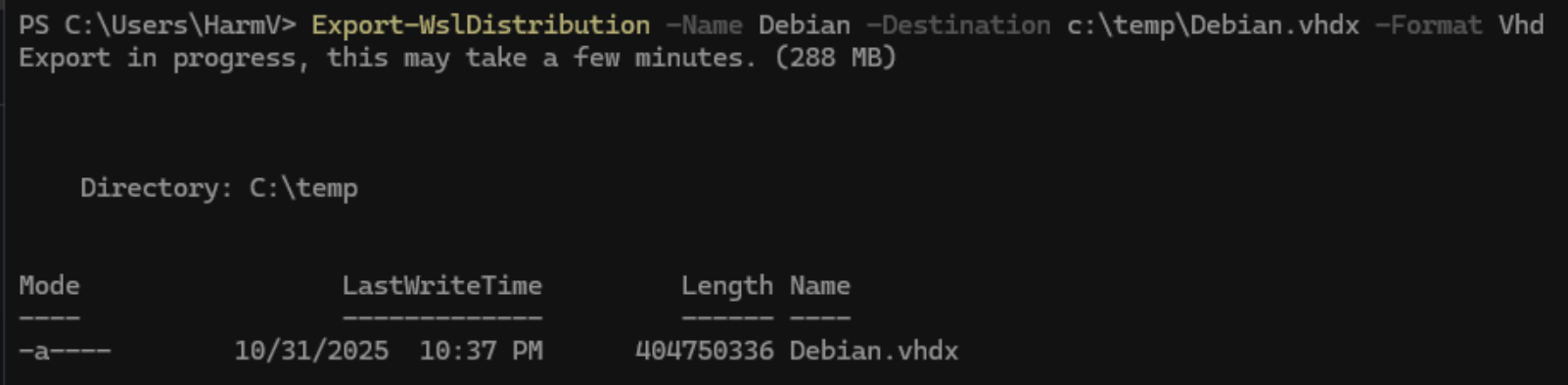
You can export your Distribution to import it on another system, for example, by using the Export-WslDistribution Cmdlet. By default, it exports it to a tar.gz file, but you can also specify that it be exported as a VHDX. For example, I export it to C:\temp\Debian.vhdx file below:
Note: If you see this error:
Exception: Wsl.exe failed: The process cannot access the file because it is being used by another process. Error code: Wsl/Service/ERROR_SHARING_VIOLATION
Then you run this to determine the PID of the Debian Distribution (Change to another name, if needed)
Get-Process | Where-Object { $_.ProcessName -match "wsl|vmmem|debian" }
It will return something like this:

Afterward, you can kill that process by running:
Stop-Process -Id 6640 -Force
And retry the command to export the Distribution again.
Get-WslDistribution
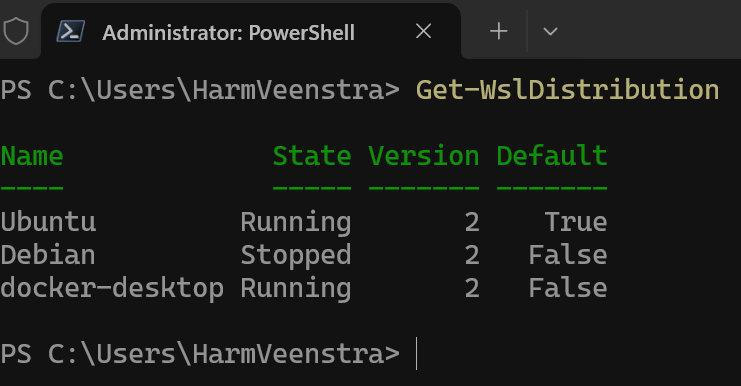
The Get-WslDistribution Cmdlet will show you the registered WSL Distributions on your system and their status, for example:
Get-WslDistributionOnline
Running the Get-WslDistribution Cmdlet will show you the available WSL distributions that you can install on your system.

Get-WslVersion
The Get-WslVersion Cmdlet returns runtime information about your WSL on your system. For example:

Import-WslDistribution
You can use Import-WslDistribution to import a previously exported Distribution on your (new) system. In the example below, I imported the Debian.vhdx file again and used the -Inplace Parameter to register the new Debian Distribution from that location (C:\temp). Alternatively, you can use the -Destination option to copy the VHDX to the specified location.

Invoke-WslCommand
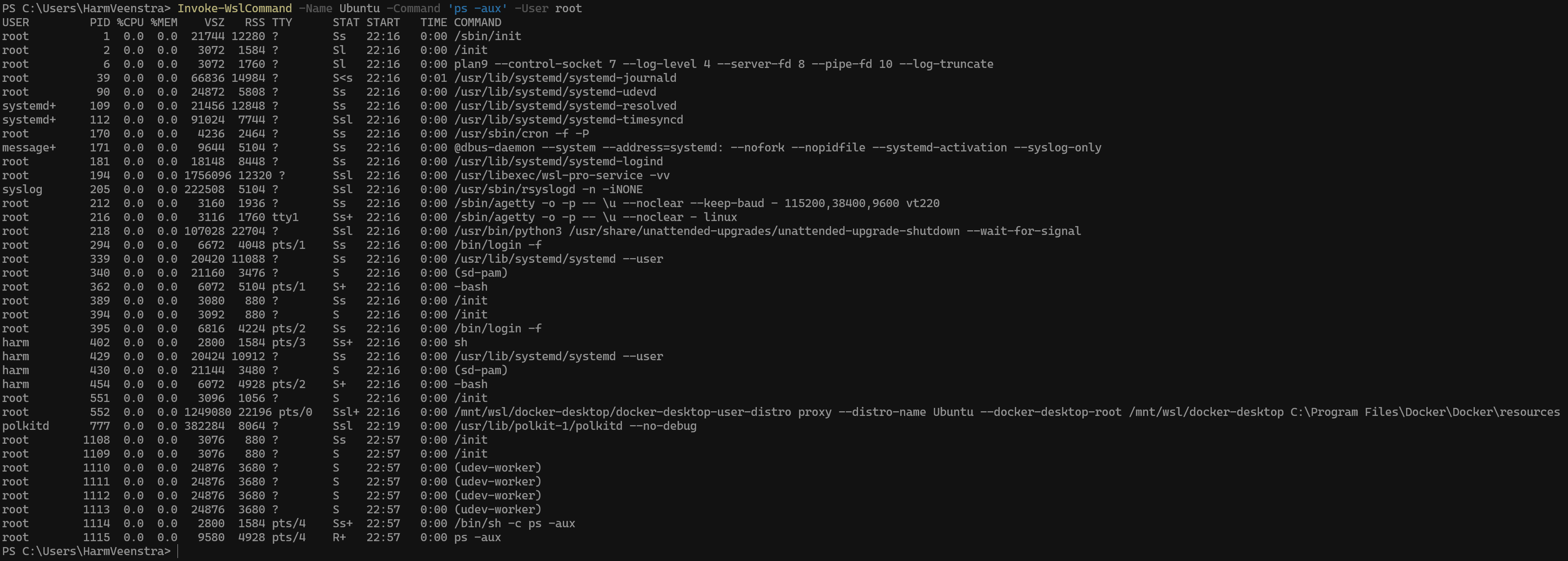
This works like the Invoke-Command Cmdlet from PowerShell itself; you can run a command inside a WSL Distribution by using Invoke-WslCommand, and the console output will be returned to your PowerShell session after execution. For example:
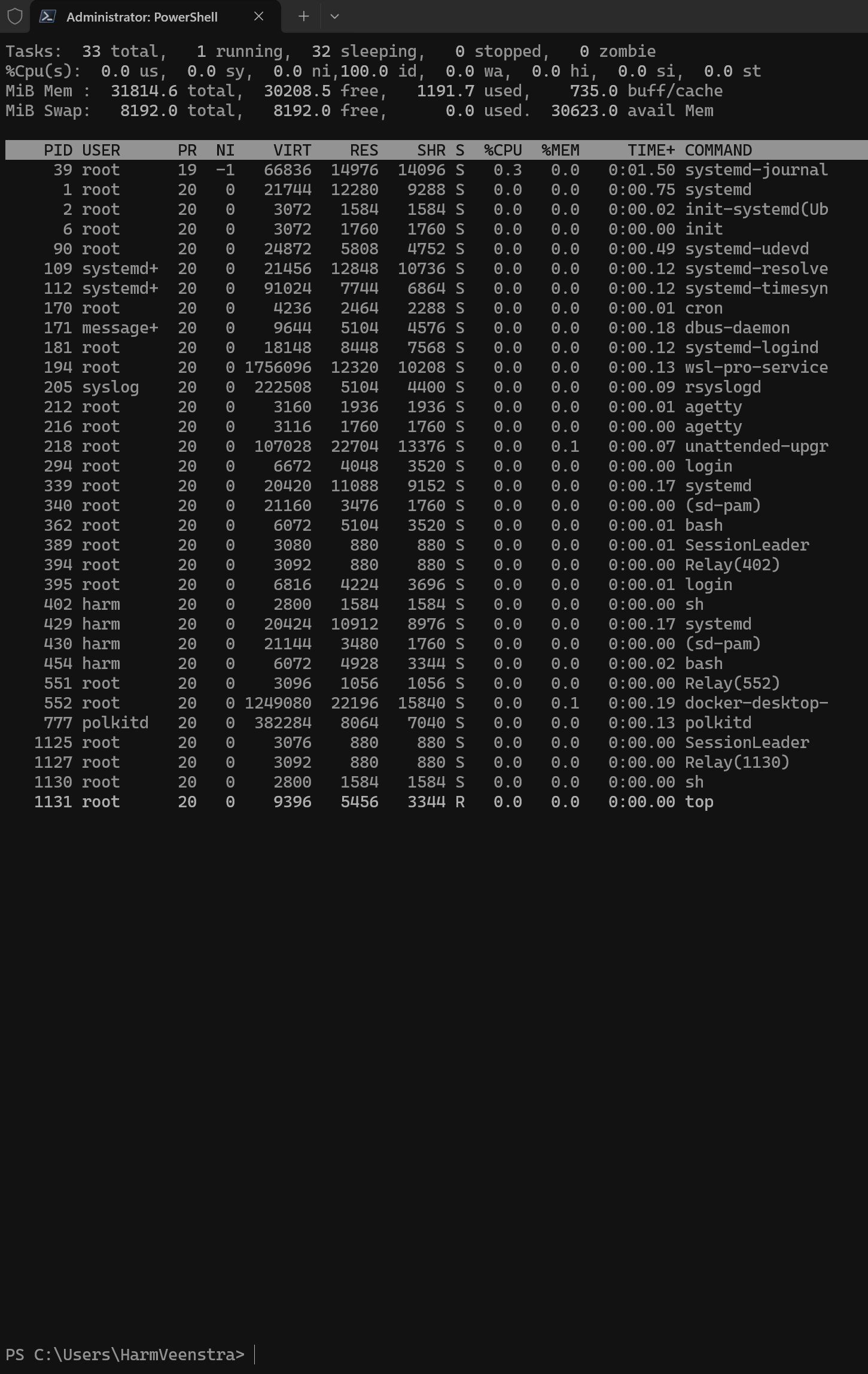
But even running top works (The Task Manager of Linux) by running:
Invoke-WslCommand -Name Ubuntu -Command 'top' -User root
It refreshes until you press Q
Remove-WslDistribution
You can delete Distributions from your system by using the Remove-WslDistribution Cmdlet. For example:
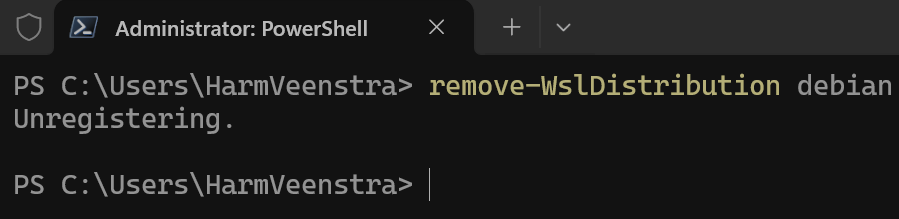
Note: This cmdlet will permanently remove a distribution and all the data stored in its file system without prompting for confirmation, unless you use -Confirm. You can use the -WhatIf parameter to test a command without actually removing anything.
Set-WslDistribution
You can use Set-WslDistribution to update the version (Version one is outdated, while version two is the latest) or to determine which distribution should be the Default one started when running WSL. In the example below, I switched the Debian Distribution to be the default, then to version 1, back to version 2, and made Ubuntu my Default Distribution again 🙂

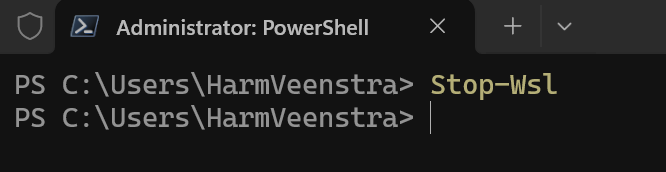
Stop-Wsl
The Stop-Wsl Cmdlet will shut down the whole WSL service and all the running Distributions without confirmation.
Stop-WslDistribution
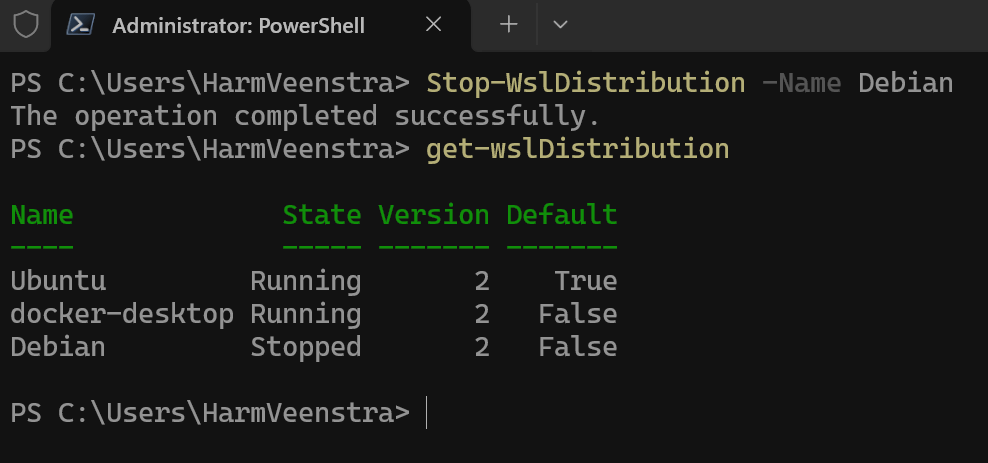
Running the Stop-WslDistribution CmdLet, you can stop a specific Distribution. For example:
More information
You can find more information about the Cmdlets and their Parameters here: SvenGroot/WslManagementPS: PowerShell cmdlets to manage Windows Subsystem for Linux distributions.
Missing Cmdlets
While writing this blog, it occurred to me that Start-WslDistribution and Install-WslDistribution Cmdlets are not present, while I expected them to be there 🙂 I created two issues for that in Sven Groot’s GitHub Repository.
Wrapping up
And that’s how you can make managing your WSL Distributions a lot easier in my opinion 😀 Have a lovely weekend!