
Testing enabled SSL and TLS protocols on servers is something I have to do for hardening and security purposes. Of course, you can do that using PowerShell with the Test-TlsProtocols Module from TechnologyAnimal 🙂 In this blog post, I will show you how.
What are SSL/TLS Protocols?
“Secure Sockets Layer (SSL) is a communication protocol, or set of rules, that creates a secure connection between two devices or applications on a network. It’s important to establish trust and authenticate the other party before you share credentials or data over the internet. SSL is technology your applications or browsers may have used to create a secure, encrypted communication channel over any network. However, SSL is an older technology that contains some security flaws. Transport Layer Security (TLS) is the upgraded version of SSL that fixes existing SSL vulnerabilities. TLS authenticates more efficiently and continues to support encrypted communication channels.”
Source: https://aws.amazon.com/compare/the-difference-between-ssl-and-tls/
The Test-TlsProtocols Module
I found the module by TechnologyAnimal on the PowerShell Gallery. It lists the SSL/TLS protocols that your client can successfully connect to a server using its FQDN or IP Address. It can also list the remote certificate information or output it to a .cer file, pretty handy!
Installation
You can install it using:
Install-Module -Name Test-TlsProtocols
Or, if you have PSResourceGet available, by running:
Install-PSResource -Name Test-TlsProtocols
Usage and Parameters
With no Parameters
You can run Test-TlsProtocols without any Parameters, the Cmdlet will ask for the server name and output information like this:
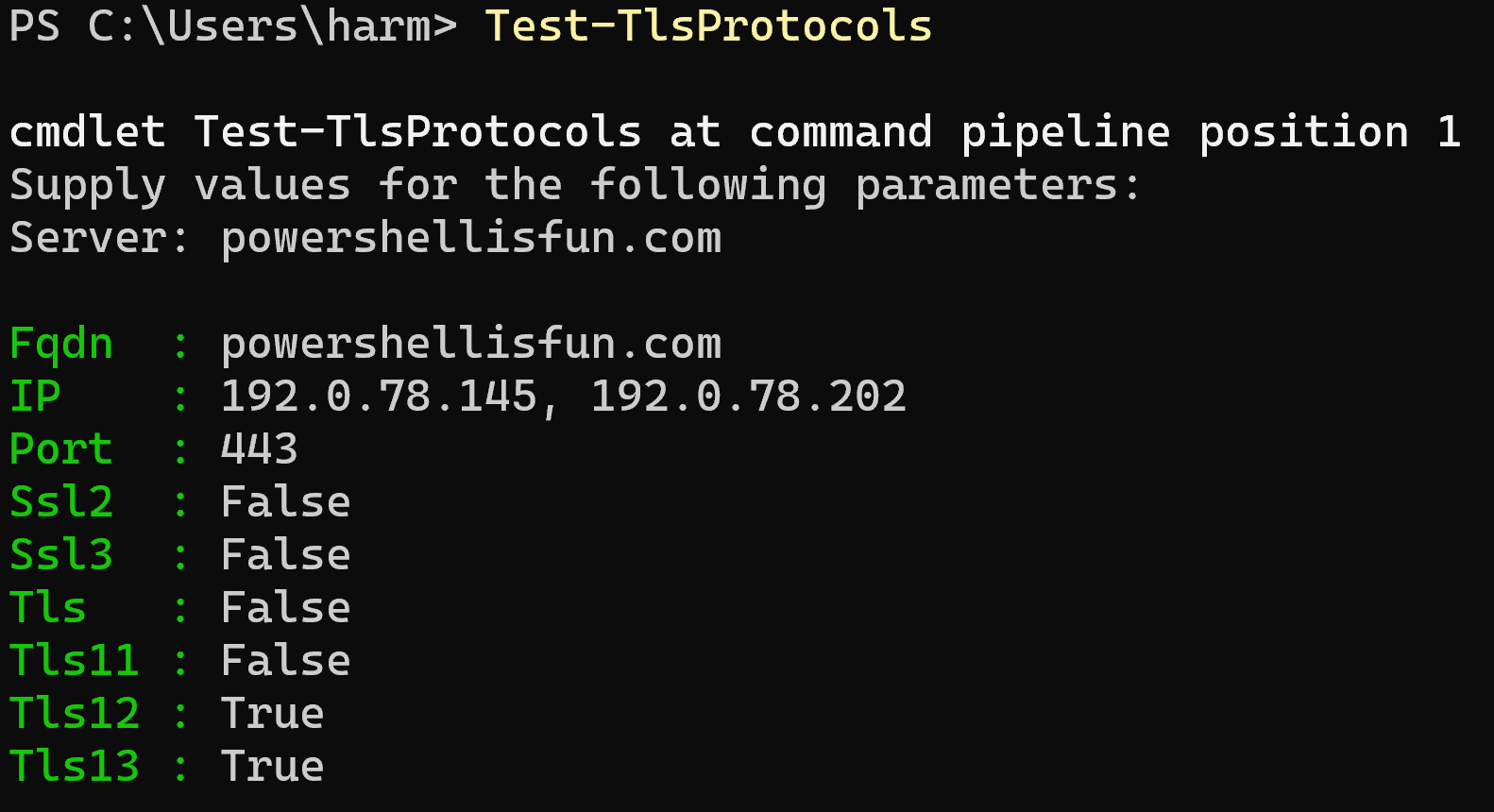
I checked the information using ssllabs.com, and it’s accurate 🙂
Port Parameter
You can specify a specific port if the server you’re accessing is not accessible on port 443. For example:
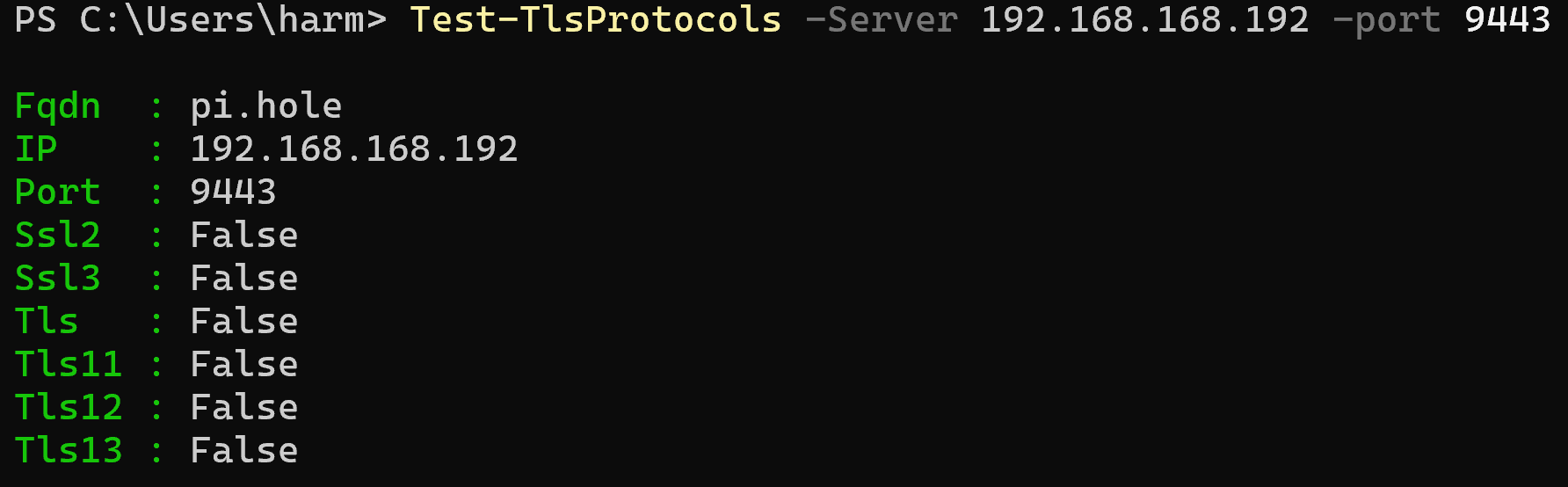
ProtocolName Parameter
If you want to query a specific protocol, such as TLS 1.2, you can use: Test-TlsProtocols -Server powershellisfun.com -ProtocolName tls12.

Values that you can use are: Tls13, Tls12, Tls11, Tls, Ssl3, Ssl2.
OutputFormat Parameter
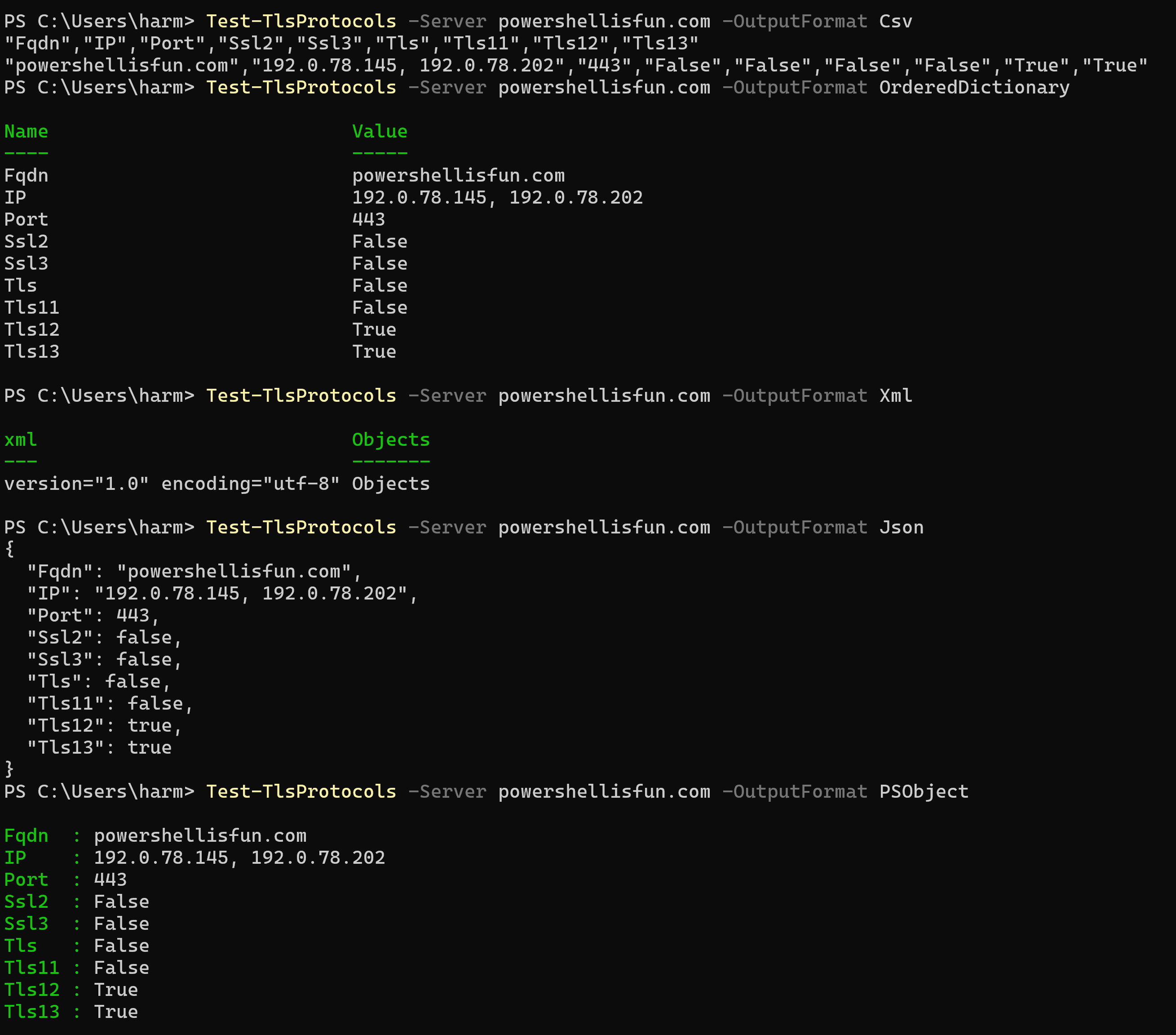
The default output is like in the screenshot above (PSObject), but you can use CSV, OrderedDictionary, Xml, Json or PSObject as values. This will look like this:
ExportRemoteCertificate Parameter
You can retrieve and save the used certificate on the server to a .cer file by using the ExportRemoteCertificate Parameter. It will save it as the server name you specified. For example:
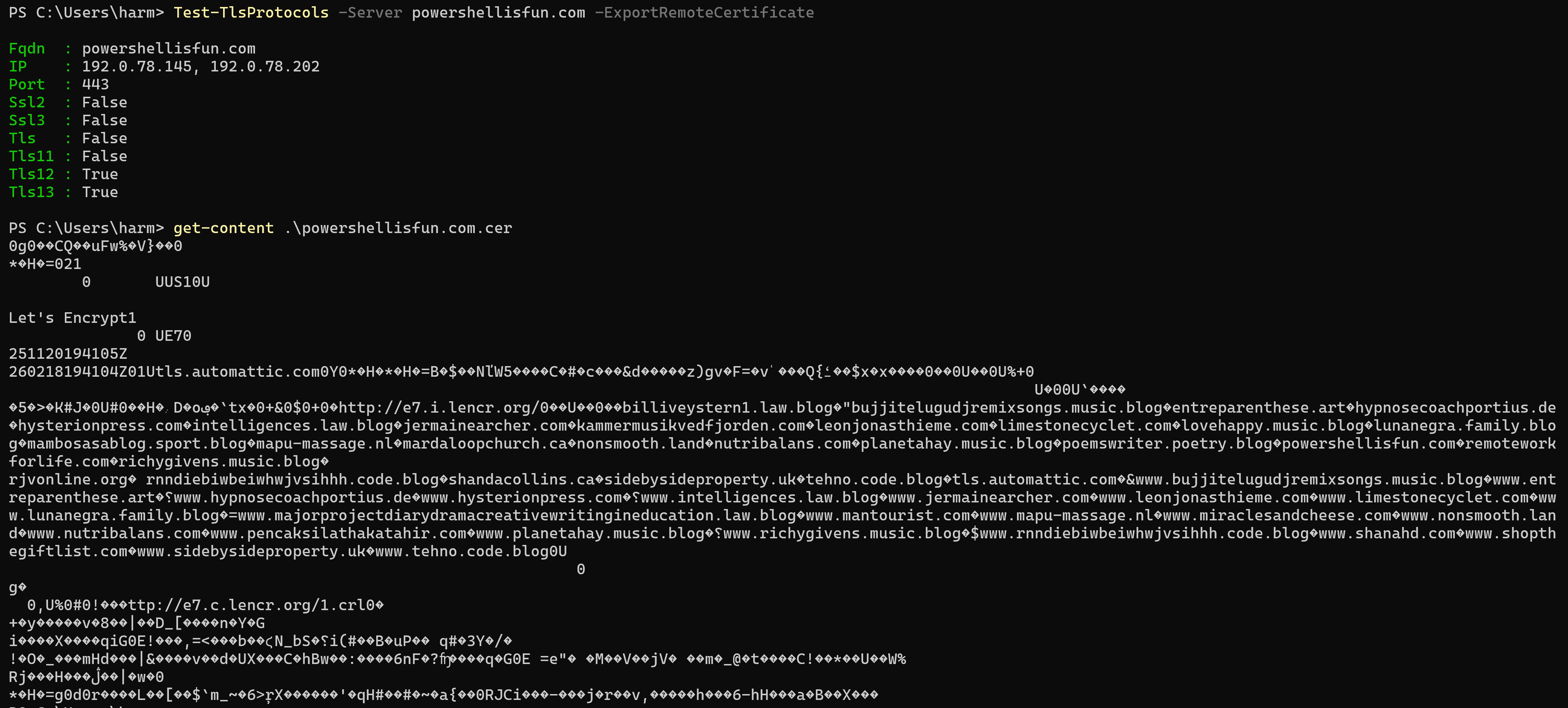
You can see that it saves it to a powershellisfun.com.cer file; you can show its contents using Get-Content, for example, and as you can see… It’s a Let’s Encrypt certificate with multiple hostnames for my WordPress.com-hosted site. (Those are not mine 😀 )
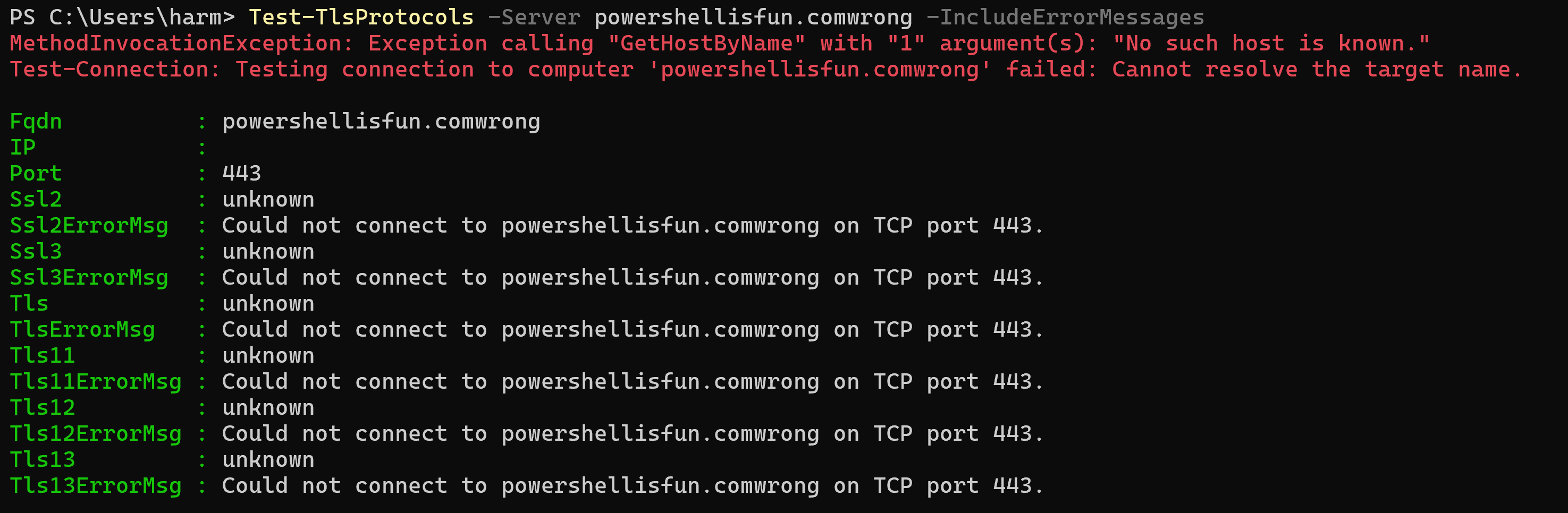
IncludeErrorMessages Parameter
This will output errors about failed connections, for example:
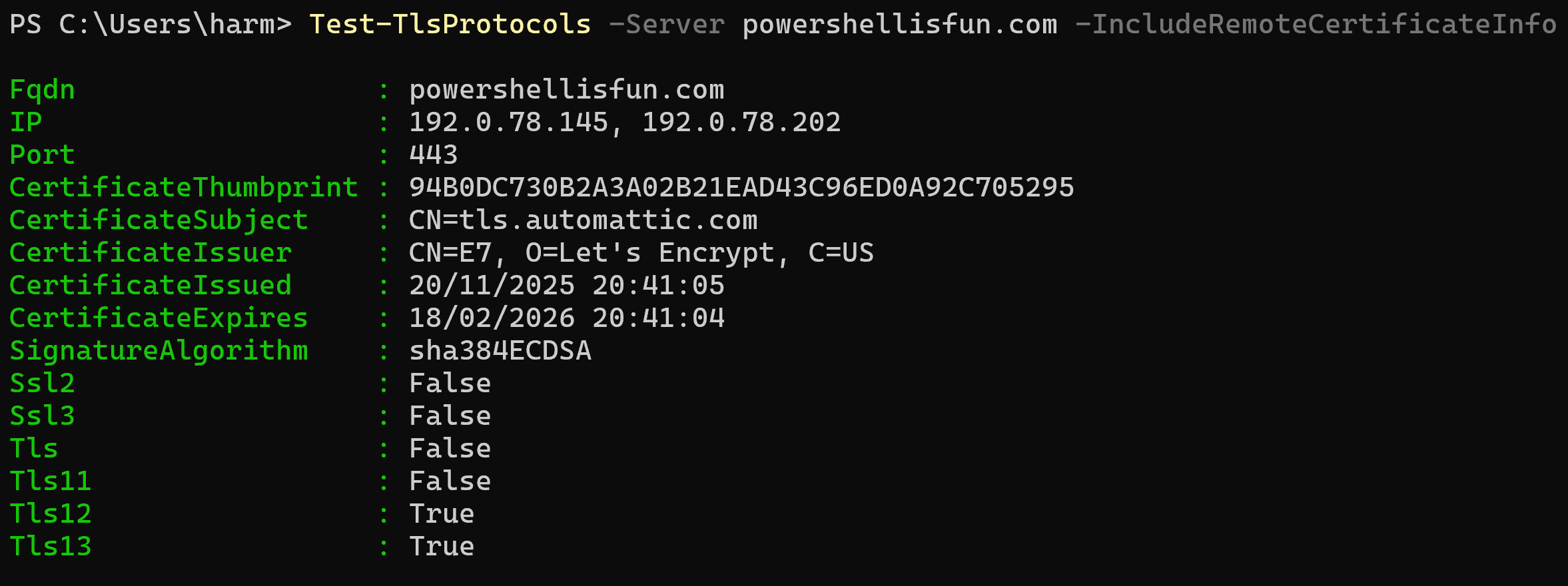
IncludeRemoteCertificateInfo Parameter
Using this, the information on the certificate being used will be shown. For example:
ReturnRemoteCertificateOnly Parameter
This will only show the certificate information on the server and store it in an object, without testing SSL or TLS.
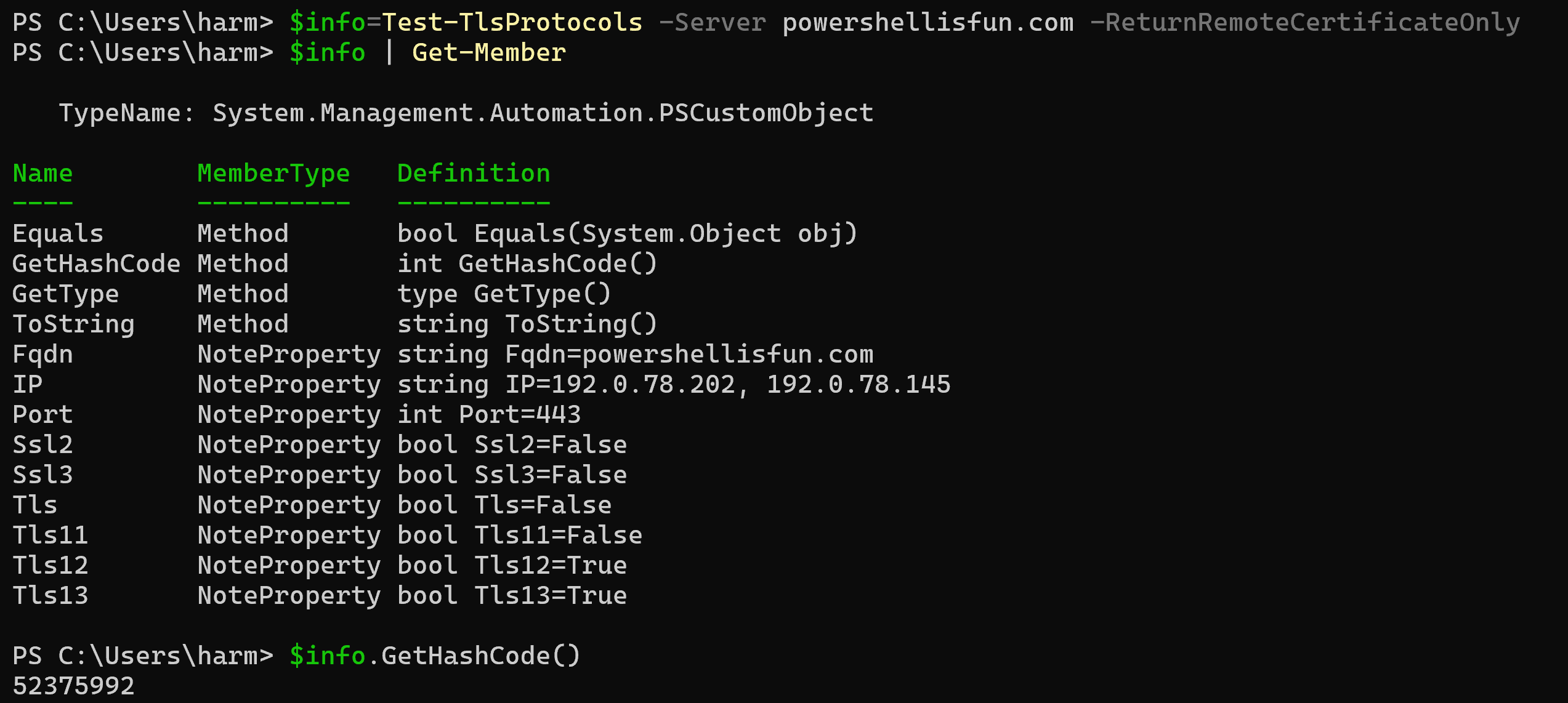
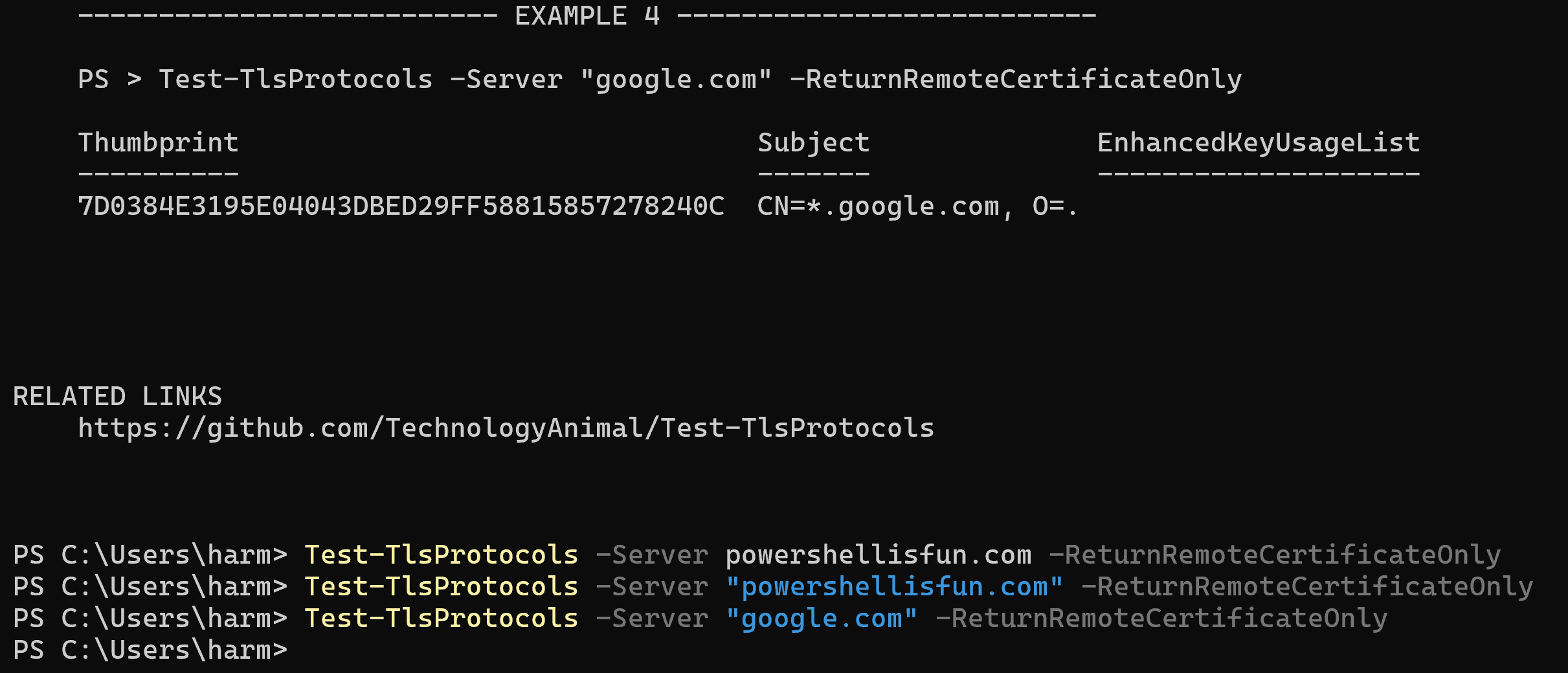
The help information says: “Enabling this switch will only return the remote system’s certificate as a System.Security.Cryptography.X509Certificates.X509Certificate2 object.” But I’m not seeing that? Bug? The example in the help shows a working Google.com query, but not for me?
TimeoutSeconds Parameter
This allows you to set a specific timeout value while testing; the default timeout is two seconds, but it can be increased if needed. For example:
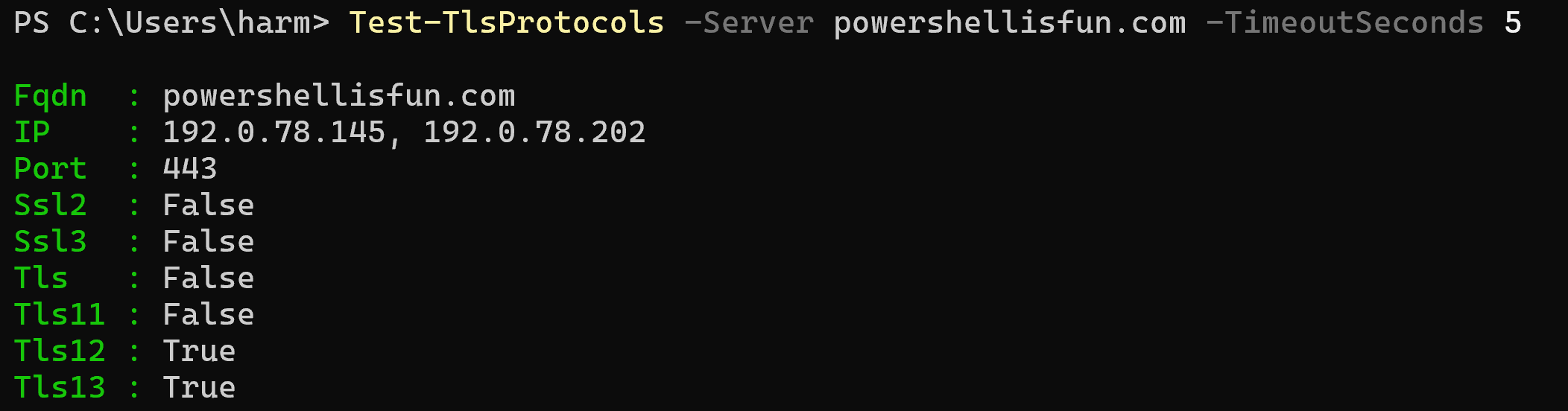
Note
I ran my tests inside a Windows VM on my MacBook, but when running them locally, it showed TLS13 as False instead of True with the same tests…
Wrapping up
And this is how you can install and use the Test-TlsProtocols module for testing SSL and TLS protocols and certificates 🙂 Have a lovely weekend!
Too bad there isn’t a way to pull the SANs from the cert using the module. I usually just fall back to OpenSSL on WSL.
echo | openssl s_client -connect powershellisfun.com:443 2>/dev/null | openssl x509 -noout -subject -ext subjectAltName -dates -fingerprint
We could do a PR on that GitHub repository as a feature request 😊