
This month, Microsoft re-released PowerShell as a command-line option for Intune Win32 packages, making it easy to update the installation script without recreating the IntuneWin package. In this blog post, I will show you how it works.
What is Intune?
“Microsoft Intune is a cloud-based endpoint management solution. It manages user access to organizational resources and simplifies app and device management across your many devices, including mobile devices, desktop computers, and virtual endpoints.”
Source: https://learn.microsoft.com/en-us/intune/intune-service/fundamentals/what-is-intune
What are Win32 Installer Types?
Until recently, there was only one installer type 🙂 The Command Line option was the only one that allowed you to specify an installation command, which would run something in the .intunewin Package you created. You can create these files using intunewinapputil.exe, which puts all the files in a specified folder into a .intunewin package. You can compare that file to a .Zip file, for example.
The limitation was that if you needed to change the script to run as the installation command, you had to recreate the .intunewin package with the modified script. For example, if you had an installation command line like: powershell.exe -executionpolicy bypass -file .\Install.ps1, the commandline would still be valid, but the install.ps1 file could not be updated without recreating the intunewin package file.
Microsoft has made the PowerShell Script file option available to prevent that; the package containing all of the installation files doesn’t need to be recreated and uploaded. Instead, you can upload the small-changes PowerShell script, and you’re done 🙂 (This applies to both install and uninstall scripts.)
Note: This was removed from the Intune release notes in November 2025, but was available for a while and then… Poof, gone 🙁 But now it’s back!
Using the PowerShell Installer Type
When you have created a .intunewin file using intunewinapputil.exe, the following steps can be used in Microsoft Intune to create a Win32 App for your devices.
- Go to Windows Apps
- Click Create
- Click Select
- Click Select app package file
- Click on the Select a file line
- Select the previously created .intunewin file
- Click OK
- Fill in the details on the App information file and click Next
And… At this time of writing, the Installer type is Command Line with no option to use the pulldown menu… Until… You enter a character, any symbol/letter/number, and the pulldown menu will appear, allowing you to select the PowerShell script option 🙂 This is temporary until Microsoft fixes this, of course.
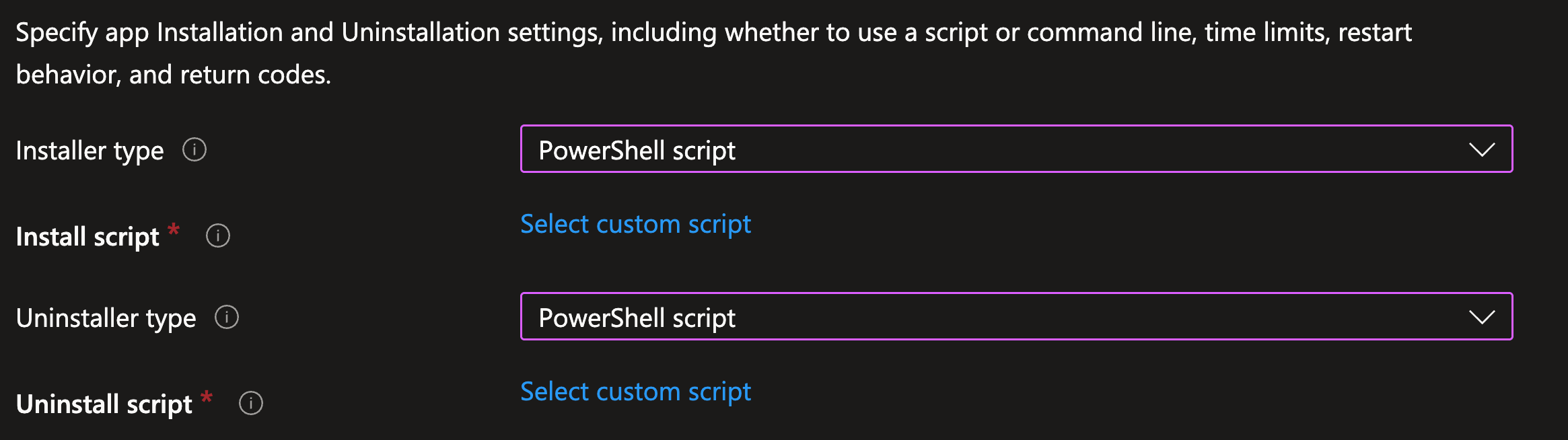
In the screenshot above, I did that for both the install and uninstall scripts. Click on Select custom script to specify the script containing the installation steps for the software that you added to the .intunewin package file. In the screenshot below, you can see that I added an install.ps1 script, and that you can see its contents:
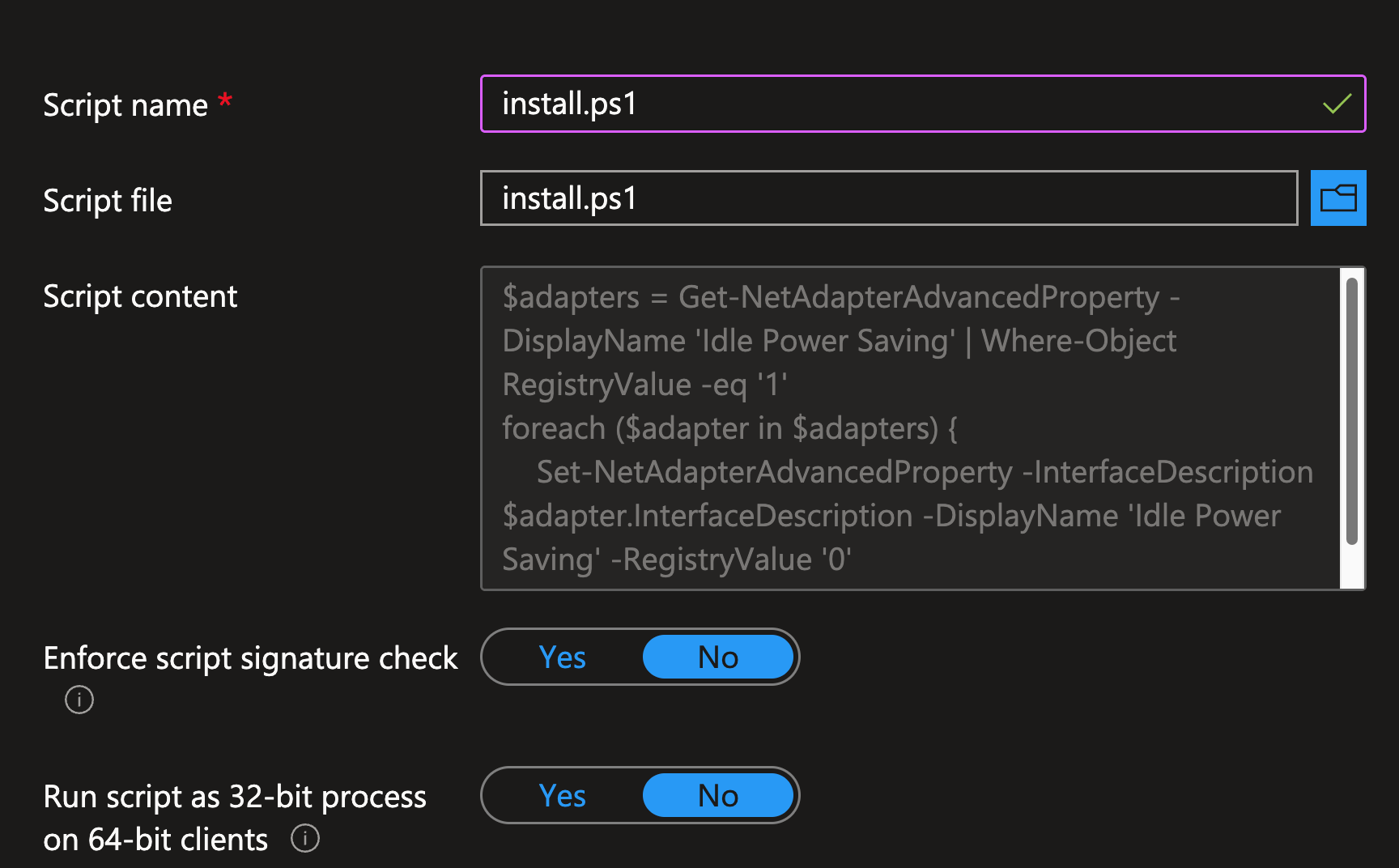
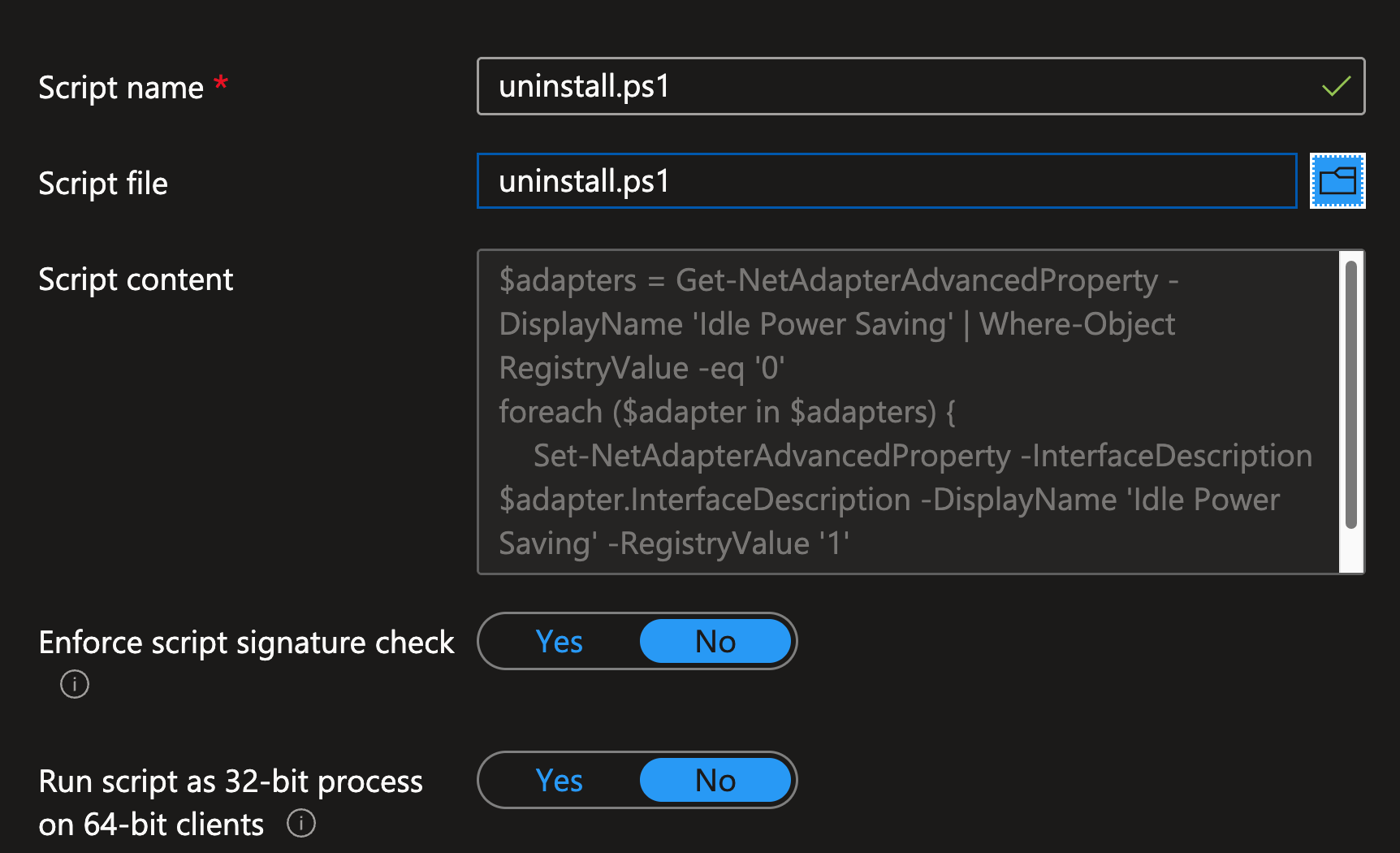
It’s a script to change the Idle Power Saving of all Network Adapters, as the uninstall script I selected is the uninstall.ps1 script which puts all Network Adapters back to their default Idle Power Saving settings:
After selecting both scripts, you can continue adding the Win32 App to Intune by selecting the install behavior (System or User), the restart behavior, requirements, Detection rules, etc. When it’s done adding, you will see this in the properties of the Win32 App:
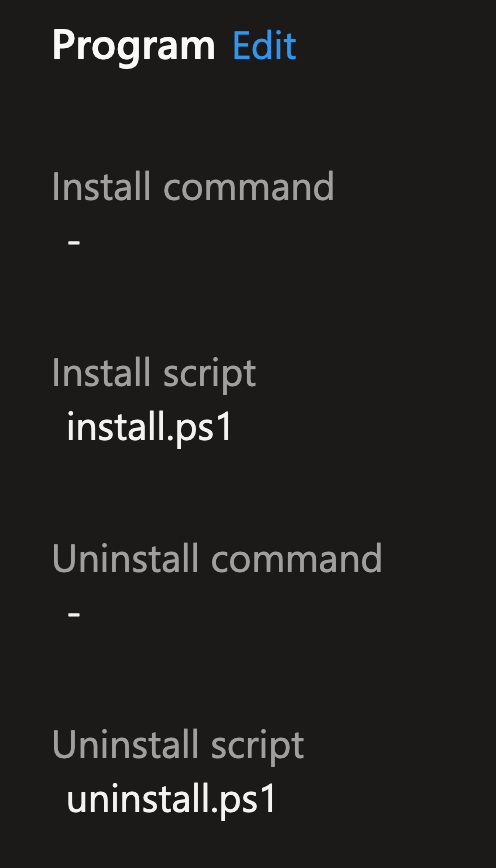
You can see that the Win32 package doesn’t use Install or Uninstall commands; instead, it uses Install and Uninstall scripts. When you edit the properties, you will see the scripts, and these are clickable:


You can click Select a file again to upload a new version of the script without recreating and uploading a modified .intunewin package containing the updated script, as you had to do before this change in Microsoft’s Installer types.
For more background information and details, check out Rudy Ooms’ blog on the PatchMyPc site here.
Wrapping up
And that’s how you can use the new Installer Type option to easily update the installation and uninstallation scripts for your Win32 packages without repackaging an intunewin file and re-uploading it. Have a lovely weekend!
so lets say i pass arguments in the cmd line to my script, so i don’t have to fully reupload the file, would that still be feasible here? for instance:
powershell.exe -executionpolicy remote -nologo -NoProfile -file .\Invoke-appInstall.ps1 “1.1.9.11_7” “11.28.00”
No, you can only specify the script file, but not Parameters. You could, at the top of the script, hard-code the variables.
Amazing Info and blog… The feature is very experimental… Sucks how you are required to upload a file (intunewin) before getting to the Program section. I think this would be amazing and very useful if we just had a PowerShell Script option/template, so techs just need to upload a .PS1 file only.
Yes, was hoping for that too 😊 But this is a nice step, especially with larger intunewin files
Does it run in 64bit context?
Yes, it should and it’s selectable when adding the scripts (See screenshot) Unless you have a very specific thing requiring 32Bit, things should work in 64Bit context, too