
It was something I ran into this week, Format-Custom. Usually I display things in a list or table, but this is different… And very useful! In this blog post, I will show you how it works.
What is Format-Custom?
“The Format-Custom cmdlet formats the output of a command as defined in an alternate view. Format-Custom is designed to display views that are not just tables or just lists. You can use the views defined in PowerShell, or you can create your own views in a new format.ps1xml file and use the Update-FormatData cmdlet to add them to PowerShell.”
Why should you use it?
PowerShell offers many options for displaying your data, making it easy to browse and find the Properties and Values you need. Usually, I use ” | Format-List” or ” | Format-Table -AutoSize“, but sometimes you get Properties that are a Dictionary’2 type, or you have to use ” | Select-Object -ExpandProperty xyz” on every Property to see its values… Sometimes you just need to see all Properties and values just to verify something.
And then you can use Format-Custom 🙂 In the example below, the Get-MgUser output is shown, with the Authentication Property highlighted. On the right, the same output as Get-MgUser, piped with ” | Format-Custom | Out-File test.txt“. I used Out-File because it dumps about 16K lines of data for one user 😉
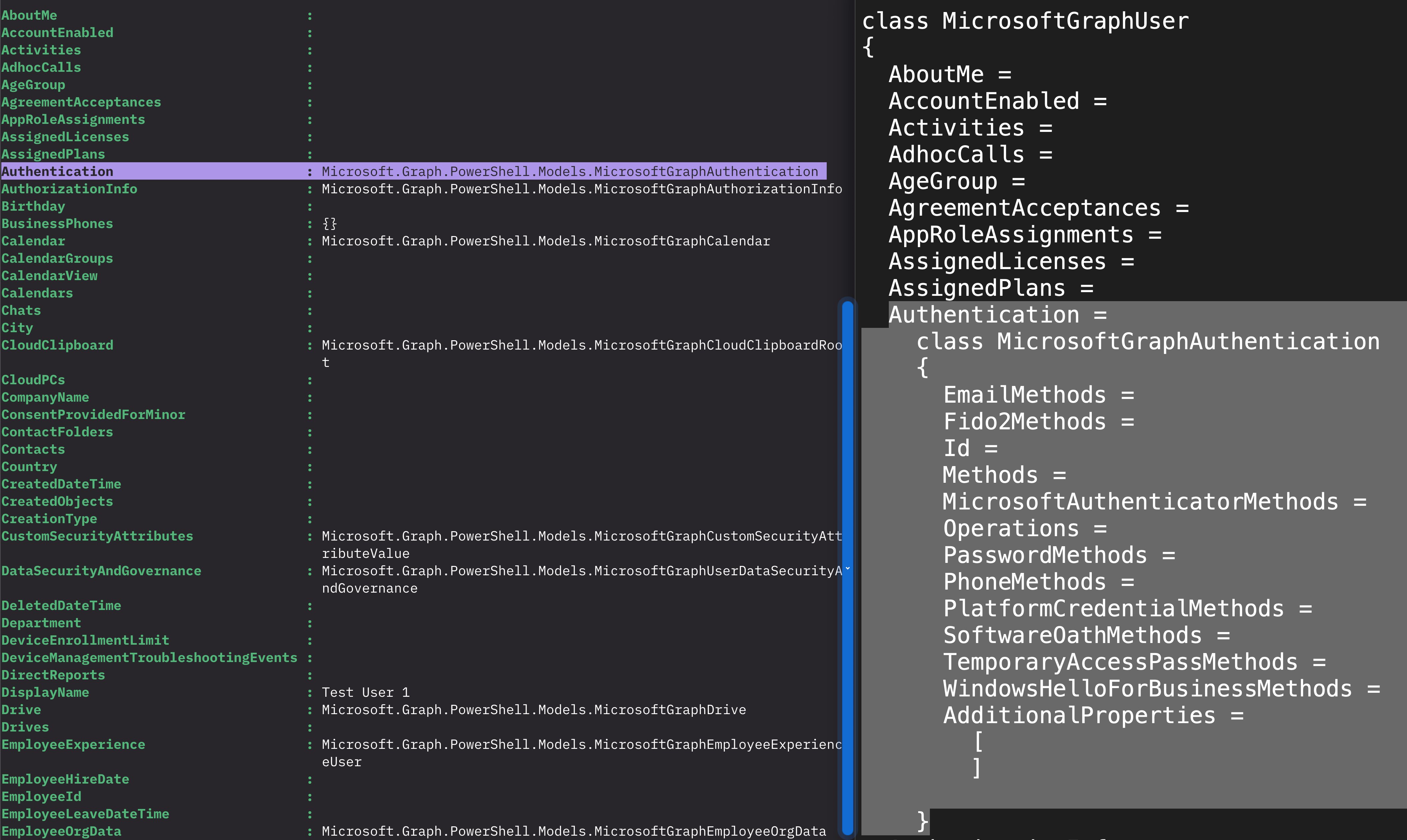
Now I can see all the possible values for the Authentication Property of my Test User 1 account, or any other possible one for every other Object
Using Format-Custom
Parameters
Depth
You can specify the number of columns in the display. In the example in the previous chapter, I didn’t specify anything and got 16K of lines. Using ” | Format-Custom -Depth 1” after retrieving the same user data displays the most basic information and is still 487 lines 😉 (But this is usually enough for basic information gathering.)
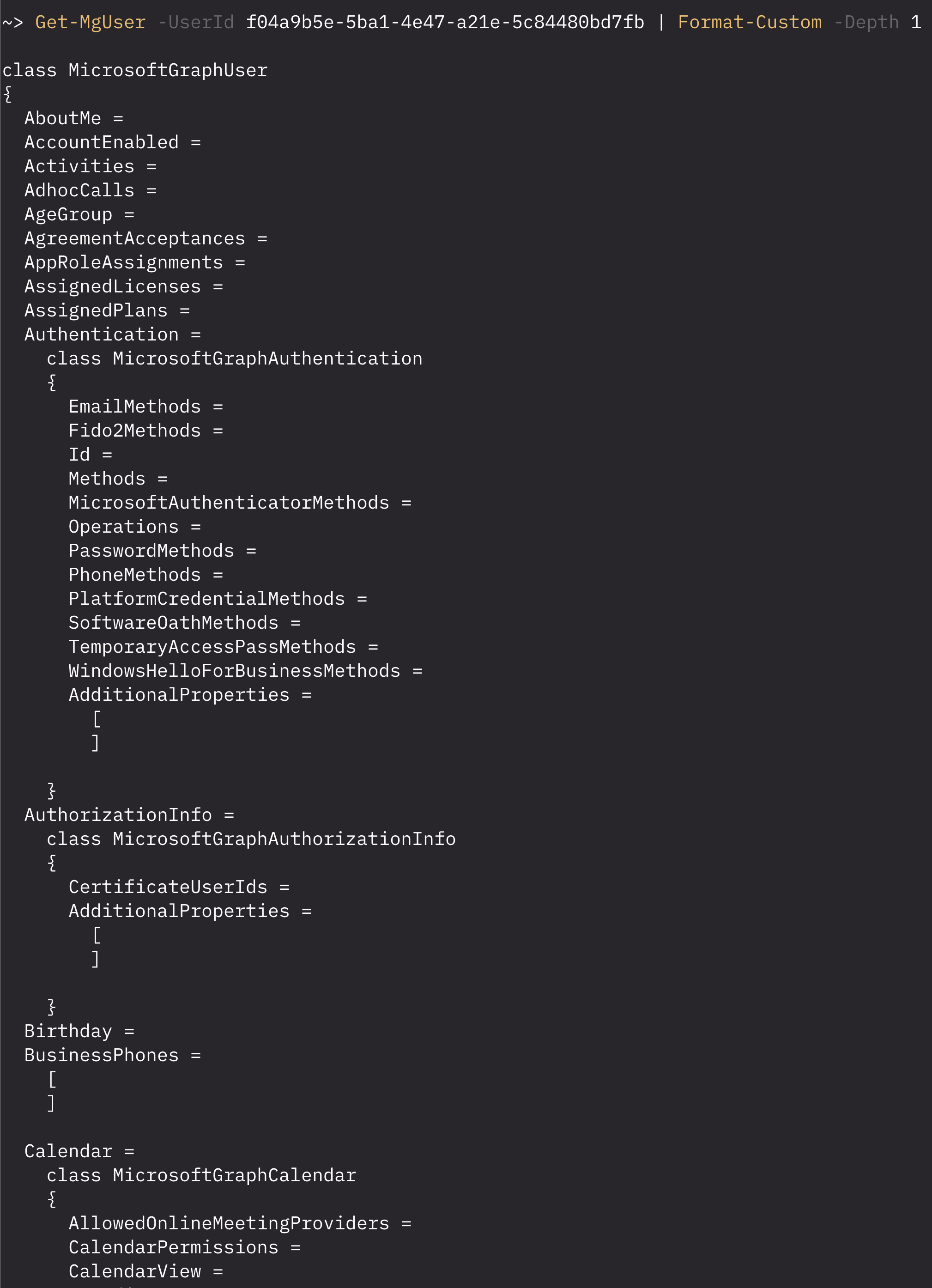
This is the most used Parameter, the other ones below are for specific use-cases which I didn’t need yet 🙂
DisplayError
This displays errors on the command line and is used to debug formatting expressions.
Expand
This Parameter allows you to format the collection object and the object in the collection for System.Collections.ICollection interface. Default is EnumOnly. Valid values are:
- EnumOnly: Displays the properties of the objects in the collection.
- CoreOnly: Displays the properties of the collection object.
- Both: Displays the properties of the collection object and the objects in the collection.
Force
Configures the Cmdlets to display all of the error information. Use this with the DisplayError or ShowError Parameters. By default, only some of the error information is displayed.
GroupBy
Formats the output in groups based on a shared property or value. It expects the objects to be sorted before using Format-Custom -Groupby xyz. It can also be a new calculated property, which can be a ScriptBlock or a Hashtable. Valid Values pairs are:
- Name (or Label) –
<string> - Expression –
<string>or<scriptblock> - FormatString –
<string>
For more information, see about_Calculated_Properties.
InputObject
You can use this to specify the Object that needs to be formatted by Format-Custom.
Property
You can use this to specify the object properties that appear in the display and their order. Wildcards are permitted. If not used, it will be based on the Object being displayed. You can’t use View and Property together in the same command. Valid key-value pairs are:
- Expression –
<string>or<scriptblock> - Depth –
<int32>
ShowError
Sends an error through the pipeline for debugging and is rarely used.
View
Specifics the name of an alternate format or view; without specifying, Format-Custom uses a default custom view. You can’t combine this with Property and View Parameters.
Examples of Format-Custom
In the example below, I used the Get-MgUser output with Format-Custom to display values without expanding Properties, which makes them easier to find when creating reports, for example. Two other examples are:
File information
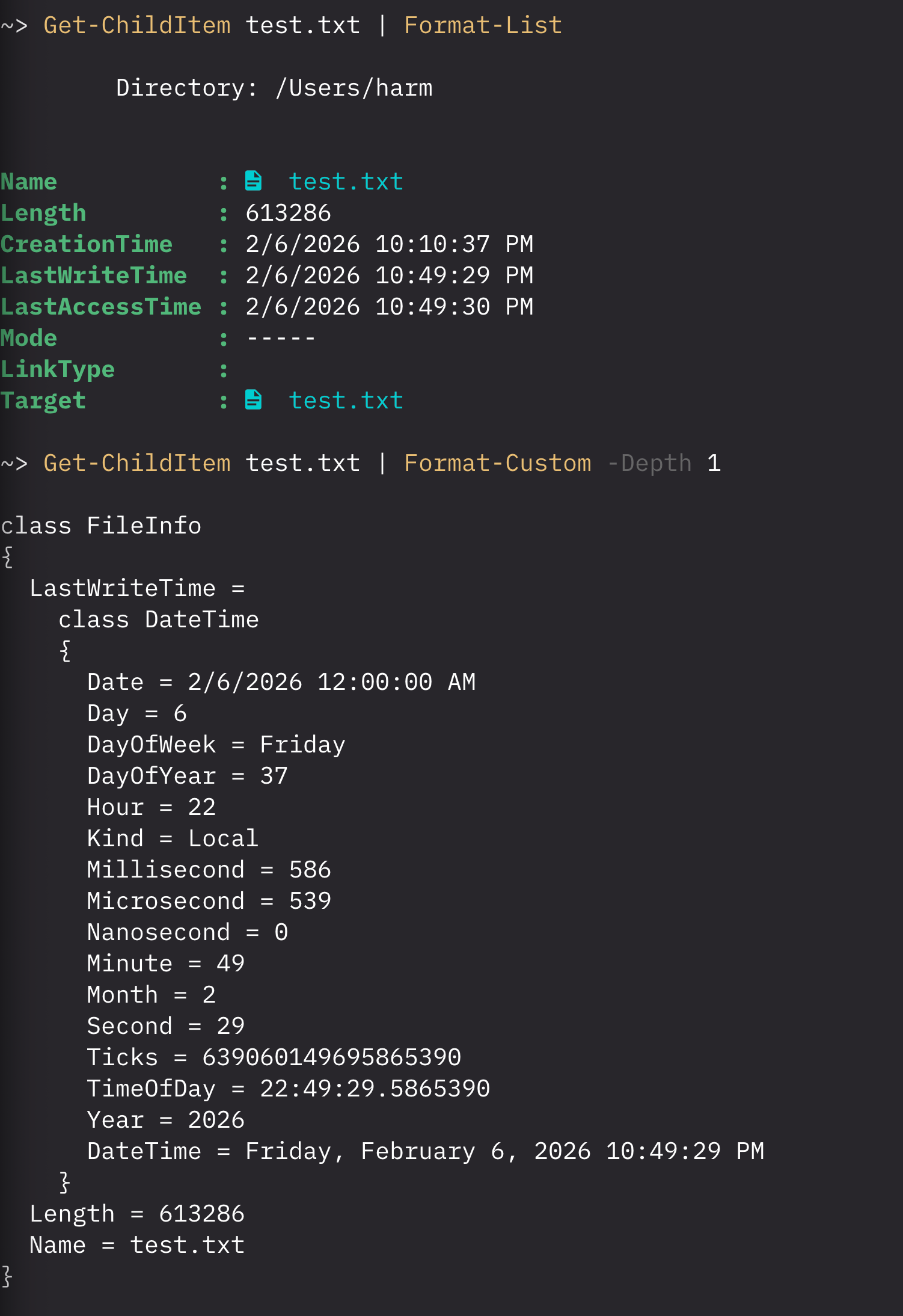
The Get-ChildItem shows information about a file, but Format-Custom shows all the details, including the Day of the Week, Year, etc.
Windows Share information
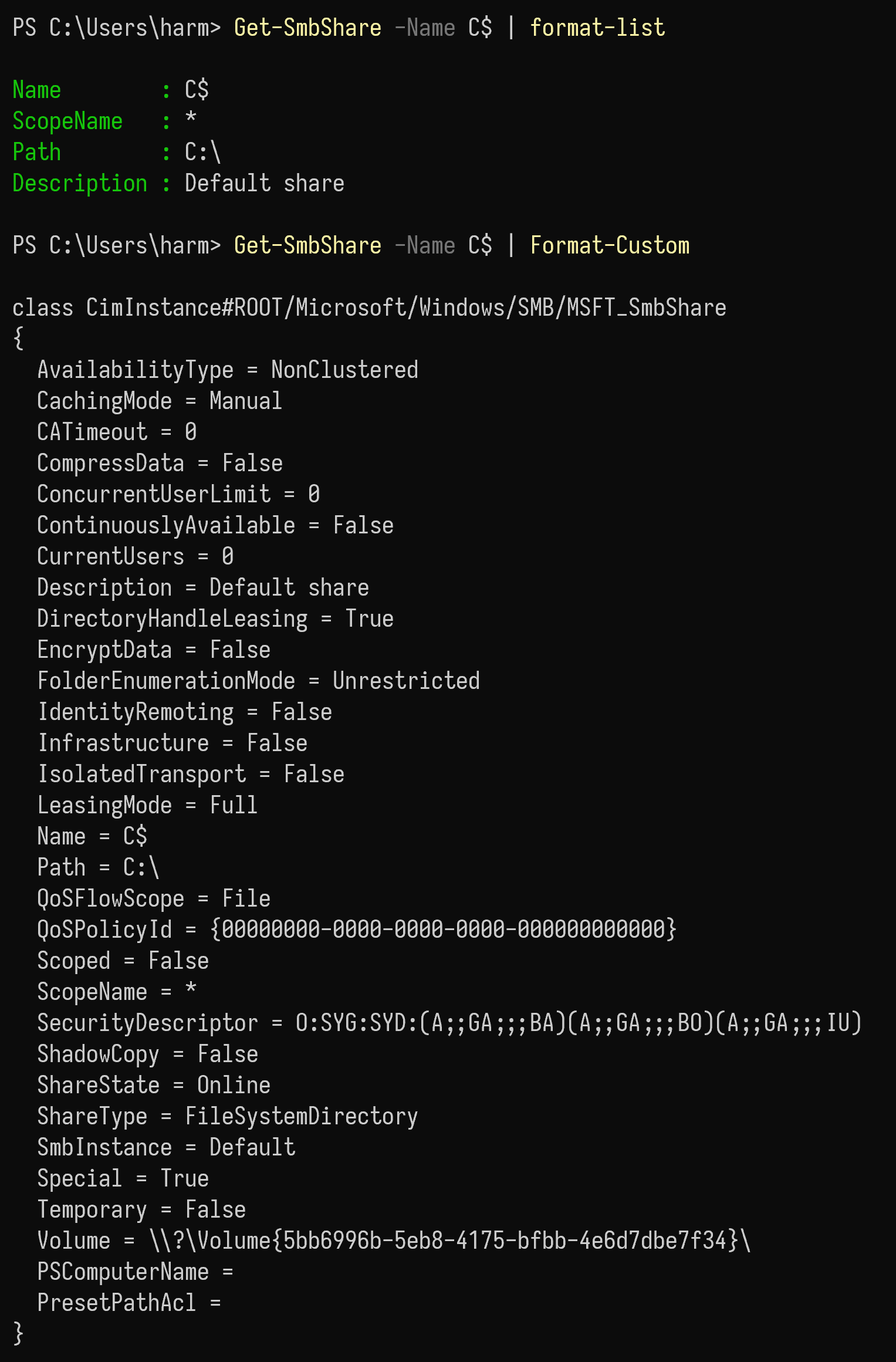
The Get-SmbShare Cmdlet shows some information about a share, such as C$, but using Format-Custom shows more details, including Caching, the number of users connected, whether it’s clustered, etc.
But… Should I use it?
Well… Yes… And no… It depends, like everything in IT 😉 It does not always give you more information; sometimes it’s helpful, and sometimes it’s just the same information but formatted differently. And using -Depth 1 is something I really recommend; it doesn’t limit results and can give you a LOT of information, which isn’t always useful and might be overwhelming.
Wrapping up
And that’s how you can use Format-Custom. There are even more custom things you can do with it, such as creating your own views, but this is how you can use it to view information easily without having to use Select-Object -ExpandProperty xyz, for example. Have a lovely weekend!