
Switching back and forth between folders on your system requires a lot of typing and thinking about where that xyz folder was located… Zlocation helps you navigate frequently accessed folders. In this small blog post, I will show you how it works.
What does ZLocation do?
“Tracks your most used directories, based on number of previously run commands. After a short learning phase, z will take you to the most popular directory that matches all of the regular expressions given on the command line. You can use Tab-Completion / Intellisense to pick directories that are not the first choice.
ZLocation is the successor of Jump-Location. Like z.sh is a reimagined clone of autojump, Zlocation is a reimagined clone of Jump-Location.”
This is a PowerShell Module, created by Sergei Vors, that makes navigating folders on your system easy. (He also wrote platyPS!)
How to install
You can install the Module from the PowerShell Gallery by running:
Install-Module -Name ZLocation
Or, when you have PSResourceGet available:
Install-PSResource -Name Zlocation
After installation, these CmdLets are available:
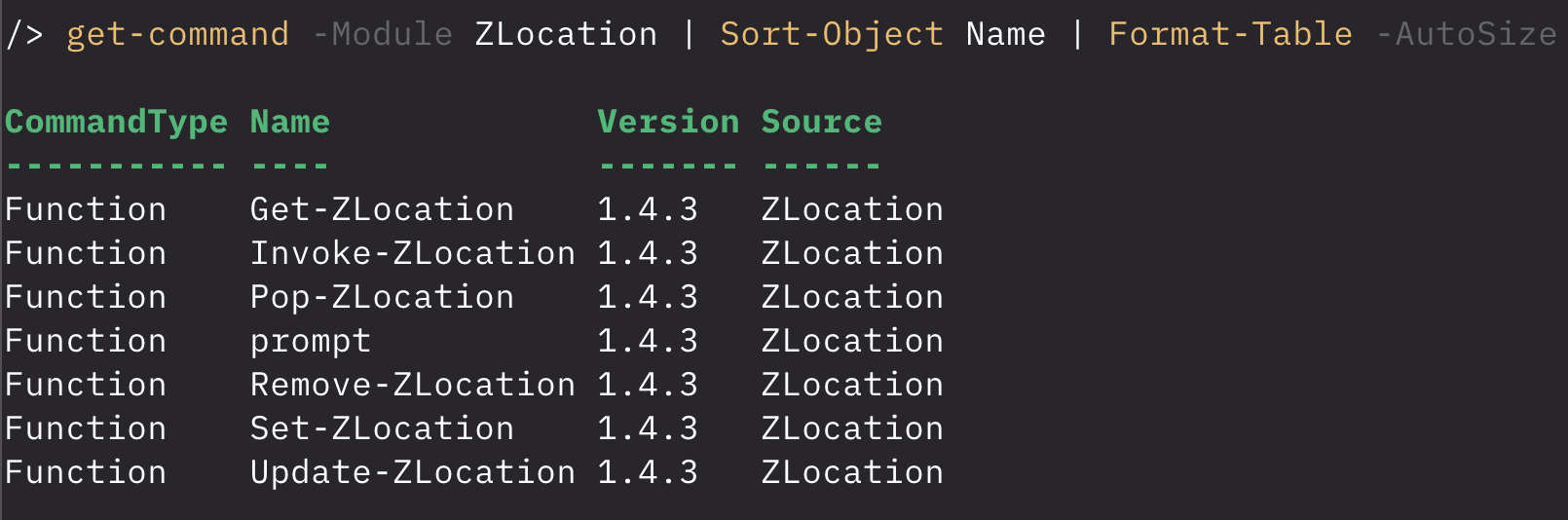
After installation, you can use this to configure it to run automatically every time you start a new PowerShell session: (You want this 🙂 )
Add-Content -Value "`r`n`r`nImport-Module ZLocation`r`n" -Encoding utf8 -Path $PROFILE
How to use
Get-ZLocation
Running Get-Zlocation will show you all the folders it learned after installation and import. I used Format-Table -AutoSize because the path was somewhat wider 🙂 It has one Parameter, -Match, so you can filter the list if it’s long. It’s also the default Parameter, so you don’t have to specify it when searching by string.
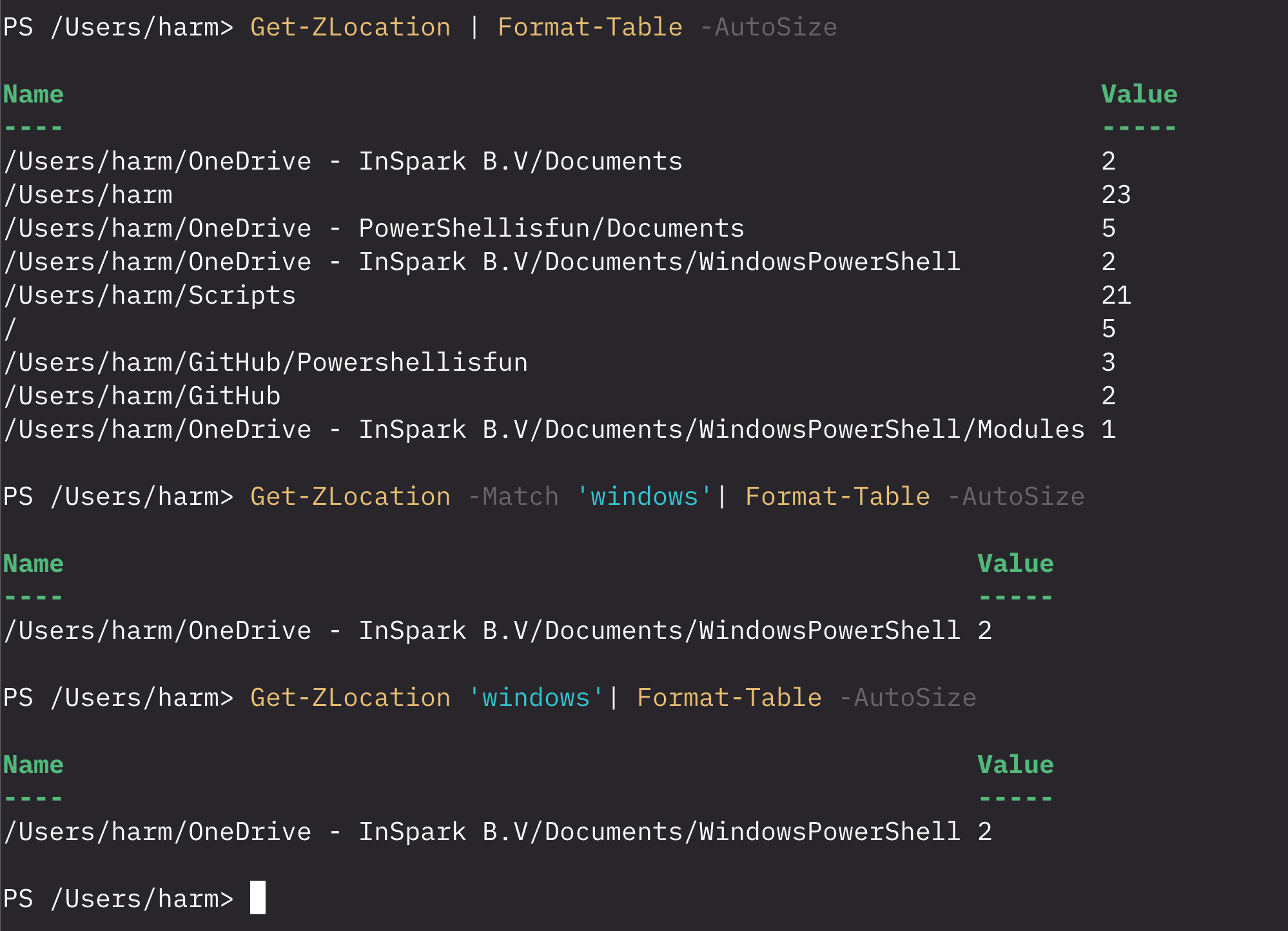
The value column to the right of its line shows its priority; this is important when Invoke-ZLocation or Z is used to determine which folder it should switch to.
Invoke-Zlocation / Z
This is the most powerful CmdLet: Inzoke-Zlocation (or just Z; that’s its Alias). This will try to match a folder from history and switch to it without typing the full path. For example:

In the example above, I switched from /users/harm/OneDrive – InSpark B.V/Documents/WindowsPowerShell/Modules to /users/harm/Scripts. And then to my /users/harm/GitHub/PowerShellisfun folder by using the Z alias and just the word fun. Because it was only found once in the history of folder switching, it immediately switched to it.
Note: It switches to the folder from the list that it builds when the highest Value is found, if there are two matches.
Pop-Zlocation
This allows you to switch back to your previous folder. In the example below, I switched to / and back again:

This is basically the same thing as using Cd –
Remove-ZLocation
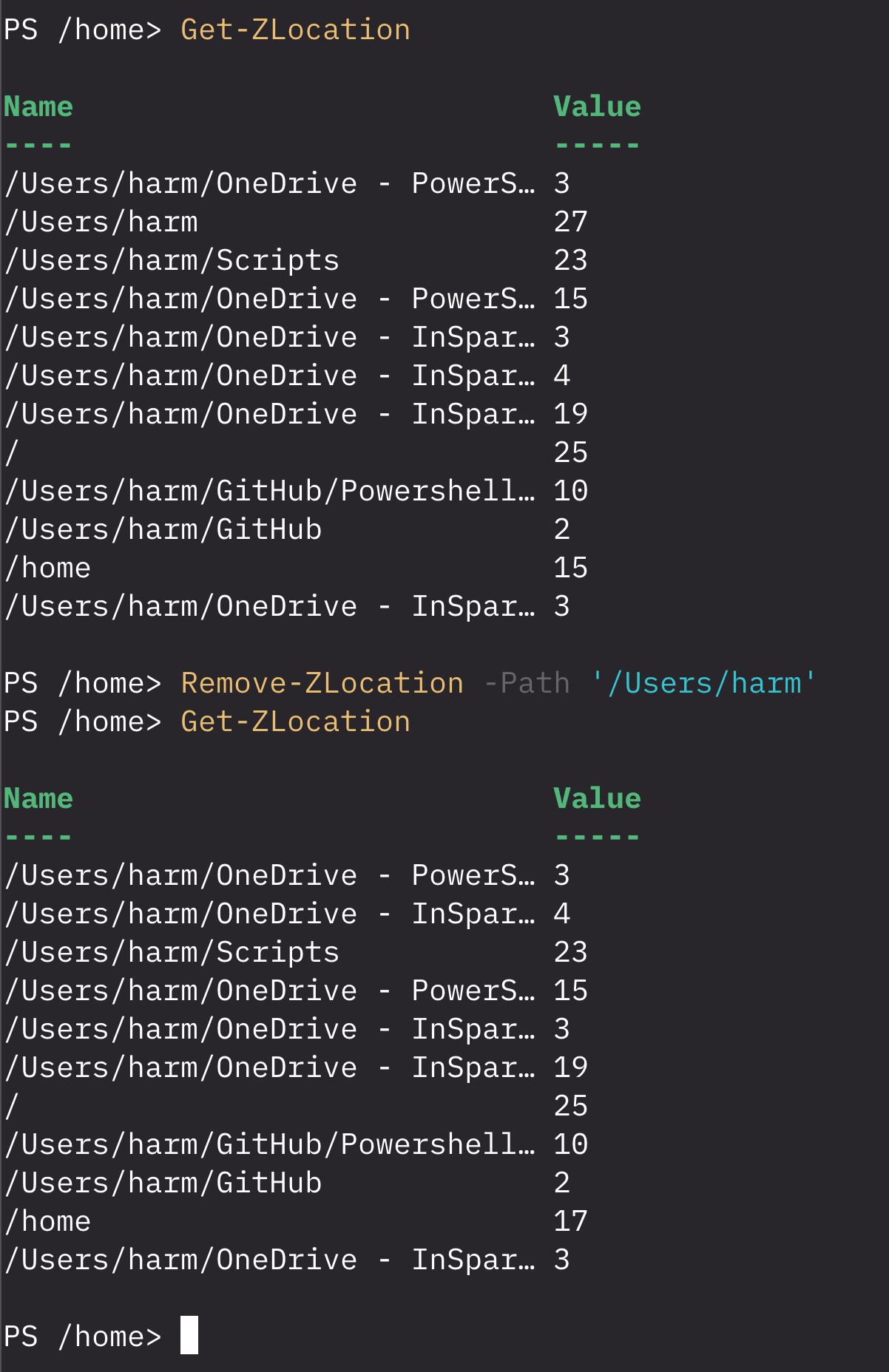
This will remove an item from the history, for example: (Beware, it’s case-sensitive)
Set-ZLocation
This works the same as Invoke-ZLocation, or it’s Alias Z, for example:

Update-ZLocation
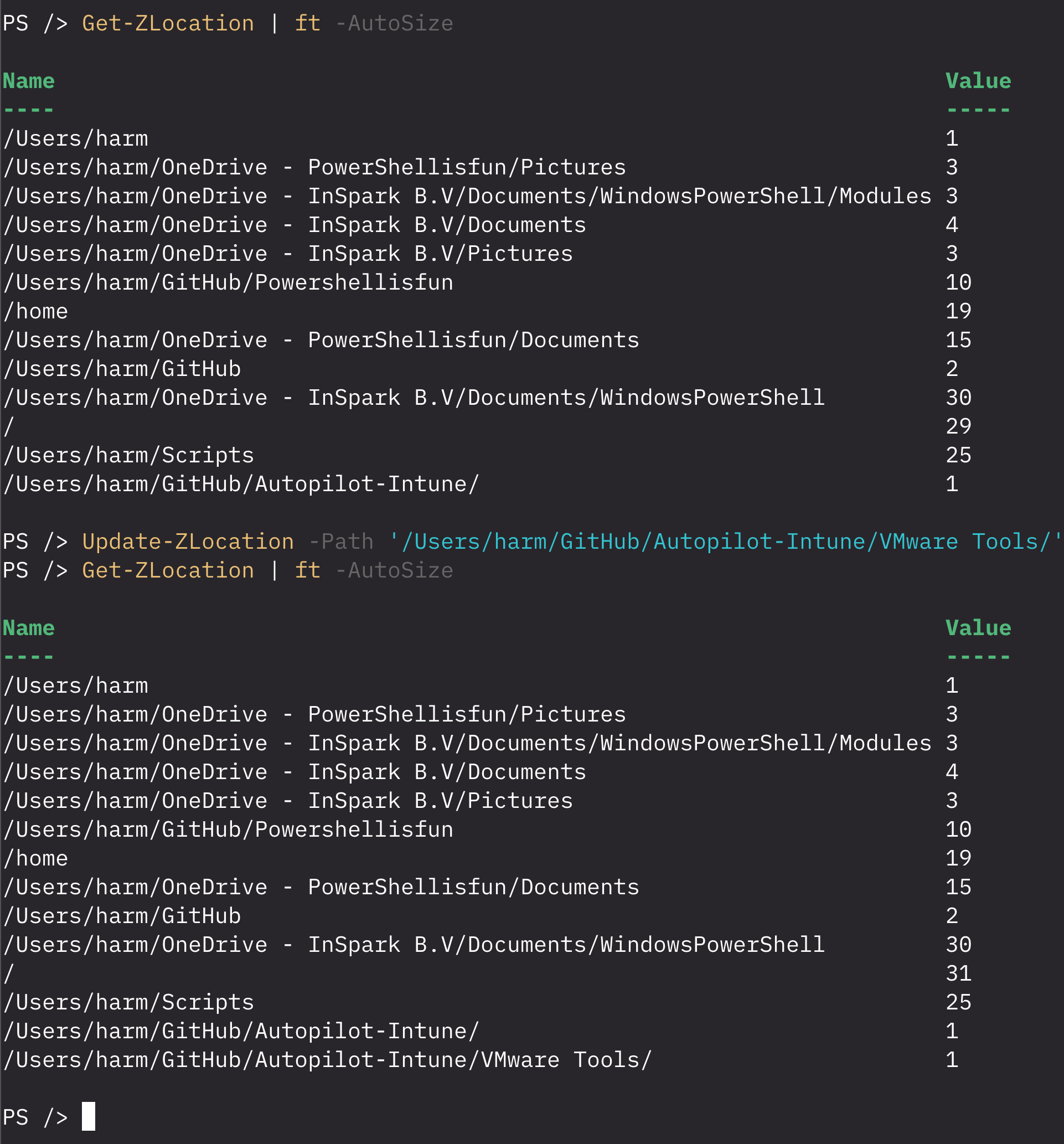
This will do a manual update of the history, for example:
Wrapping up
And that’s how you use the ZLocation Module to quickly switch to folders without having to type complete paths, it learns from your folders and using the Z Alias makes it quicker 🙂 Have a lovely weekend!
One thought on “Using the ZLocation PowerShell Module to navigate folders”