
You installed a PowerShell module on your machine and used it for a long time, and suddenly… It no longer connects and shows warnings that some commands are deprecated. And now what?! In this blog post, I will show you how to update all your modules to the latest version and remove any older, unused versions.
What does the script do?
The script updates all installed PowerShell modules to the latest version and, if specified, updates them to the latest prerelease version. When updated, it shows the current and new versions. To keep things nice and tidy, it also removes any previous versions.
The script uses the newer PSResourceGet module, built-in in PowerShell v7 and optional for PowerShell v5 (The script will install it in PowerShell v5 if not found automatically)
Running the script
When run without parameters, the script updates all modules to the latest production version and removes any older versions.
Note: The script will only check, update, or remove Modules installed with PSResourceGet. To reinstall all your modules using PSResourceGet, run the script with the -UpgradeToPSResource Parameter once to update them automatically. Install new Modules using Install-PSResourceGet in the future so that this update script can also update those 🙂

If available, the -AllowPreRelease parameter updates all modules to the latest Prerelease version; otherwise, it updates all modules to the latest Production version. The -Whatif parameter will only check and output to the screen if it would have updated or uninstalled a module.

The -Name parameter can be used to update only specific modules, either by name or by enclosing the module name in a wildcard (*). For example, running Update-Modules -Name *dsc* will update all modules whose name contains DSC, regardless of position. Can be used together with the -Exclude Parameter.
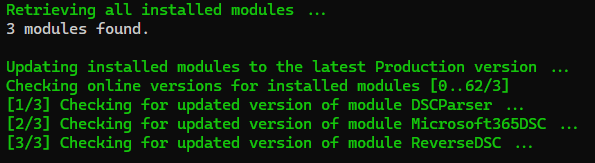
You can also exclude specific modules by using the -Exclude parameter. For example, running Update-Modules -Exclude Graph, DSC, WinGet will not update alle modules containing Graph, DSC, or WinGet in their name. Can be used together with the -Name Parameter.
The -Scope parameter can update the system’s user modules if -Scope CurrentUser is specified. By default, the -Scope parameter will use AllUsers. (It will switch to CurrentUser for all Non-Windows Systems)
The -Verbose parameter displays additional information during PowerShell module updates and installations, including the location of the module’s installation folder.
Note: The script requires running it as an Administrator when -Scope CurrentUser was not specified because of the AllUsers default behavior.
Note: The script may display a warning that the previous version cannot be removed when run in -Scope CurrentUser. This is because you will need Admin rights to remove the item found in C:\Program Files, for example.
Warning: Updating all your modules to the Pre-Release version could cause issues.
The output of the script when starting the Update-Modules function:
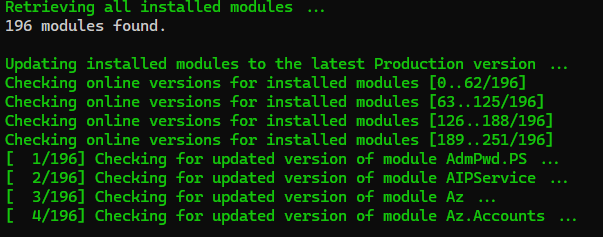
The output of the script when removing older versions:

Example output stating the updated modules at the end of the script:

It will show an error in red if the module can’t be updated. It will also report if modules can’t be updated because they are in use:

or

Note: If you have many modules… This could take a while 🙂
The script
Below is the script. Save it to a location (c:\scripts, for example) and add it to your PowerShell profile by:
notepad $profile
add ". c:\scripts\Update-modules.ps1"
quit/save and start new PowerShell session and run Update-Modules
If you don’t add it to your PowerShell profile, you can run it by:
. .\update-modules.ps1
update-modules
Thanks, ScrambledBrain, for updating the script twice via a GitHub pull request. 🙂
function Update-Modules {
    param (
        [switch]$Prerelease,
        [string]$Name = '*',
        [string[]]$Exclude,
        [ValidateSet('AllUsers', 'CurrentUser')][string]$Scope = 'AllUsers',
        [switch]$UpgradeToPSResource,
        [switch]$WhatIf,
        [switch]$Verbose
    )

    # Test admin privileges without using -Requires RunAsAdministrator on Windows,
    # which causes a nasty error message if trying to load the function within a PS profile but without admin privileges
    if ($IsWindows) {
        if ($Scope -eq 'AllUsers') {
            if (-not ([Security.Principal.WindowsPrincipal][Security.Principal.WindowsIdentity]::GetCurrent()).IsInRole([Security.Principal.WindowsBuiltInRole]"Administrator")) {
                Write-Warning ("Function {0} needs admin privileges. Break now." -f $MyInvocation.MyCommand)
                return
            }
        }
    }

    # Set scope to CurrentUser if not running on Windows
    if (-not $IsWindows) {
        $Scope = 'CurrentUser'
    }

    # Set ProgressPreference to Silentlycontinue to prevent progress indicators of module installation/update
    $ProgressPreference = 'SilentlyContinue'

    # Install the Microsoft.PowerShell.PSResourceGet Module if not available (PowerShell v5 doesn't ship with it by default like in v7)
    if (-not (Get-Module -Name Microsoft.PowerShell.PSResourceGet -ListAvailable)) {
        try {
            Install-Module -Name Microsoft.PowerShell.PSResourceGet -Scope:$Scope -Force:$true -Confirm:$false -SkipPublisherCheck:$true -ErrorAction Stop
            Write-Host ("Installed required Microsoft.PowerShell.PSResourceGet Module") -ForegroundColor Green
        }
        catch {
            Write-Warning ("Could not install required Module Microsoft.PowerShell.PSResourceGet, check permissions! Exiting...")
            return
        }
    }

    # Configure PSGallery as Trusted if it was not configurd as Trusted
    if (-not (Get-PSResourceRepository -Name PSGallery).Trusted -eq $true) {
        try {
            Set-PSResourceRepository -Name PSGallery -Trusted:$true -Confirm:$false
            Write-Host ("Configured PSGallery as Trusted Repository") -ForegroundColor Green
        }
        catch {
            Write-Warning ("Error configuring PSGallery as Trusted Repository, exiting...")
            return
        }
    }

    # Install all modules which were installed using Install-Module to PSResourceGet
    if ($UpgradeToPSResource) {
        $InstalledModules = Get-Module -ListAvailable | Select-Object Name -Unique | Sort-Object Name
        foreach ($Module in $InstalledModules) {
            Write-Host ("Checking if module {0} was installed from PSGallery, installing it using PSResourceGet if needed" -f $module.Name) -ForegroundColor Green
            if (-not (Get-InstalledPSResource -Name $Module.Name -Scope:$Scope -ErrorAction SilentlyContinue)) {
                if (Find-Module -Name $module.name -ErrorAction SilentlyContinue) {
                    try {
                        Install-PSResource $Module.Name -Prerelease:$Prerelease.IsPresent -AcceptLicense:$true -Scope:$Scope -ErrorAction Stop -WhatIf:$WhatIf.IsPresent -Verbose:$Verbose.IsPresent -SkipDependencyCheck:$true -Reinstall:$true
                        Write-Host ("- Installed {0} using PSResourceGet" -f $module.Name) -ForegroundColor Gray
                    }
                    catch {
                        Write-Warning ("Could not install {0} using PSResourceGet, skipping..." -f $module.Name)
                    }
                }
            }
        }
    }


    # Get all installed modules minus excluded modules from $Exclude
    Write-Host ("Retrieving all installed modules ...") -ForegroundColor Green
    $CurrentModules = foreach ($Installedmodule in Get-PSResource -Name $Name -Scope:$Scope -ErrorAction SilentlyContinu ) {
        if ($null -ne $Exclude) {
            if (-not ($Installedmodule.Name | Select-String $Exclude)) {
                [PSCustomObject]@{
                    Name    = $Installedmodule.Name
                    Version = $Installedmodule.Version
                }
            }
        }
        else {
            [PSCustomObject]@{
                Name    = $Installedmodule.Name
                Version = $Installedmodule.Version
            }
        }
    }

    if (-not $CurrentModules) {
        Write-Host ("No modules found.") -ForegroundColor Gray
        return
    }
    else {
        $ModulesCount = $CurrentModules.Name.Count
        $DigitsLength = $ModulesCount.ToString().Length
    }

    # Show status of Prerelease Switch
    if ($Prerelease) {
        Write-Host ("Updating installed modules to the latest PreRelease version ...") -ForegroundColor Green
    }
    else {
        Write-Host ("Updating installed modules to the latest Production version ...") -ForegroundColor Green
    }

    # Retrieve current versions of modules if $CurrentModules is greater than 0
    if ($CurrentModules.Count -eq 1) {
        Write-Host ("Checking online versions for installed module {0}" -f $name) -ForegroundColor Green
        $Onlineversions = Find-PSResource -Name $CurrentModules.name
    }
    if ($CurrentModules.Count -gt 1) {
        Write-Host ("Checking online version for the {0} installed modules" -f $CurrentModules.Count) -ForegroundColor Green
        $Onlineversions = Find-PSResource -Name $CurrentModules.name
    }

    if (-not $CurrentModules) {
        Write-Warning ("No modules were found to check for updates, please check your NameFilter. Exiting...")
        return
    }

    # Loop through the installed modules and update them if a newer version is available
    $i = 0
    foreach ($Module in $CurrentModules | Sort-Object Name) {
        $i++
        $Counter = ("[{0,$DigitsLength}/{1,$DigitsLength}]" -f $i, $ModulesCount)
        $CounterLength = $Counter.Length
        Write-Host ('{0} Checking for updated version of module {1} ...' -f $Counter, $Module.Name) -ForegroundColor Green
        try {
            $latest = $Onlineversions | Where-Object Name -EQ $module.Name -ErrorAction Stop
            if ([version]$Module.Version -lt [version]$latest.version) {
                Update-PSResource -Name $Module.Name -Prerelease:$Prerelease.IsPresent -AcceptLicense:$true -Scope:$Scope -Force:$True -ErrorAction Stop -WhatIf:$WhatIf.IsPresent -Verbose:$Verbose.IsPresent -SkipDependencyCheck:$true
            }
        }
        catch {
            Write-Host ("{0,$CounterLength} Error updating module {1}! (In use?)" -f ' ', $Module.Name) -ForegroundColor Red
        }

        # Retrieve newest version number and remove old(er) version(s) if any
        $AllVersions = Get-PSResource -Name $Module.Name -Scope:$Scope | Sort-Object PublishedDate -Descending
        $MostRecentVersion = $AllVersions[0].Version
        if ($AllVersions.Count -gt 1 ) {
            foreach ($Version in $AllVersions) {
                if ($Version.Version -ne $MostRecentVersion) {
                    try {
                        Write-Host ("{0,$CounterLength} Uninstalling previous version {1} of module {2} ..." -f ' ', $Version.Version, $Module.Name) -ForegroundColor Gray
                        Uninstall-PSResource -Name $Module.Name -Version $Version.Version -ErrorAction Stop -Prerelease:$Prerelease.IsPresent -WhatIf:$WhatIf.IsPresent -Verbose:$Verbose.IsPresent -SkipDependencyCheck:$true -Scope:$Scope
                    }
                    catch {
                        Write-Warning ("{0,$CounterLength} Error uninstalling previous version {1} of module {2}! (In use?)" -f ' ', $Version.Version, $Module.Name)
                    }
                }
            }
        }
    }

    # Get the new module versions for comparing them to the previous one if updated
    $NewModules = Get-PSResource -Name $Name -Scope:$Scope | Select-Object Name, Version | Sort-Object Name
    if ($NewModules) {
        ''
        Write-Host ("List of updated modules:") -ForegroundColor Green
        $NoUpdatesFound = $true
        foreach ($Module in $NewModules) {
            if ($null -ne $Exclude) {
                if (-not ($Module.Name | Select-String $Exclude)) {
                    $CurrentVersion = $CurrentModules | Where-Object Name -EQ $Module.Name
                    if ($CurrentVersion.Version -notlike $Module.Version) {
                        $NoUpdatesFound = $false
                        Write-Host ("- Updated module {0} from version {1} to {2} and/or removed older version(s) if any..." -f $Module.Name, ($CurrentVersion.Version | Sort-Object Ascending | Select-Object -First 1), $Module.Version) -ForegroundColor Green
                    }
                }
            }
            else {
                $CurrentVersion = $CurrentModules | Where-Object Name -EQ $Module.Name
                if ($CurrentVersion.Version -notlike $Module.Version) {
                    $NoUpdatesFound = $false
                    Write-Host ("- Updated module {0} from version {1} to {2} and/or removed older version(s) if any..." -f $Module.Name, ($CurrentVersion.Version | Sort-Object Ascending | Select-Object -First 1), $Module.Version) -ForegroundColor Green
                }
            }
        }

        if ($NoUpdatesFound) {
            Write-Host ("No modules were updated.") -ForegroundColor Gray
        }
    }
}
Download the script(s) from GitHub here.
Your methodology is different than others that I have seen where it uses Get-InstalledModule. It is more elegant than others I have seen. However, it will not update modules that are native to PowerShell that have not previously been updated. For example, PSDesiredStateConfiguration.
The PSDesiredStateConfiguration brings up other issues between PowerShell 5x and 7x. In PowerShell 5, the Find-Module lists a version not compatible with this version of PowerShell. Attempting to install this version does not produce any errors and has an end result in no change.
It also doesn’t update modules when they are not installed using install-module. It’s not perfect, I could expand it to try and catch these exceptions too in the future
Thank you for this script!. However, I’m getting the following error for each of my 23 modules and none have been updated:
Updating installed modules to the latest Production version …
[ 1/23] Checking for updated version of module AzureAD …
Error formatting a string: Index (zero based) must be greater than or equal to zero and less than the size of the
argument list..
At C:\temp\Update-PSModules.ps1:67 char:13
+ Write-Host (“{0$CounterLength} Error updating module {1}! …
+ ~~~~~~~~~~~~~~~~~~~~~~~~~~~~~~~~~~~~~~~~~~~~~~~~~~~~~~~~~
+ CategoryInfo : InvalidOperation: ({07} Error updating module {1}!:String) [], RuntimeException
+ FullyQualifiedErrorId : FormatError
This is because you have an older Powershellget module that misses some functions. I have added a chapter to this blog post (Update PowerShellget module) and hope that helps. I could reproduce this error on a fresh Windows Sandbox session. (Sometimes, I forget that I constantly update my modules, and some things just don’t work on older versions, my bad!)
Thanks, that did the trick!
As an addition to this I had to manually delete the old version from three places:
%USERPROFILE%\Documents\WindowsPowerShell\Modules\PowerShellGet\
C:\Program Files\WindowsPowerShell\Modules\PowerShellGet
C:\Program Files (x86)\WindowsPowerShell\Modules\PowerShellGet
Once I’d done that the script no longer threw the error message mentioned above.
Thanks for sharing this extra info!
Good to hear!
Hi,
having troubles to run the script.
I´m Execution Policy is Remote Signed, latest PowerShellGet installed like descripted but if I start update-modules.ps1 it just jumps to a new row and nothing happened.
Any ideas?
Regards,
Hi,
if I run the .\update-modules nothing happened. PS just jumps to a new row.
No error or something.
I had installed PowerShellGet as descripted.
Only thing I did not do was the $Porfile part.
Regards,
If you run .\update-modules.ps1, then it makes the function available in your session. You can run update-modules afterwards. If you do the $profile part, then it’s always available as update-modules in every session.
Thank you for reply.
If I run update-modules after .\update-modules
I get the following:
update-modules : The term ‘update-modules’ is not recognized as the name of a cmdlet, function, script file, or
operable program. Check the spelling of the name, or if a path was included, verify that the path is correct and try
again.
At line:1 char:1
+ update-modules
+ ~~~~~~~~~~~~~~
+ CategoryInfo : ObjectNotFound: (update-modules:String) [], CommandNotFoundException
+ FullyQualifiedErrorId : CommandNotFoundException
Suggestion [3,General]: The command update-modules was not found, but does exist in the current location. Windows PowerShell does not load commands from the current location by default. If you trust this command, instead type: “.\update-modules”. See “get-help about_Command_Precedence” for more details.
Thanks, Philip
I think I see what’s going on there, my bad for not mentioning it correctly! You have to run “. .\update-modules.ps1″ to import it into your session. (So that’s a period, space, period.\update-modules.ps1” in the ps1 is in the current directory. Afterwards you can run update-modules
ok WOW!
Thanks you. did not know this with “period-space-period”
now its running!
Next for me is to figure out how to add my path to my currently empty $Profile 🙂
Thanks!
No problem, good that it works now 🙂
Great article and function — thank you for sharing it!
Thank you 😊
This script solved my AutomatedLab issues and it simply removed module files from the prior version of AutomatedLab. I googled “powershell update module remove old version” and your site was the first offer.
Nice! Good to hear that it fixed the issue for you 🙂
Hello Harm,
I was able to run your script. It updated modules fine but did not uninstall as it said it was. All previous module versions are in their respective folders still.
Just tested it again, installed an older 0.3.3 version of the Cobalt module next to the latest 0.4.0. While running the script it mentions that it uninstalls it and the folder in Documents\PowerShell\Modules\Cobalt containing the older version is gone.
Could you give an example and is it a module installed for All Users or Current User?
And for PowerShell 5 or 7? (I always run it for both versions as admin)
Nice script, but I’m running into a problem when trying to use it to only update one modules, eg AzureAD, it does nothing.
I think the problem is on line 39, if ($CurrentModules.Count -gt 0) as $CurrentModules only has a Count value if more than one module was found, so it skips to the Else section and then quits the script
I will look into that! I will report back after testing
Quick question… Does it work in PowerShell v5? I think it’s PowerShell v7 related
Updated the script to fix the PowerShell v7 bug when updating one module 🙂 Could you try again? There is a bug that needs fixing still, if you have a module installed that’s not available anymore in the PSGallery… It will throw an error 🙁 This is because of the way I search for more modules at once, you can query 63 modules in one run. While this is efficient, it will not work when one of the modules in that search is not available… You will have to uninstall that module then to fix that, which is not bad I guess because that module isn’t available anymore. (You could keep the module directory and import it if needed)
I’m using PowerShell v5 and just tested with your new version and I’m still seeing the same issue.
It looks to be a problem with what Get-InstalledModule returns rather than anything your script is doing.
If I do $modules = Get-InstalledModule -Name Microsoft.Graph.A* then that lists Microsoft.Graph.Applications and Microsoft.Graph.Authentication and $modules.count is equal to 2
But it I do $modules=GetInstalledModule -Name Microsoft.Graph.Ap* then that lists Microsoft.Graph.Applications but $modules.count is empty.
Hopefully that makes sense!
Could you update your script locally and replace
“$CurrentModules = Get-InstalledModule -Name $Name -ErrorAction SilentlyContinue | Select-Object Name, Version | Sort-Object Name” with
“[array]$CurrentModules = Get-InstalledModule -Name $Name -ErrorAction SilentlyContinue | Select-Object Name, Version | Sort-Object Name” ? This will change it from being a PSCustomObject/System.Object to a Object[]System.Array
C:\Users\HarmVeenstra> update-modules Microsoft.Graph.Ap*
Retrieving all installed modules …
1 modules found.
Updating installed modules to the latest Production version …
Checking online versions for installed module Microsoft.Graph.Ap*
[1/1] Checking for updated version of module Microsoft.Graph.Applications …
List of updated modules:
No modules were updated.
C:\Users\HarmVeenstra> update-modules Microsoft.Graph.A*
Retrieving all installed modules …
2 modules found.
Updating installed modules to the latest Production version …
Checking online versions for installed modules [0..62/2]
[1/2] Checking for updated version of module Microsoft.Graph.Applications …
[2/2] Checking for updated version of module Microsoft.Graph.Authentication …
List of updated modules:
No modules were updated.
That’s worked. Thanks very much for getting that sorted so quickly.
No problem, it was a bit weird but it’s better like this now 🙂 Updated the blog post and GitHub. Thanks for reporting the issue, have a nice weekend!
I’m going to be a pain and say that your Find-ModuleUpdates script has the same issue.
Needs the [array] $InstalledModules on line 8 and an if statement to handle only 1 result being returned, and [array]$total on line 31.
Have a good weekend, and I’ll promise to leave you alone now 🙂
Updated that script, the blog post and GitHub with that too 🙂 Tested and… It found some updates that were just released 😛 Thanks again!
Retrieving installed PowerShell modules Checking online versions for installed modules [0..62/222] Checking online versions for installed modules [63..125/222] Checking online versions for installed modules [126..188/222] Checking online versions for installed modules [189..251/222] Checking for updated versions Found 80 updated modules Repository Module name Installed version Latest version Published on ———- ———– —————– ————– ———— PSGallery Microsoft.Graph 2.15.0 2.16.0 22-3-2024 12:37:13 PSGallery Microsoft.Graph.Applications 2.15.0 2.16.0 22-3-2024 12:34:03 PSGallery Microsoft.Graph.Authentication 2.15.0 2.16.0 22-3-2024 12:34:08 PSGallery Microsoft.Graph.Beta 2.15.0 2.16.0 22-3-2024 12:37:16 PSGallery Microsoft.Graph.Beta.Applications 2.15.0 2.16.0 22-3-2024 12:34:06 PSGallery Microsoft.Graph.Beta.Bookings 2.15.0 2.16.0 22-3-2024 12:34:10 PSGallery Microsoft.Graph.Beta.Calendar 2.15.0 2.16.0 22-3-2024 12:34:14 PSGallery Microsoft.Graph.Beta.ChangeNotifications 2.15.0 2.16.0 22-3-2024 12:34:19
Hi Harm,
Are you by any chance planning to update this script using the new PSResourceGet module?
Yes, it’s on my ToDo list 😁
Hey Harm,
Love the script but when I run it, it only seems to update modules in the C:\Program Files location and not my User folder location?
Ben
I updated the script with a -Scope option and did a few tests. I updated the blog post, could you read it, download the latest version of the script and try again? It does show some could not remove old version x.y.z, I think it has something to do with using get-installedmodule for retrieving all modules, and not being able to remove the older version from Program Files because you’re not running it as admin.
Let me know!
Hi Harm,
The script is great. Thank you for creating it and maintaining it!
I ran into 2 issues.
The first is easy:
there is a missing comma on Line 82 between the 0 and $CounterLength.
The second is:
all updates fail after the 63 update.
[ 61/101] Checking for updated version of module Az.Network …
[ 62/101] Checking for updated version of module Az.NetworkCloud …
[ 63/101] Checking for updated version of module Az.Nginx …
[ 64/101] Checking for updated version of module Az.NotificationHubs …
Error updating module Az.NotificationHubs!
[ 65/101] Checking for updated version of module Az.OperationalInsights …
Error updating module Az.OperationalInsights!
[ 66/101] Checking for updated version of module Az.Oracle …
Error updating module Az.Oracle!
Is this due to some PSGallery limit?
Any help is appreciated! Thank you.
I just updated my modules today with my script, no issues… 63 update is a PSGallery limit in how much module information you can fetch at a time… Did you copy the script from the blog post or from the GitHub link below that?
Harm,
I downloaded it from the GitHub link below it.
Thanks!
Ok… I updated 213 modules using the script just this afternoon… The missing comma on line 82, don’t know… Works fine in PS5 and PS7 on my machine… Could you run it with the -Verbose parameter? Do you run it as Admin or? Default scope is AllUsers, you could try the script with -Scope CurrentUser ?