
For one of our customers, who’s moving away from their On-Premise Exchange 2016 server, I needed to move all the relay connectors (Used by legacy applications, appliances, and hardware) to an IIS SMTP instance. It’s pretty straightforward, but… Adding the long list of addresses myself… No 🙂 In this blog post, I will show you how to easily migrate the IP addresses from a Receive Connector into an IIS SMTP instance.
How the script works
The script uses an export of the Receive Connector as input for the relay allows list in the IIS SMTP instance, but there are a few limitations in the current version of this script:
- It overwrites the current relay list. Use this script on a new IIS SMTP instance only!
- It can import all host IP addresses but not IP ranges.
For the IP ranges, you can check the export and manually add them. I hope there are not many because adding complete ranges (And only using a few addresses) is not that secure, in my opinion.
Preparation
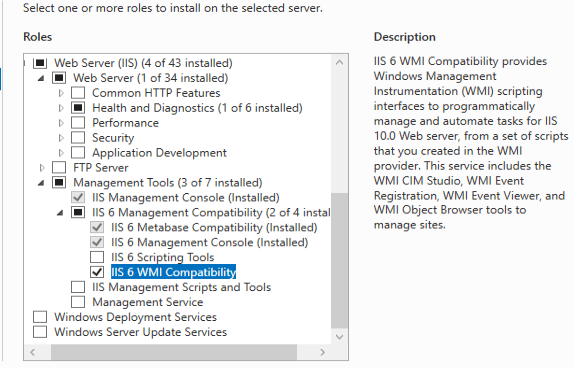
The script uses WMI, and to have the namespace available, you must add the ‘IIS 6 WMI Compatibility’ Server role:
Running the script
Exporting current Receive Connector IP-Addresses
First, you must create an export file. You can do this by running:
(Get-ReceiveConnector SERVERNAME\RelayConnectorName).Remoteipranges | Export-Csv -Path c:\temp\relay.csv -NoTypeInformation -Encoding UTF8 -Delimiter ';'
Importing the exported IP-Addresses
You can run this on your IIS SMPT server to import the host IP-Addresses from the relay.csv you exported in the previous step by running as the script as an Admin in PowerShell ISE. Afterwards, you can run the command below to import all IP Addresses from the relay.csv:
Set-IISSMTPRelayRestrictions -CSVFile C:\temp\relay.csv
You should see this output after running the script:
C:\temp\relay.csv found, continuing...


Path          : \\localhost\root\MicrosoftIISv2:IIsSmtpServerSetting="SmtpSvc/1"
RelativePath  : IIsSmtpServerSetting="SmtpSvc/1"
Server        : localhost
NamespacePath : root\MicrosoftIISv2
ClassName     : IIsSmtpServerSetting
IsClass       : False
IsInstance    : True
IsSingleton   : False

Added the IP-Adresses to the Relay Restrictions list
In the IIS SMTP settings, this looks like this:

(I always uncheck the “Allow all computers which…” check box)
The script
The script is below, copy/paste and save it to a c:\scripts location for example and start it by running “. c:\scripts\Set-IISSMTPRelayRestrictions.ps1”. Afterward, you can follow the procedure listed above.
function Set-IISSMTPRelayRestrictions {
    param (
        [parameter(Mandatory = $true)][string]$CSVFile
    )

    #Check if CSV file is present and accessible
    try {
        $IPAddresses = Import-Csv -Path $CSVFile -Delimiter ';'
        write-host ("{0} found, continuing..." -f $CSVFile) -ForegroundColor Green
    }
    catch {
        Write-Warning ("{0} not found or not accessible, exiting..." -f $CSVFile)
        return
    }

    #Setting up variables needed
    $ipblock = @(24, 0, 0, 128,
        32, 0, 0, 128,
        60, 0, 0, 128,
        68, 0, 0, 128,
        1, 0, 0, 0,
        76, 0, 0, 0,
        0, 0, 0, 0,
        0, 0, 0, 0,
        1, 0, 0, 0,
        0, 0, 0, 0,
        2, 0, 0, 0,
        1, 0, 0, 0, 4, 0, 0, 0, 0, 0, 0, 0, 76, 0, 0, 128, 0, 0, 0, 0, 0, 0, 0, 0, 0, 0, 0, 0, 0, 0, 0, 0, 255, 255, 255, 255)
    $ipList = @()
    $octet = @()

    #Loop through the list of Single IP-Adresses and add them to the Relay Restrictions
    foreach ($network in $IPAddresses | Where-Object RangeFormat -eq SingleAddress) {
        $ipList = $Network.Expression
        $octet += $ipList.Split(".")
        $ipblock[36] += 1
        $ipblock[44] += 1
    }

    #Add the ip-adresses to the list
    $smtpserversetting = get-wmiobject -namespace root\MicrosoftIISv2 -computername localhost -Query "Select * from IIsSmtpServerSetting"
    $ipblock += $octet
    $smtpserversetting.RelayIpList = $ipblock
    $smtpserversetting.put()
    Write-Host ("Added the IP-Adresses to the Relay Restrictions list") -ForegroundColor Green

}
Download the script(s) from GitHub here
I read recently that IIS SMTP has been deprecated and while its still included in Win2022, it will be removed at some point in the near future, so time to start looking for alternatives.
That’s correct, while still there now it might not be there in the next version of Windows Server anymore. Devices and applications should switch to Exchange Online with Modern Auth / App registrations or you could enable firewall services to do TLS so that clients can connect to the firewall for SMTP relay. Scanners/printers are starting to use 365 accounts in their configuration, so scan2email should be easier… (But still, accounts without MFA for that reason)
Does it work on Windows Server 2022?
I’m trying it but it doesn’t do anything, should the CSV format have a network mask or just IPs?
What does (Get-ReceiveConnector SERVERNAME\RelayConnectorName).Remoteipranges give you? You did replace SERVERNAME with your server name and RelayConnectorName with the own name of your Receive Connector in Exchange?
The problem is when importing, there are more than 9000 IPs.
Exception setting “RelayIpList”: “Cannot convert value “9368” to type “System.Byte”: Error: “Value was either too large or too small for an unsigned byte. “”
Ok… That’s a lot! Haven’t had a customer with that many ip-adresses in the list… Does the csv contain them all? Perhaps you could split the CSV in multiple CSV’s and try to do it with 1000 per run? (If you can continue adding them to the current list, hope it doesn’t overwrite them)
There is no bad ip-address with a octet value higher than 255, for example?
The list of IPs is correct, what I was able to verify is that the script only allows adding 255 IPs maximum, and when running it with new IPs it overwrites them.
Is there a way to parameterize so that more IPs can be added in the same execution?
Ok… I didn’t run into those issues because I had a LOT less IP’s to add… I do see this post here https://stackoverflow.com/questions/30031514/configure-smtp-virtual-server-in-windows-server-using-powershell-relay-connecti in which another setup was used (I think I copied a part from that for my script from there 🙂 ) I think the .put overwrites it, I see methods being used with a commit and that might help..
I don’t has that command available with in Powershell
PS C:\Windows\system32> Set-IISSMTPRelayRestrictions -CSVFile C:\temp\relay.csv
Set-IISSMTPRelayRestrictions : The term ‘Set-IISSMTPRelayRestrictions’ is not recognized as the name of a cmdlet, function, script file, or operable program. Check the
spelling of the name, or if a path was included, verify that the path is correct and try again.
am I missing something? I’m on Server 2019
Thanks
You can run this on your IIS SMPT server to import the host IP-Addresses from the relay.csv you exported in the previous step by running as the script as an Admin in PowerShell ISE. Afterwards, you can run the command below to import all IP Addresses from the relay.csv:
Set-IISSMTPRelayRestrictions -CSVFile C:\temp\relay.csv
Open a powershell ise, run the script at the end.
The script The script is below, copy/paste and save it to a c:\scripts location for example and start it by running “. c:\scripts\Set-IISSMTPRelayRestrictions.ps1”. Afterward, you can follow the procedure listed above.
and then it will allow you to execute the command Set-IISSMTPRelayRestrictions -CSVFile C:\temp\relay.csv