
An excellent way to run your scripts is by using a Stream Deck 🙂 I purchased one last month (Elgato Stream Deck Mk 2 Studio Controller with 15 buttons), mainly because of the Microsoft Teams support, but you can use it for PowerShell too! In this blog post, I will show you a few examples.
What is a Stream Deck?
“THE ELGATO STREAM Deck—not to be confused with Valve’s Steam Deck—is an incredibly popular tool for Twitch streamers. It lets you automate basic tasks—like switching scenes and going live—but that same platform is useful even if you don’t play games for an audience.”
source: https://www.wired.com/story/elgato-stream-deck-productivity-tips/
What does a Stream Deck look like?
Well… It’s a small device that you can connect using USB to your computer, its dimensions are 8.4 x 11.8 x 2.5 cm, and it weighs 145 grams. This is the version that I’m using right now, it has 15 buttons, but you can also get a 32-button one!

Why should you use it?
If you like the ease of starting programs, changing volume settings, or turning off/on lights with a press of a button… Then this is something for you 🙂 My starting page looks like this:

From left to right and top to bottom:
- The current temperature of my Nest Thermostat
- Toggle the switch to switch temperature to 21 when pressed once or to 19 when you hold it for two seconds
- Play/Pause any video or audio stream that’s active
- Start Visual Studio Code
- Start Windows Terminal
- Mute/Unmute Microphone
- Mute
- Volume Down
- Volume Up
- Weather temperature outside
- Start Spotify Chill Music Lab playlist (https://open.spotify.com/playlist/3RbOwxPNPVuAKyerAWuZVD?si=13438a341dc546b1)
- Previous number
- Next number
- Sub menu for my lights
- Next Page
On my second page, I have my Teams icons:
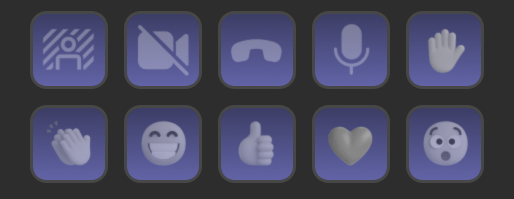
Very handy when in a Teams meeting! To use this, you must retrieve the API key from your Teams client in the Settings, Privacy menu in the Manage API section.
Using PowerShell on a Stream Deck
Scripts
I use the Windows ScriptDesk plugin for starting scripts, and you can install this using the Built-In Stream Deck Store. After installing it, you will see these options appear in the right pane:

Drag-and-Drop it to the profile overview on the button’s location that you want to program. In this example, I will program a button to start a script that stops all Google Chrome processes.
- Enter “Kill Chrome” as the title.
- Enter “Get-Process -Name Chrome | Stop-Process -Force:$true -Confirm:$false” as the action that should be run when the button is pressed
This should look like this now:

When pressing the button, you won’t see any progress windows, and all running Chrome processes will be killed. You can also use other commands from the buttons on the right, like the Start-Proces to start a program or the URL script that will open all URLs returned from your script. (You could use that to read a set of favorite URLs and let the button launch them all in your browser.)
Note: There is no option to run a script with elevated / Administrator permissions!
Visual Studio Code
There’s also Stream Deck support in Visual Studio code! You must install the “Stream Deck for Visual Studio Code” from Nicollas R to enable it inside VSCode and install “Visual Studio Code” developer tools from the Stream Deck Store to enable it in Stream Deck.
After installation, these buttons should appear in your Stream Deck app.

In the example below, I configured a button to format the current script inside Visual Studio Code. You can look up the correct Command ID by going To File, Preferences, Keyboard Shortcuts, and typing the action in the search bar. Right-click the desired command and select Copy Command ID.

Drag the Execute Command action to your Stream Deck, select it, and paste the command you copied into the Command (ID) line. If you now press that button in a script, it will format the script for you.

You can program almost every action in a button, which is very powerful and handy if you typically have to press multiple buttons or navigate through a few menus. You can also use the Open Folder action to switch to a folder in Visual Studio Code or Execute Terminal Command to run a specific command line.
Note: These buttons only work when Visual Studio Code is running
It’s all about your creativity!
You can program many buttons and actions to help you with your workflows. There are loads of possibilities, and once you get used to running them from the Stream Deck… You will take that everywhere with you 🙂
Great stuff. Thanks for this information. Is it possible to use stream deck to copy and paste a windows text file. Or replace a certain txt file with another
You could try a Multi-Action button in which you do CTRL-C (Hotkey), System: Open and specify a text file to open, CTRL-End (Hotkey), Enter (Hotkey) and CTRL-V to copy the selected text to the end of a existing textfile. Replace is something that you can do as well like that I guess, perhaps you do need to put some sleep/wait command to give your system some time before continuing to the next command
There is a workaround to run a script with elevated privilege from stream deck. If you create a task in Windows’ Task Scheduler, and make it run your script that requires admin privilege (task property, General tab, check Run with highest privileges”, in the Action tab, give it the path to your script. give it a task name, save it. Create a .cmd file to run “schtask /run /tn “task name” Then in Stream Deck UI, make it run your .cmd file “cmd /c “c:\path\somethingsomething.cmd” This works for me
Ah, nice one! That works 🙂
very usefull for me thx
No problem!
Hi, just ran into this..
How can you program a 3 fold key sequence to be executed when a game is running, in my case DCS flightsim.
I want to trigger L-win + L-Alt + 1 to fire a function in the game.
PS L-win or any win key wont work with any Hotkey or SuperMacro (a very old bug in Streamdeck still present in version 7.1 even) Thanks for looking.
Hmmm… Not sure how to get that to work if Windows keys are not allowed/working in macros from Stream Deck, but if you have a programmable keyboard (Like Keychron) you could program it in there as a Macro? (Replace print-screen with that, or similar)
Hi Harm. Programming L-win + L-Alt + 1 macros in a razer tartarus gamepad (i sold mine now) and a Steelseries Apex Pro keyboard work fine, but i want to use the combination with my Streamdeck XL, as its buttons display naming is simply unbeatable. Got too many set up for the various planes with DCS flightsim.
I used the, as a test, the System/HotKey option and it does Alt+Win+1 when pressed, but it doesn’t differentiate between Left or Right Windows key. Does that work for you?
PS this works with a Powershell script, Mumlock toggle:
$wsh = New-Object -ComObject WScript.Shell
$wsh.SendKeys(‘{NUMLOCK}’)
This one gives an error popup:
$wsh = New-Object -ComObject WScript.Shell
$wsh.SendKeys(‘{MENU}’)
Hi Harm
you can differentiate L and R keys with a marker át the top of Click to Assign. You can program a hotkey alright with a Win key, but it wont be sent out of Streamdeck, why i am looking fdor some powershell script solution. regs, Nout
It seems to work with, for example, Left-Windows Key + Shift + S (Screenshot). But it doesn’t work when playing a game? Is AutoIt an option? https://stackoverflow.com/questions/63542548/what-is-the-powershell-code-to-simulate-pressing-the-windows-key
Thanks, I looked at AutoIt.
the script for the win key there to be implemented seems:
Import-Module “C:\Path\AutoItX\AutoItX.psd1”
Initialize-AU3
Send-AU3Key -Key “{LWINDOWN}e{LWINUP}” -Mode 0
++++++++++++++
Now how would you implement that in a powershell script for streamdeck along the lines of a working one like:
$wsh = New-Object -ComObject WScript.Shell
$wsh.SendKeys(‘{NUMLOCK}’)
Just like the first part you copied, run that and it should push those buttons? Does it work in a normal PowerShell prompt for you?
I just reinstalled windows due a messup thanks trying various scripting tools.
AutoIt seems a similar one and i am scared to install it, seemingly needed.
That script imported just gives the same error pop up ..
One for a different test: https://www.mediafire.com/file/deb1ol0z0uol65z/%252B%252B_WindowsScriptDeck_error_A.jpg/file
Downloaded the setup, installed it to C:\Program Files (x86)\AutoIt3. Created a button using the ScriptDeck plugin (Used the PowerShell Script one), added this to the When Pressed field
Import-Module “C:\Program Files (x86)\AutoIt3\AutoItX”
Initialize-AU3
Send-AU3Key -Key “{LWINDOWN}e{LWINUP}” -Mode 0
And that started Windows Explorer (Windows Key + E)
Hi Harm …. thanks
I already have AutoHotKey installed, is AutoIt something similar?
Do you know if that works with Powershell 7 and maybe an wxample how to use AutoHotKey.
Which version of AutoIt do i need, there seem to be 3 versions?
OK thanks again ,,,, will do later this week ….
I downloaded autoit-v3-setup.zip and youu can’t specify in ScriptDeck what version, so I think it runs in v5 (Which is fine). Autohotkey is not something that I used, but autoit seems to be fine (Not sure if the button press and execution of PowerShell will be fast enough in games?)
Hi Harm.
Your code works and opens windows explorer. But how do you trigger macros like “Lwin+Lalt+1” and “Lwin+Home”?? I can’t get it working.
You can see all the key namings here : https://www.autoitscript.com/autoit3/docs/functions/Send.htm
Send-AU3Key -Key “{LWINDOWN}{ALTDOWN}1{LWINUP}{ALTUP}” -Mode 0
This would be holding dowen Left Windows key and ALT, typing 1, releasing Left WIndows Key and ALT
Thanks, will try it later
Hi Harm,
Thanks, seems to work, tested with keyboardutillity.exe.
there’s no {LALTDOWN} alas instead of {ALTDOWN}, and when set it triggers the LSHIFT instead.
Alas these power shell scripts are not sent to the intended game (DCS.exe fligtsim program, location: “F:- DCS World Openbeta\bin\DCS.exe”on my PC.
I have to figure out how to get that working..
Good luck, interesting use for StreamDeck though!
PS this also works and has the Lalt implemented. Alas Not in the intended game yet.
Import-Module “F:\UTILLITIES\AutoIt3\AutoItX”
Initialize-AU3
Send-AU3Key -Key “{LALT}{LWIN}1{LALT}{LWIN}” -Mode 0