
One of our customers wanted to know per device which the real Primary User was and the user logon date of every user that used that device. (They have some shared devices.) In this blog post, I will show you how to retrieve that information from Intune and export it.
What is a Primary User?
“The primary user property is used to map a licensed Intune user to their devices in:
- The Company Portal app
- End-user website
- IT pro experiences, like troubleshooting pages in the Azure portal. These pages map user accounts to devices by using the primary user.”
Source: https://learn.microsoft.com/en-us/mem/intune/remote-actions/find-primary-user
What does the script do?
It uses Microsoft Graph to connect to your tenant. It retrieves all the Intune devices and reports the Primary User and all users that logged into it with their last logon date. The results are outputted in a CSV file, which must be specified when running the script.
You can use the -Filter parameter to search for specific devices. For example, “-Filter PS” will return info for devices matching PS.
Running the script
Below is the output of the script running on the customer’s tenant. I changed all the device names, models, serial numbers, and user names for privacy. 🙂 You will be prompted for credentials if the account doesn’t have enough permissions to retrieve the required data… Then, you will be prompted to grant permissions.
Note: If the required PowerShell modules are not installed, the script will install them for you.
c:\scripts\Get-IntunePrimaryUser.ps1 -OutputFileName c:\temp\PrimaryUser.csv
When started, it will display the devices it checks and if the CSV export was successful. (Below is just a part of the total output.)
Processing DESKTOP-0U4ELUR...
Processing DESKTOP-1P7IVLI...
Processing DESKTOP-21H9G3N...
Processing DESKTOP-22BOU9L...
Processing DESKTOP-2J0P2E2...
Processing DESKTOP-68HRPDT...
Exported results to c:\temp\PrimaryUser.csv
This will look like this in Excel: (Below is just a part of the total output, and I changed some names.)
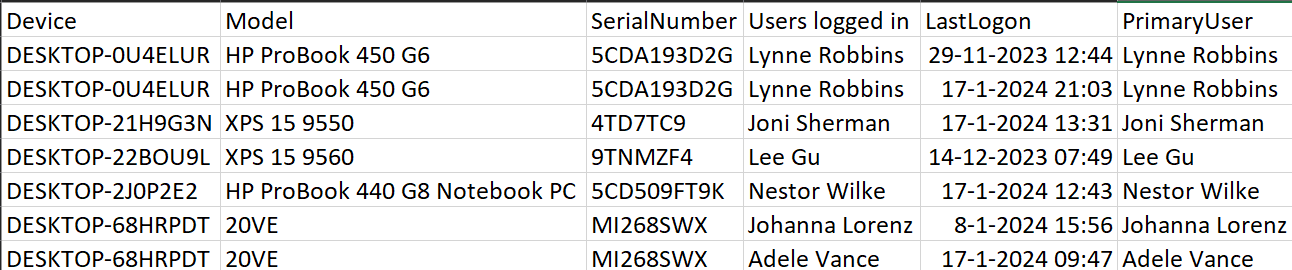
You can see in the results that some devices have multiple accounts which were logged into them. It shows who and when for those. It displays the Primary User (Or None if the Primary User can’t be found; this is the case if that account was deleted, for example)
The script
Below are the script’s contents; save it to c:\scripts\Get-IntunePrimaryUser.ps1, for example.
param(
    [parameter(Mandatory = $true)][string]$OutputFileName,
    [parameter(Mandatory = $false)][string]$Filter = ''
)

#Check if necessary modules are installed, install missing modules if not
if (-not ((Get-Module Microsoft.Graph.Authentication, Microsoft.Graph.Beta.DeviceManagement, Microsoft.Graph.Users -ListAvailable).count -ge 3 | Select-Object Name -Unique)) {
    Write-Warning ("One or more required modules were not found, installing now...")
    try {
        Install-Module Microsoft.Graph.Authentication, Microsoft.Graph.Beta.DeviceManagement, Microsoft.Graph.Users -Confirm:$false -SkipPublisherCheck -Scope CurrentUser -ErrorAction Stop
    }
    catch {
        Write-Warning ("Error installing required modules, exiting...")
        return
    }
}


#Connect MgGraph
try {
    Connect-MgGraph -Scopes 'DeviceManagementManagedDevices.Read.All, User.Read.All' | Out-Null
}
catch {
    Write-Warning ("Error connecting Microsoft Graph, check Permissions/Accounts. Exiting...")
    return
}

#Loop through the devices and the logged on users per device
$total = Foreach ($device in (Get-MgBetaDeviceManagementManagedDevice -All:$true -Filter "contains(DeviceName,'$($filter)')" | Where-Object OperatingSystem -eq Windows)) {
    Write-Host ("Processing {0}..." -f $device.DeviceName) -ForegroundColor Green
    foreach ($user in $device.UsersLoggedOn.UserId | Select-Object -Unique  ) {
        [PSCustomObject]@{
            Device            = $device.DeviceName
            Model             = $device.Model
            SerialNumber      = $device.SerialNumber
            "Users logged in" = (Get-MgUser -UserId $user).DisplayName
            LastLogon         = ($device.UsersLoggedOn | Where-Object Userid -eq $user | Sort-Object LastLogonDateTime | Select-Object -Last 1).LastLogOnDateTime
            PrimaryUser       = if ((Get-MgBetaDeviceManagementManagedDeviceUser -ManagedDeviceId $device.Id).DisplayName) {
                $((Get-MgBetaDeviceManagementManagedDeviceUser -ManagedDeviceId $device.Id).DisplayName)
            }
            else {
                "None"
            }
        }
    }
}
Disconnect-MgGraph | Out-Null

try {
    $total | Sort-Object Device, 'Users logged in' | Export-Csv -Path $OutputFileName -NoTypeInformation -Encoding UTF8 -Delimiter ';' -ErrorAction Stop
    Write-Host ("Exported results to {0}" -f $OutputFileName) -ForegroundColor Green
}
catch {
    Write-Warning ("Error saving results to {0}, check path/permissions..." -f $OutputFileName)
}
Download the script(s) from GitHub here.
Have you ever needed to run this against a tenant with more than 1,000 devices? Script works great, just bumping up against the Graph 1,000 limit.
Personally not, just tenants with perhaps a few hundred… Do you and how does it look, error stops or?
There was a -all parameter for the Get-MgBetaDeviceManagementManagedDevice cmdlet, added that to the script. Could you try again and report back on the results?
I am seeing following error while running this script. Any where am I making mistake ?
PS C:\scripts> c:\scripts\Get-IntunePrimaryUser.ps1 -OutputFileName c:\temp\PrimaryUser.csv
Get-MgBetaDeviceManagementManagedDevice : The term ‘Get-MgBetaDeviceManagementManagedDevice’ is not recognized as the name of a cmdlet, function, script file, or operable program.
Check the spelling of the name, or if a path was included, verify that the path is correct and try again.
At C:\scripts\Get-IntunePrimaryUser.ps1:15 char:31
+ … Foreach ($device in (Get-MgBetaDeviceManagementManagedDevice | Where …
+ ~~~~~~~~~~~~~~~~~~~~~~~~~~~~~~~~~~~~~~~
+ CategoryInfo : ObjectNotFound: (Get-MgBetaDeviceManagementManagedDevice:String) [], CommandNotFoundException
+ FullyQualifiedErrorId : CommandNotFoundException
Exported results to c:\temp\PrimaryUser.csv
I updated the script to automatically install missing PowerShell Modules (If any) Could you try again with the updated script?
I got the desired output after my computer restart. It appears computer restart is required after installing the module. Your updated script works great!!!
Ah, good to hear! Thanks for the feedback, that helps in updating / fixing bugs
Hello Harm,
Script exports only 950 devices against 32000. Do we need to remove any restriction to export data for 32000 devices ?
There was a -all parameter for the Get-MgBetaDeviceManagementManagedDevice cmdlet, added that to the script. Could you try again and report back on the results?
Craig asked the same thing, just above your post, and I don’t have any experience in that (didn’t have a tenant with that many devices to test it on)
I will look into this, there must be an override to retrieve more data
I can’t seem to get it to work. When running the script from Github, I get the green text “Exported results to…” but the csv is empty, containing just “” in A1 cell. We have about 60 joined devices. I tried to restart the computer as someone mentioned above but nothing. Do you have any idea?
You’re right, there was an issue after I added the -Filter parameter. The query was wrong when no Filter was used, changed the default value to ” instead of ‘*’. It should work now, let me know the results!
Worked flawlessly, many thanks for this 🙂
Hi
I have the same issues where should i chnage to ” instead of ‘*’
David, I changed the script in October in the blog post and on my GitHub page, just tested it and works… With and without a filter
I am getting this issue still!
Is the script updated or am i doing something wrong?
Could you post the error that you’re getting? And could you run the script with the -Verbose parameter, too? (And see if it outputs more detailed error information?)
The scripts is not prompting anything wrong, i’m getting a output-file Containing just “” in A1 cell.
What does this give you?
Connect-MgGraph -Scopes ‘DeviceManagementManagedDevices.Read.All, User.Read.All’
Get-MgBetaDeviceManagementManagedDevice -All:$true -Filter “contains(DeviceName,’$($filter)’)” | Where-Object OperatingSystem -eq Windows
Did you download the last version from the blog post or my GitHub page? (https://raw.githubusercontent.com/HarmVeenstra/Powershellisfun/refs/heads/main/Retrieve%20Intune%20Primary%20User/Get-IntunePrimaryUser.ps1)
It gives me:
Get-MgBetaDeviceManagementManagedDevice : The term ‘Get-MgBetaDeviceManagementManagedDevice’ is not recognized as the name of a cmdlet, function, script file, or operabl
e program. Check the spelling of the name, or if a path was included, verify that the path is correct and try again.
At line:2 char:1
+ Get-MgBetaDeviceManagementManagedDevice -All:$true -Filter “contains( …
+ ~~~~~~~~~~~~~~~~~~~~~~~~~~~~~~~~~~~~~~~
+ CategoryInfo : ObjectNotFound: (Get-MgBetaDeviceManagementManagedDevice:String) [], CommandNotFoundException
+ FullyQualifiedErrorId : CommandNotFoundException
The module Microsoft.Graph.Beta.DeviceManagement is not installed in your session, could you run this?
if (-not ((Get-Module Microsoft.Graph.Authentication, Microsoft.Graph.Beta.DeviceManagement, Microsoft.Graph.Users -ListAvailable).count -ge 3 | Select-Object Name -Unique)) {
Write-Warning (“One or more required modules were not found, installing now…”)
try {
Install-Module Microsoft.Graph.Authentication, Microsoft.Graph.Beta.DeviceManagement, Microsoft.Graph.Users -Confirm:$false -SkipPublisherCheck -Scope CurrentUser -ErrorAction Stop
}
catch {
Write-Warning (“Error installing required modules, exiting…”)
return
}
}
My bad, not it works flawlessly!
Thank you!
My bad, luckily it was an easy fix 😀
Hi Harm, brilliant script. I’m a newbie in script, so kindly can you help me, telling how to get serial number? I believe that cmdlet can get this value but I don’t know how to set it onto code.
Thanks 😊 I’ll check tomorrow morning, nice addition and will add it to the script. I will reply to your question when I added it
I added this to the PSCustomObject and updated the blog post 🙂 Thanks for the tip of adding the serialnumber, useful!
SerialNumber = $device.SerialNumber
So glad, master 🙂 my pleasure.
Is there a way that this script could be modified to change the primary user to the last logged on user? I feel like the ingredients to do so are here but I am not capable of doing so, LOL!
Hmmm… The ingredients to determine the last user who logged on are there but.. If that’s an admin… Then that would become the primary user… Not sure if that would be a good idea. But if you want, I could create something 😅
Wow thank you for the quick reply 🙂
the situation is that devices were deployed and the primary user is the admin account. So we would scope the script to only run on those devices. I am sure you have seen situations like this before, LOL!
I will put it on my todo list 👍
That would be really awesome, THANKS!
hi
now it get this error
Get-MgUser : One or more errors occurred.
At line:32 char:9
+ [PSCustomObject]@{
+ ~~~~~~~~~~~~~~~~~~
+ CategoryInfo : NotSpecified: (:) [Get-MgUser_Get], AggregateException
+ FullyQualifiedErrorId : System.AggregateException,Microsoft.Graph.PowerShell.Cmdlets.GetMgUser_Get
Could you share some more script output? No issues in permissions for Graph, did it prompt you to allow certain permissions?
Found it : that did help https://bonguides.com/how-to-fix-get-mguser-one-or-more-errors-occurred/
so others can use it as well.
BTW how you get the lastlogin time form AD?
Ah, nice! And from Active Directory? (Not Entra ID) For Entra ID it’s in the Get-MgBetaDeviceManagementManagedDevice details, for Active Directory you can retrieve the Last Login date for the Computer Account, but not which user logged into that. You can retrieve those events from the Security Logs of the Domain Controllers if you audit logon/logoff events and store that somewhere before the security eventlog rotates after growing to a certain size.
Great script however i get the error:
Get-MgBetaDeviceManagementManagedDevice : One or more errors occurred.
At line:25 char:114
+ … agedDevice -All:$true -Filter “contains(DeviceName,’$($filter)’)” | W …
+ ~~~~~~~
+ CategoryInfo : NotSpecified: (:) [Get-MgBetaDevic…agedDevice_List], AggregateException
+ FullyQualifiedErrorId : System.AggregateException,Microsoft.Graph.Beta.PowerShell.Cmdlets.GetMgBetaDeviceManagementManagedDevice_List
What does running “Connect-MgGraph -Scopes ‘DeviceManagementManagedDevices.Read.All, User.Read.All'” give you? And “Get-MgBetaDeviceManagementManagedDevice -All:$true” afterwards?
Very nice script. Do you have any experience with iPads configured in shared mode? I manage these for a school division, and users log on to the iPad with AAD accounts (federated apple ids). The user account and profiles get cached, and show up on the devices’ Users tab. MG does have a method to remove the user (Remove-MgDeviceManagementManagedDeviceUserFromSharedAppleDevice), but it requires that you specify the UPN. For bulk actions, I’m trying to find a way to get all the cached users and remove them. Your script will occasionally show a couple of these cached users, but usually not (presumably because the users aren’t actively logged in). Any thoughts?
No experience in that scenario (yet), but if it shows it in the output of the script… Then you could write some logic around it if there’s more than one user present… Keep the newest and remove the older ones.. Interesting situation, but I don’t have an environment with this to test it on
Hello
When i run this script i am not able to get any out put in excel – its just blank
how can i resolve it
I just checked again, still works (Did update the script for correctly counting required modules in case of both having them on PowerShell v5 and v7). Any error messages? You did specify the outputfile like c:\temp\report.csv ?
Hello I get the following error:
Get-MgBetaDeviceManagementManagedDevice : One or more errors occurred.
At line:29 char:114
+ … agedDevice -All:$true -Filter “contains(DeviceName,’$($Filter)’)” | W …
+ ~~~~~~~
+ CategoryInfo : NotSpecified: (:) [Get-MgBetaDevic…agedDevice_List], AggregateException
+ FullyQualifiedErrorId : System.AggregateException,Microsoft.Graph.Beta.PowerShell.Cmdlets.GetMgBetaDeviceManagementManagedDevice_List
Could you run the script with the -Verbose option and post the VERBOSE:* output here?
Hi harm,
I’ve been pulling my hair out with gathering information about primary users and last sign ins for ages and this script does everything I need so thank you so much for that.
I am facing a problem though and I’m not sure how to resolve it. The script appears to work great, it processes through the 120ish windows devices and creates the CSV. The issue is that only 42 of those 120ish devices show up in the CSV file. The script is definitely attempting to process all the devices (they show up in green when the script is running) but for whatever reason they’re not making it to the CSV.
There is a correlation which may point to my tenant being the issue though. The reason I needed a script like this so badly was because those same devices which didn’t show up in the CSV also don’t show recent check-ins on the intune education portal. You may be aware of this already, but in Intune education you can see the most recent user to check-in. For whatever reason this isn’t an option on the main intune portal. The first thought would be that there aren’t any recent check ins at all, but if I go to the main intune portal, I can see the “last check-in time” and it’s constantly updating whenever the mystery user logs in!
I’ve just created a ticket with Microsoft for this, and maybe this comment will point others in the right direction if they come accross the issue, but I have one question.. Am I correct to assume that the script is failing to show all the devices just because it can’t see the last checked in user? Could it just be that it doesn’t expect to not be able to fill in that column for those devices and just decides not to output anything at all? I’m still a novice with scripts so I could be off, but that seems like the only reasonable explanation. which would point towards this being an issue on the tenant.
Thank you 🙂 And could you, for one of the missing devices in the report, run (Get-MgBetaDeviceManagementManagedDevice -Filter “contains(DeviceName,’devicenamehere’)”).UsersLoggedOn
If the last command doesn’t return anything, it will not be added to the report (It loops though the logged on users on that device using “foreach ($user in $device.UsersLoggedOn.UserId | Select-Object -Unique “)
Thank you for this script. I’ve run into an issue where the export csv is adding three headers into one.
I use “Export-Csv -Path $OutputFileName -NoTypeInformation -Encoding UTF8 -Delimiter ‘;’ “, is there some special character perhaps or does changing the delimeter to ‘,’ help? (Depends on your language settings in Excel). Could you share the first line of the CSV? (Edit it in a notepad or similar)
Didn’t work for me. It exported the csv but only one cell with a few random characters as described above in the comments.
I tested it just now; it still works. After you run the script (in ISE or VSCode), what does $total give you for output?
How to limit the script to run only the devices in a specific OU? Thanks
With OU you mean Organizational Unit like in Active Directory? This script queries Entra ID devices that Intune manages. Or do you mean Administrative Units perhaps in Entra ID?
Hello
I get the following error:
Get-MgBetaDeviceManagementManagedDevice : One or more errors occurred.
At line:29 char:114
+ … agedDevice -All:$true -Filter “contains(DeviceName,’$($Filter)’)” | W …
+ ~~~~~~~
+ CategoryInfo : NotSpecified: (:) [Get-MgBetaDevic…agedDevice_List], AggregateException
+ FullyQualifiedErrorId : System.AggregateException,Microsoft.Graph.Beta.PowerShell.Cmdlets.GetMgBetaDeviceManagementManagedDevice_List
There were others reporting the same issue, but they didn’t respond to the questions I asked them (It still works fine here, just test it)
Could you try:
Connect-MgGraph -Scopes ‘DeviceManagementManagedDevices.Read.All, User.Read.All’
Get-MgDeviceManagementManagedDevice -All:$true -Filter “contains(DeviceName,”)” | Where-Object OperatingSystem -eq Windows
And see what that gives you?
I’ve got this:
Connect-MgGraph -Scopes DeviceManagementManagedDevices.Read.All, User.Read.All
Welcome to Microsoft Graph!
……
Get-MgBetaDeviceManagementManagedDevice -All:$true -Filter “contains(DeviceName,’$($filter)’)” | Where-Object OperatingSystem -eq Windows
Id AadRegistered ActivationLockBypassCode AndroidSecurityPatchLevel AutopilotEnrolled
— ————- ———————— ————————- —————–
7447a9de-0cc3-4c53-96ff-3c5d338ede35 True True
8c34a075-201e-4688-aab2-3bb0c48c051e True True
241fe8df-063b-4b85-9632-3b4afaa8e266 True True
……..
it works! thanks!
how should I filter it to use only computers contains some chr?
Thanks alot! filter works, too.
Glad that it works, but what fixed it for you? Removing $Filter?
Fake use harm
And what is the correct use?
hmm i get:
Processing 634BYW3…
Get-MgUser : One or more errors occurred.
At C:\Users\me\desktop\deviceusers.ps1:32 char:9
+ [PSCustomObject]@{
+ ~~~~~~~~~~~~~~~~~~
+ CategoryInfo : NotSpecified: (:) [Get-MgUser_Get], AggregateException
+ FullyQualifiedErrorId : System.AggregateException,Microsoft.Graph.PowerShell.Cmdlets.GetMgUser_Get
That’s weird, just tested it myself again and it still works… Could be a module conflict, could you try and update all your modules? (Perhaps use the script from this blog post, https://powershellisfun.com/2022/07/11/updating-your-powershell-modules-to-the-latest-version-plus-cleaning-up-older-versions/)
thanks! for some reason the logic to install missing cmdlets doesn’t work. I manually ran that part and was able to replace an older 2.5 ver of graph.users and all good now – thank you!
Good to hear, no problem 👌
if (-not ((Get-Module Microsoft.Graph.Authentication, Microsoft.Graph.Beta.DeviceManagement, Microsoft.Graph.Users -ListAvailable).count -ge 3 | Select-Object Name -Unique)) {
Write-Warning (“One or more required modules were not found, installing now…”)
try {
Install-Module Microsoft.Graph.Authentication, Microsoft.Graph.Beta.DeviceManagement, Microsoft.Graph.Users -Confirm:$false -SkipPublisherCheck -Scope CurrentUser -ErrorAction Stop
}
catch {
Write-Warning (“Error installing required modules, exiting…”)
return
}
}
Yields nothing from powershell.
Still getting this error:
Get-MgBetaDeviceManagementManagedDevice : The term ‘Get-MgBetaDeviceManagementManagedDevice’ is not
recognized as the name of a cmdlet, function, script file, or operable program. Check the spelling of the
name, or if a path was included, verify that the path is correct and try again.
At C:\scripts\Get-IntunePrimaryUser.ps1:29 char:31
+ … Foreach ($device in (Get-MgBetaDeviceManagementManagedDevice -All:$t …
+ ~~~~~~~~~~~~~~~~~~~~~~~~~~~~~~~~~~~~~~~
+ CategoryInfo : ObjectNotFound: (Get-MgBetaDeviceManagementManagedDevice:String) [], CommandNo
tFoundException
+ FullyQualifiedErrorId : CommandNotFoundException
After running the script, what does get-module return? Do you actually see the Microsoft.Graph.Authentication, Microsoft.Graph.Beta.DeviceManagement, Microsoft.Graph.Users in the list? I tested it again on my system, and on a Windows Sandbox with nothing else installed but PowerShell v5. If you run Get-Executionpolicy in the Shell you have open, what does it that give you?
Hey, I’m very new to powershell so not sure what you mean in your first paragraph.
After running Get-Executionpolicy it yields this text: RemoteSigned
Thanks for the fast reply
Could you try running set-executionpolicy bypass -scope currentuser ? Afterwards, run Install-Module Microsoft.Graph.Authentication, Microsoft.Graph.Beta.DeviceManagement, Microsoft.Graph.Users -Confirm:$false -SkipPublisherCheck -Scope CurrentUser . (Answer prompts for installing packagemanager with Yes) and then run the script again
You’re a wizard mate… works now.
Thanks so much for the insanely fast replies, I owe you one.
No worries, glad to help 😊
Howdy. I read all the comments, had to do a couple of the suggestions as I was getting similar PS error messages. This is what I have now. Would you be able to assist? I’d really like to get your script working. BTW – I am not a PS person and find this kind of thing very difficult, so feel free to treat me as a Noob for this stuff. Thank you!
Get-MgBetaDeviceManagementManagedDevice : One or more errors occurred.
At C:\Temp\Get-IntunePrimaryUser.ps1:29 char:114
+ … agedDevice -All:$true -Filter “contains(DeviceName,’$($filter)’)” | W …
+ ~~~~~~~
+ CategoryInfo : NotSpecified: (:) [Get-MgBetaDevic…agedDevice_List], AggregateException
+ FullyQualifiedErrorId : System.AggregateException,Microsoft.Graph.Beta.PowerShell.Cmdlets.GetMgBetaDeviceManagem
entManagedDevice_List
Sure, always there to help 🙂 And no worries, I tried the script just now and for me it still works. This means that there are no changes on the Microsoft side of things, so that’s a good thing. Based on the error, telling you the row and character where things go wrong, it’s something to do with the optional Filter parameter. If you modify the that line from
$total = Foreach ($device in (Get-MgBetaDeviceManagementManagedDevice -All:$true -Filter “contains(DeviceName,’$($filter)’)” | Where-Object OperatingSystem -eq Windows)) {
to
$total = Foreach ($device in (Get-MgBetaDeviceManagementManagedDevice -All:$true | Where-Object OperatingSystem -eq Windows)) {
And save, and rerun the script… Does it work without the -Filter -contains(DeviceName,’$($filter)’)” part?
I did the line change and save. If I run it in regular PS, I Now get this:
PS C:\Temp> .\Get-IntunePrimaryUser.ps1 -OutputFileName c:\temp\Primaryuser.csv
Get-MgBetaDeviceManagementManagedDevice : One or more errors occurred.
At C:\Temp\Get-IntunePrimaryUser.ps1:29 char:30
+ … ($device in (Get-MgBetaDeviceManagementManagedDevice -All:$true | Whe …
+ ~~~~~~~~~~~~~~~~~~~~~~~~~~~~~~~~~~~~~~~~~~~~~~~~~~~~~~~~~
+ CategoryInfo : NotSpecified: (:) [Get-MgBetaDevic…agedDevice_List], AggregateException
+ FullyQualifiedErrorId : System.AggregateException,Microsoft.Graph.Beta.PowerShell.Cmdlets.GetMgBetaDeviceManagem
entManagedDevice_List
If I run it in PS-ISE, I get this:
PS C:\WINDOWS\system32> C:\Temp\Get-IntunePrimaryUser.ps1
cmdlet Get-IntunePrimaryUser.ps1 at command pipeline position 1
Supply values for the following parameters:
OutputFileName: test.csv
Processing RELLIS-5GY1ZB4…
Get-MgUser : One or more errors occurred.
At C:\Temp\Get-IntunePrimaryUser.ps1:32 char:9
+ [PSCustomObject]@{
+ ~~~~~~~~~~~~~~~~~~
+ CategoryInfo : NotSpecified: (:) [Get-MgUser_Get], AggregateException
+ FullyQualifiedErrorId : System.AggregateException,Microsoft.Graph.PowerShell.Cmdlets.GetMgUser_Get
It looks like it gets a little further, but I can’t tell for sure. I just see there is a different error on a different line.
Thank you for your help!
-matt
Just to be sure if you copied the script from the page which could cause issues with ‘ characters, could you save the file using the Github link below the blog post and try again?
And if ISE, which is PowerShell v5, does give more and regular powershell is v7 (Running $PSVersionTable should tell that) then or might be outdated modules?
I used the ps1 file from your github page. So that is what I edited in that line you mentioned above.
PS = PSVersion 5.1.26100.7705
I ran that command in both and they showed the same.
I have now tried the script in both v5 and v7, no issues… What does Get-Module return in your regular PS session? (Just checking to see the module versions)
PS C:\Temp> Get-Module
ModuleType Version Name ExportedCommands
———- ——- —- —————-
Script 2.19.0 Microsoft.Graph.Authentication {Add-MgEnvironment, Connect-MgGraph, Disconnect-MgGraph, Get-MgContext…}
Script 2.35.1 Microsoft.Graph.Authentication {Add-MgEnvironment, Connect-MgGraph, Disconnect-MgGraph, Get-MgContext…}
Script 2.35.1 Microsoft.Graph.Beta.DeviceManag… {Add-MgBetaDeviceManagementAndroidManagedStoreAccountEnterpriseSettingApp, Approve-MgBetaDeviceManagementAndroidManagedStoreAccountEnterpr…
Manifest 3.1.0.0 Microsoft.PowerShell.Management {Add-Computer, Add-Content, Checkpoint-Computer, Clear-Content…}
Manifest 3.0.0.0 Microsoft.PowerShell.Security {ConvertFrom-SecureString, ConvertTo-SecureString, Get-Acl, Get-AuthenticodeSignature…}
Manifest 3.1.0.0 Microsoft.PowerShell.Utility {Add-Member, Add-Type, Clear-Variable, Compare-Object…}
Script 1.4.8.1 PackageManagement {Find-Package, Find-PackageProvider, Get-Package, Get-PackageProvider…}
Script 2.2.5 PowerShellGet {Find-Command, Find-DscResource, Find-Module, Find-RoleCapability…}
Script 2.0.0 PSReadLine {Get-PSReadLineKeyHandler, Get-PSReadLineOption, Remove-PSReadLineKeyHandler, Set-PSReadLineKeyHandler…}
Your Authentication module isn’t 2.35.1 like the other modules… And to be sure, if you run Connect-MgGraph (And login with your admin account) followed by Get-MgBetaDeviceManagementManagedDevice? (Intune Devices) Does that return something at all? And also, does Get-MgUser return anything? (Users)
So, the first two ran without issue. The last one, Get-MgUser gives this error.
PS C:\Users\MattPierce> Get-MgUser
Get-MgUser : One or more errors occurred.
At line:1 char:1
+ Get-MgUser
+ ~~~~~~~~~~
+ CategoryInfo : NotSpecified: (:) [Get-MgUser_List], AggregateException
+ FullyQualifiedErrorId : System.AggregateException,Microsoft.Graph.PowerShell.Cmdlets.GetMgUser_List
Could you start a new session, run get-module | update-module, close session and start a new one and try again? Just to see if that helps if having an older version is causing an issue
Better yet, use https://powershellisfun.com/2022/07/11/updating-your-powershell-modules-to-the-latest-version-plus-cleaning-up-older-versions/
While trying to follow the instructions from the link below, I get this message, even after I restarted my computer. It looks like it’s installing something(s) and then this message comes up right before it drops me back to the blinking cursor.
PS C:\WINDOWS\system32> Install-Module PowerShellGet -AllowClobber -Force WARNING: The version ‘1.4.8.1’ of module ‘PackageManagement’ is currently in use. Retry the operation after closing the
applications.
PS C:\WINDOWS\system32>
If you run this first : [Net.ServicePointManager]::SecurityProtocol = [Net.ServicePointManager]::SecurityProtocol -bor [Net.SecurityProtocolType]::Tls12 and then try again… Does that change anything?
I very much appreciate your help trying to get this working for me. Unfortunately, this is going well outside my comfort zone and skill set, so I’m just going to figure something else out. I may try on another computer that is not my primary computer at some point, but it’s just becoming too overwhelming for me. Thank you again for your help.
I understand, you probably have some local thing blocking this. If you have another device on which you can run this, please do to make sure if was a local thing on your device.
Like I said, tested it on PowerShell v5.1 and v7 on a clean machine and worked…