
In my last blog post, I showed you how to use Detection scripts in Intune. In this blog post, I will show you how the additional requirement rules work and how you can use PowerShell for those.
What are additional requirement rules?
“Choose Script as the Requirement type value when you can’t create a requirement rule based on file, registry, or any other method available to you in the Microsoft Intune admin center.
Script file: For a rule based on a PowerShell script requirement, if the existing code is 0, we’ll detect the standard output (STDOUT) in more detail. For example, we can detect STDOUT as an integer that has a value of 1.”
Source: https://learn.microsoft.com/en-us/mem/intune/apps/apps-win32-add#step-3-requirements
How do the additional requirement rule scripts work?
They are the same as the Detection scripts, which you can also use to deploy Windows 32 apps in Microsoft Intune. It’s more like a pré-check before installing an application. If you have an application that must only be installed on a Lenovo machine with a specific minimum BIOS version of X… (That is something you can do for the Lenovo part using Dynamic groups, but not for the bios version), this might be an option. Still, you could also use it to check for services/processes that should be present. If not, the application will not install and not be applicable.
Data types and operators that can be used
You can use six different data types for the scripts:
- String. This is the one that I use in the examples below. It’s just a simple text validation based on the output from the script.
- Data and Time. When selecting this, a field will appear where you can specify the date.
- Integer. This will check for a number being returned by the script.
- Floating Point. This will check for a returned float or a double. (The float type is an instance of the System.Single .NET Framework value type and the double is an instance of the System.Double type.)
- Version. This will check for a specific version number returned. 10.0.23601.1000, for example.
- Boolean. This is a simple True or False check being returned by the script.
Examples
Requirement for specific service
The example additional requirement PowerShell script below checks a specific service (The Citrix Workspace Advanced Service) if it is running before installing the Win32 package. Without the running service, the software won’t try to establish itself until the service is available and running on that system.
if ((Get-Service).DisplayName -match 'Citrix Workspace Advanced Service') {
    Write-Host Citrix WorkSpace found
    exit 0
}
else {
    Write-Host CItrix Workspace not found
    exit 1
}
You can use this in Intune when adding a Win32 application by using the + Add button in the Requirements tab:
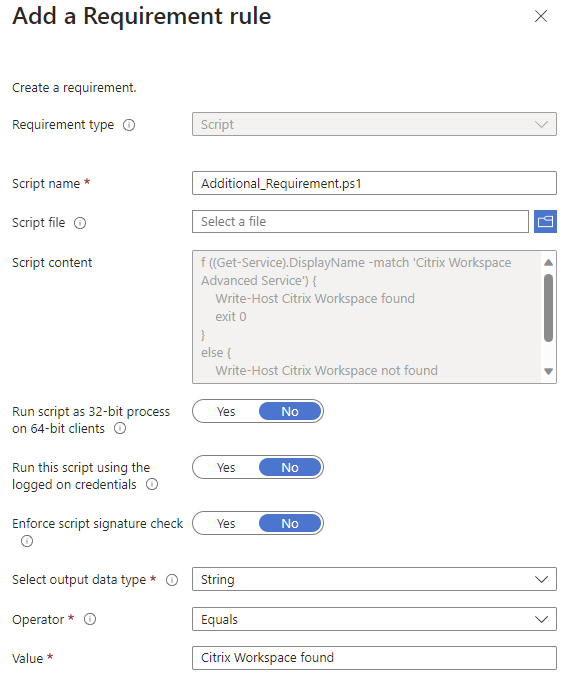
On my test VM, there is no Citrix Workspace app installed, and the status will be “PowerShell script requirement rule is not met.” because of that.

You can also view the results in the C:\ProgramData\Microsoft\IntuneManagementExtension\Logs\IntuneManagementExtension.log:

Requirement of specific hardware
I use a script that checks for specific hardware in the example below. In this case, I check for the hardware model. If it’s a Hyper-V VM, the software will be installed. If not, it will be shown as not applicable on the Device and User status page. The script that I used:
if ((Get-CimInstance -ClassName Win32_Bios).SMBIOSBIOSVersion -match 'Hyper-V') {
    Write-Host Hyper-V VM found
    exit 0
}
else {
    Write-Host Hyper-V VM not found
    exit 1
}
The Requirement Rule:
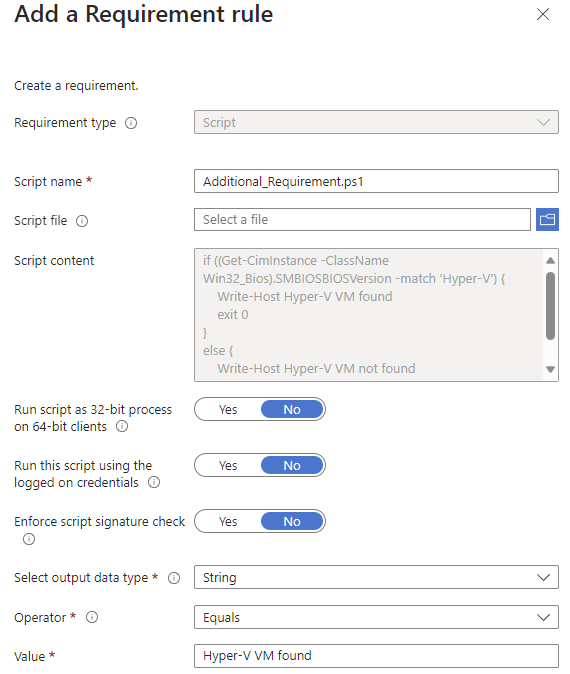
My test VM is a Hyper-V VM, which means the software will be installed.

The results in the log IntuneManagementExtension.log are:

Wrapping up
In the blog post, I showed you the option to use PowerShell scripts for additional requirement rules in Intune. This is more flexible and easier (IMHO) than using File or Registry checks.
I have tried but had no success. I copied verbatim what you have for fundamentals but I still get a bit required. I have to sign the PS1, have you had to do this and come into trouble?
What do you mean, a bit required? I don’t use signing in my environment, do you have to or did you configure the enforce script signature check to Yes?
My colleague figured it out. For some reason intune didn’t like write-host and instead he used write -output. Only then did it detect the output of the PS script. The code signing was a red herring in the end.
ok, Write-Host should work but signing can be different I guess?
So just to clarify, does the Additional Configure Rules run before or after the Detection Method is run?
I currently have a Win32 Packaged Already (Wrote Powershell for the Install and Uninstall Commands respectively) for a background process program that needs two crucial things for it to run.
1) A “programA” folder/directory is created in the “C:\Program Files” and inside “programA”, there contains the exe file as well as a three other configuration dependencies files (an XML, ini, company logo png) which are all copied over in the Install Script
2) Additionally, I need to create a scheduled task in Task Scheduler that imports the said XML file from previous step…..in order to run the programA exe at regular intervals of 2 hours and whenever the user signs in.
Within the install script, i’ve included a line that does the scheduled task creation.
As far as I know, the Additional Requirement Rules fall under the Requirements steps which the devie must meet before installation (https://learn.microsoft.com/en-us/mem/intune/apps/apps-win32-add) So, if that matches, then the Detection will check if the app is already installed and will install if it not. That can be a Detection script or registry or file checks.
Anyone know how often the requirement script run against the machine? Every 24 hours or if it fails for a certain number of consecutive times, it never runs again.
I would like to know what happens if the machine doesn’t meet the requirement now, but does 30 days later.
i think it’s the same like the Win32Apps? https://www.linkedin.com/pulse/understanding-intunes-app-installation-retry-mechanism-sachin-mittal-7as3c/ has a good overview