
I’ve been using the PSWindowsUpdate module for a while now; it’s very convenient when spinning up a test VM for a customer if you want to have it up-to-date before going through the Windows Autopilot process, for example. In this blog post, I will show you how the module works with a few examples of how I use it.
What is the PSWindowsUpdate module?
Well… The name describes its purpose, of course, but it’s a PowerShell module created and maintained by Michal Gajda and published on the PSGallery. The module contains cmdlets to manage the Windows Update Client, which is simple but efficient! And… it has been downloaded more than 500,000,000 times!!!
How to install
You can install and use it from the PSGallery by running the following:
Install-Module PSWindowsUpdate
Import-Module PSWindowsUpdate
Available cmdlets
After importing, the following cmdlets are available:

Examples
In the examples below, I use the PSWindowsUpdate module on a new Windows 11 Pro version 23h2 Hyper-V VM on my laptop that I deployed using the last ISO file from my VisualStudio subscription, released in December 2023. (I use it to install all updates before the Autopilot process so that the machine is up-to-date when deploying it)
Checking if updates are available
Running the Get-WindowsUpdate cmdlet will show you which updates are available to your system. You can use the -ComputerName parameter to connect to another system.

Installing all updates
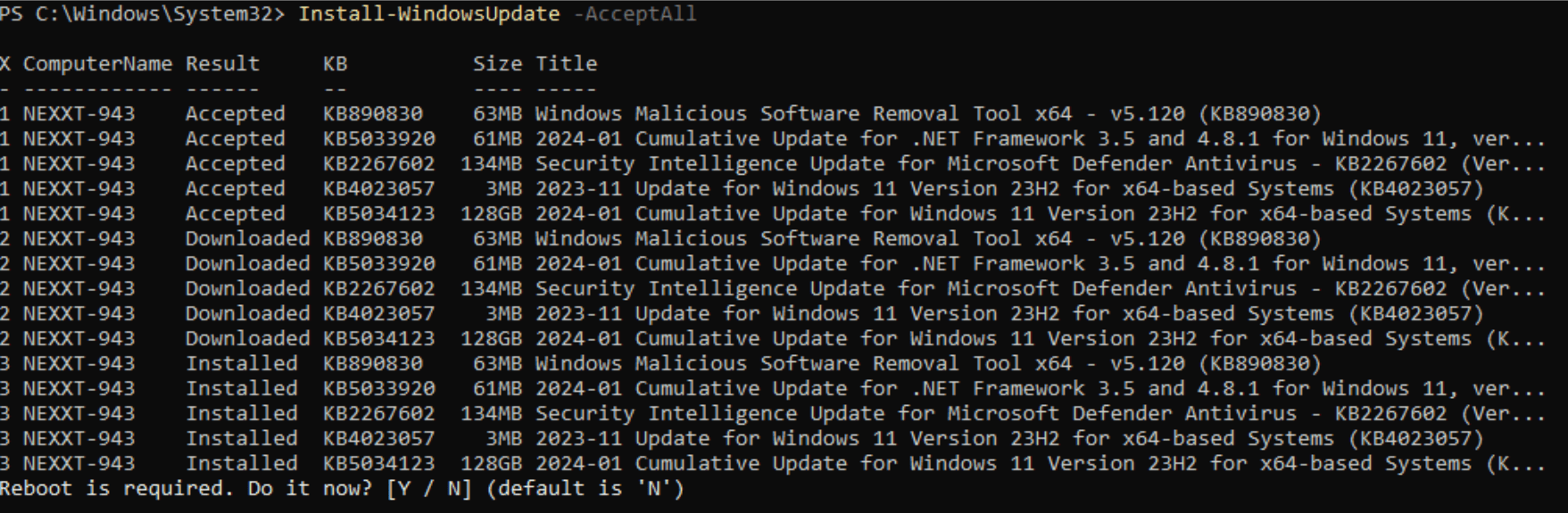
Running the Install-WindowsUpdate cmdlet will install all the updates found and show you the progress during installation. You can use the -AcceptAll parameter to avoid answering confirmations.

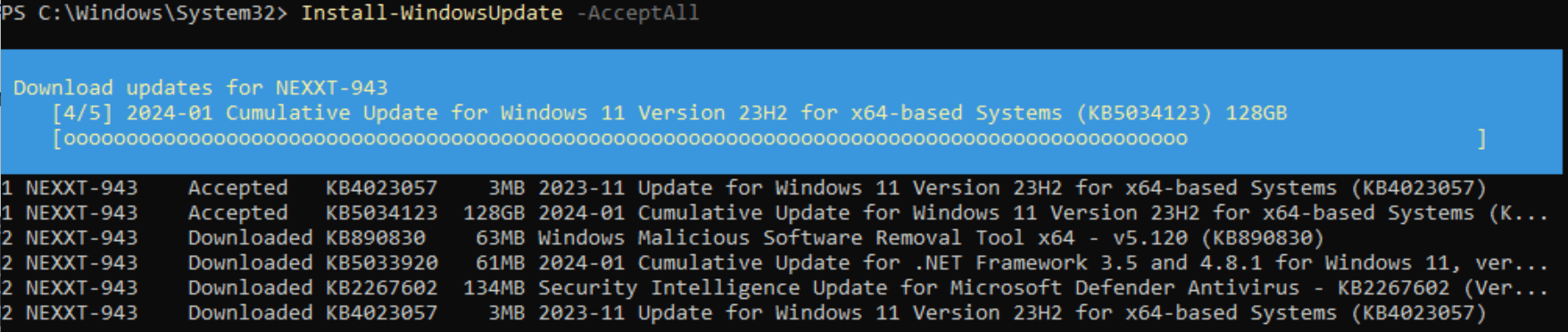
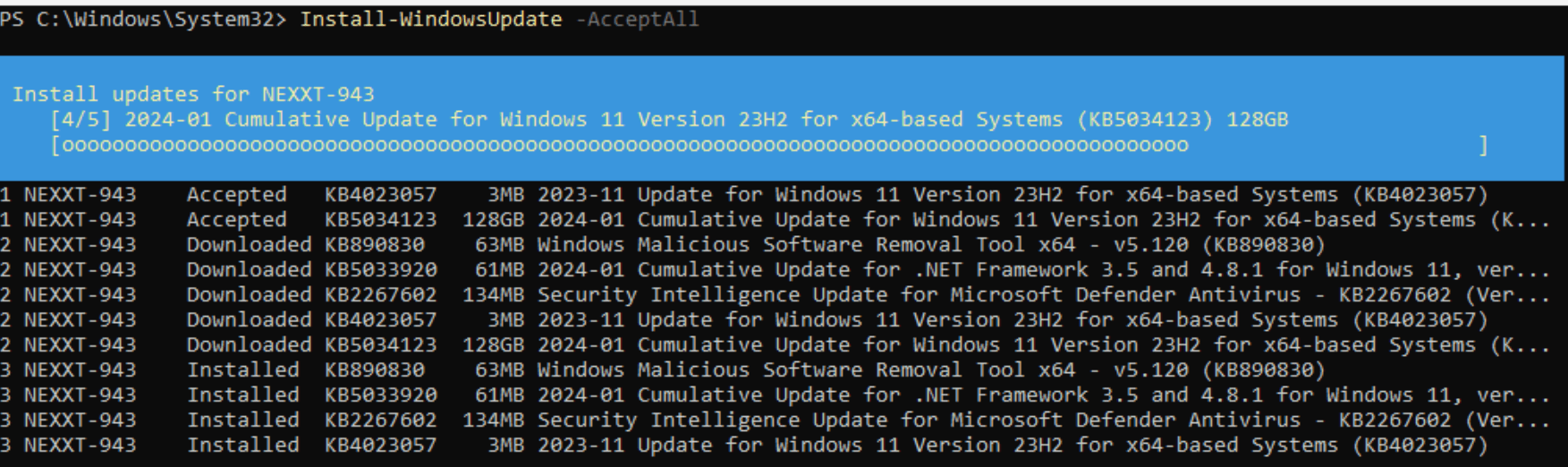
It will prompt you to reboot the system if needed:

Retrieving the Windows Update history of a system
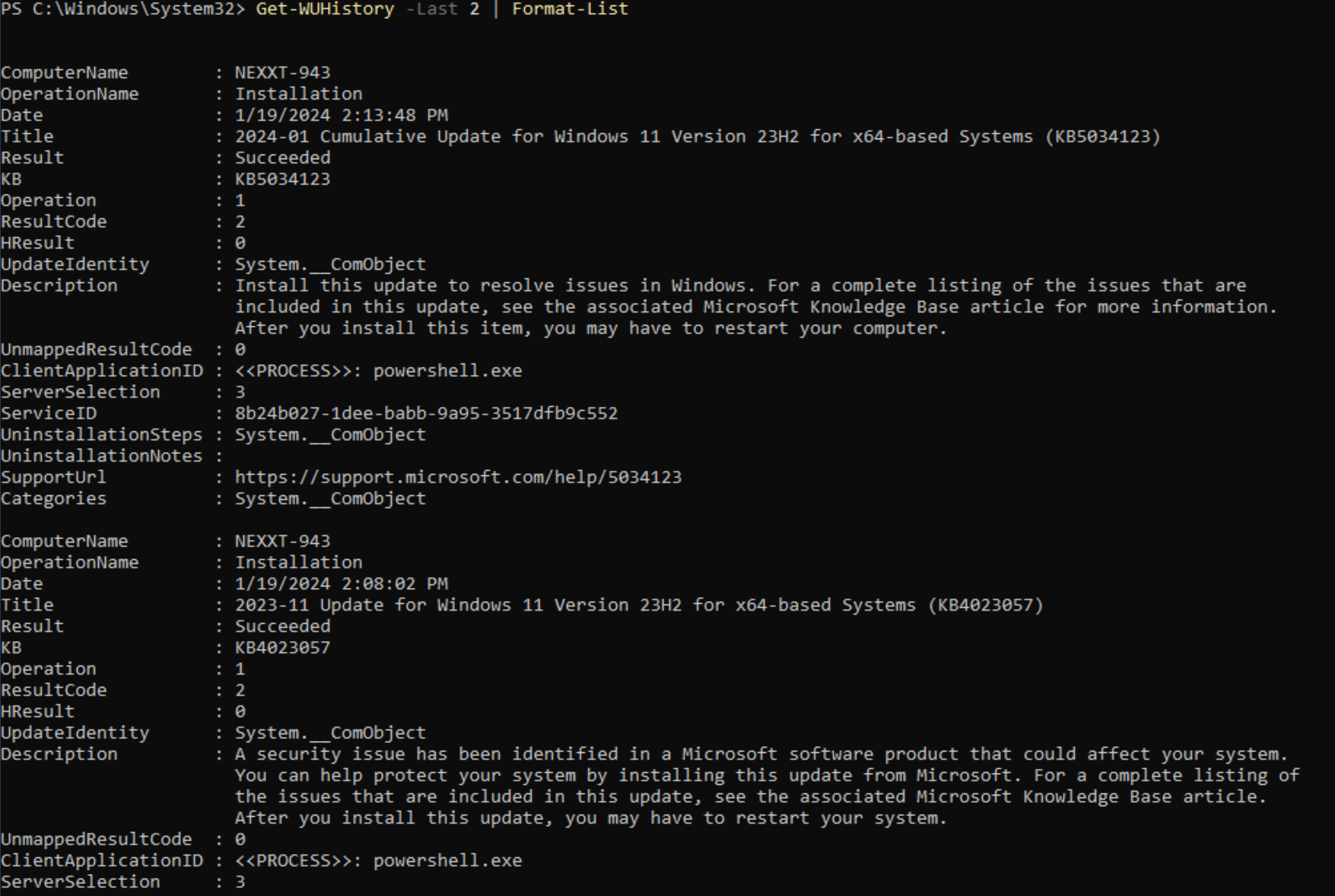
Running the Get-WUHistory cmdlet will show you the installed updates on the system, and you can use the -Last parameter to limit the number of updates returned in the list. For example, this will show you all the installed updates:

Or only show the last two by using -Last 2 to show the previous two updates:

Default only these properties are returned; using Format-List will show you more details:
Install or uninstall a specific Windows update
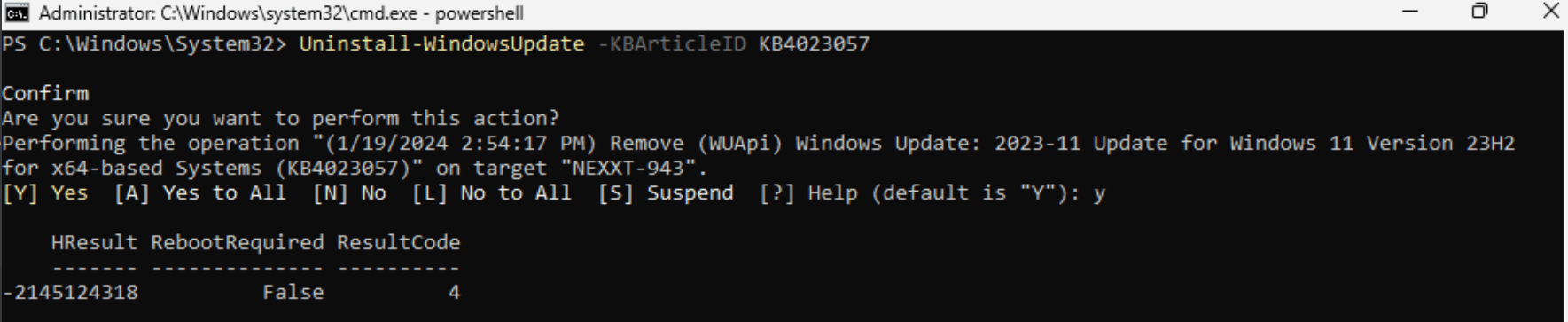
If you need to uninstall an update, use the Uninstall-WindowsUpdate cmdlet with the -KBArticleID parameter. In the example below, I (try, because it failed and you can’t always uninstall updates, especially when you’re not in Windows at that moment like me when running this in before logging in to start the Autopilot process) uninstall the KB4023057 update from the system:
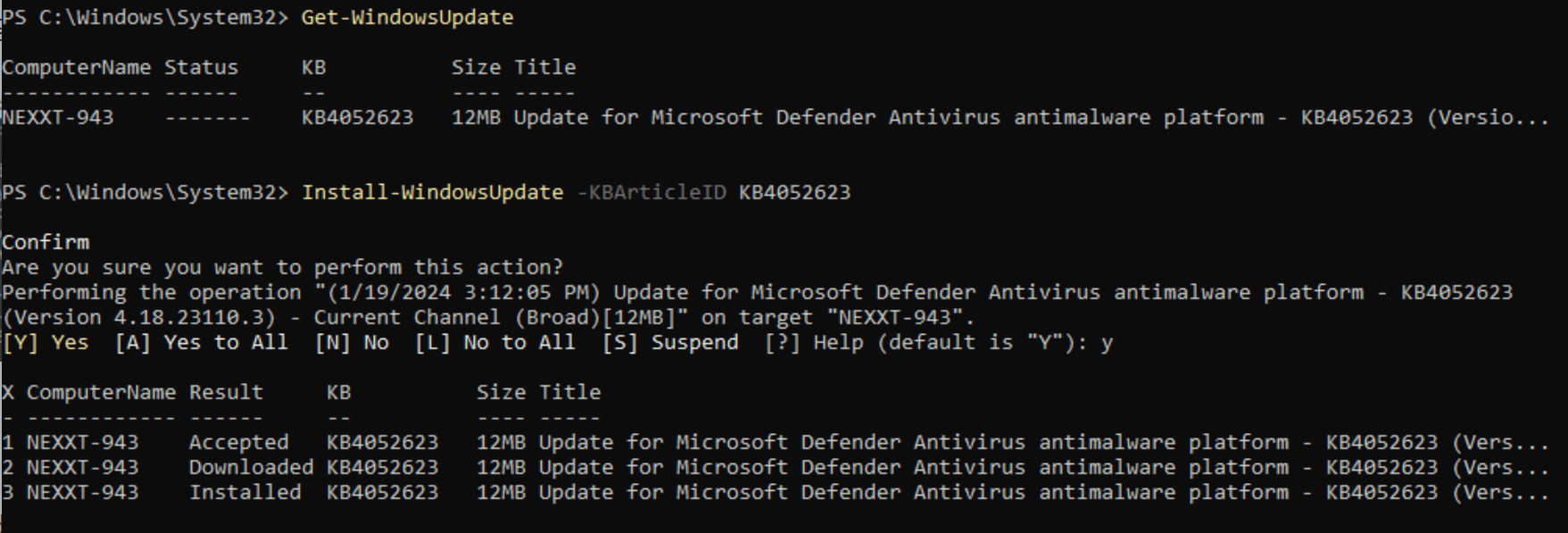
And if you need to install an update, use the (You guessed it 😉 ) Install-WindowsUpdate cmdlet with the -KBArticleID parameter. In the example below, I installed the KB4052623 on the system, which was ready to be installed, which you can see because I ran the Get-WindowsUpdate command:
More information
You can find more Parameters and examples on the GitHub project page for PSWindowsupdate here. There are more advanced things you can do with it in comparison to the examples I showed above, such as scheduling an update from the command line for later that evening 🙂
But for even more detailed information, check this blog post from Tzouvaras Constantinos. He takes you through all the steps, including remote installation of the PSWindowsUpdate module, scheduling, etc.
Wrapping up
I showed you the PSWindowsUpdate module, some of its capabilities, and how to use the excellent command line method to install and manage updates using PowerShell!
Is there a command modifier to Accept all silently for these 2 commands?
Install-Module PSWindowsUpdate
Import-Module PSWindowsUpdate
If you’re referring to the NuGet and Repository warnings, you can run this:
Set-Executionpolicy Bypass
Install-PackageProvider -Name NuGet -MinimumVersion 2.8.5.201 -Force
Install-Module PSWindowsUpdate -Force
Import-Module PSWindowsUpdate
Does it also support driver updates / firmware updates that are available via windows update gui?
It installs all things that are available for installation to your system including those I guess? If those updates have KB numbers, you could install them specifically
Install-WindowsUpdate -AcceptAll -Install -AutoReboot
That’s what you use when installing I updates on your machine?
PSWindowsUpdate has been fantastic for me, but I need a way to block the installation of 24H2 for now but allow all other updates including drivers. If I use -Hide KB will that cause me issues later when we decide to allow 24H2 via Intune policy later?
But you use your Intune Feature updates now? There you can limit the devices there so that they don’t update?
Yes, you are correct, but I’ve been running PSWindowsUpdate at the OOBE before the device is provisioned. Everything works as it should until I tried to exclude 24H2 from the updates. You’re correct once provisioned feature and quality updates are handled in Intune.
Ah, ok… I get your problem, you do want to update the drivers so that Wi-Fi, Camera, etc. work but you don’t want to install/upgrade to 24H2. I think that hiding the update until the Intune settings will be applied should work, Group Policy/Settings Catalog etc. should have precedence over that. But I never had a case in were this should be blocked, does 24H2 causes issues with applications on your system? It will be rolled out in the next few weeks, but I’ve been running it because of Windows Insider quite some time now and haven’t had any major issues. But your mileage may vary….
Alternatively, you could block the Kb with PSWindowsUpdate and follow your normal procedure. When it’s time for 24H2, you could run a platform script to unhide it again? The Hide and Unhide is only for the devices that you deploy/redeploy until 24H2 is GA
Actually, I’m good with drivers and all other updates getting installed. I was thinking about hiding the KB as you mentioned, I was hoping for a switch like exclude feature updates. As for issues with 24H2, not sure as I haven’t downloaded and tested. I’d prefer to get 24H2 out to a few users before the entire company receives it. Thank you for your help.
Set the target version for feature updates to Windows 10 22H2. / Set-WUSettings -TargetReleaseVersion -TargetReleaseVersionInfo 22H2 -ProductVersion “Windows 10” (https://github.com/mgajda83/PSWindowsUpdate?tab=readme-ov-file#-WUSettings-/-Set-WUSettings)
Set-WUSettings -TargetReleaseVersion -TargetReleaseVersionInfo 23H2 -ProductVersion “Windows 11” might work?
Thank you, I didn’t think about that, looks like I’ll be doing some testing. Thank you for your help
No problem, curious of it works like that (And what happens when Intune takes control about Windows Update afterwards)
Me too, I’ll try to remember to post my findings, although I won’t know much for a month or two after I can release 24H2 via Intune.
If I use the -download flag to just get, but not install, the updates., and then later I use the Install command, does it see that the files are already downloaded and just start installing? I want to stagger the downloads to my machines for bandwidth reasons, but want to have them all install at a specific time.
Not sure, didn’t test that… But doesn’t download just save the KB articles to a location? You could use that location as source path again to install them?
Is is normal that “Get-WindowsUpdate” takes like +-3 minutes to generate an output?
Depending on the system, and the amount of installed updates, it might take some time… On my freshly installed Windows 11, it took 10 secondsa for 4 updates, for example