
I use Visual Studio Code to create and edit PowerShell scripts. The PowerShell Extension from Microsoft has some excellent features that will make your scripts more readable and consistent formatting-wise. In this blog post, I will show you my configuration and the options I use.
- What is the PowerShell extension in Visual Studio Code?
- Available Features
- Configuration settings
- Buttons: Show Run Buttons
- Code Folding: Enable
- Code Folding: Show Last Line
- Code Formatting: Add Whitespace Around Pipe
- Code Formatting: Align Property Value Pairs
- Code Formatting: Auto Correct aliases
- Code Formatting: Avoid SemiColons As Line Terminators
- Code Formatting: Ignore One Line Block
- Code Formatting: New Line After Close Brace
- Code Formatting: New Line After Open Brace
- Code Formatting: Open Brace On Same Line
- Code Formatting: Pipeline Indentation Style
- Code Formatting: Preset
- Code Formatting: Trim Whitespace Around Pipe
- Code Formatting: Use Correct Casing
- Code Formatting: Whitespace After Seperator
- Code Formatting: Whitespace around Operator
- Code Formatting: Whitespace Before Open Brace
- Code Formatting: Whitespace Before Open Paren
- Code Formatting: Whitespace Between Parameters
- Code Formatting: Whitespace Inside Brace
- Developer: Set Execution Policy
- Enable Profile Loading
- Enable References Code Lens
- Help Completion
- Integrated Console: Focus Console On Execute
- Integrated Console: Show On Startup
- Integrated Console: Start Location
- Integrated Console: Suppress Startup Banner
- Script Analysis: Enable
- Start Automatically
- And then what?
- Wrapping up
What is the PowerShell extension in Visual Studio Code?

“This extension provides rich PowerShell language support for Visual Studio Code (VS Code). Now you can write and debug PowerShell scripts using the excellent IDE-like interface that VS Code provides.
This repository, vscode-powershell, is the Language Server Protocol client for VS Code and PowerShellEditorServices is the server (also used by other editors, such as Emacs and Vim).
Available Features
- Syntax highlighting
- Advanced built-in code snippets
- IntelliSense for cmdlets and more
- Problems reported by PowerShell Script Analyzer
- Go to Definition of cmdlets, variables, classes and more
- Find References of cmdlets, variables, classes and more
- Symbol-based Outline View
- Run selected PowerShell code in current terminal using F8
- Launch online help for the symbol under the cursor using Ctrl+F1
- PowerShell Debugger integration
- An Extension Terminal that can interact with the debugger (try
Set-PSBreakpoint!) - PowerShell ISE theme findable in the theme picker
- Also try ISE Mode with the Toggle ISE Mode command
Bundled with the extension is the PowerShell ISE theme. It is not activated by default, but after installing this extension either click Set Color Theme or use the theme picker and select PowerShell ISE.”
Source: https://github.com/PowerShell/vscode-powershell
Configuration settings
Below are the settings I use. You can access and configure the settings in Visual Studio Code by pressing Ctrl-Shift-P and typing/ selecting Preferences: Open Settings (UI). From there, select Extensions and PowerShell to see all the available settings for User (Selected by default) or Workspace.
Buttons: Show Run Buttons
Enabling this will show the Run (F5) and Run Selection (F8) buttons in the editor.

Code Folding: Enable
Enabling this will enable syntax-based code folding, which is very useful for PowerShell regions, allowing you to collapse/expand them.
Collapsed:

Expanded:
Code Folding: Show Last Line
Enabling this will show the last line of a collapsed region.

Code Formatting: Add Whitespace Around Pipe
Enabling this will add a space between the pipeline character. For example, it will change “Get-Service|Sort-Object Status” to “Get-Service | Sort-Object Status” for better readability.
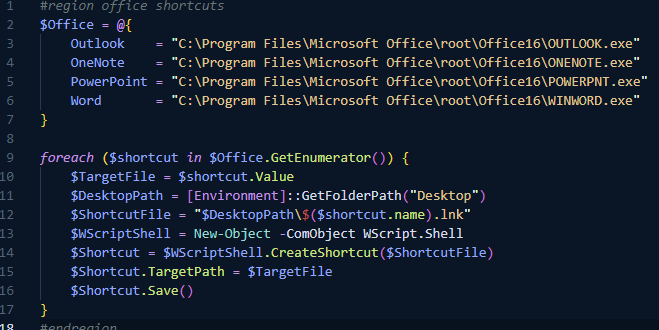
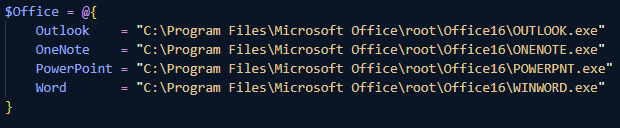
Code Formatting: Align Property Value Pairs
Enabling this will align items in a hashtable of a DSC configuration. For example, it will change:
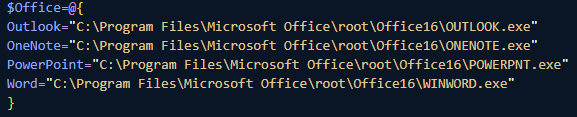
To:
Code Formatting: Auto Correct aliases
Enabling this will change aliases to regular cmdlets, which is very useful. For example: (You can already see that Visual Studio Code is telling you not to use aliases):

Will be changed to:

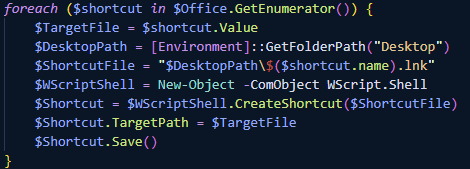
Code Formatting: Avoid SemiColons As Line Terminators
When enabled, it will remove semicolon(s) at the end of a line when unnecessary. For example:
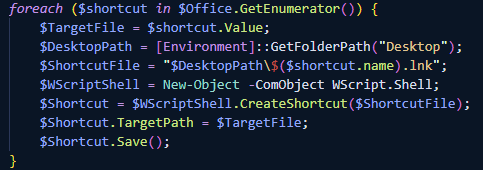
Will be changed to:
This was one of the remarks in the first Scriptember Live Session with me and Heiko Brenn, too 🙂
Code Formatting: Ignore One Line Block
Enabling this will not reformat one-line blocks to multiple lines. For example:

Will not be reformatted like this:

Code Formatting: New Line After Close Brace
Enabling this will add a new line/line break after an open brace. For example:

Will be changed to:

Code Formatting: New Line After Open Brace
Enabling this will add a new line/line break after an open brace. For example:

Will be changed to:

Code Formatting: Open Brace On Same Line
Enabling this will place an open brace on the same line as its associated statement. For example:
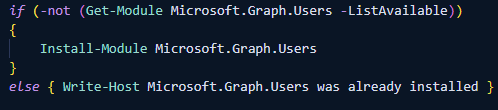
Will be changed to:

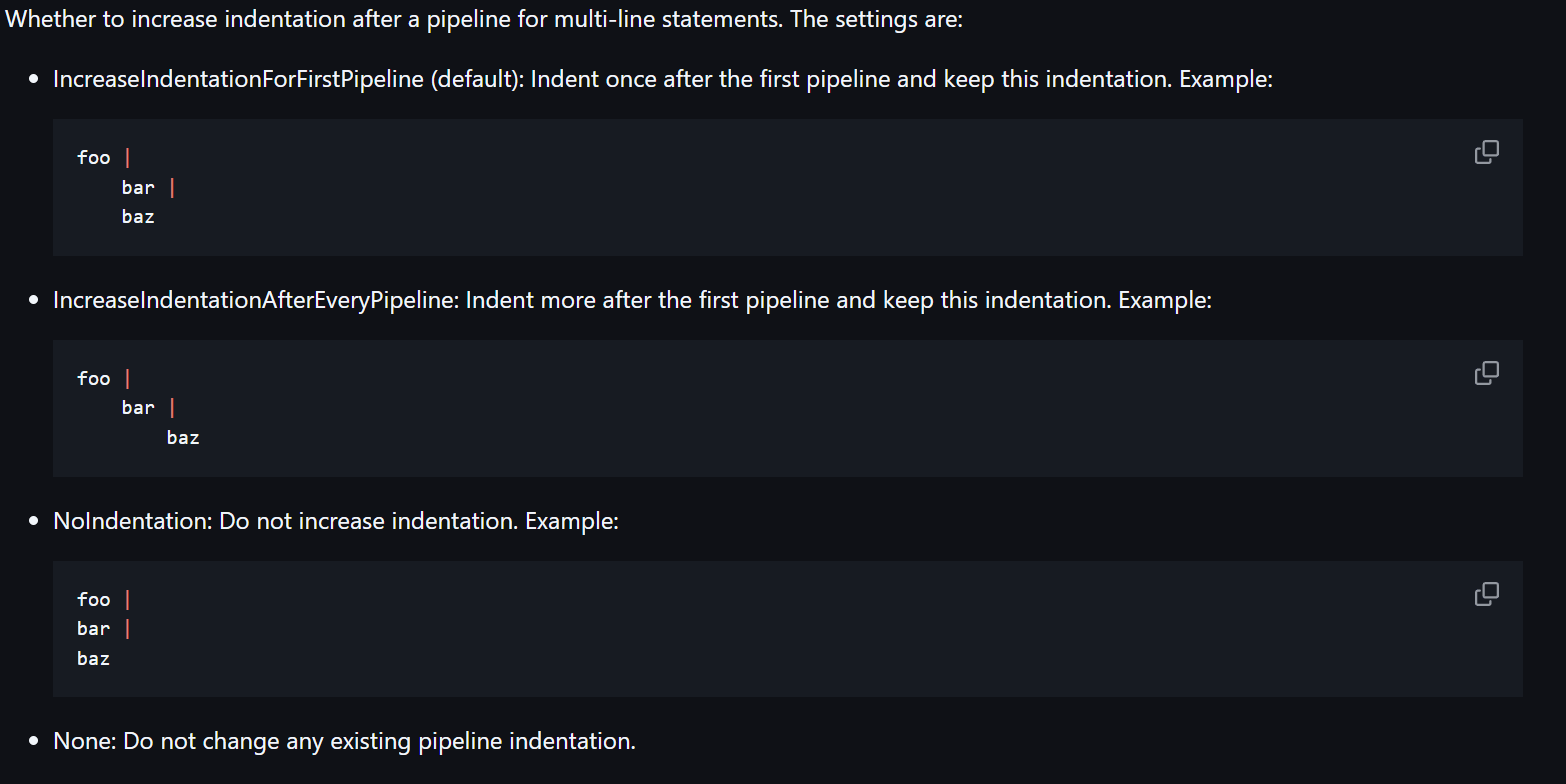
Code Formatting: Pipeline Indentation Style
You can configure the indentation style for NoIdentation, IncreaseIndentationForFirstPipeline, IncreaseIndentationAfterEveryPipeline, or None. (More information here) But what it configures is this:
Code Formatting: Preset
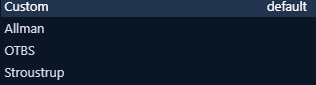
You can configure a preset for the indent style. Changing settings like the ones above will set it to custom. You can switch to a preset if you want (More information about that here):
Code Formatting: Trim Whitespace Around Pipe
Enabling this will remove any extra spaces around a pipe, for example:

Will be changed to:

Code Formatting: Use Correct Casing
Enabling this will use the correct casing for cmdlets, for example:

Will be changed to:

Code Formatting: Whitespace After Seperator
Enabling this will add a space after a separator (“,” and “;”), for example:

Will be changed to:

Code Formatting: Whitespace around Operator
Enabling this will add spaces before and after an operator (=,+,-, etc.). For example:
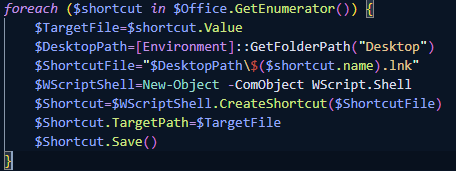
Will be changed to:

Code Formatting: Whitespace Before Open Brace
Enabling this will add a space between a keyword and its associated script-block expression. For example:
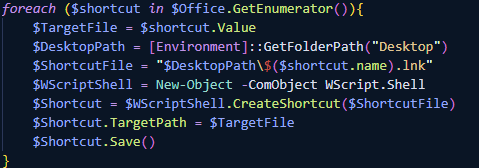
Will be changed to:
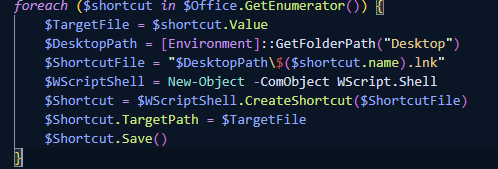
Code Formatting: Whitespace Before Open Paren
Enabling this will add a space between a keyword (if, elseif, while, switch, etc.) and its associated conditional expression. For example:

Will be changed to:

Code Formatting: Whitespace Between Parameters
Enabling this will remove redundant whitespace between parameters, for example:

Will be changed to:

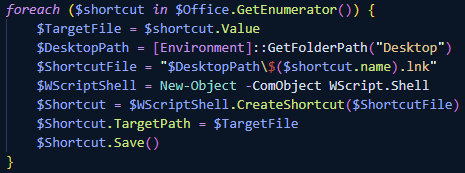
Code Formatting: Whitespace Inside Brace
Enabling this will add a space after an opening brace and before a closing brace, for example:
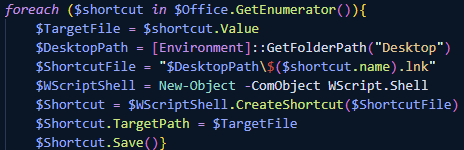
Will be changed to:
Developer: Set Execution Policy
Enabling this will start PowerShell with the ExecutionPolicy setting configured to ByPass. Beware if your anti-virus software might detect this and disallow this behavior; don’t select this option if that’s the case.
Enable Profile Loading
Enabling this will load the Microsoft.VSCode_profile.ps1 during startup, in which you can add specific VSCode-specific settings. Disabling it will use the Microsoft.PowerShell_profile by default for “Current Host” or profile.ps1 for “All Hosts”
Enable References Code Lens
Enabling this will show the number of times a function is referenced in the workspace, making it easier to navigate those references. You might want to disable this setting if you have a large workspace.
Help Completion
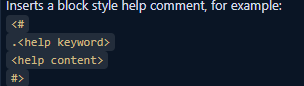
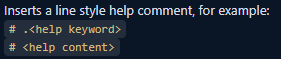
You can configure the behavior for comment-based help when typing ##. Options are:
Block Comment
Line Comment
Integrated Console: Focus Console On Execute
Enabling this will focus on the console when a script selection is run or a script file is debugged.
Integrated Console: Show On Startup
Enabling this will show the extension Terminal when initialized during startup.
Integrated Console: Start Location
You can configure the startup location for the extension panel to Panel (Default, bottom right) or Editor, and then it will be a Tab next to your open script(s).
Integrated Console: Suppress Startup Banner
You can select to suppress the startup banner in the PowerShell Extension Terminal. When it’s not suppressed, it will look like this:
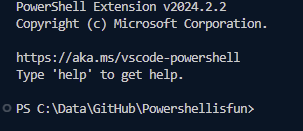
When suppressed, it looks like this:

Script Analysis: Enable
Enabling this setting will start real-time analysis using PSScriptAnalyzer that populates the Problems view, for example:

Start Automatically
When enabled, the PowerShell extension will automatically start when a PowerShell (.ps1) file is opened.
And then what?
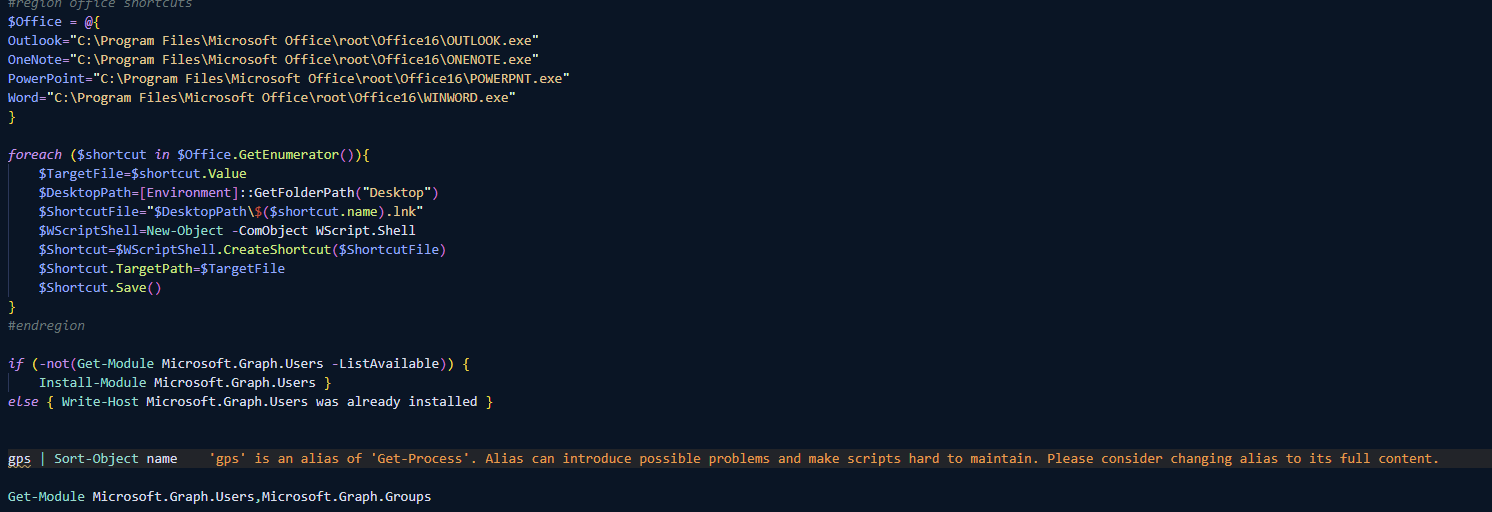
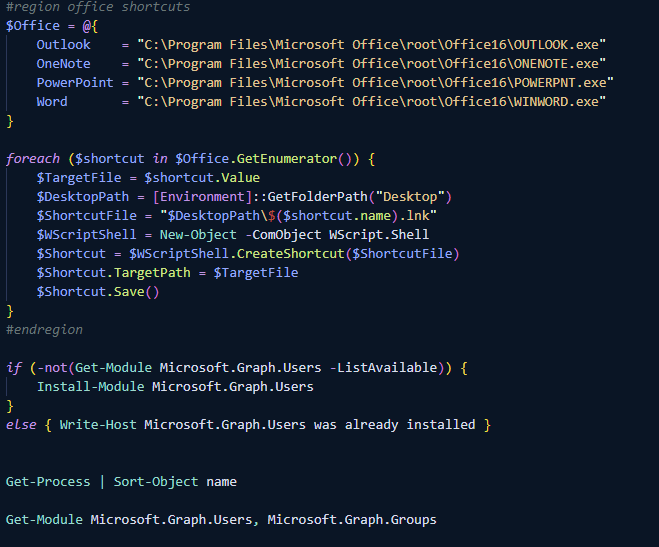
Now that you have configured the settings, how do you put them into action while editing a PowerShell script? If you have a file open and want to apply formatting, you can use Shift-Alt-F or Right-Click / Format Document. For example:
Before:
After formatting the file:
Wrapping up
I showed you the options configured in my PowerShell extension settings. While writing this blog post, I enabled a few extras I didn’t see before, so it’s a good idea to scroll through them now and then. Hope this helps to make pretty scripts that are easier to read 🙂 Have a lovely weekend!
Great article, thank you!
Will any of this apply to a Windows bat file using the usual “DOS” commands?
No problem 😊 And this will only apply to PowerShell files (Like ps1 files)
Thanks for the breakdown. I’m a recent convert to VSCode and exploring VSCodium. I’ll admit I prefer the ISE I grew up with.
One issue I haven’t found a solution for, hoping you may have discovered it. When developing/debugging a script, the ISE would prevent me from changing code while the script is running. VSCode allow me to change the script, causing issues as my cursor is probably in the code when I want to display a variable or line via the terminal line below.
This is super inconvenient as I’m often having to back off changes accidentally made.
Are you aware of a setting that would lock the code when running? I’m wondering if I’m just not hitting the right search values to discover it.