

I’m a big fan of the cmd.ms website because it has all the links to quickly jump to a specific blade in a portal instead of clicking multiple parts of a Microsoft Management portal to get there. In this blog post, I will show you how to use a PowerShell function to open one or multiple management websites from the command line.
- What is the cmd.ms website?
- Why a PowerShell function?
- How does the PowerShell Function work?
- Examples
- Showing all links in PowerShell v5 and selecting two links
- Showing all links in PowerShell v7 and selecting two links
- Using aliases to directly open links
- Specifying a specific browser
- Specifying specific commands
- Filtering links
- How to add the PowerShell Function to your session
- Wrapping up
- The script
What is the cmd.ms website?
Merill Fernando created the cmd.ms website and many other great websites and tools to help the community. It was designed to quickly navigate to your favorite blade in Azure, Microsoft 365, Entra ID, Intune, and more using your browser’s address bar. It also has a browser extension that supports auto-complete in the address bar.
Why a PowerShell function?
Because I like starting things from the command line and, while navigating the cmd.ms website or using the browser extension, I was looking for something to open things more quickly and for an option to open multiple panes at once 🙂
How does the PowerShell Function work?
It’s a function called Invoke-CmdMS, which pulls all the available links from cmd.ms using its GitHub page. (All the links are in a commands.csv, which was mentioned on the Contributing page) You can use a few parameters in the Function to quickly jump to one or more links by using its Alias or selecting them in a GridView.
Parameters are:
- Alias: You can use this Parameter to specify one or more aliases, which will open immediately in your browser. For example, Invoke-CmdMS -Alias Pflow, Azure will open the Power Automate admin center and the Azure portal. It can’t be used with the -Filter and -Command Parameters.
- -Browser: All links will be opened in your default browser, but you can specify a specific one from this list: Brave, Chrome, Firefox, or MSEdge. For example, Invoke-CmdMS -Browser Chrome will open the links in Google Chrome.
- -Command: You can use this Parameter to specify one or more commands, which will open immediately in your browser. For example, Invoke-CmdMS -Command azpolicy, azshell will open the Azure Policy admin center and the Azure Cloud Shell. It can’t be used with the -Alias and -Filter Parameters.
All of the above Parameters are not mandatory. Running Invoke-CmdMS without them will show you the complete links (And their description) that will open in your default browser. The list of links will be shown either in an Out-GridView pane (PowerShell 5 and lower) or in an Out-ConsoleGridView (PowerShell 7 and higher)
Note: This function works only on a Windows machine, especially for the -Browser parameter (It starts .exe’s 🙂 )
Examples
Showing all links in PowerShell v5 and selecting two links
Below is an example of running Invoke-CmdMS in PowerShell v5 in which I choose two links (Backup Center and Azure Virtual Desktop) by holding CTRL and selecting them with my mouse. (Holding CTRL and using Spacebar also works) :
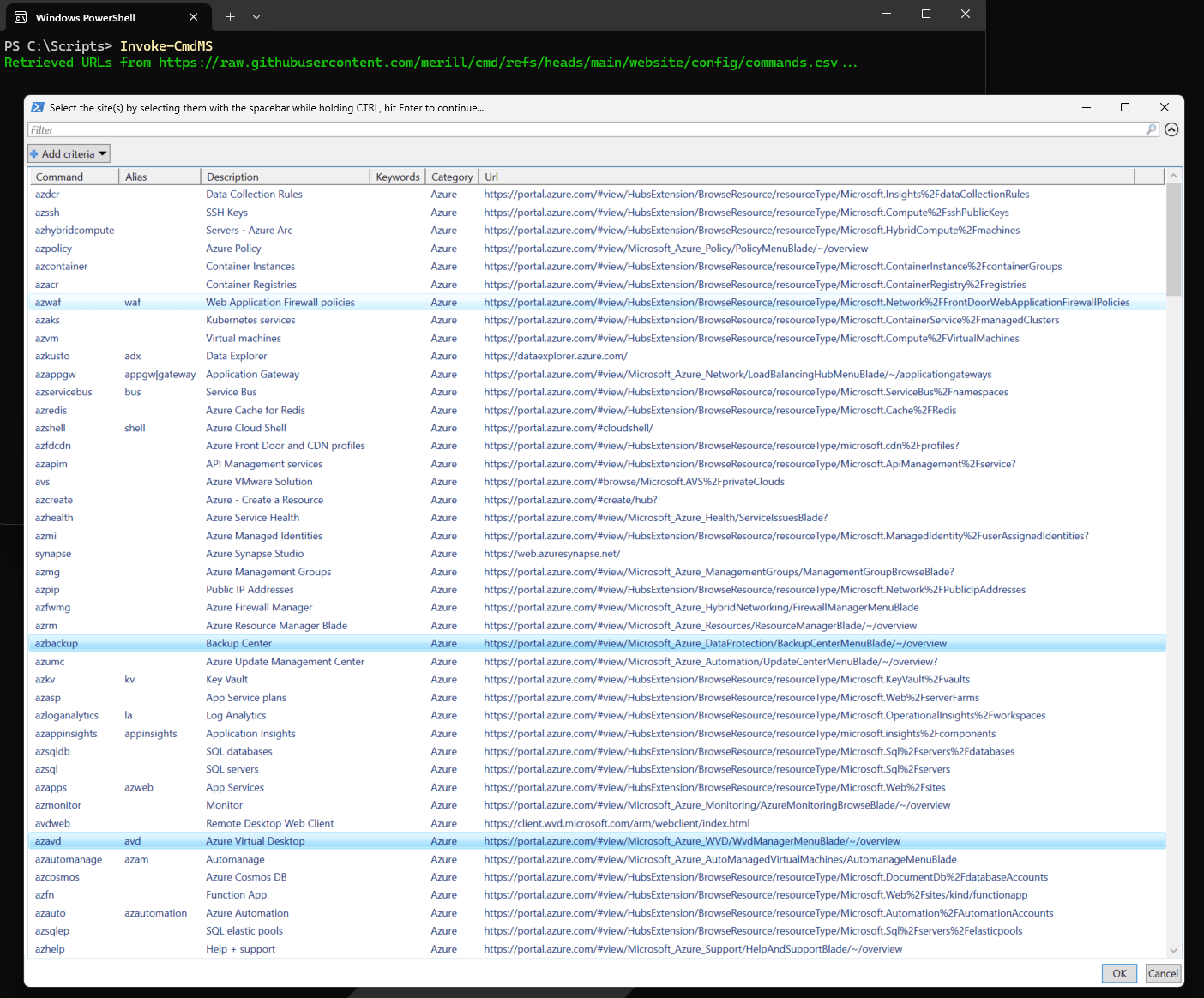
After hitting Enter or clicking OK, the links are opened in my default browser (Microsoft Edge)

Showing all links in PowerShell v7 and selecting two links
This is similar to the chapter above, but in PowerShell v7, Out-ConsoleGridView is used instead of Out-Gridview. I ran “Invoke-CmdMS” and selected the same links (Backup Center and Azure Virtual Desktop) with my mouse. (Using Spacebar also works)

After pressing Enter, the selected links are opened in my default browser (Microsoft Edge)

Using aliases to directly open links
In the example below, I used “Invoke-CmdMS -Alias Pflow, Azure” to open the Power Automate admin center and the Azure portal directly without selecting them from a list. (If the alias(es) were not found, it would display a warning about that)

Specifying a specific browser
In the example below, I opened the same two aliases in my Firefox browser and ran “Invoke-CmdMS -Alias Pflow, Azure -Browser Firefox“

Specifying specific commands
In the example below, I opened the Azure Policy admin center and the Azure Cloud Shell in the Brave browser using “Invoke-CmdMS -Browser Brave -Command azpolicy, azshell“

Filtering links
In the example below, I ran “Invoke-CmdMS -Filter Intune” to show all the Intune links, of which I selected two (Android and Tenant Admin), which were opened in my default browser (Microsoft Edge)


How to add the PowerShell Function to your session
Because I wrote this as a PowerShell Function, you must first open it in your session to use it. The easiest way is to add the script to your PowerShell profile so it’s available in every session you start. You can do this by following these steps:
- Download and save the script to your hard drive, to c:\scripts\Invoke-CmdMS.ps1, for example
- Open PowerShell v5 or v7
- Run “notepad $profile“‘ to open your PowerShell profile
- Add “. c:\scripts\Invoke-CmdMS.ps1” to the file, Save it, and quit
- Start a new PowerShell session
- Verify that running “Invoke-CmdMS” works
- Profit 🙂
Wrapping up
In the chapters above, I showed you how the Invoke-CmdMS PowerShell Function works and how you can quickly open one or more links in the browser of your choice. You can use Aliases or Commands (Identity, if there is an alias or Command for your favorite pane when running the Function, without specifying any other Parameter and checking the GridView pane. Not all links have an Alias (yet) but they all have a command 🙂 )
And thanks, Merill, for making this great website with all the links. It is greatly appreciated!
The script
Below are the contents of the PowerShell Function; download/save it and use the information in the chapters above to use it. Enjoy!
function Invoke-CmdMS {
    [CmdletBinding(DefaultParameterSetName = 'Filter')]
    param (
        [Parameter(Mandatory = $false, ParameterSetName = ('Alias'))][string[]]$Alias,
        [Parameter(Mandatory = $false)][ValidateSet('Brave', 'Chrome', 'FireFox', 'MSEdge')][string]$Browser,
        [Parameter(Mandatory = $false, ParameterSetName = ('Command'))][string[]]$Command,
        [Parameter(Mandatory = $false, ParameterSetName = ('Filter'))][string]$Filter = ''
    )

    #Retrieve commands.csv from Merill's GitHub page, use $filter if specified or '' when not specified to retrieve all URLs
    try {
        $cmds = (Invoke-RestMethod -Uri https://raw.githubusercontent.com/merill/cmd/refs/heads/main/website/config/commands.csv -ErrorAction Stop | ConvertFrom-Csv -ErrorAction Stop) -match $filter
        Write-Host ("Retrieved URLs from https://raw.githubusercontent.com/merill/cmd/refs/heads/main/website/config/commands.csv...") -ForegroundColor Green
    }
    catch {
        Write-Warning ("Error retrieving commands from https://raw.githubusercontent.com/merill/cmd/refs/heads/main/website/config/commands.csv, check internet access! Exiting..." -f $shortname)
        return
    }

    #If $alias(es) or $Command(s) were specified, check if they are valid
    if ($Alias) {
        $aliases = foreach ($shortname in $Alias) {
            try {
                $aliascmds = Invoke-RestMethod -Uri https://raw.githubusercontent.com/merill/cmd/refs/heads/main/website/config/commands.csv -ErrorAction Stop | ConvertFrom-Csv -ErrorAction Stop | Where-Object Alias -EQ $shortname
                if ($aliascmds) {
                    Write-Host ("Specified {0} alias was found..." -f $shortname) -ForegroundColor Green
                    [PSCustomObject]@{
                        Alias = $shortname
                        URL   = $aliascmds.Url
                    }
                }
                else {
                    Write-Warning ("Specified Alias {0} was not found, check https://raw.githubusercontent.com/merill/cmd/refs/heads/main/website/config/commands.csv for the correct name(s)..." -f $shortname)
                }
            }
            catch {
                Write-Warning ("Error displaying/selecting Alias {0} from https://cmd.ms, check https://raw.githubusercontent.com/merill/cmd/refs/heads/main/website/config/commands.csv for the correct name(s)..." -f $shortname)
            }
        }
    }

    if ($Command) {
        $Commands = foreach ($portal in $Command) {
            try {
                $commandcmds = Invoke-RestMethod -Uri https://raw.githubusercontent.com/merill/cmd/refs/heads/main/website/config/commands.csv -ErrorAction Stop | ConvertFrom-Csv -ErrorAction Stop | Where-Object Command -EQ $portal
                if ($commandcmds) {
                    Write-Host ("Specified {0} Command was found..." -f $portal) -ForegroundColor Green
                    [PSCustomObject]@{
                        Command = $portal
                        URL     = $commandcmds.Url
                    }
                }
                else {
                    Write-Warning ("Specified Command {0} was not found, check https://raw.githubusercontent.com/merill/cmd/refs/heads/main/website/config/commands.csv for the correct name(s)..." -f $portal)
                }
            }
            catch {
                Write-Warning ("Error displaying/selecting Command {0} from https://cmd.ms, check https://raw.githubusercontent.com/merill/cmd/refs/heads/main/website/config/commands.csv for the correct name(s)..." -f $portal)
            }
        }
    }

    #If $Alias or $Command was not specified, display all items in a GridView
    if (-not ($Alias) -and -not ($Command)) {
        #Output $cmds to Out-ConsoleGridView. If the PowerShell version is 7 or higher, install Microsoft.PowerShell.ConsoleGuiTools if needed
        if ($host.Version.Major -ge 7) {
            if (-not (Get-Module Microsoft.PowerShell.ConsoleGuiTools -ListAvailable )) {
                try {
                    Install-Module Microsoft.PowerShell.ConsoleGuiTools -Scope CurrentUser -ErrorAction Stop
                    Write-Host ("Installed required Module Microsoft.PowerShell.ConsoleGuiTools") -ForegroundColor Green
                }
                catch {
                    Write-Warning ("Error installing required Module Microsoft.PowerShell.ConsoleGuiTools, exiting...")
                    return
                }
            }
            $cmds = $cmds | Sort-Object Category | Out-ConsoleGridView -Title 'Select the site(s) by selecting them with the spacebar and hit Enter to continue...' -ErrorAction Stop
            if (-not ($cmds)) {
                Write-Warning ("No site(s) selected / Pressed Escape, exiting...")
                return
            }
        }
        #Output $cmds to Out-GridView if the PowerShell version is 5 or lower
        if ($host.Version.Major -le 5) {
            $cmds = $cmds | Sort-Object Category | Out-GridView -PassThru -Title 'Select the site(s) by selecting them with the spacebar while holding CTRL, hit Enter to continue...' -ErrorAction Stop
            if (-not ($cmds)) {
                Write-Warning ("No site(s) selected / Pressed Escape...")
                return
            }
        }
    }

    #Try to open the selected URLs from either $alias, $Command or $cmds
    if ($Alias) {
        foreach ($url in $aliases) {
            if ($Browser) {
                #Open in specified Browser using -Browser
                try {
                    Start-Process "$($Browser).exe" -ArgumentList $url.URL -ErrorAction Stop
                    Write-Host ("Opening selected URL {0} in {1} browser for Alias {2}..." -f $url.url, $Browser, $url.Alias) -ForegroundColor Green
                }
                catch {
                    Write-Warning ("Error opening selected URL {0} in {1} browser for Alias {2}" -f $url.url, $Browser, $url.Alias)
                }
            }
            else {
                try {
                    Start-Process $url.URL -ErrorAction Stop
                    Write-Host ("Opening selected URL {0} for Alias {1} in the default browser..." -f $url.url, $url.Alias) -ForegroundColor Green
                }
                catch {
                    Write-Warning ("Error opening selected URL {0} for Alias {1} in the default browser" -f $url.url, $url.Alias)
                }
            }
        }
    }

    if ($Command) {
        foreach ($url in $commands) {
            if ($Browser) {
                #Open in specified Browser using -Browser
                try {
                    Start-Process "$($Browser).exe" -ArgumentList $url.URL -ErrorAction Stop
                    Write-Host ("Opening selected URL {0} in {1} browser for Command {2}..." -f $url.url, $Browser, $url.command) -ForegroundColor Green
                }
                catch {
                    Write-Warning ("Error opening selected URL {0} in {1} browser for Command {2}" -f $url.url, $Browser, $url.command)
                }
            }
            else {
                try {
                    Start-Process $url.URL -ErrorAction Stop
                    Write-Host ("Opening selected URL {0} for Command {1} in the default browser..." -f $url.url, $url.command) -ForegroundColor Green
                }
                catch {
                    Write-Warning ("Error opening selected URL {0} for Command {1} in the default browser" -f $url.url, $url.command)
                }
            }
        }
    }

    if (-not ($Alias) -and -not ($Command)) {
        foreach ($cmd in $cmds) {
            #Open in Default Browser (Without using -Browser)
            if ($Browser) {
                #Open in specified Browser using -Browser
                try {
                    Start-Process "$($Browser).exe" -ArgumentList $cmd.URL -ErrorAction Stop
                    Write-Host ("Opening selected URL {0} in {1} browser..." -f $cmd.url, $Browser) -ForegroundColor Green
                }
                catch {
                    Write-Warning ("Error opening selected URL {0} in {1} browser" -f $cmd.url, $Browser)
                }
            }
            else {
                try {
                    Start-Process $cmd.URL -ErrorAction Stop
                    Write-Host ("Opening selected URL {0} in the default browser..." -f $cmd.url) -ForegroundColor Green
                }
                catch {
                    Write-Warning ("Error opening selected URL {0} in the default browser" -f $cmd.url)
                }
            }
        }
    }
}
Download the script(s) from GitHub here.
One thought on “PowerShell Function for the cmd.ms website”