
The PowerShell Gallery is the primary source for downloading most of your modules. You can search and find information about them using the website or… By using the PSGalleryExplorer module from Jake Morison 🙂 In this blog post, I will show you how to use it.
- What is the PowerShell Gallery?
- What does PSGalleryExplorer do?
- How to install
- Using the PSGalleryExplorer Module
- Show the most downloaded Modules
- Show the recently updated Modules
- Show information about a module
- Search for the Module that contains a specific Cmdlet
- Returning a random Module
- More information and examples
- Wrapping up
What is the PowerShell Gallery?
“The PowerShell Gallery is the central repository for PowerShell content. In it, you can find PowerShell scripts, modules containing PowerShell cmdlets and Desired State Configuration (DSC) resources. Some of these packages are authored by Microsoft, and others are authored by the PowerShell community.”
Source: https://learn.microsoft.com/en-us/powershell/scripting/gallery/overview?view=powershell-7.5
What does PSGalleryExplorer do?
“PSGalleryExplorer is a PowerShell module that extends the search functionality of the PowerShell Gallery by providing additional project information about modules. It enables users to search, explore, and discover PowerShell Gallery modules based on additional criteria that are not available via Find-Module. The module provides various features such as filtering results based on download counts, stars, forks, and repository health metrics like open issues, license, and last updated date. With PSGalleryExplorer, users can easily identify trending and actively developed modules, and explore module repositories directly from the console.
With Find-ModuleByCommand, PSGalleryExplorer now provides even more value to users by enabling them to quickly locate modules that contain specific commands. This enables you to search for modules by function name, even if you do not have the module locally installed.
Features
Find-ModuleByCommandallows users to search for modules based on a specific command name, even if the module is not installed locally, providing a quick and easy way to locate modules containing the desired functionality.”- Fully cross-platform and can be run on Windows, Linux, and macOS
- Discover modules based on various criteria such as number of downloads, stars, forks, and more
- Get insights into the community health of a module’s repository, including information about open issues, license, and last updated date
- Identify modules that are actively being developed by filtering based on their most recent repository update date.
- Compliments existing tools like
Find-Moduleto provide another way to explore modules on the PowerShell Gallery. - Identify up-and-coming or trending modules by comparing search results including and excluding popular and corporate modules
PSGalleryExplorer provides a detailed, informative output of module results to help you quickly identify prime candidates for further exploration.”
Source: https://github.com/techthoughts2/PSGalleryExplorer?tab=readme-ov-file#synopsis
How to install
You can add the module to your system, either in PowerShell v5 or v7, by running:
Install-Module PSGalleryExplorer -Scope CurrentUser -AllowClobber
Import-Module PSGalleryExplorer
Using the PSGalleryExplorer Module
After installation, you can use the module to display Modules from the PSGallery and discover, find, and retrieve statistics from them. Below are a few examples:
Show the most downloaded Modules
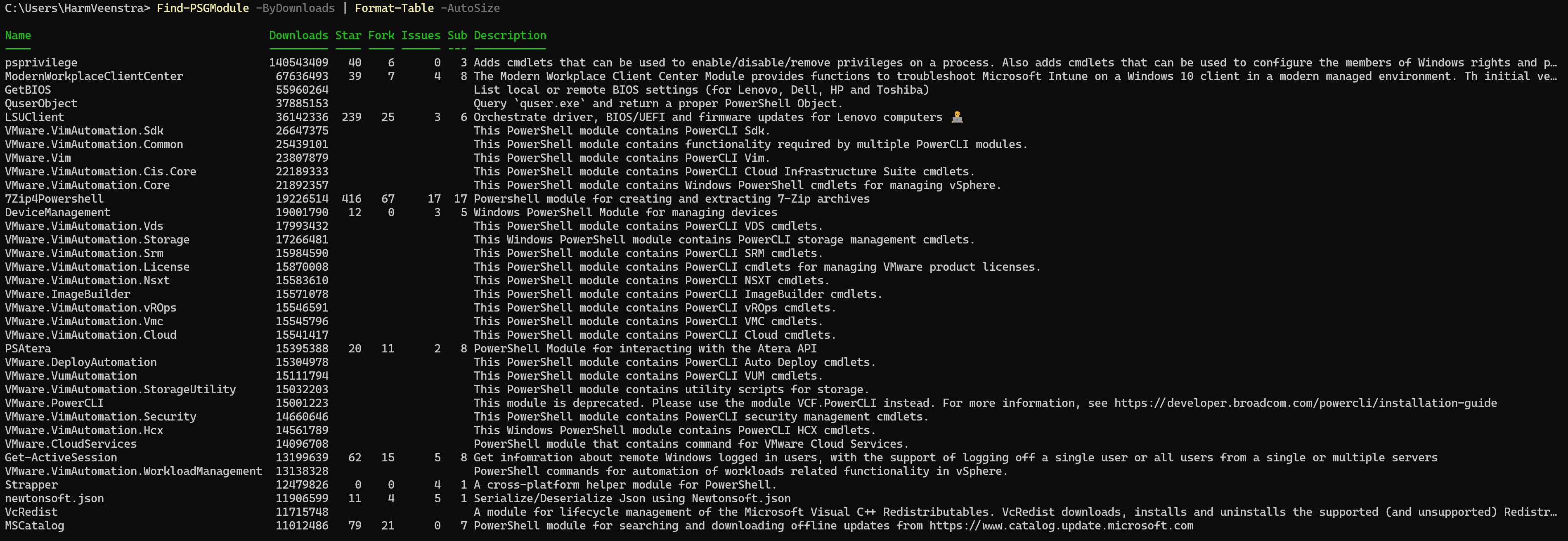
To discover the most popular Modules, you can use this to sort them by running Find-PSGModule -ByDownloads | Format-Table -AutoSize, which will return:
Show the recently updated Modules
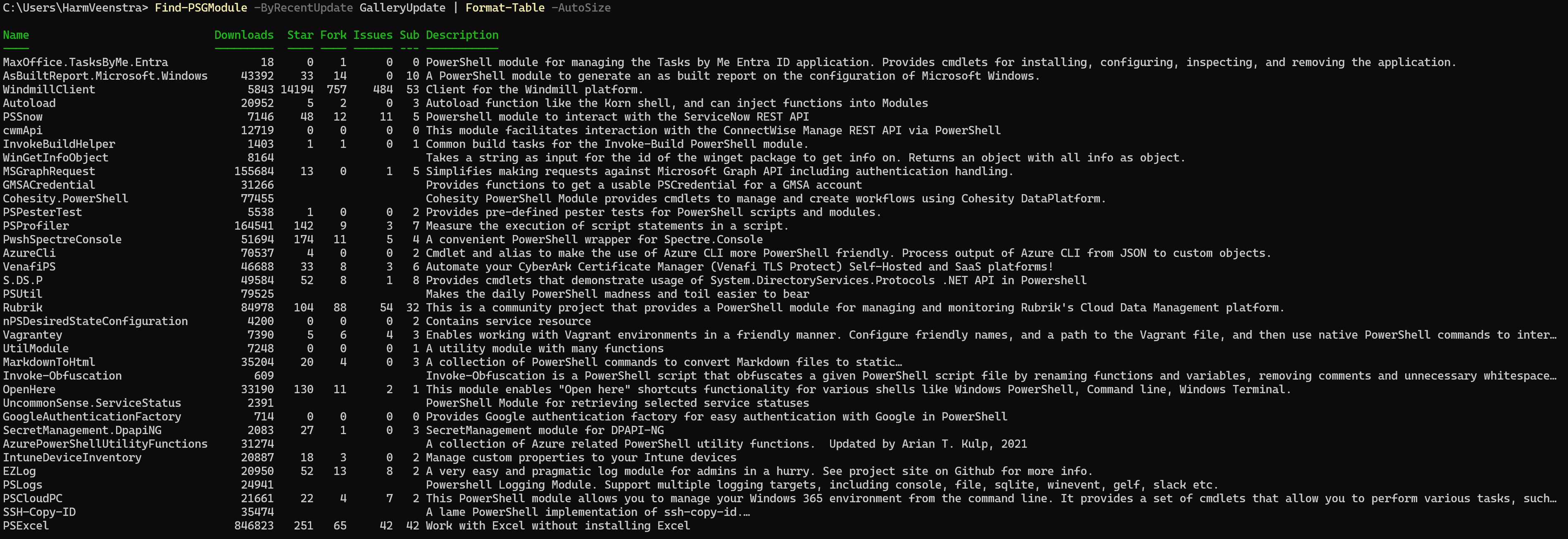
To find the Modules that were updated most recently, you can run Find-PSGModule -ByRecentUpdate GalleryUpdate | Format-Table -AutoSize, which will return:
Show information about a module
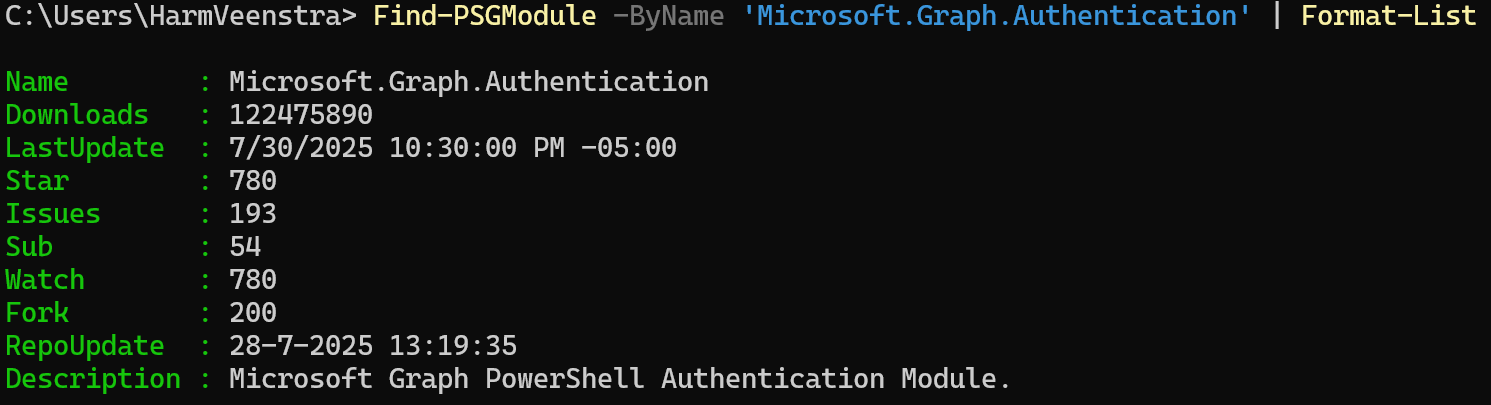
You can find more information about a specific module by running Find-PSGModule -ByName ‘Microsoft.Graph.Authentication’ | Format-List, for example, which will return information about the Microsoft Graph Authentication module.Graph.Authentication module.
Search for the Module that contains a specific Cmdlet
And that’s where I frequently use the PSGalleryExplorer Module to search for which Module a specific Cmdlet is used from scripts that I didn’t create myself. The Find-ModuleByCommand Cmdlet searches for information about a particular command. For example, running Find-ModuleByCommand -CommandName ‘Connect-ExchangeOnline’ | Format-Table -AutoSize returns all modules containing the cmdlet Connect-ExchangeOnline. (Of course, the ExchangeOnlineManagement module has the most downloads 😉 )

Returning a random Module
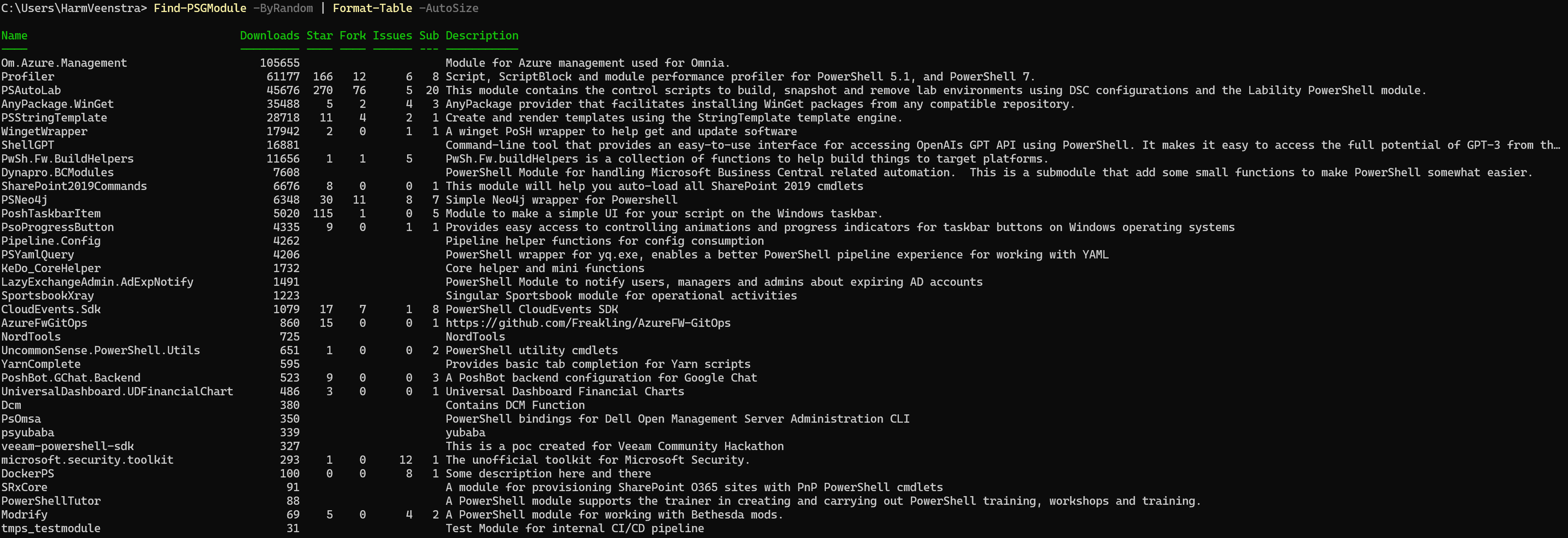
If you would like to get a random Module for you to try and get some inspiration out of, you could run Find-PSGModule -ByRandom | Format-Table -AutoSize:
More information and examples
You can find more examples and information on the documentation page https://psgalleryexplorer.readthedocs.io/en/latest/ .
Wrapping up
And this is how you can use the PSGalleryExplorer in PowerShell to browse, query, and find the PowerShell Gallery from within your PowerShell session 🙂 Have a lovely weekend!
I installed the module and ran a test command on my Win10 surface pro and worked as advertised. Tried same test on my Win11 laptop and received this error:
Expand-XMLDataSet : A parameter cannot be found that matches parameter name ‘DestinationPath’.
At C:\Program Files\WindowsPowerShell\Modules\PSGalleryExplorer\2.5.6\PSGalleryExplorer.psm1:630 char:35
+ $expand = Expand-XMLDataSet
+ ~~~~~~~~~~~~~~~~~
+ CategoryInfo : NotSpecified: (:) [Write-Error], WriteErrorException
+ FullyQualifiedErrorId : Microsoft.PowerShell.Commands.WriteErrorException,Expand-XMLDataSet
WARNING: PSGalleryExplorer was unable to source the required data set file.
I do have a module XMLCmdlets which I uninstalled in case there was conflict but the error persists. Any idea what might be causing the error on Win11?
No, not really… You’re testing it in PowerShell v5, does it work in PowerShell v7 on that system?
Yes, when running ISE under PS7 it works [on Win11 laptop]. Switch back to PS5 and fails with error previously posted. Still works on PS5 on Win10 laptop.
ISE is PowerShell v5, but you could start a PowerShell v7 (pwsh.exe) prompt in that, of course 🙂 But if you start PowerShell v7, and did an uninstall-module XMLCmdlets, than it should nog conflict anymore. For me, it works in both versions. Even after installing the XMLCmdlets module and importing it…
So we don’t get conflicted here. As stated… something like
https://psgalleryexplorer.readthedocs.io/en/latest/ .
$module = “PSGalleryExplorer”
if (!(Get-Module -ListAvailable -Name $module)) {Install-Module $module -AllowClobber}
Import-Module -Name $module
Find-PSGModule -ByDownloads | Format-Table -AutoSize
works on my WIN10 laptop using either PS5.1 or PS7. It works with PS7 on my WIN11 laptop but fails with PS5.1. So the issue is not whether or not the module works, to me it is more about the OS. To my knowledge there is no difference with software installed on either laptop and I normally test in WIN10 before doing anything in WIN11. The error with the module in WIN11 is the first (and hopefully the only) PS problem I have ever encountered, If I google Expand-XMLDataSet it points to a python app. The error cites a Write Error Exception and that has me baffled. As PSExplorer is only a utility, I can run it under WIN11 with PS7 so ‘it does not work’ issue. I am remiss to bring this up on a forum like StackOverflow to avoid criticism for not detailing the error correctly.
I’m running Windows 11 and I can run it in both PowerShell v5.1 and v7.5. I installed the XMLCmdlets module, still works.. But you said you ran it in ISE and PS7? Like I said, ISE is PowerShell v5. If you run it in WIndows Terminal and PS7, does that work?
Per my last post, the issue is the OS version for me, not the module. Probably a wierd distinction with my $Profile for PS7<>PS.1 on my Win11 laptop as error is with writing the file out. Since I see no one else with a similar issue, I assume it is me alone. I appreciate your comments and like your posts, look forward to more.
I will update you if anyone else reports similar, no other comments or private messages yet… Just a last check, does it work if you run this first: [System.Net.ServicePointManager]::SecurityProtocol = [System.Net.ServicePointManager]::SecurityProtocol -bor [System.Net.SecurityProtocolType]::Tls12