
One of the best things about Microsoft Intune is Windows Autopilot. In this blog post, I will show you how to create a report of the current status of Windows Autopilot in your tenant.
What is Windows Autopilot?
“Windows Autopilot is a collection of technologies used to set up and pre-configure new devices, getting them ready for productive use. Windows Autopilot can be used to deploy Windows PCs or HoloLens 2 devices. For more information about deploying HoloLens 2 with Autopilot, see Windows Autopilot for HoloLens 2.
You can also use Windows Autopilot to reset, repurpose, and recover devices. This solution enables an IT department to achieve these goals with little to no infrastructure to manage, with a process that’s easy and simple.
Windows Autopilot simplifies the Windows device lifecycle, for both IT and end users, from initial deployment to end of life. Using cloud-based services, Windows Autopilot:
- Reduces the time IT spends on deploying, managing, and retiring devices.
- Reduces the infrastructure required to maintain the devices.
- Maximizes ease of use for all types of end users.”
Source: Overview of Windows Autopilot | Microsoft Learn
What does the script do?
It gathers your tenant’s Autopilot devices, profiles, and last synchronization date/time and outputs the information in an Excel spreadsheet (In three tabs with a time/date stamp). The connection is made using Microsoft Graph; you must have enough permissions to retrieve that information. If not, you will be prompted for Graph permissions.
Running the script
Starting the Windows_Autopilot_Report.ps1 script will prompt you to where the Excel spreadsheet should be saved. (To specify it immediately, start the script with the parameter –OutputFileName.) It will then prompt you for your tenant’s admin credentials and save the results. If there are modules that the script needs but are not installed… Then, it will download and install them for you. 🙂 (This may prompt you to trust the Gallery or install NuGet, and installation might take a minute)
In the example below, I run the script against my tenant:
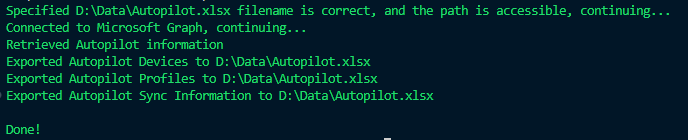
The Excel Spreadsheet looks like this:
The Autopilot Devices tab:

The Autopilot Profiles tab:

The Autopilot Sync info tab:

Note: The script could be updated to report on more Windows Autopilot items in your tenant.
The script
Below are the contents of the script. Save it to c:\scripts, for example.
param(
    [parameter(Mandatory = $true)][string]$OutputFileName
)

#Check if filename is correct
if (-not ($OutputFileName.EndsWith('.xlsx'))) {
    Write-Warning ("Specified filename {0} is not correct, should end with .xlsx. Exiting...")
    return
}

#Check access to the path, and if the file already exists, append if it does or test the creation of a new one
if (-not (Test-Path -Path $OutputFileName)) {
    try {
        New-Item -Path $OutputFileName -ItemType File -Force:$true -Confirm:$false -ErrorAction Stop | Out-Null
        Remove-Item -Path $OutputFileName -Force:$true -Confirm:$false | Out-Null
        Write-Host ("Specified {0} filename is correct, and the path is accessible, continuing..." -f $OutputFileName) -ForegroundColor Green
    }
    catch {
        Write-Warning ("Path to specified {0} filename is not accessible, correct or file is in use, exiting..." -f $OutputFileName)
        return
    }
}
else {
    Write-Warning ("Specified file {0} already exists, appending data to it..." -f $OutputFileName)
}

#Check if necessary modules are installed, install missing modules if not
if (-not ((Get-Module Microsoft.Graph.Authentication, Microsoft.Graph.Beta.DeviceManagement, ImportExcel, WindowsAutoPilotIntune -ListAvailable | Select-Object Name -Unique).count -eq 4)) {
    Write-Warning ("One or more required modules were not found, installing now...")
    try {
        Install-Module Microsoft.Graph.Authentication, Microsoft.Graph.Beta.DeviceManagement, ImportExcel, WindowsAutoPilotIntune -Confirm:$false -SkipPublisherCheck -Scope CurrentUser -ErrorAction Stop
    }
    catch {
        Write-Warning ("Error installing required modules, exiting...")
        return
    }
}

#Connect MgGraph
try {
    Connect-MgGraph -Scopes 'DeviceManagementManagedDevices.Read.All, DeviceManagementServiceConfig.Read.All' -NoWelcome
    Write-Host ("Connected to Microsoft Graph, continuing...") -ForegroundColor Green
}
catch {
    Write-Warning ("Error connecting Microsoft Graph, check Permissions/Account. Exiting...")
    return
}

#Gather details for the report
try {
    $AutopilotDevices = Get-AutopilotDevice -ErrorAction Stop
    $AutopilotProfiles = Get-AutopilotProfile -ErrorAction Stop
    $AutoPilotSyncInfo = Get-AutopilotSyncInfo -ErrorAction Stop
    Write-Host ("Retrieved Autopilot information") -ForegroundColor Green
}
catch {
    Write-Warning ("Error retrieving data, check permissions. Exiting...")
    return
}

#Set dateformat for the Excel tabs
$date = Get-Date -Format ddMMyyhhmm

#AutopilotDevices
$total = foreach ($AutopilotDevice in $AutopilotDevices | Sort-Object serialNumber) {
    [PSCustomObject]@{
        DeviceId                               = $AutopilotDevice.azureActiveDirectoryDeviceId
        IntuneId                               = $AutopilotDevice.id
        DeviceName                             = if ((Get-MgBetaDeviceManagementManagedDevice -ManagedDeviceId $AutopilotDevice.managedDeviceId -ErrorAction SilentlyContinue).DeviceName) {
            (Get-MgBetaDeviceManagementManagedDevice -ManagedDeviceId $AutopilotDevice.managedDeviceId).DeviceName
        }
        else {
            "None"
        }
        GroupTag                               = if ($AutopilotDevice.groupTag) {
            "$($AutopilotDevice.groupTag)"
        }
        else { "None" }
        'Assigned user'                        = if ($AutopilotDevice.addressableUserName) {
            "$($AutopilotDevice.addressableUserName)"
        }
        else { "None" }
        'Last contacted'                       = if ($AutopilotDevice.lastContactedDateTime) {
            "$($AutopilotDevice.lastContactedDateTime)"
        }
        else {
            "Never"
        }
        'Profile status'                       = $AutopilotDevice.deploymentProfileAssignmentStatus
        'Profile assignment Date'              = $AutopilotDevice.deploymentProfileAssignedDateTime
        'Purchase order'                       = if ($AutopilotDevice.purchaseOrderIdentifier) {
            "$($AutopilotDevice.purchaseOrderIdentifier)"
        }
        else {
            "None"
        }
        'Remediation state'                    = $AutopilotDevice.remediationState
        'Remediation state last modified date' = $AutopilotDevice.remediationStateLastModifiedDateTime
        Manufacturer                           = $AutopilotDevice.manufacturer
        Model                                  = $AutopilotDevice.model
        Serialnumber                           = $AutopilotDevice.serialNumber
        'System family'                        = $AutopilotDevice.systemFamily
    }
}
try {
    $total | Export-Excel -Path $OutputFileName -WorksheetName "AutopilotDevices_$($date)" -AutoFilter -AutoSize -Append -ErrorAction Stop
    Write-Host ("Exported Autopilot Devices to {0}" -f $OutputFileName) -ForegroundColor Green
}
catch {
    Write-Warning ("Error exporting Autopilot Devices to {0}" -f $OutputFileName)
}

#Autopilotprofile
$total = foreach ($AutopilotProfile in $AutopilotProfiles) {
    [PSCustomObject]@{
        Name                                        = $AutopilotProfile.displayName
        Description                                 = if ($AutopilotProfile.description) {
            "$($AutopilotProfile.description)"
        }
        else {
            "None"
        }
        'Created on'                                = $AutopilotProfile.createdDateTime
        'Last modified on'                          = $AutopilotProfile.lastModifiedDateTime
        'Convert all targeted devices to Autopilot' = $AutopilotProfile.extractHardwareHash
        'Allow pre-provisioned deployment'          = $AutopilotProfile.enableWhiteGlove
        'Apply device name template'                = if ($AutopilotProfile.deviceNameTemplate) {
            "$($AutopilotProfile.deviceNameTemplate)"
        }
        else {
            "No"
        }
        'Automatically configure keyboard'          = $AutopilotProfile.outOfBoxExperienceSettings.skipKeyboardSelectionPage
        'Device Type'                               = $AutopilotProfile.deviceType
        'Hide Microsoft Software License Terms'     = $AutopilotProfile.outOfBoxExperienceSettings.hideEULA
        'Hide Privacy settings'                     = $AutopilotProfile.outOfBoxExperienceSettings.hidePrivacySettings
        'Language (Region)'                         = $AutopilotProfile.language
        'User account type'                         = $AutopilotProfile.outOfBoxExperienceSettings.userType
    }
}
try {
    $total | Export-Excel -Path $OutputFileName -WorksheetName "AutopilotProfiles_$($date)" -AutoFilter -AutoSize -Append
    Write-Host ("Exported Autopilot Profiles to {0}" -f $OutputFileName) -ForegroundColor Green
}
catch {
    Write-Warning ("Error exporting Autopilot Profiles to {0}" -f $OutputFileName)
}

#Autopilot Sync information
$total = [PSCustomObject]@{
    syncStatus              = $AutoPilotSyncInfo.syncStatus
    'Last sync time'        = $AutoPilotSyncInfo.lastSyncDateTime
    'Last manual sync time' = $AutoPilotSyncInfo.lastManualSyncTriggerDateTime
}
try {
    $total | Export-Excel -Path $OutputFileName -WorksheetName "AutopilotSyncInfo_$($date)" -AutoFilter -AutoSize -Append
    Write-Host ("Exported Autopilot Sync Information to {0}" -f $OutputFileName) -ForegroundColor Green
}
catch {
    Write-Warning ("Error exporting Autopilot Sync Information to {0}" -f $OutputFileName)
}

Write-Host ("`nDone!") -ForegroundColor Green
Download the script(s) from GitHub here
Great script, I want to use it in the future, but is it possible to get the device name in the export?
I updated the script and the blog post just now, added DeviceName to the report and thanks for the suggestion!
Thanks Harm,bedankt voor de moeite! :>
Geen probleem 🙂
Hi Harm, Unfortunately the script does not work.
It seems that Connect-MgGraph -Scopes ‘DeviceManagementManagedDevices.Read.All’ -NoWelcome
Does not give me enough permissions to run $AutopilotDevices = Get-AutopilotDevice -ErrorAction Stop ?
I get the
catch {
Write-Warning (“Error retrieving data, check permissions. Exiting…”)
return
}
when running
Addd DeviceManagementServiceConfig.Read.All to the Scopes, updated blog post and GitHub 🙂 Could you try again?
Still the same =]
PS C:\Scripts> & ‘.\report_autopilot devices.ps1’ -OutputFileName c:\scripts\report.xlsx
Specified c:\scripts\report.xlsx filename is correct, and the path is accessible, continuing…
Connected to Microsoft Graph, continuing…
WARNING: Error retrieving data, check permissions. Exiting…
Hmmm… Will try again in my test VM later today 🙂
I checked the permissions again, when running “get-autopilotsyncinfo -verbose” I see :
VERBOSE: GET https://graph.microsoft.com/beta/deviceManagement/windowsAutopilotSettings
If I check Microsoft Graph Explorer, that requires DeviceManagementServiceConfig.Read.All permissions which is in the scope while connecting…
Did you start a new PowerShell session? And did it prompt you to grant the permissions to Graph the first time?
Great, thanks it works!!Much appreciated.
one small issue is that the “assigned users” fields are blank
This is correct in this case 🙂 The Assigned Users column will only contain data if you assigned a user in the admin page https://intune.microsoft.com/#view/Microsoft_Intune_Enrollment/AutopilotDevices.ReactView/filterOnManualRemediationRequired~/false
(I just tested that to be sure, don’t really use that feature that often anymore)
Ik krijg een error 404 op regel 69, is er toevallig iets veranderd ?
Raar genoeg op zowel normaal als beta een 404, rapport wordt wel gemaakt. (Get-MgBetaDeviceManagementManagedDevice -ManagedDeviceId $AutopilotDevice.managedDeviceId).DeviceName werkt ook, maar niet voor alle devices.. De DeviceName kolom in de Excel sheet wordt ook wel gevuld, bij een 404 komt er None te staan… Moet dit verder uitzoeken denk ik nog 🙂
ok thxs, dan laat ik hem gewoon lopen.
Laat maar weten hoe het eruit ziet, maar blijft raar. Er is blijkbaar wel iets gewijzigd, mogelijk pakt hij apparaten die niet Autopilot zijn toegevoegd in de tenant niet goed op.. Denk dat de machine van mij die ook een 404 gaf omdat die niet Autopilot was uitgerold maar Workplace join was gedaan
Ik krijg hem zo, staan behoorlijk wat devices in die inderdaad geen autopilot entry hebben.
Status: 404 (NotFound)
ErrorCode: ResourceNotFound
Date: 2024-09-12T11:56:53
Headers:
Transfer-Encoding : chunked
Vary : Accept-Encoding
Strict-Transport-Security : max-age=31536000
request-id :
client-request-id :
x-ms-ags-diagnostic : {“ServerInfo”:{“DataCenter”:”West Europe”,”Slice”:”E”,”Ring”:”5″,”ScaleUnit”:”007″,”RoleInstance”:”AM4PEPF000351AA”}}
Link : https://developer.microsoft-tst.com/en-us/graph/changes?$filterby=beta,statusDetails&from=2023-10-01&to=2023-11-01;rel=”deprecation”;type=”text/html”
,https://developer.microsoft-tst.com/en-us/graph/changes?$filterby=beta,cloudPcStatusDetails&from=2023-10-01&to=2023-11-01;rel=”deprecation”;type=”text/html”
Deprecation : Thu, 12 Oct 2023 23:59:59 GMT
Sunset : Sun, 12 Oct 2025 23:59:59 GMT
Date : Thu, 12 Sep 2024 11:56:53 GMT
At C:\Scripts\Windows_Autopilot_Report.ps1:69 char:54
+ … = if ((Get-MgBetaDeviceManagementManagedDevice -ManagedDeviceId …
+ ~~~~~~~~~~~~~~~~~~~~~~~~~~~~~~~~~~~~~~~~~~~~~~~~~~~~~~~~~
+ CategoryInfo : InvalidOperation: ({ ManagedDevice… , Headers = }:f__AnonymousType19`4) [Get-MgBetaDevic…nagedDevice_Get], Exception
+ FullyQualifiedErrorId : ResourceNotFound,Microsoft.Graph.Beta.PowerShell.Cmdlets.GetMgBetaDeviceManagementManagedDevice_Get
Als het niet uitmaakt voor het resultaat, dan error action misschien aanpassen 🤔
Inderdaad ga ik doen, bedankt.
Ik heb inmiddels de blog post en GitHub aangepast met deze toevoeging, de foutmelding zou nu niet meer moeten verschijnen tijdens gebruik.
Super, bedankt voor de snelle reactie
Geen probleem en bedankt voor het melden!
Great script! I love it but I added a bit to the front so it would suggest a file name and also let you know where the file was going to end up.
Still kept all your logic around checking for the existence of the path. This is not for automation in my case so it does what I need. Thanks.
Build the Windows Form that shows the user where the Output file is going and allow them to change the name of Output file as needed
Add-Type -AssemblyName PresentationFramework
$form = New-Object System.Windows.Forms.Form
$form.Text = “Enter Output File Name in EXCEL format. Notice the location Path please.”
$form.Size = New-Object System.Drawing.Size(600,250)
$folderLabel = New-Object System.Windows.Forms.Label
$folderLabel.Text = “Current Folder: $PWD”
$folderLabel.Size = New-Object System.Drawing.Size(550,30)
$folderLabel.Location = New-Object System.Drawing.Point(10,20)
$folderLabel.Font = New-Object System.Drawing.Font(“Microsoft Sans Serif”, 10, [System.Drawing.FontStyle]::Bold)
$form.Controls.Add($folderLabel)
$fileLabel = New-Object System.Windows.Forms.Label
$fileLabel.Text = “File Name:”
$fileLabel.Size = New-Object System.Drawing.Size(400,30)
$fileLabel.Location = New-Object System.Drawing.Point(10,60)
$form.Controls.Add($fileLabel)
$currentDate = Get-Date -Format “yyyy-MM-dd”
$suggestedFileName = “AutoPilot_Devices_$currentDate.xlsx”
$textBox = New-Object System.Windows.Forms.TextBox
$textBox.Text = $suggestedFileName
$textBox.Size = New-Object System.Drawing.Size(300,30)
$textBox.Location = New-Object System.Drawing.Point(10,100)
$form.Controls.Add($textBox)
$button = New-Object System.Windows.Forms.Button
$button.Text = “OK”
$button.Size = New-Object System.Drawing.Size(100,30)
$button.Location = New-Object System.Drawing.Point(150,150)
$button.Add_Click({
$global:OutputFileName = Join-Path -Path $PWD -ChildPath $textBox.Text
$form.DialogResult = ‘OK’
$form.Close()
})
$form.AcceptButton = $button
$form.Controls.Add($button)
$form.ShowDialog()
Write-Output “File path entered: $global:OutputFileName”
#Check access to the path, and if the file already exists, append if it does or test the creation of a new one
Thank you 😊 And nice addition, I don’t use forms and perhaps I should try that more. Perhaps I’m just too much of a Terminal type of guy 😅
Hello Everyone – Help needed
I’m supporting SD teams in our company providing automated way to quickly offboard some employees.One of the tasks is to disable Entra device objects.While I can disable the Entra Objects using Intune console, I cannot do that via Graph API nor via Powershell Graph API
Is it possible ?
I suggest you check https://powershellisfun.com/2023/10/07/powershell-intune-and-microsoft-graph-x-ray/, that way you can see what the Powershell commands are.
And if that doesn’t work out, please post your question on Techcommunity.microsoft.com in the Intune forum. They can help you with questions, you’re posting a question in the comments of a blog article that I wrote that has no real relation with your topic other than Intune. And not all people will read your question here 😅
Thank You!!! This is exactly what I have been searching for – and such a beautiful script! This will come in handy. Well done.
Thank you! 🙂