

PowerShell has built-in support for compressing files, but it only supports ZIP files. The PSCompression module supports a lot more with more options, in this blog post I will show you how it works.
What does the PSCompression Module do?
“PSCompression is a PowerShell module that provides utilities for creating, managing, and extracting zip, tar, and rar archives, as well as compressing and decompressing strings. It overcomes limitations in built-in PowerShell archive cmdlets (e.g., 2 GB zip file limits) and supports multiple compression algorithms, including gzip, bzip2, Zstandard, lzip, Brotli, Deflate, and Zlib. Built for cross-platform use, it’s compatible with Windows, Linux, and macOS.
New in recent updates: Support for RAR archives (listing, reading, and extracting encrypted/password-protected entries) and full support for reading and extracting password-protected (encrypted) zip entries, including AES encryption.
Features
String Compression: Compress and decompress strings using Brotli, Deflate, Gzip, and Zlib algorithms.”
Zip Archive Management: Create, list, extract, retrieve content, modify, and remove entries in zip archives with pipeline support.
Now includes full support for reading and extracting password-protected entries (traditional ZipCrypto and AES encryption).
RAR Archive Management: List, extract, and retrieve content from RAR entries (including encrypted/password-protected entries and streams).
Tar Archive Management: Compress and extract tar archives with support for gz, bz2, zst, lz, and uncompressed (none) formats.
Tar Entry Management: List, extract, and retrieve content from individual tar entries.”
Source: https://github.com/santisq/PSCompression
Installation
You can install the module from the PSGallery using:
Install-PSResouce -Name PSCompression
If you don’t have PSResourceGet available, you can install it using:
Install-Module -Name PSCompression
After installation, these Cmdlets are available:

Using PSCompression
Cmdlets
These are all the Cmdlets you can use after installation and what they do. When you click on the Cmdlet, you will be taken to the help page with all the Parameters and examples.
Zip Archive
Compress-ZipArchive— Compresses files and folders into a zip archive, overcoming built-in PowerShell limitations.Expand-ZipEntry— Extracts individual zip entries to a destination directory.Get-ZipEntry— Lists zip archive entries from paths or streams, serving as the entry point for zip cmdlets.Get-ZipEntryContent— Retrieves the content of zip entries as text or bytes.New-ZipEntry— Adds new entries to a zip archive from files or paths.Remove-ZipEntry— Removes entries from one or more zip archives.Rename-ZipEntry— Renames entries in one or more zip archives.Set-ZipEntryContent— Sets or appends content to a zip entry.
Note
Due to a .NET limitation, cmdlets like New-ZipEntry, Compress-ZipArchive with -Update, and Set-ZipEntryContent may fail when handling files or content > 2 GB in existing zip archives. As a workaround, recreate the zip archive or use tools like 7-Zip, which support larger files. See issue #19 for details.
RAR Archive
Expand-RarArchive— Extracts a RAR archive to a destination directory.Expand-RarEntry— Extracts individual RAR entries to a destination directory.Get-RarEntry— Lists RAR archive entries from paths or streams.Get-RarEntryContent— Retrieves the content of RAR entries as text or bytes.
Tar Archive
Compress-TarArchive— Compresses files and folders into a tar archive with optional compression (gz, bz2, zst, lz, none).Expand-TarArchive— Extracts a tar archive with support for gz, bz2, zst, lz, and uncompressed formats.Expand-TarEntry— Extracts individual tar entries to a destination directory.Get-TarEntry— Lists tar archive entries from paths or streams.Get-TarEntryContent— Retrieves the content of tar entries as text or bytes.
String Compression
ConvertFrom-BrotliString— Decompresses a Brotli-compressed string.ConvertFrom-DeflateString— Decompresses a Deflate-compressed string.ConvertFrom-GzipString— Decompresses a Gzip-compressed string.ConvertFrom-ZLibString— Decompresses a Zlib-compressed string.ConvertTo-BrotliString— Compresses a string using Brotli.ConvertTo-DeflateString— Compresses a string using Deflate.ConvertTo-GzipString— Compresses a string using Gzip.ConvertTo-ZLibString— Compresses a string using Zlib.
Note
The Compress-GzipArchive and Expand-GzipArchive cmdlets have been removed, as their single-file gzip functionality is now handled by Compress-TarArchive and Expand-TarArchive. For a workaround to compress or decompress single files using gzip, see Example 2 in ConvertTo-GzipString.
Examples
Creating a Tar archive and viewing contents of a file in that archive
In this example below, I created a TarArchive from all the files in my /Scripts folder and compressed it to scripts.tar.gz using Compress-TarArchive. Afterward, I used Get-TarEntry to show the contents of scripts.tar.gz, then used Get-TarEntryContent (Piped from Get-TarEntry) to view the contents of psif.txt.

Creating a ZIP file and removing a file from it
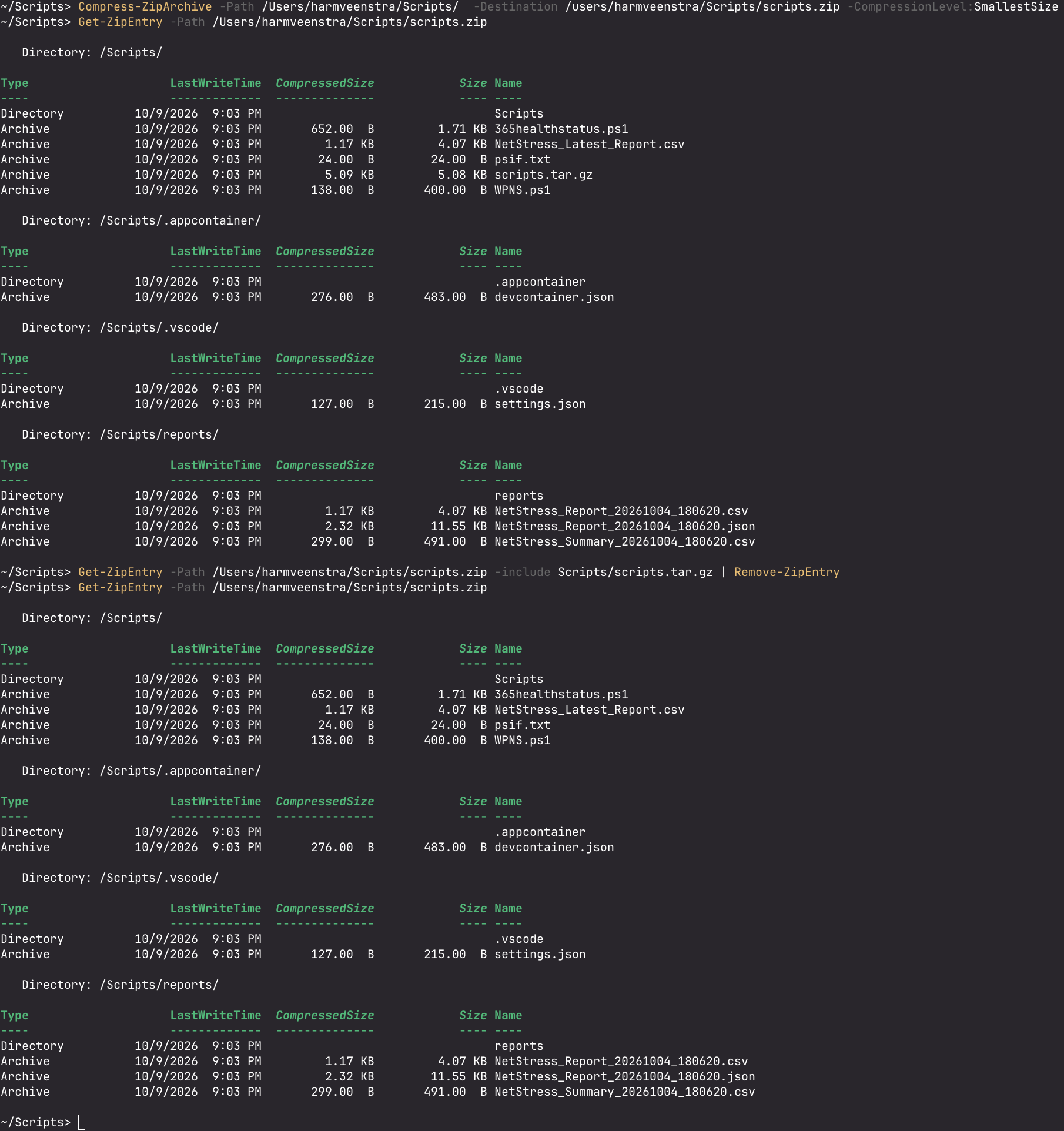
In the example below, I created a ZIP file using Compress-ZipArchive from all the files in my /Scripts folder and compressed it to scripts.zip. Afterward, I used Remove-ZipEntry to remove the previously created scripts.tar.gz by piping entries from Get-ZipEntry. (You can see that it is no longer present after running the Get-ZipEntry Cmdlet again on the scripts.zip archive)
Compress and decompress a string
In the example below, I compressed and decompressed the string “PowerShell is fun!” to and from Brotli: (And yes, I had to look that up 😀 (Brotli compression is generally used as an alternative to gzip on the web, as Brotli provides better overall compression / https://en.wikipedia.org/wiki/Brotli )

Wrapping up
And that’s how you use the PSCompression module for compressing and decompressing more formats than the built-in ZIP support that PowerShell has. Have a lovely weekend!