

We all know that VBScript has been deprecated and will be removed in future Windows releases. The PowerShell OSLicense module helps you activate licenses, query them, and more. In this blog post, I will show you how it works.
What is slmgr.vbs?
“Slmgr.vbs is a Visual Basic script included in Windows that serves as a command-line tool for managing the operating system’s licensing and activation. It allows you to install and change product keys, activate Windows, and check its current activation or licensing status. It also supports tasks such as extending the activation grace period (rearming) and troubleshooting activation-related issues.”
Source: https://learn.microsoft.com/en-us/windows-server/get-started/activation-slmgr-vbs-options
Deprecation of VBScript timeline
The timeline below shows when it will be removed from Windows completely. There is still time, but you should really adjust to other solutions before that deadline 🙂

Phase 1
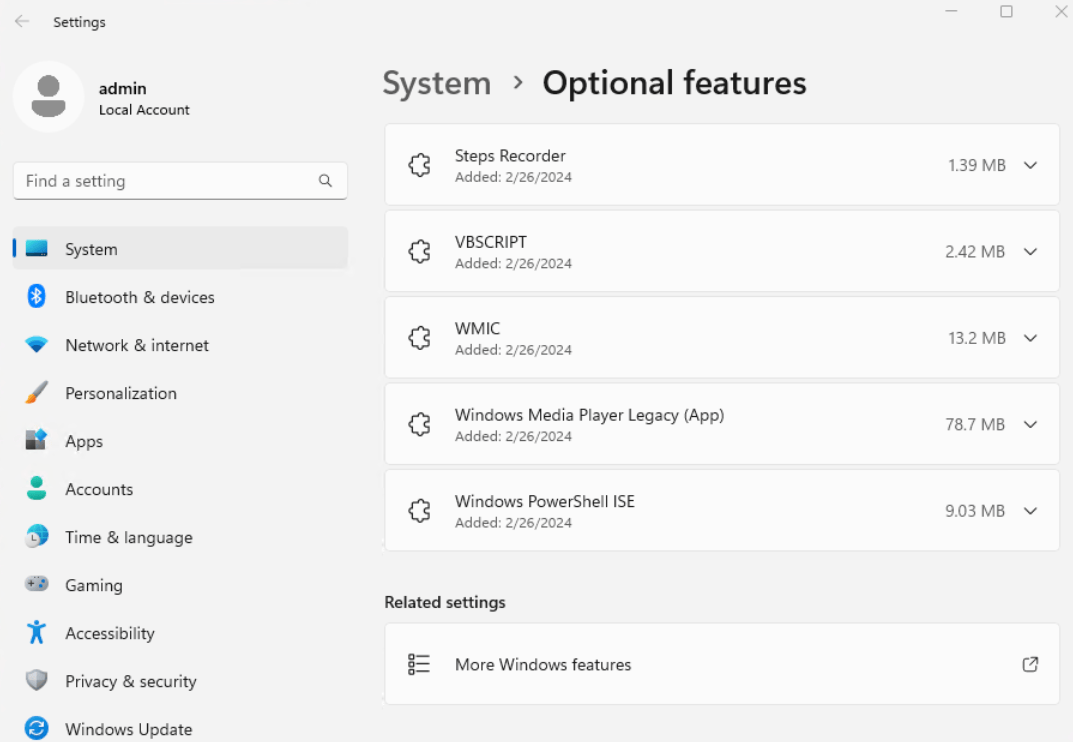
In the first phase, VBScript FODs will be pre-installed by default on all Windows 11, version 24H2 and later. This helps ensure your experience isn’t disrupted if you depend on VBScript while you migrate your dependencies (applications, processes, and the like) away from VBScript. You can see the VBScript FODs enabled by default at Start > Settings > System > Optional features.
Screenshot of Windows System Settings shows VBScript installed under Optional features.
Phase 2
Around 2027, the VBScript FODs will no longer be enabled by default. This means that if you still rely on VBScript by that time, you’ll need to enable the FODs to prevent your applications and processes from having problems.
Follow these steps if you need to continue using VBScript FODs:
- Go to Start > Settings > System > Optional features.
- Select View features next to the “Add an Optional feature” option at the top.
- Type “VBSCRIPT” in the search dialog and select the checkbox next to the result.
- To enable the disabled feature, press Next.
A Screenshot of a dialog box for adding an optional feature with a checkbox next to VBScript.

Phase 3
VBScript will be retired and eliminated from future versions of Windows. This means all VBScript dynamic link libraries (.dll files) will be removed. As a result, projects that rely on VBScript will stop functioning. By then, we expect that you’ll have switched to suggested alternatives.
The OSLicense PowerShell Module
The table below shows when it will be available in Windows. (It’s not in the PowerShell Gallery!)
| Platform | Required Windows update |
| Windows 11 | August 27, 2026 (KB5120998) Preview or later |
| Windows Server | Planned for the next major version of Windows Server. For early validation, use Windows Server vNext Preview Build 29651 or later. |
I installed Windows 11 26H1 in a Hyper-V VM on my laptop, and it was included there and available during Windows setup in PowerShell v5 🙂 (Shift-F10)

After installing PowerShell v7, I could import the OSLicense module, and it showed this warning, but all Cmdlets worked fine.

Using the OSLicense PowerShell Module
The Cmdlets from the OSLicense module are:
| Cmdlet | Description |
|---|---|
| Get-ADLicenseInfo | Gets Active Directory-based activation license information. |
| Get-KmsLicenseInfo | Gets Key Management Service (KMS) licensing information. |
| Get-OSLicenseInfo | Gets Windows operating system licensing information. |
| Get-SubscriptionLicenseInfo | Gets Windows subscription licensing information. |
| Invoke-ADLicense | Performs Active Directory-based licensing operations. |
| Invoke-KmsLicense | Clears selected Key Management Service (KMS) configuration overrides. |
| Invoke-OSLicense | Performs a selected Windows operating system licensing operation. |
| Invoke-SubscriptionLicense | Invokes a Windows subscription licensing operation. |
| Set-KmsLicenseInfo | Sets the Key Management Services (KMS) license configuration. |
| Set-OSLicenseInfo | Sets the Windows volume activation type. |
| Set-SubscriptionLicenseInfo | Sets the subscription license configuration. |
The Cmdlets above link to their Microsoft Learn help pages; be sure to check those out for all the Parameters and examples. I tried a few things from the PowerShell module for the functions I used in slmgr.vbs a lot 🙂
slmgr.vbs /ato replacement
This activated your current Windows installation; the replacement command is:
Invoke-OSLicense -ActivateOnline
Output looks like this; I think I got the error since I don’t have a KMS server in my network…

slmgr.vbs /ipk replacement
This allowed you to enter a key manually; the replacement command is:
Invoke-OSLicense -InstallProductKey <key>
Output looks like this; I added something random here:

slmgr.vbs /dlv replacement
This will show you the licensing status of your Windows installation; the replacement command is:
Get-OSLicenseInfo
Output looks like this (Removed some information 😉 )

Wrapping up
And that’s how the new OSLicense module will work, when widely available, as a replacement for slmgr.vbs. Have a lovely weekend!
How does the OSLicense PowerShell module serve as a replacement for slmgr.vbs in managing Windows licensing? What advantages might this approach offer for administrators managing Windows activation? Thank You, Regard asya
It replaces slmgr.vbs because Microsoft will remove VBScript in later versions of Windows. The advantage is that administrators will still have a tool for Windows activation with familiar parameters, as they did with slmgr.vbs, but based on PowerShell, which enables more logging and error handling.