

My first Workplace Ninjas Summit as a speaker, but also as an attendee. In this (long) blog post, I will highlight everything about the event in Switzerland, the community events in the evenings, etc. It’s not all PowerShell, but sometimes it’s related 😉 (Beware, it might take some time to load!)

- What is Workplace Ninjas Summit?
- Sunday, September 13th
- Monday, September 14th
- Guests signing in
- Rethinking the Endpoint: The Forces Reshaping How We Manage and Secure Work
- Moving To Zero Trust: Entra Private Access for Always On VPN Administrators
- Intune Architecture Explained: Behind Windows Device Management
- New OSDeploy Tools
- Delivery Optimization – State of the union
- Eido and Nerdio Networking Event
- Tuesday, September 15th
- Intune Community Tools in the Age of Agents
- Windows 11 Shared PCs done right: Secure, fast, and low-touch with Intune
- Are passkeys as secure as you think?
- What’s new in OSDCloud Community Edition
- Food truck festival
- Wednesday, September 16th
- Your Mac is Lying to You: Exposing Hidden Security Risks
- Mastering shared Windows devices in your environment
- On-Premises No More! Certificate Deployment Strategies for Cloud Native Deployments
- Inside the Intune Management Extension: Why Applications Fail to Install
- Intune Administration: Real-World Solutions with PowerShell and Graph
- Ninja Tips & Tricks – Beer Session
- Community event for the Dutch attendees
- Thursday, September 17th
- Extending Intune Reporting with Log Analytics and Workbooks
- Designing and Operating Microsoft Intune Compliance Policies at Scale
- Implementing PAW without making everyone hate you
- Shared, Secure, Simple: The Art of Designing Mobile Devices for Frontline Workers
- Closing Workplace Ninja Summit 2026
- Friday, September 18th
- Wrapping up
What is Workplace Ninjas Summit?
“Quick facts
📆 14. September – 17 September 2026
📍 Trafo Baden (Switzerland)
🖥️ 125+ Sessions
🧠 Level 300-500 Sessions (No marketing)
👂 IT Pros and Architects
Our goal is to bring endpoint management and security ninjas together to share knowledge and learn together. This covers topics like managing endpoints with Configuration Manager and Intune, plus virtual desktops and Microsoft’s complete security stack.
Covered Topics:
✔️ Microsoft Intune (including Intune Suite)
✔️ Windows 11
✔️ Microsoft Security
✔️ Microsoft Defender
✔️ Microsoft Sentinel
✔️ Microsoft Entra
✔️ PowerShell
✔️ Azure Virtual Desktop & Windows 365
✔️ Kusto Query Language”
Source: https://summit.wpninjas.global/
Sunday, September 13th
Travel
Around 07:15, I took the train to Schiphol Airport, where I met up with Jeroen Burgerhout. After a few coffees, it was pretty early ;-), we headed to our plane and landed in Zurich around 11:00. Then the train and a small walk to get to the Trafo hotel where the events will take place this week.

Hotel
We were too early for checking in, so we picked up our speaker badge first:


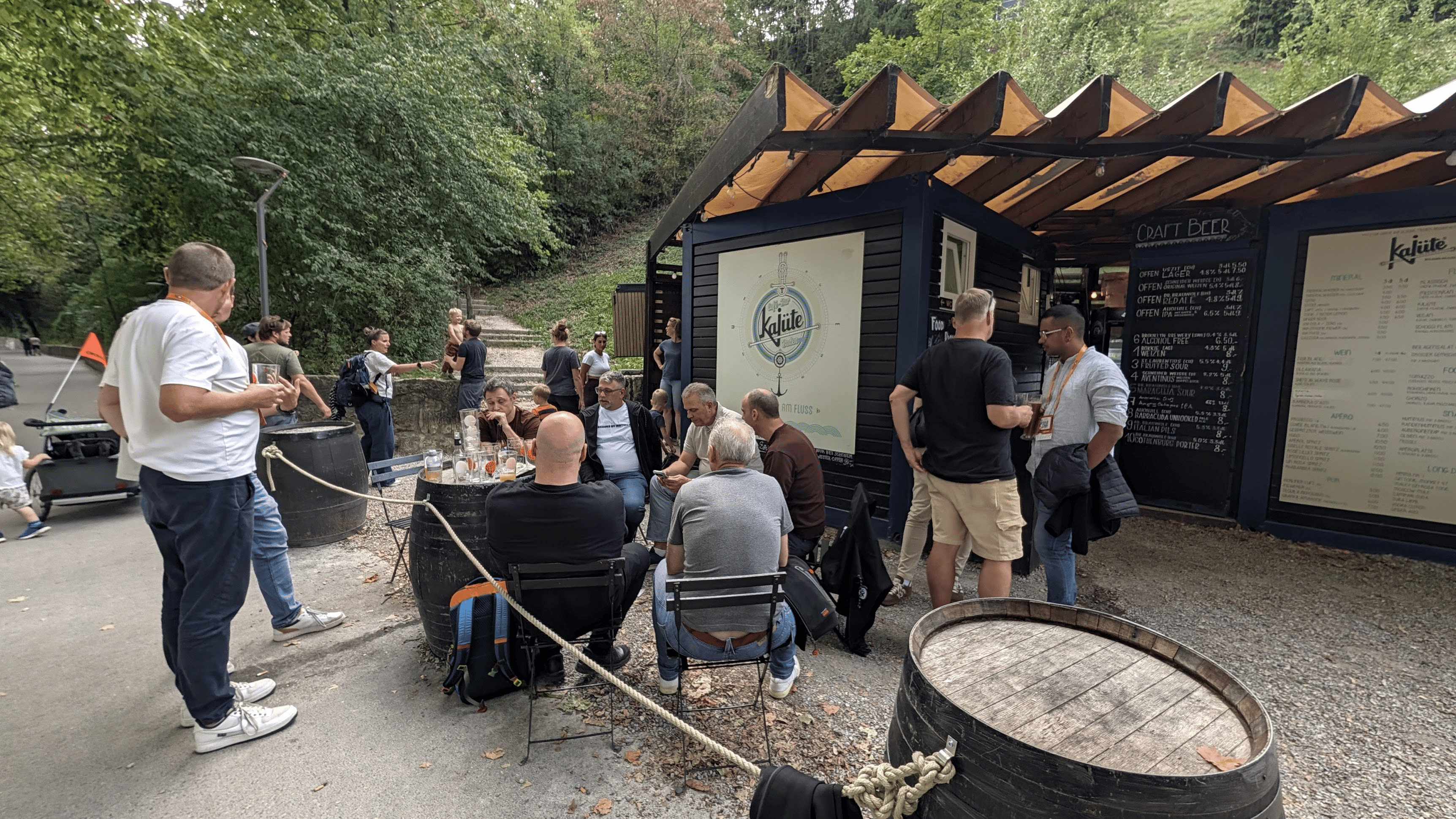
David Segura met me in front of my hotel, and we worked on our presentation for a bit before heading to the cafe down by the river.
Speaker dinner
After a few beers in the sun, we went back to the hotel, checked in, and left for the speaker dinner nearby. Nice location and view of the city and mountains.


Monday, September 14th
Guests signing in
There was a long line with people getting their badges:

Rethinking the Endpoint: The Forces Reshaping How We Manage and Secure Work
(Angela Robertson, Venkata Pampana)
“Microsoft Intune General / AI
The way we manage and secure endpoints is being rewritten in real time. Tighter budgets and rising expectations, a growing sprawl of devices and user choice, AI shifting from experiment to everyday, and a fresh look at vulnerability management are colliding at once. In this opening keynote, we cut through the noise to name the trends that matter, separate signal from hype, and connect what you’re seeing in your own org to what’s happening across the industry. The aim is practical: get the fundamentals right, know where AI genuinely helps, and leave with a clear picture of how it all fits together — and which of the summit’s sessions to dig into next.”
First session of the week in a packed room:


After the ninja show on stage, the keynote session started. Baden Mayor Philippe Ramseir told us about Baden and its history. Even though he doesn’t know anything about Intune, the city does a lot for IT and technical projects. Peter Daalmans took us through the week’s schedule, the Ask Me Anything sessions, the Microsoft roundtable sessions, the sponsor sessions, and 20 live podcast recordings. After the final ninja performance dance on stage, Microsoft started its presentation.
It was a presentation about how our jobs are shifting, not only in the technical aspects, but also in governing the outcome. Of course, AI was mentioned, but the focus was more on the urgency of AI innovation. They demoed querying Intune data using natural language from the Intune Admin Center. They also covered the future of Endpoint Management, estate sprawl, eComics, everyday AI, etc. It was a good, general overview of the current and future state across diverse environments.
Moving To Zero Trust: Entra Private Access for Always On VPN Administrators
(Richard Hicks)
“Microsoft Entra Private Access is a compelling identity-based Zero Trust Network Access (ZTNA) solution that enhances security and protection for on-premises and cloud-based private resources. This session will discuss the similarities and differences between Always On VPN and Entra Private Access, and cover coexistence and migration strategies for administrators planning to upgrade to this new service.”
I was a bit late; the session had already started, but I joined Richard’s session about something I have also been doing over the last month for a customer: Entra Private Access.

He walked us through the requirements, environment, licensing, and installation. He highlighted things like Connector Groups (Why you should use them, session persistence, etc.) and the Global Secure Access client deployment. He also covered Quick Access as a VPN replacement starting point (and then moving to more specific access using Enterprise Applications), and how to migrate to Entra Private Access from existing VPN solutions. He then demoed it from his own tenant to his lab environment, while mentioning possible limitations and pitfalls, and how to move to zero trust, including assigning Conditional Access policies to the Enterprise Applications.
Intune Architecture Explained: Behind Windows Device Management
(Rudy Ooms, Joost Gelijsteen)
“With more advanced Intune capabilities now part of Microsoft 365 E5, Windows device management is no longer just classic MDM Policy sync. Features like Endpoint Privilege Management, Device Inventory, Device Query, and real-time actions all use different communication paths between the Windows device and Microsoft services.”

Rudy and Joost started their session by highlighting all the different ways and hostnames Intune uses to connect your device to the backend services. But the locations where your tenant is located are also important. (Azure Scale Unit; you can use Intune-ASU-Finder for that, too). They then explained policy retrieval and processing, which was also one of their other sessions this week, by WNS. (Windows (Push) Notification Services) Then we went down the rabbit hole: we discussed new and old technology, along with the transition toward things like application and device inventory.
We also touched on telemetry, enabling Diagnostics to be gathered and actually used. (UEFI reporting) Intune Management Extension and MDM channels live in two worlds, but IC3 was added to combine that into a real-time channel. (Which should be better than MMP-C) The Company Portal was also discussed with the Information Worker (IWService) Service, including its communication path to show the end user its applications.
Autopatch was discussed as another traffic lane: Windows Update Services for Business, which will connect to Intune for configuration. Feature Update / Quality Updates / HotPatch settings are not coming through the OMA-DM channel as you might expect…

New OSDeploy Tools
(David Segura, Harm Veenstra)
“Over the next few months, new OSDeploy Tools will be released to support WinPE, OSDCloud, MDT, ConfigMgr, Application Workspace
WinPEDrivers – new PowerShell module for downloading and expanding all WinPE Drivers needed for boot images.
BootImage Builder – unnamed new PowerShell module to build boot images for OSDCloud or the Windows Recovery Environment.
OSDeployMDT – new PowerShell module that integrates OSD Tools and OSDCloud into MDT to help transition from MDT to OSDCloud.
OSDeploy – new PowerShell module to streamline device setup and start using OSDDeploy Tools.
WinPE Startup – new PowerShell module for starting up WinPE. Includes new Wireless Client and WinPE File Explorer.”
This was my first session with David Segura for Workplace Ninjas Summit; tomorrow we will do another one, too 🙂 We were in the big room with around 180 people during the session!

I really enjoyed giving the session; time flew by, and I’m doing another tomorrow afternoon. Excited! You can read everything that was discussed at https://www.osdeploy.com/.
Delivery Optimization – State of the union
(Andreas Hammarskjöld, Andy Rivas)
“Dive into the latest strategies and recommendations for leveraging Delivery Optimization in Intune and beyond. Discover recent changes, effective configuration tips, and community-driven tools and scripts. This comprehensive session equips endpoint admins with essential knowledge to streamline modern content delivery efforts.”

I went to this session, the last one of the day, because I use Connected Cache for some customers, and Andy Rivas is responsible for it 😉 (His words; we can yell at him). They took us through the history of ever-growing apps, Adobe!, showing download growth, how updates showed what they fixed, and how to use that for an attack.
They also covered how the internet works, latency and round-trip times, and what determines your download speed. They also covered congestion, installation sizes, and how that translates to the bandwidth you need for your internet connection.
That’s where BITS and Delivery Optimization come in. You can’t depend on the supplier or vendor to fix everything for you (Package update sizes), so you have to optimize. Download Mode (Group-ID), Restrict Peer Selection (DNS-SD), Background QoS, Delay, Cache Retention/File size, etc.
Nice background information and Q&A, with lots of details and insights, plus the MCC improvement roadmap.
Eido and Nerdio Networking Event
“Join Eido and Nerdio for an evening of shuffleboard, craft beers and informal networking.
Food is included, with a varied selection of savory options such as pinsas, wings, nachos and vegetarian dishes.”
After the sessions, I went to this event. Nice bar and shuffleboard was fun 🙂

After that, we went into the old part of the town and stopped at the bar next to the McDonald’s 🙂

Tuesday, September 15th
Intune Community Tools in the Age of Agents
(Niklas Tinner, Ugur Koc)
“AI and agents are transforming IT management. Intune community tools remain essential for success. They extend Intune’s power significantly. Learn to combine them for smarter, efficient management.”
This was the first session of the day that I joined. I always like people creating tools from and for the community!

The topics were about how and why AI changes technology and tools, plus an overview of popular AI tools in the Community.

Niklas explained how permissions, App Registrations, and APIs work, which you need to create the tool that you want, including the logic and visualization.

Ugur shared his way of approaching creating applications, using AI, and talking to it while walking to get coffee 😉
Windows 11 Shared PCs done right: Secure, fast, and low-touch with Intune
(Jeroen Burgerhout)
“Build a practical Windows 11 Shared PC baseline with Intune covering sign-in, apps, updates, security, and real-world troubleshooting, so shared devices stay fast, compliant, and easy to run.
Shared Windows PCs are everywhere: frontline devices, training rooms, labs, meeting spaces, call centers, and kiosk-style scenarios. But without the right configuration, they quickly become slow, messy, and hard to secure, especially with multiple users, shifting shifts, and limited local IT access.
In this session, you’ll learn how to design and implement a Windows 11 Shared PC configuration using Microsoft Intune. We’ll translate the “Shared PC” concept into a reusable blueprint: identity choices (local vs. Entra sign-in), account management, storage cleanup, app delivery (Win32/MSIX/Store), policy essentials, update strategy, and security hardening without ruining the user experience.
Expect a practical walkthrough with real-world do’s and don’ts, plus troubleshooting patterns for the issues you only see in shared environments (stale profiles, disk bloat, sign-in loops, OneDrive/Teams behavior, and mis-scoped policies).”
After lunch, I joined Jeroen’s session.


He explained what a shared pc is, in his vision, and that this session is not about Kiosk mode. Why shared PCs fail due to complexity, disks filling up, etc. But also the identity model, user expectations, device ownership and assignment strategy, Entra ID vs. local users, MFA, Conditional Access, and session speed.
And, of course, also the licensing part. At least Intune Plan 1 Device or the normal F3/E3/E5/E7, Business Premium, A3/A5, EMS E3/E5. Shared PC Configuration, Profile Cleanup behavior, and Storage thresholds are the profiles that you need to create next to the self-deploying profile. He also discussed customizing Start & Taskbar (Don’t 😉 ), disabling personalization drift, and aiming for fast logon and logoff.
He showed these profiles in his tenant and explained how and why he configured the settings. App Delivery recommendations were to use Win32 instead of Store apps, avoid per-user installs, and use shared-friendly packaging. And don’t forget to enable SharedComputerLicensing and set it to 1. And how the OneDrive settings should be configured:

Security on Shared PCs is possible, but you have to think about it. Things like LAPS, Conditional Access, Global Secure Access, Defender, etc. But Windows Hello for Business has limitations (No PIN, fingerprint, or face) because of TPM limitations (10 max), but Web Sign-In, password, or FIDO is possible.
He then ran a pre-recorded deployment demo and walked through the operational reality and the troubleshooting patterns.

Are passkeys as secure as you think?
(Fabian Bader)
“Passkeys finally seem to be a secure replacement for passwords that not only IT-savvy people can use.
But are they really as secure as you think?
- Which passkey types are available?
- What to expect from attestation?
- Are syncable passkeys the way to go in enterprises?
- Which attacks are currently known?
- How to mitigate these attacks in an Entra ID environment?
At the end of the session, you will have a deep understanding of passkeys and which passkey is the right choice for your environment.”
I like using Passkeys, so I joined Fabian’s session to see whether I need to reconfigure any settings or keep things in mind when configuring them for customers.

He explained what a passkey is, how registration works, and how validation works in a flow overview. (Can only be done by the platform that gave you the option to register one)

Passkeys can be synced or device-bound. Passkeys sync by default, making it easy to restore and use them on other devices. (Microsoft Authenticator currently doesn’t support syncing) Device-bound passkeys cannot leave the device; FIDO2 keys are also an example, as is Microsoft Authenticator (for now).
Like TPM, attestation identifies the AAGUID (128-bit). This is not supported for synced passkeys. The AAGUID is easy to change or fake, but attestation signs the public key with your private key to ensure you use the correct one.
He also explained the possible attack vectors.

All in all, a great session with many insights into how the system works, including its flaws…
What’s new in OSDCloud Community Edition
(David Segura, Harm Veenstra)
“After millions of Windows 11 deployments, OSDCloud has an official upgrade. Get up to speed on what’s new and what to know about the phasing out of OSDCloud v1.
The new OSDCloud features real-time DriverPack updates for Dell, HP, Lenovo, and Surface devices, and new support for Panasonic.
Drivers from WinPE ensure OOBE and WinRE work for your device.
Autopilot Hash is now generated in WinPE for Autopilot v1 Registration.
New features will be released during this session.
Supports both arm64 and amd64″
My second and last session for this event, again with David, and this time for about 90 people. Good questions and interaction. This was the empty room before it started:

Food truck festival
In front of the hotel, there were food trucks with different types of food and benches for everyone to sit and eat and drink together


And yes, sometimes you had to wait 😉 After this, we went into the old town to a bar near the water, and I actually went to bed before midnight this time 😀
Wednesday, September 16th
Your Mac is Lying to You: Exposing Hidden Security Risks
(Oktay Sari)
“macOS has a reputation for being secure out of the box, but don’t believe everything you hear. That’s only part of the story! In this session, we peel back macOS’s polished surface to expose the hidden risks lurking behind default settings, vague permissions, and half-baked configurations.
I’ll walk you through what your Mac isn’t telling you and what attackers are quietly hoping you ignore. We’ll deep dive into hardening techniques using Microsoft Intune, demystify Apple’s native controls, and build a macOS security baseline that doesn’t just look good on paper!
This isn’t just another how-to. This session is about asking the tough questions, challenging assumptions, and taking full control of your macOS fleet.”


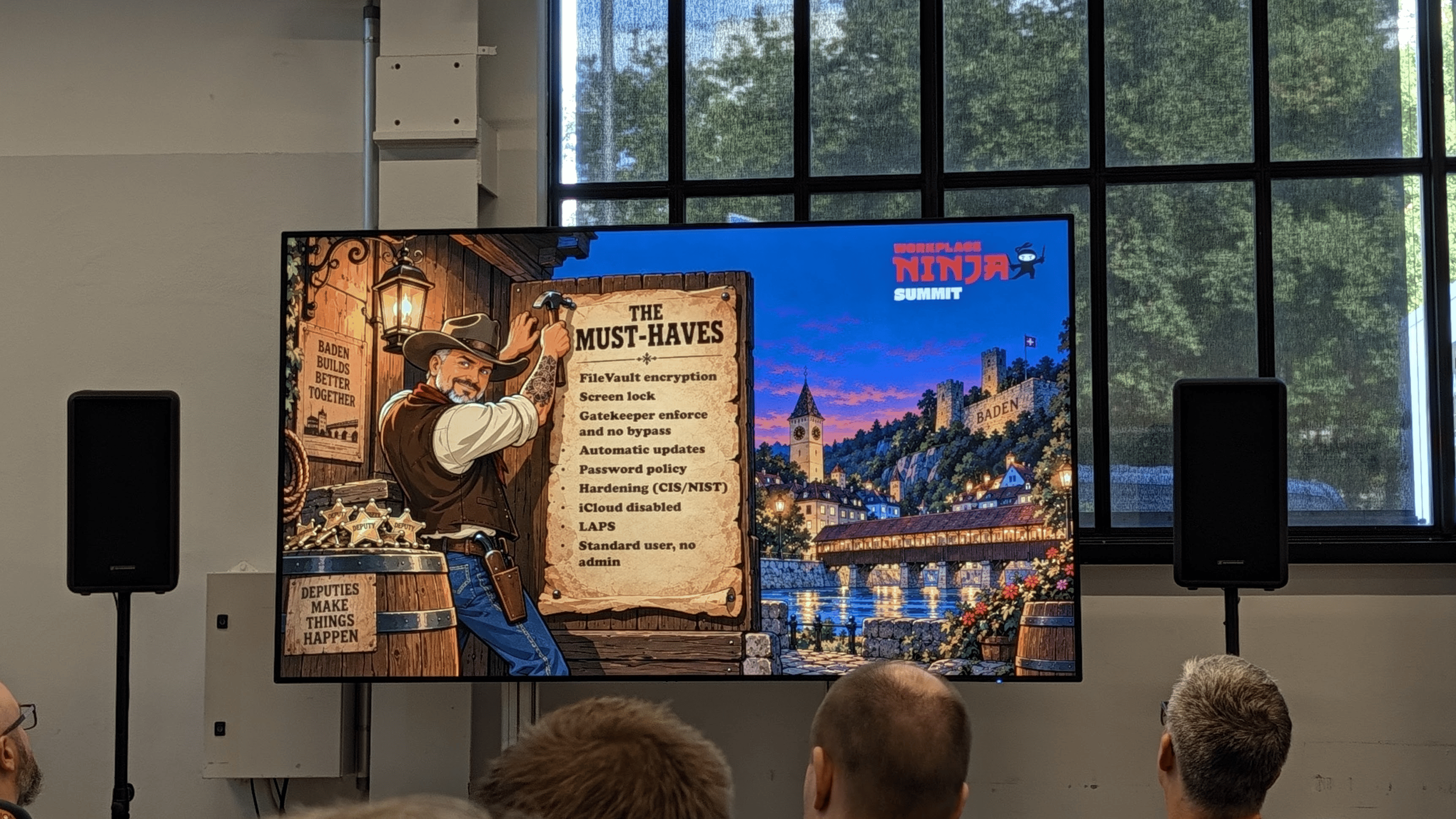
He started explaining the Gatekeeper process on macOS, how the settings work, and the defaults. And yes, even on macOS, malware has increased by 400% from 2023 to 2024, for example. 3rd-party app stores are risky, even things like Homebrew. Even with quarantine tags, you can remove them after downloading from Homebrew. EDR solutions are important; you can’t rely purely on Gatekeeper. (WorkBrew could be a better solution to curate the store)

Things like CIS Benchmarks will give you, for example, a 60% score, mostly based on default configurations that haven’t changed. In a demo, he showed an audit script to check settings on a system, which you could also deploy to your devices using Intune.

He showed that when downloading a file from a browser, or with tools like curl, the quarantine label (Which lets Gatekeeper check the status) is not present. (Having an EDR on your system is important) He also showed how, using scripts, he could download and execute content on your system without interruption.
Demo gods disturbed him and prompted him to update his password before showing the Configuration Profiles for Custom Attributes in Intune 😉 This is a nice way of reporting the status of clients and their configured services like NFS. But also things like Device Configuration Profiles for macOS hardening. Important to disable override in that for Gatekeeper)

Mastering shared Windows devices in your environment
(Peter van der Woude)
“Often the focus for organizations is personal devices. A single user that uses a single device. But there is more. What if devices must be shared between users (think about receptionists), or what if a device has a single purpose (think about a kiosk device). Different use cases require a different approach. During this demo-rich session, we’ll look at the technical details to consider when configuring shared (and kiosk) Windows devices in the environment. From device enrollment to device configuration. And from the sign-in to delivering apps.”
Yesterday, I joined Jeroen’s session on this topic and was curious about Peter’s approach. Peter mentioned that he was going to talk not only about shared PCs, but also about Kiosk devices, focusing only on Windows.

He talked about different types of shared PCs, as well as dashboard devices. The session agenda covered architecture and core concepts, basic configuration options, additional configurations to consider, deployment options, and assignment considerations.
Shared devices have many different users, but everyone gets the same experience every time, with no personal device ownership. Kiosk devices are locked to a dedicated app or task. Both handle user identity differently: Entra ID/local accounts, Conditional Access and MFA, and local storage of account information. Device-based configuration, because there is no primary user, and filters for targeting specific devices.
Licensing is always difficult; device-based licensing might be a use case, but user licensing usually covers most scenarios. Peter also discussed choosing the deployment model, single-app or multi-app approaches, and the restricted user experience. Choosing options for configuring OneDrive, or not (Or with Personal Data Encryption), account management, and advanced customizations like Power/Sleep, sign-in, maintenance, pagefile, and local storage.
He walked us through the XML way of configuring things, highlighting the different schema versions and pitfalls for Allow lists, start pins, etc. He also covered application deployment, filtering shared devices, and preventing apps that require the user to log in while in kiosk mode.
Troubleshooting and log locations were also discussed, as well as registry locations to pinpoint deployment issues. A bonus slide was about Autologon issues, OneDrive configuration, and missing settings. Link to the slides: https://api.runevents.net/api/assets/download/SessionMaterialFile/2d8e9fa6-8baa-4bf6-aa39-208699de8f89/WPNS26_Mastering-shared-Windows-devices-in-your-environment.pdf
On-Premises No More! Certificate Deployment Strategies for Cloud Native Deployments
(Richard Hicks)
“As organizations move to the cloud, many are adopting cloud-native strategies to reduce their reliance on on-premises infrastructure. Digital certificates are often required to support workloads such as Wi-Fi and VPN. However, cloud native users and devices pose unique challenges for certificate issuance, management, and authentication. This session will cover the details of deploying certificates when using cloud native accounts.”
After lunch, I joined Richard’s session on what customers want to transition to: cloud deployment of certificates and linking them to your existing environment.

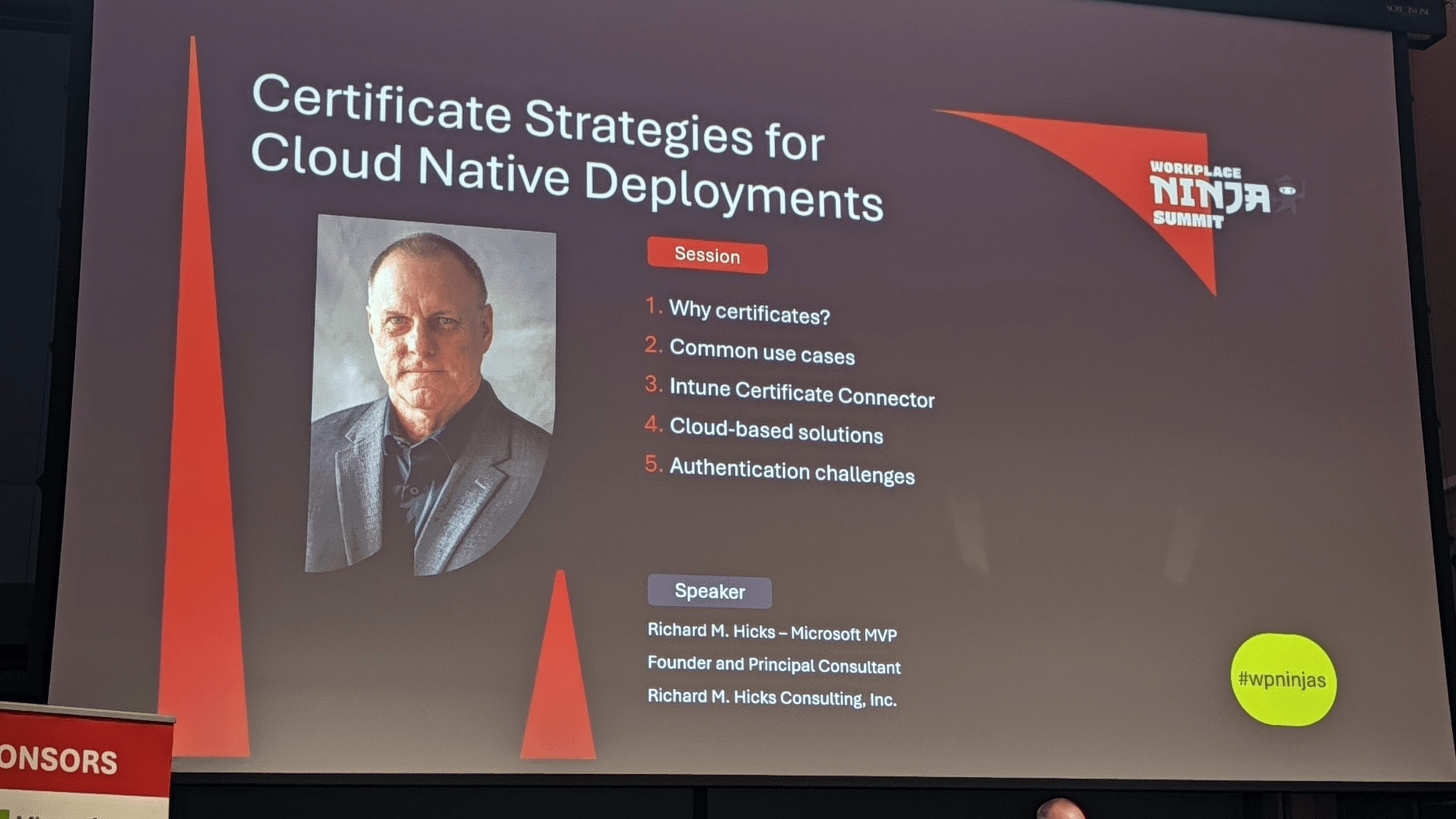
He started with the why of certificates, highlighting that passwords are a pain, easily compromised, prone to phishing, and captured by keyloggers, and require MFA, etc. Certificates are better, stronger, and phishing-resistant, and must be protected with a TPM. They have advantages over FIDO keys, which can’t be centrally revoked or managed, etc.
Common use cases include (I use these most) Wi-Fi and VPN authentication, plus document signing/encryption, RDP, and Windows Hello for Business. Deploying certificates is usually done by using the Intune Certificate Connector. (PKCS and SCEP) He explained how PKCS works, the challenges of reissuance, and why SCEP is harder to configure and requires NDES.
Security considerations: PKCS is simpler, with no internet exposure; SCEP is more complex and must be published externally. Richard showed the Configuration Profiles for both in Intune to highlight the configuration differences. The most important setting is using the TPM as the Key Storage Provider.
For non-Active Directory environments, Cloud PKI is available and secure by default. It’s bundled in the Intune Suite and included in E5 (Not in E3). It’s cloud-hosted, for Intune-managed endpoints only, and not a replacement for AD CS. There are only two-tier deployments (Root and issuing CA), but there’s also the Bring Your Own CA option, which lets you link to your existing AD CS (as an extra intermediate) and is recommended for hybrid environments. He demoed adding that to his configuration, including adding custom purposes. After creating it, you can then issue certificates using a SCEP profile. (It doesn’t support PKCS)
Authentication challenges include NPS and authentication options (Local SAM database or Active Directory). Cloud RADIUS would be a good option; it’s not available now and perhaps never will be :-(. Third-party providers are an option, such as EZRadius and RADIUSaas. On-premises solutions would be Cisco ISE and Aruba ClearPass. Open-source alternatives are FreeRADIUS and OpenRADIUS.

Inside the Intune Management Extension: Why Applications Fail to Install
(Rudy Ooms, Bryan Dam)
“In this session, we look at the many ways Intune can quietly decide that an application is not getting installed today.
We walk through the IME application installation flow step by step. From the moment the Sidecar AppWorkload kicks in to content being downloaded, executed, and detected.
Most importantly, we show the exact pain points where things break or stall and explain what causes that familiar sixty-minute delay.
All of this is based on real behavior, real logs, and some carefully done reverse engineering of the Intune Management Extension.”


Rudy explained that the session covers everything that can go wrong: waiting status, incorrect reporting, and missing information. Bryan covered the basics of the Intune Management Extension, how deployment and assignment work, and they both walked through all the different stages of the process.


Great insight into the steps that happen during installation, what to look for, and where events are logged to track progress. But that was the happy flow; if things go wrong… You need the troubleshooting steps like Rudy walked us through 🙂

And it actually seems that restarting a device or having a user log off and log on again… Helps 🙂 Rudy also walked us through the Company Portal stuck-on-downloading issue, SSL/TLS issues, Win32Apps stuck on waiting, and Autopilot Device Preparation issues. (256 required app limit)

Intune Administration: Real-World Solutions with PowerShell and Graph
(Nicklas Ahlberg, Mattias Melkersen)
“Take your Intune administration skills to the next level with practical, real-world solutions designed for IT pros.
In this session, we’ll cover common administrative challenges and demonstrate how to solve them using PowerShell and the Microsoft Graph API.
This session is ideal for those with at least intermediate Intune knowledge who want to increase efficiency, automate repetitive tasks, and better manage various scenarios through scripting.
Walk away with scripts, strategies, and insights you can put to use immediately.”
I joined this session because PowerShell and Graph 😉 Nicklas and Mattias had some issues with the screen, but luckily they fixed it by connecting the laptop to the system in the back 🙂

They started by highlighting the F12 developer tools and Graph-X-Ray from Merrill; big fan of that! Nicklas was in the back working on the laptop and presenting that on the screen in the front while Mattias was standing on stage 😉 The problem was fixed after a few minutes, and he ran back on stage 😉

Nicklas took us through the repository setup and Copilot instruction files.

But also how prompting works, what works, and what does not. And that Pester tests should be used, which will automate the testing for you, and results will be predictable if the Pester tests are successful. He took a PIM activation vibe-coded tool as an example to run Pester tests against.
After retrieving data from Intune Device Overview for devices with TPM issues, they showed how to export it to Excel using the ImportExcel module. They also demoed Custom Compliance Scripts; I used to create those in the past, and have a blog about it, too.
Other examples were downloading platform scripts from Intune using PowerShell and getting the Primary user’s devices.

Mattias showed how the old and new CSPs work:

Ninja Tips & Tricks – Beer Session
(Peter Daalmans)
“Join us for a fun and engaging evening session at the Workplace Ninja Summit on Wednesday, September 16th! During the Ninja Tips & Tricks – Beer Session, attendees will take the main stage to share their favorite publicly available tools, tips, or hidden gems with the community.
Each participant will have 5 minutes to present their contribution — whether it’s a clever script, an underused feature, or a small tool that makes a big impact. This is a great opportunity to inspire others, highlight your work, and exchange practical knowledge in a relaxed, informal setting.
To top it all off, the best contributions will be rewarded with awesome prizes!
Come for the tips, stay for the beer, and leave with new ideas and connections.”
Last session of the day: short sessions with the opportunity to show your tips on the stage or relax in the audience with a beer 🙂


Fun, different types of tips, and casual, which is always nice after a day of joining sessions 😉
Community event for the Dutch attendees
This event took place in the Henry’s Live Music and Sports bar in the old town part of Baden. (Been there the last few nights, too 😉 (More details can be found here https://www.meetup.com/wpninjasnl/events/316166642/)


Nice evening at the Henry’s bar again, well organized!
Thursday, September 17th
Extending Intune Reporting with Log Analytics and Workbooks
(Andrew Johnson, Johan Arwidmark)
“Join Johan Arwidmark and Andrew Johnson as they explore how to enhance Intune reporting using Log Analytics and Workbooks. Learn how to query Intune data with KQL (Kusto Query Language) to generate custom insights and dashboards. This session covers leveraging community solutions, creating custom logs, and using Windows Update for Business reports to monitor updates. Discover best practices for building and optimizing Workbooks to take your Intune reporting to the next level.”
First session of the day, met Andrew Johnson at the food truck event earlier this week in person and already had this session on my list 🙂


They talked about Intune growing as a platform, with more features and logging; some things are still missing to really get the information out of it. To get information from Intune, you can enable Diagnostic Settings in the Intune Admin Center (Requires Azure resources), select what you want, and query it with KQL. The data flow was shown from the different entries to Log Analytics to the workbooks before starting the first demo, showing the steps to start the initial setup.
In the Intune Admin Center, he also showed (From within the Azure Monitor pane) that you can query data in Log Analytics with KQL. He also showed how to add Windows Update for Business information to Log Analytics from within the Software Updates pane and that you should enable “Allow device name to be sent in Windows diagnostic data” to Allowed and “Allow Telemetry” to Full, together with options to hide information about that on the client to prevent a balloon pop-up.
From the Workbooks pane (within the Azure portal), they showed how much data is visible in the dashboards and how to navigate and search for device status. You can also see Connected Cache information there, which gives good insight into what your clients are downloading.
Community Solutions also lets you skip starting from scratch, with curated Workbook templates from the Intune community. There’s also a “Poor Admins Inventory” way to use Remediation scripts for data collection and parsing script output. They showed how to create a profile to collect Registry information from clients and use KQL with WindowsRegistry as the source. They also showed how to create a Remediation script that outputs data from the detection script, which can be viewed from the Device status. He used Connected Cache as an example to view client data, confirm it was reporting correctly, and see which Connected Cache server was being used.
They also showed a script from Damien Van Robaeys that uses Remediation to report on the UEFI status of Intune-managed devices and how that looks in a Workbook report. Great stuff, and it really shows the options you have to get more data from your clients. And yes, learning KQL is something you will have to do to get even more data and nice dashboards from this 😉

Designing and Operating Microsoft Intune Compliance Policies at Scale
(Kenneth van Surksum)
“Microsoft Intune compliance policies are a foundational component of device security and Conditional Access, yet their design and operation are often underestimated. Misconfigurations, overlapping policies, and unclear assignment strategies can quickly lead to inconsistent results, user impact, and operational complexity.
In this session, Kenneth will share practical guidance on designing and implementing Intune compliance policies in a structured, scalable way. We will explore when to use a single policy versus multiple policies, how assignments and filters determine policy targeting, and how the endpoint evaluates and reports compliance state.
The session also covers how compliance policies interact with Conditional Access, and how design decisions directly influence access outcomes. We will also cover common troubleshooting scenarios and how to identify and resolve issues when devices do not report or evaluate compliance as expected.
Based on real-world implementations, this session provides actionable design patterns and operational insights to help you move from basic configuration to a controlled, maintainable compliance strategy.
After this session, you will have a clear understanding of how to design, assign, and operate compliance policies in a way that supports both security and usability in modern Microsoft 365 environments.”
He started thanking everybody for joining the most boring session 😉


He highlighted device compliance and how it works in Conditional Access rules, and why it matters. (Making sure that data is not leaving your environment) The differences between Compliance Policies and Configuration Profiles (Settings versus monitoring), the different types of Compliance Status. Device Health was also discussed, how it works (during boot) and that for Autopilot situations you might need a reboot to attest things like Bitlocker status. And the pitfall of having the default setting “Mark devices with no compliance policy assigned” as compliant…
Real-Time Compliance Drift Detection (Preview) was mentioned; this will increase compliance refresh a lot. Something to check in the future to start testing this in your environment. He then showed his environment, how to name policies, and how to use Scope Tags to find things more easily.

He mentioned that always copying Compliance Policies when modifying and deploying them, instead of editing the existing ones, is a good practice. And that you should not configure things using Configuration Profiles and have Compliance Policies not matching that.
Compliance Settings have certain evaluation timings, depending on deployment state and normal evaluation time afterward, things that you should be aware of for deployment scenarios.

And that’s the question: both are ok but having many has its advantages for more granular control. But, of course, there are trade-offs, like overlap. He discussed tiered compliance enforcement, different grace periods, and the design decisions behind it.
He then explained use cases for Custom Compliance Policy, and the audience also shared examples from the field. He showed one from Alex Verboon; it’s really powerful. After that, he showed Conditional Access examples: device filtering, app-enforced restrictions, etc., and demoed those by using an in-private browser session. And how Purview labels can even extend on that, limiting access to Compliant devices.
He also highlighted Cross-Tenant compliance, how it works across tenants, and its limitations.
Implementing PAW without making everyone hate you
(Eric Woodruff)
“Privileged Access Workstations (PAW) tend to be one of the most overlooked parts of an enterprise security strategy, despite them being the most critical part of adhering to the clean source principle. And for a good share of organizations, they implement something that feels like PAW, but is it really? Or is it just security theater? We know anecdotally that most pushback comes from the perceived impact on work and the culture change PAW requires.
But does it really have to hurt?
In this session, we’ll explore many of the diametrically opposed scenarios that can hamper a good PAW implementation, and how to think about them and measure your own risk tolerance – admins needing to share screens and use tools like VS Code while we want to limit lateral movement and supply chain attacks. Limiting internet access on devices that, well, need internet access. And the culture part – we’ll talk about that too. Strategies for minimizing impact on productivity and behavioral changes, derived from real-world experience implementing PAW in an enterprise.”
After lunch, I joined Eric’s session about implementing PAW. I have some experience with this and curious what options there are today.
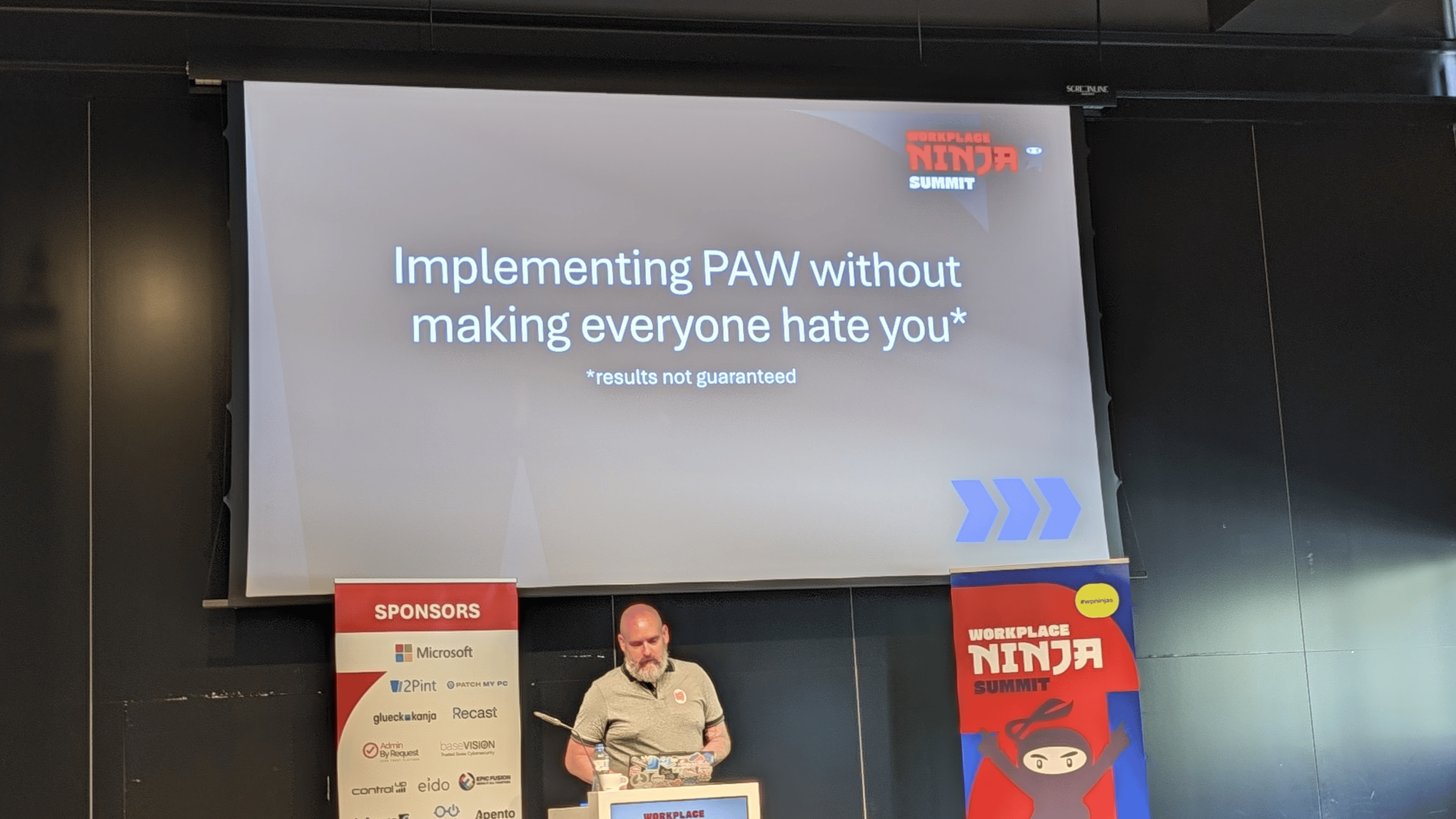

He started by introducing himself and the journey toward the PAW solution he is implementing, and said he wanted to do a talk about it at Workplace Ninjas… And that it wasn’t all that easy, as he was hoping for 😉 After that, he took us on his journey, sharing all the challenges along the way.
Things like tiering, jump boxes, bastion, and admin VMs were discussed, and tier breaches occurring because of choosing certain solutions. Global Secure Access was also mentioned as a possible solution that balances security with practical use. Splitting Internet Access for Microsoft Services, Private Access, and normal traffic. Or even the Microsoft Link device seems like a good solution 🙂
FIDO2, device-bound passkeys, or Windows Hello for Business are good authentication methods for connecting to your PAW. He demoed these and also discussed file-sharing options and using Visual Studio Code to tunnel traffic to your device. Screen sharing can be done in Microsoft Teams without logging in, using the session code and a browser.
We also discussed the roaming admins concept, using cellular in laptops or 5G boxes that can be used as a hotspot. (UniFi travel router, for example) And 3rd party software is a problem- supply chain attacks- so keep your list of software curated and low.
Shared, Secure, Simple: The Art of Designing Mobile Devices for Frontline Workers
(Janic Verboon, Luca Noah Caprez)
“In this session, we want to give the audience an overview of the different options Microsoft Intune offers to manage mobile devices aimed at frontline workers.
We want to show the audience:
- How to gather requirements
- The different management & enrollment methods, and when to use each.
- How the Entra QR Code sign-in method can be leveraged for your users
- How to reduce end-user steps by leveraging Android Enterprise OEM Config and App Configuration policies
- How to properly secure these devices
We will also share how we solved edge cases like deploying contacts or files to these devices. And how to troubleshoot them during operation.”
The last session, before the closing session in the main area, was on this topic. After the introduction, Janic talked about the characteristics of Front Line Workers’ devices. These could be shared devices, simple and task-oriented ones, highly managed and locked down, business-critical reliability, specific hardware, and secure authentication without personal devices.
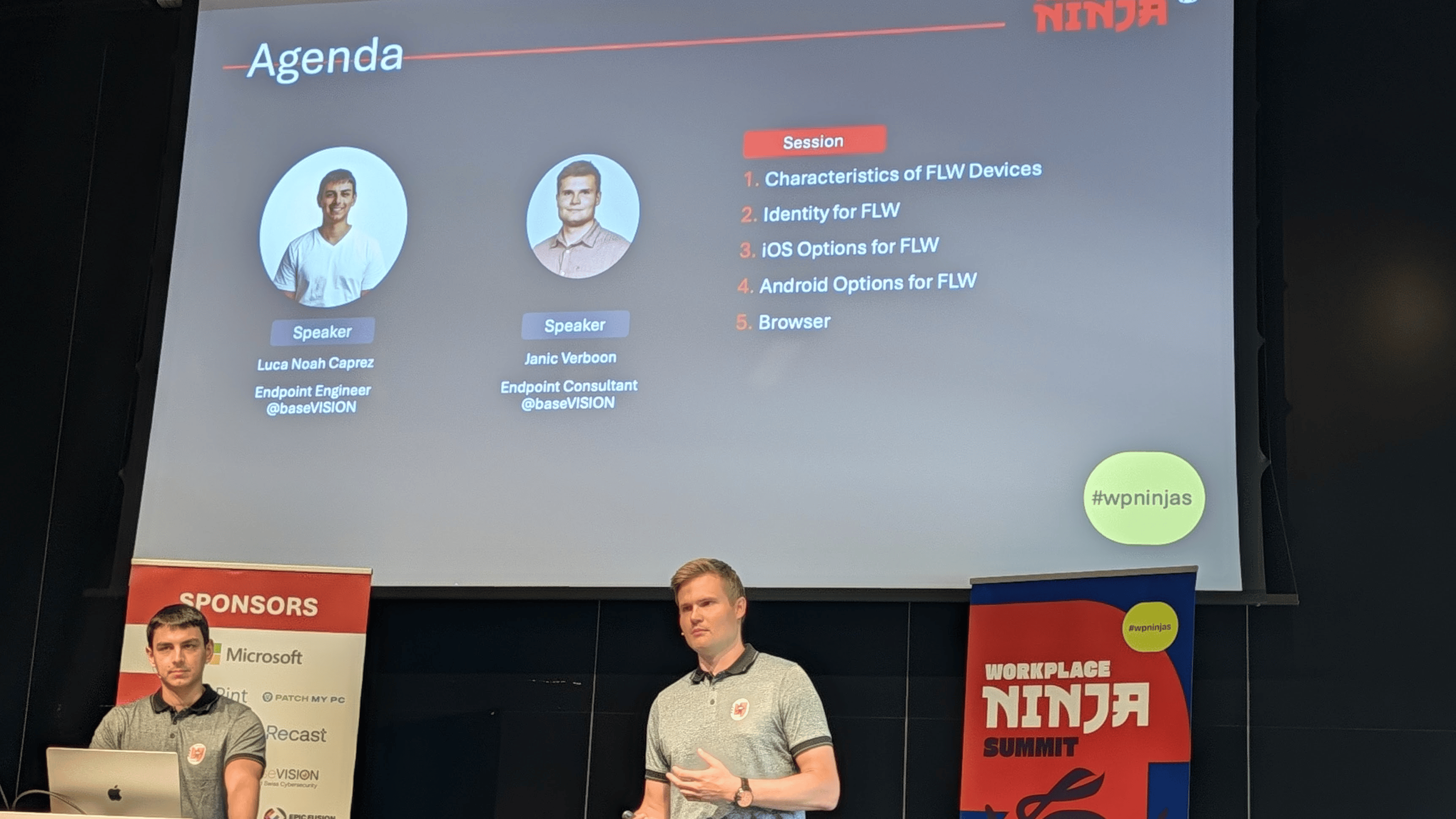
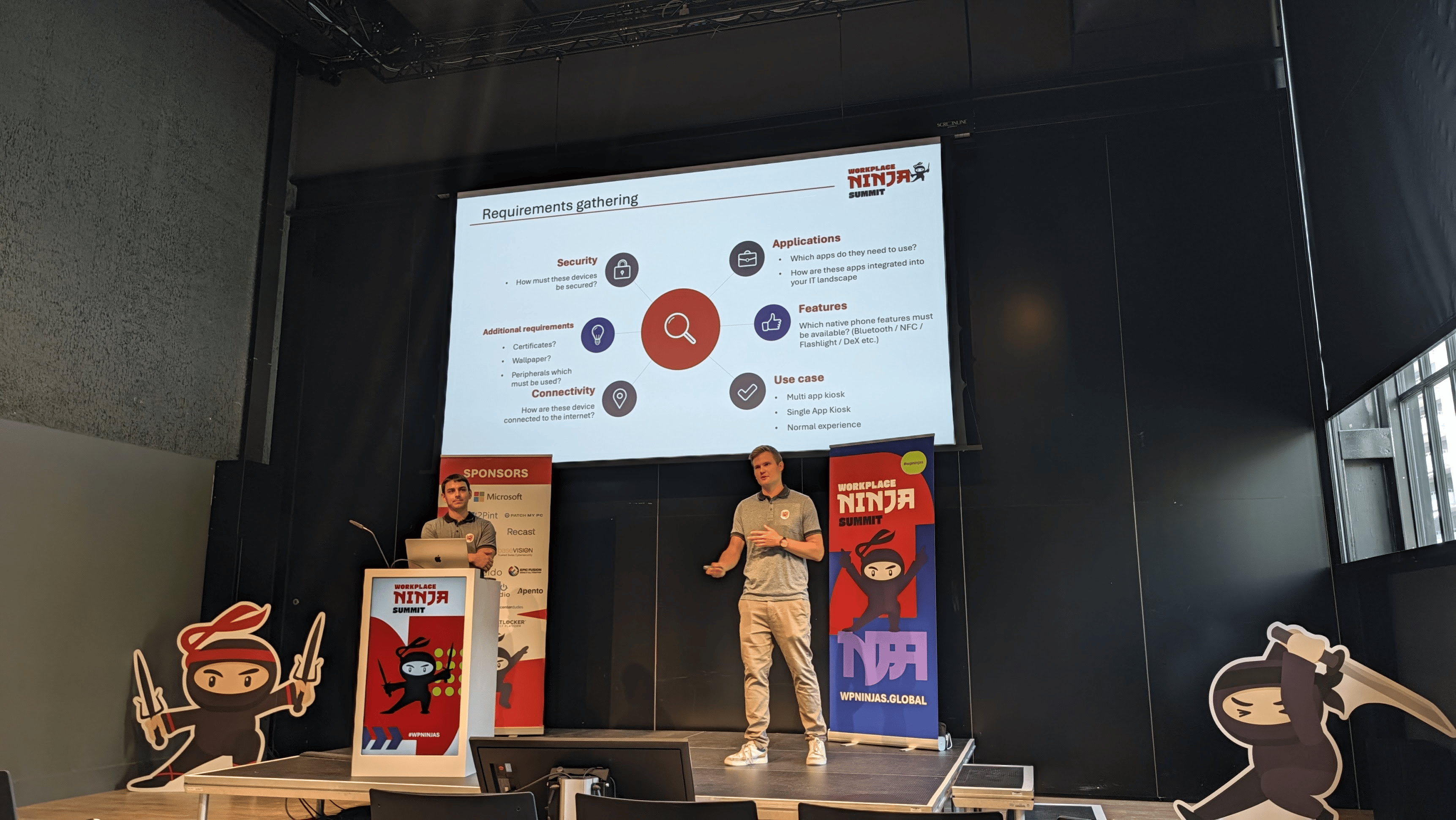
The types, COSU/COSD/COBO, were discussed with the advantages and disadvantages. And, of course, the Identity requirements are also there. MFA, Compliance, TAP, QR Code of NFC/FIDO. They demoed the QR enrollment method for the device (Nice demo user, Klaas Huntelaar 😉 ).

They also discussed the Managed Home Screen option from Intune to lock down the interface, including the options for troubleshooting it when needed. The Intune configuration was also shown; you need a restriction for the Device Experience and an App Configuration Profile. Staging devices, Device Name Templates and Enrollment Time Grouping was also shown.
The Fully Managed with Managed Home Screen option was also shown, but also with the Microsoft Launcher replacement. Janic talked about the kiosk; he built the one that was used for the registration desks for the event 🙂
Shared Device Mode was also shown, it has an restricited list of apps (Microsoft only) and third party apps are configurable by using the package name.

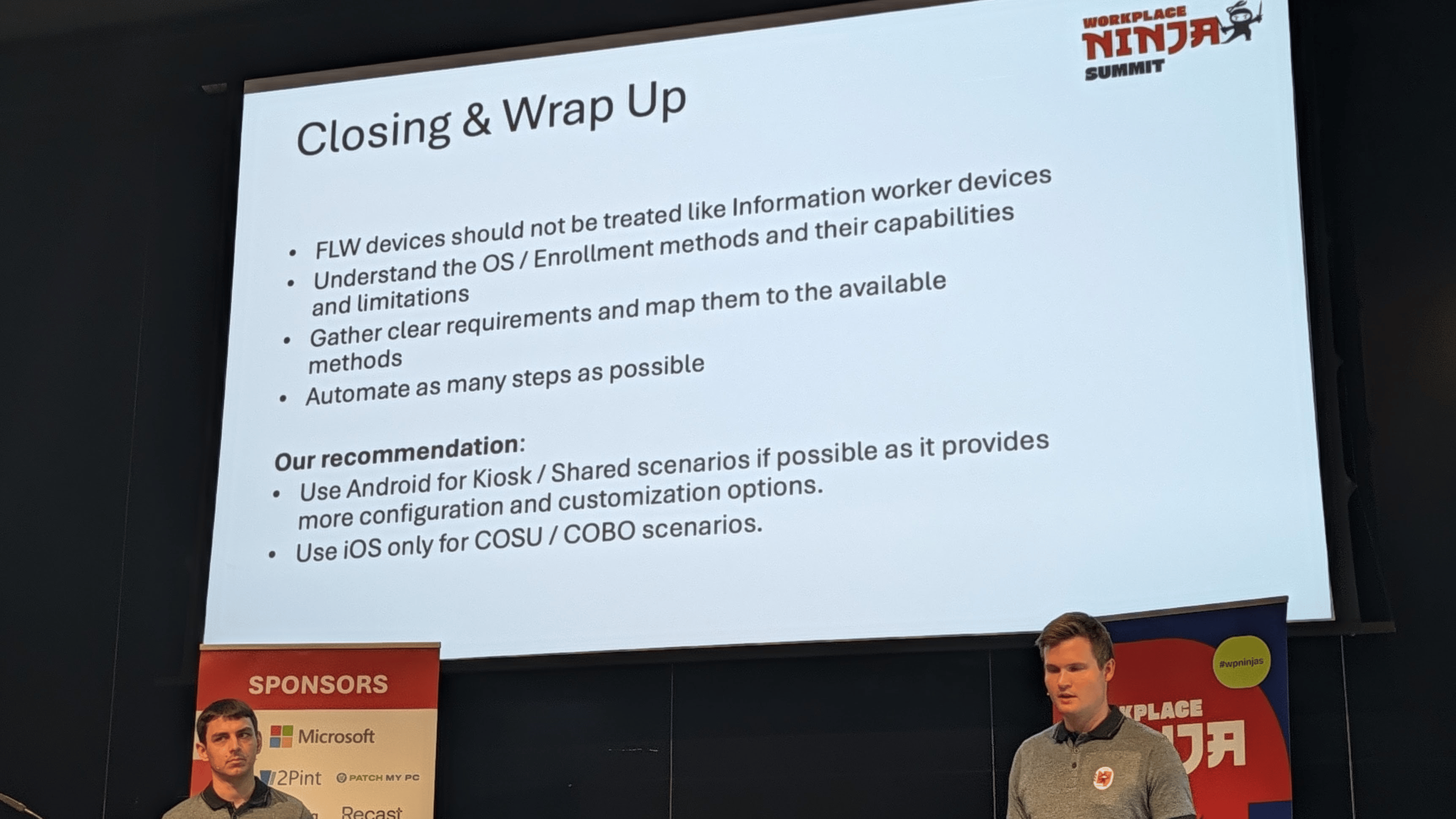
App permissions and configuration were also discussed; this is always difficult, as you need to fix permissions that will only prompt the user once. (Which they might deny, causing the applications to fail) Luca then continued, after the Android part, with iOS configuration. This involved adding App Bundle IDs and configuring the Apps being shown on the home screen. Similar profiles can be configured on iOS devices: multi- or single-app Kiosk, security, etc. But there is also an Apple Shared iPad configuration which uses user partitions that are securely separated.

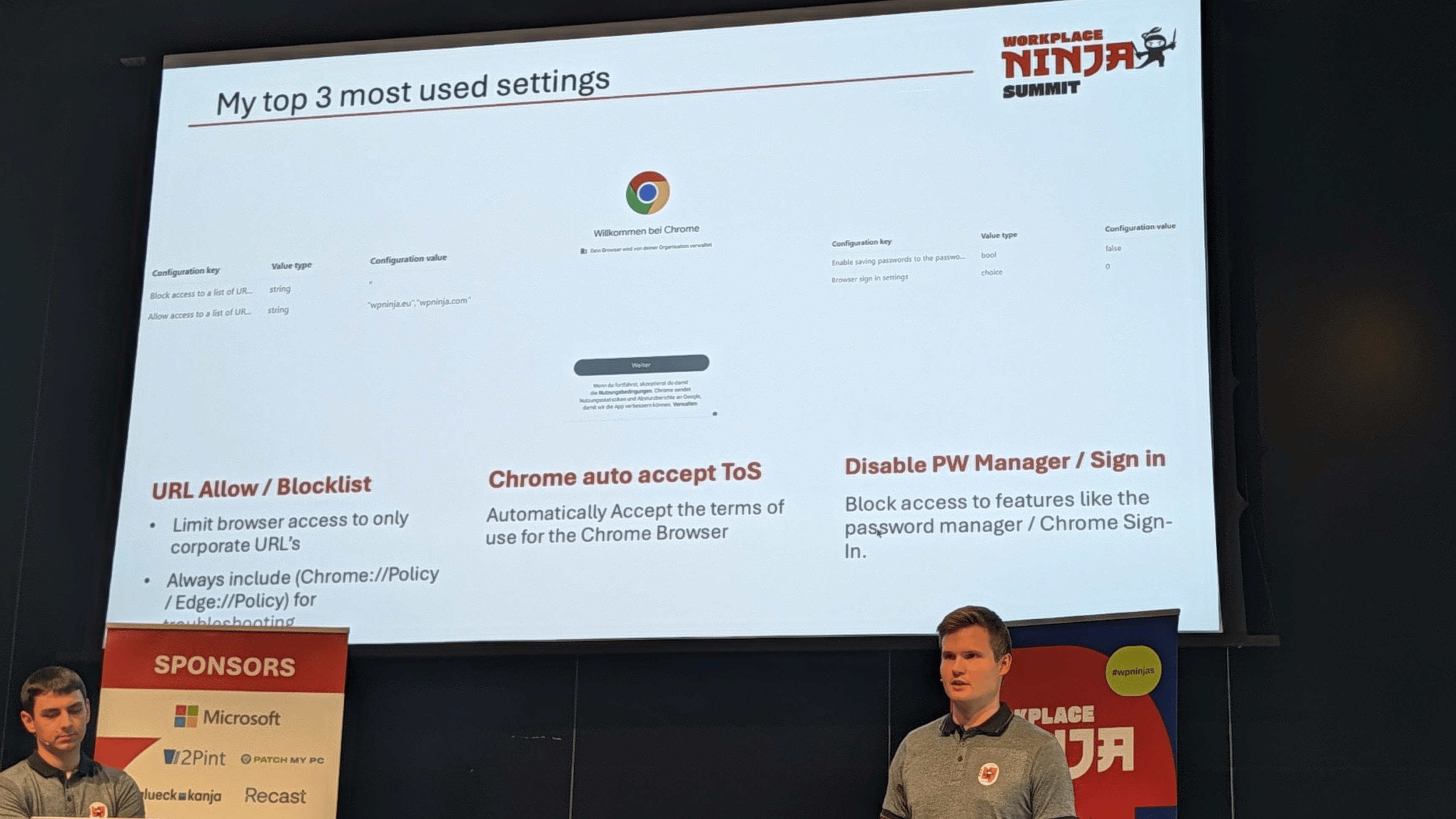
Janic then discussed the browser (Edge or Chrome) and its configuration options, including SSO.
Closing Workplace Ninja Summit 2026
(Mirko Colemberg, Thomas Kurth)
“Join us for the closing of the Workplace Ninja Summit 2026 and win some nice prizes!”
And then… It was over; such a great week! They thanked everybody, including the staff and kitchen people!

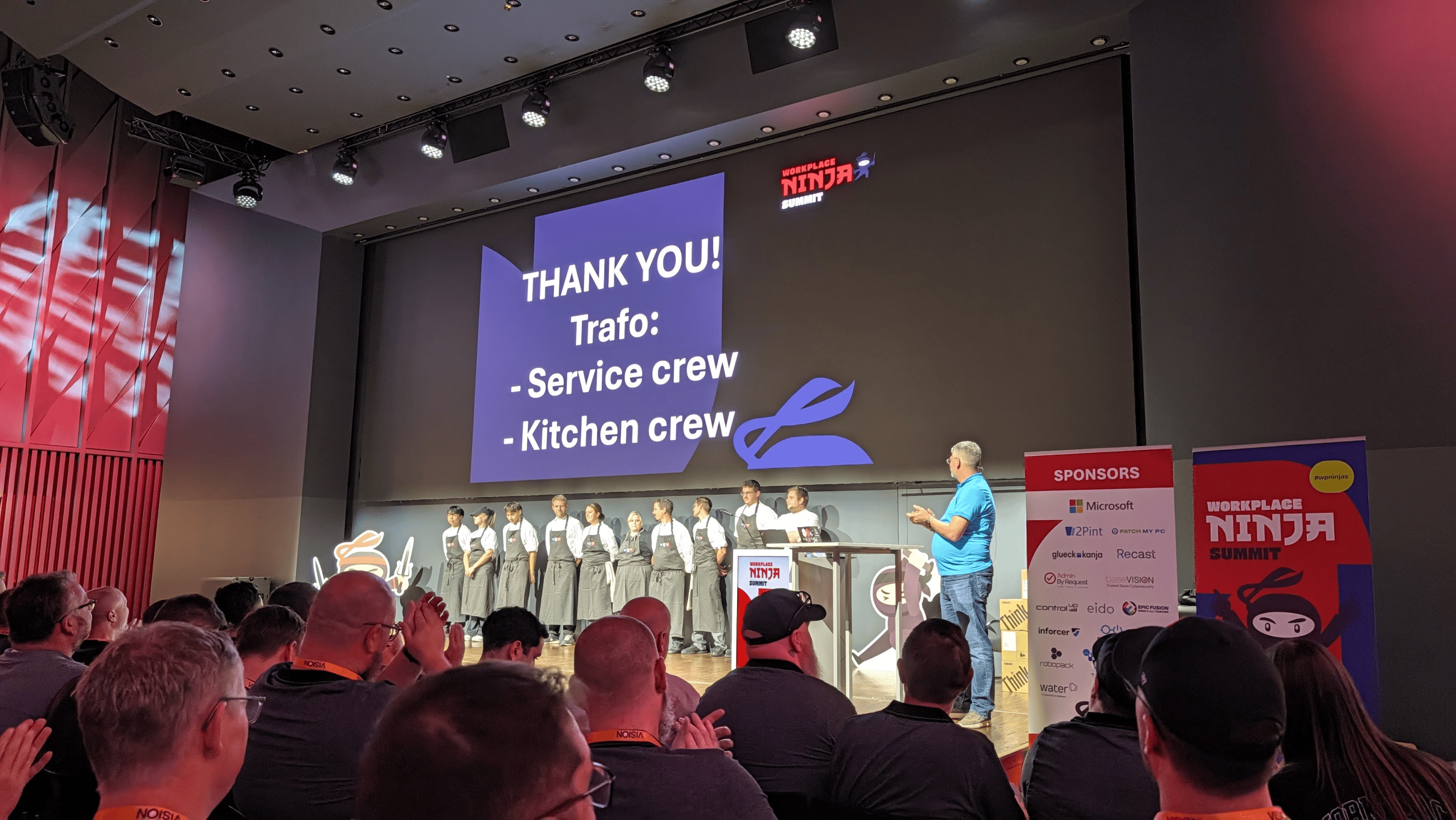
And they did a raffle and you could win this! (From the sponsors, 13 in total)

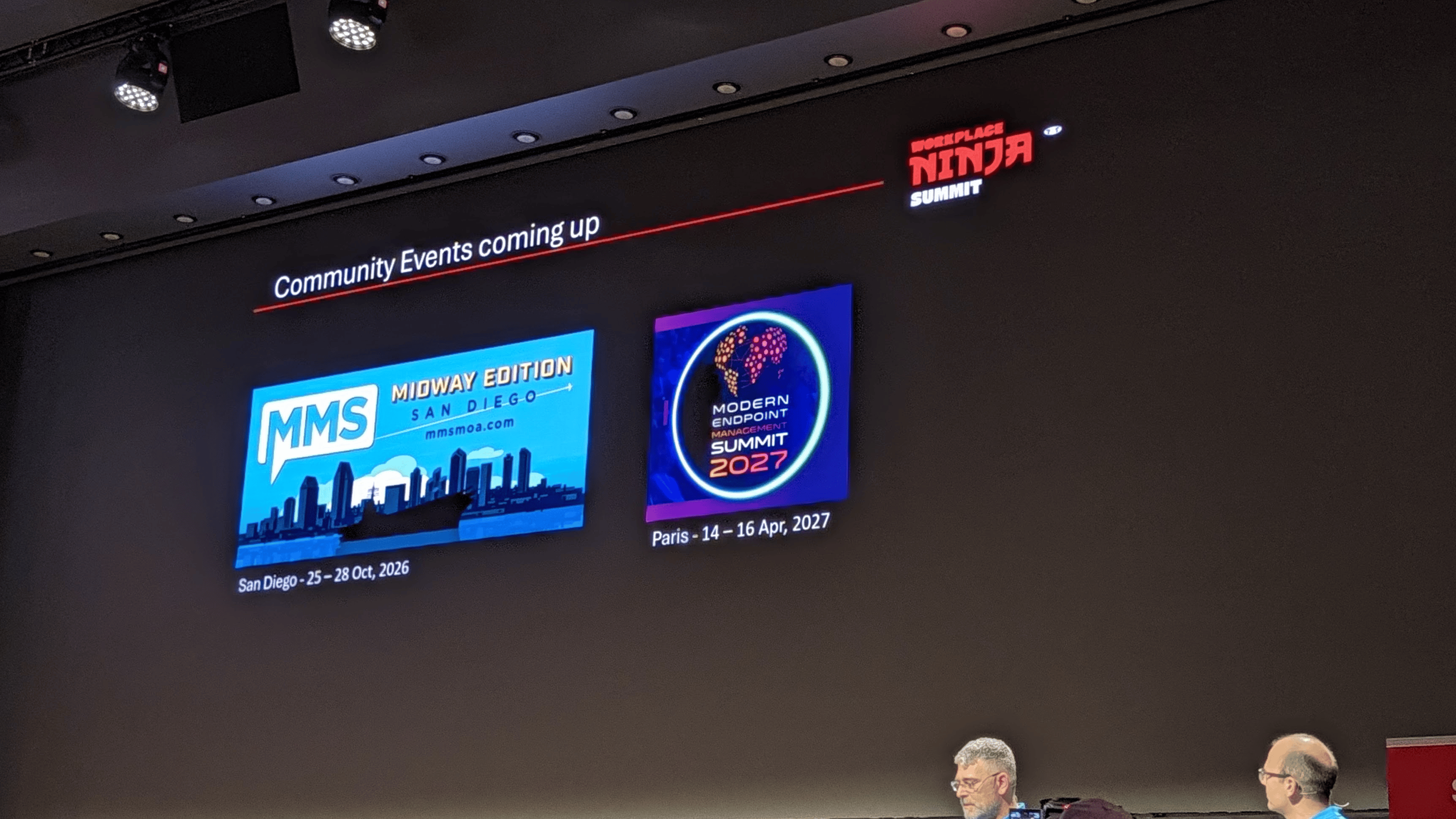
Upcoming events:


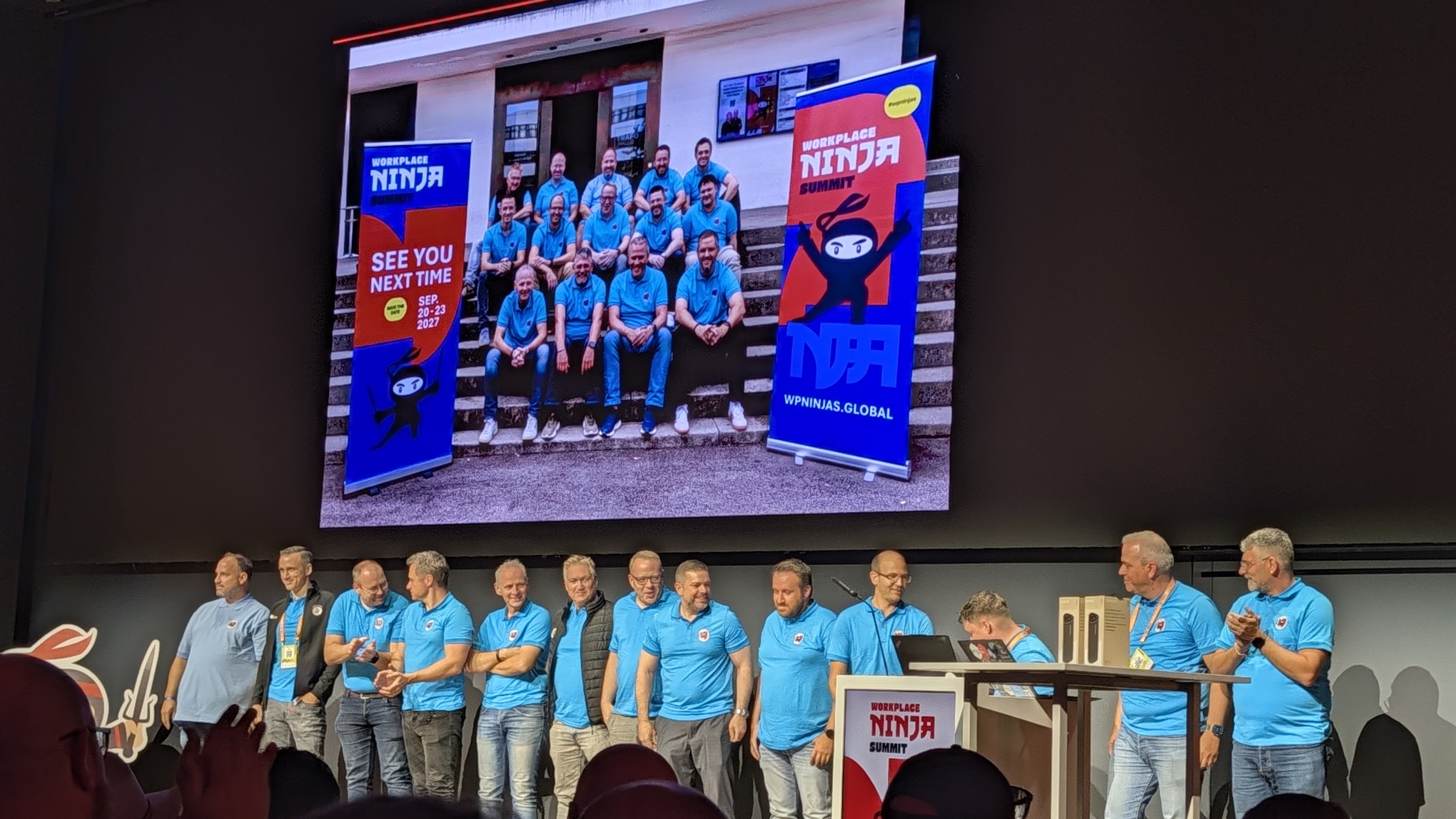
And… Next years edition!

Thank you guys!
After the closing session, we went our for dinner in the old town again with some fellow Dutchies 🙂 Nice views!


Headed back to the hotel, met up with David Segura and together with Jeroen we had a few drinks near the water again.
Friday, September 18th
Checkout out from the hotel, met up with David and went to Zurich for some sightseeing on one of these 🙂 We crossed the whole town, saw the big fountain and had lunch. Great day!




Wrapping up
And that was my long week at the Workplace Ninjas Summit 2026 event, can’t thank the organization enough, but also David for letting me co-present with him! Great fun, hope to be back next year, too! At the airport now, flying back to Amsterdam…