

For my tenant, I needed a bit more cloud-synced test/demo users, and as always… It’s better to use PowerShell for that 🙂 In this blog post, I will show you how to create them using the ADImporter project from RobBridgeman.
What is ADImporter?
“When you need to simulate a real Active Directory with thousands of users you quickly find that creating realistic test accounts is not trivial. Sure enough, you can whip up a quick PowerShell one-liner that creates any number of accounts, but what if you need real first and last names? Real (existing) addresses? Postal codes matching phone area codes? I could go on. The point is that you need two things: input files with names, addresses etc. And script logic that creates user accounts from that data. This Repo provides both.”
Source: https://github.com/RobBridgeman/ADImporter/tree/master#adimporter
Preparation
Below are the steps that I used to create 5000 test accounts in Active Directory so that Entra Cloud Sync could add them to Entra ID. The reason I needed more accounts was that I create scripts that will run for 10 or 20 accounts, but start to show performance issues with 100 or 500 accounts, and need more performance improvements and error handling when reaching 1000 accounts, etc. 🙂
Download the files needed from GitHub
Use Git to clone the repository to your local drive on a system that has access to Active Directory and the PowerShell Active Directory module installed. (git clone https://github.com/RobBridgeman/ADImporter.git) Or download the files as a zip file.
Edit the files for your environment
Before running the CreateDemoUsers.ps1 script, edit it and update the values to match your environment.
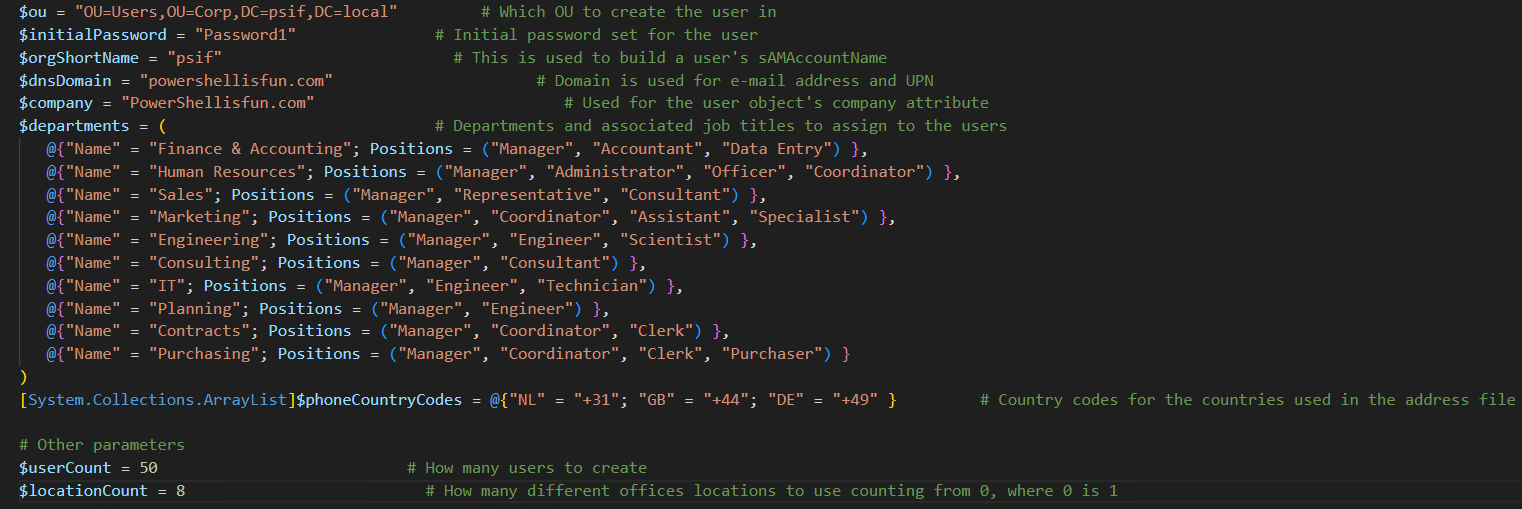
I changed the values for the OU in which the users will be created, the InitialPassword (Which I bulk change afterward using the script listed in one of the next chapters), the orgShortName, and the dnsDomain (This should match your environments UPN Suffix and should be added as a Domain in Entra ID if you will sync these accounts to Entra ID), the Company, and I left the department values default.
The most important thing is… I configured the userCount value to 50 so that it wouldn’t take that long 😉 The higher the value, the longer it takes, but it was pretty quick in the 5000-user run I did previously.
After changing and saving the CreateDemoUsers.ps1 file, check the addresses, postalareacode, firstname, and lastnames text files. (Beware, some of them are big.) Add, remove, or change them to your liking. The addresses.txt wasn’t accurate on the Country (NL instead of DE in some of them)
Run the script
After changing the script and the text files (Where and if needed), you can run the script. (You can ignore the UT-7 warnings)

It created 50 new users, as configured, but now they all have the same password. And because I sync them to Entra ID, I didn’t think it was a good idea, and I wanted to change that…
Bulk changing the passwords of the users
I searched for a complex password function, changed it a bit, and let it change all the passwords of the users specified in the Searchbase value:
function New-ComplexPassword {
    param (
        [int]$length = 12
    )

    $lower = 'abcdefghijklmnopqrstuvwxyz'
    $upper = 'ABCDEFGHIJKLMNOPQRSTUVWXYZ'
    $digits = '0123456789'
    $symbols = '!@#$%^&*()'

    $allChars = $lower + $upper + $digits + $symbols
    $password = -join ((1..$length) | ForEach-Object { $allChars[(Get-Random -Minimum 0 -Maximum $allChars.Length)] })

    # Ensure at least one character from each set
    $password += $lower[(Get-Random -Minimum 0 -Maximum $lower.Length)]
    $password += $upper[(Get-Random -Minimum 0 -Maximum $upper.Length)]
    $password += $digits[(Get-Random -Minimum 0 -Maximum $digits.Length)]
    $password += $symbols[(Get-Random -Minimum 0 -Maximum $symbols.Length)]

    # Shuffle the password
    $password = -join ($password.ToCharArray() | Sort-Object { Get-Random })
    return $password.Substring(0, $length)
}

foreach ($User in Get-ADUser -SearchBase "OU=Users,OU=Corp,DC=psif,DC=local" -Filter *) {
    Write-Output ("Changing Password for user {0}" -f $user.SamAccountName)
    Set-ADAccountPassword -Identity $User -Reset -NewPassword (ConvertTo-SecureString $(New-ComplexPassword -length 20)-AsPlainText -Force)
}
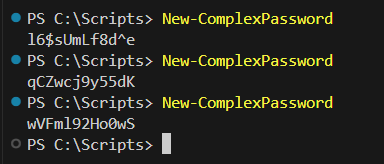
As shown in the screenshot below, the New-ComplexPassword Function generates a new password each time it runs. It used that to give all the newly created users a random password by running the script above 🙂 (Change the OU value and be sure not to target this to non-demo/production user accounts!)
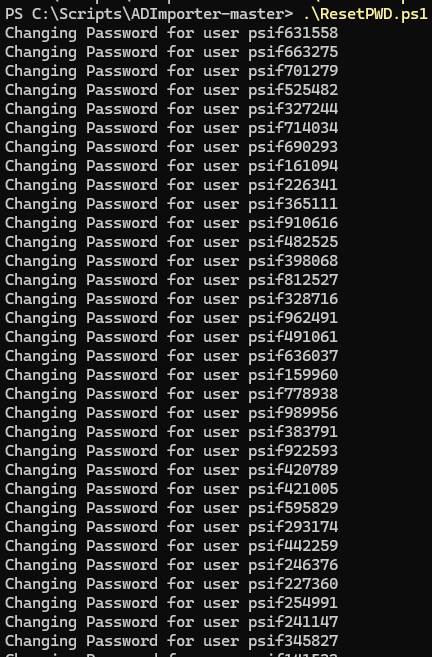
When running the script, it will show you the user whose password is being changed.
Add users to random groups
And to prepare the demo accounts a bit more, I decided to also add them to a set of groups from a specific OU 🙂 Using the script below, I added all users to ten random groups within the OU specified in the $Groups variable. (You can change the 1..3 to 1..5 for 5 groups, for example) This will also take a while, depending on how many users are created and added to these groups…
$Groups = Get-ADGroup -SearchBase "OU=Groups,OU=Corp,DC=psif,DC=local" -Filter *
1..3 | ForEach-Object {
    foreach ($User in Get-ADUser -SearchBase "OU=Users,OU=Corp,DC=psif,DC=local" -Filter * ) {
        Add-ADGroupMember -Identity $($groups | Get-Random) -Members $User

    }
}
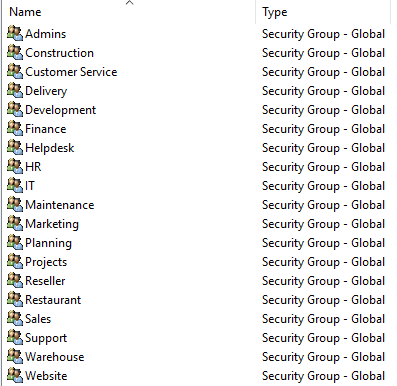
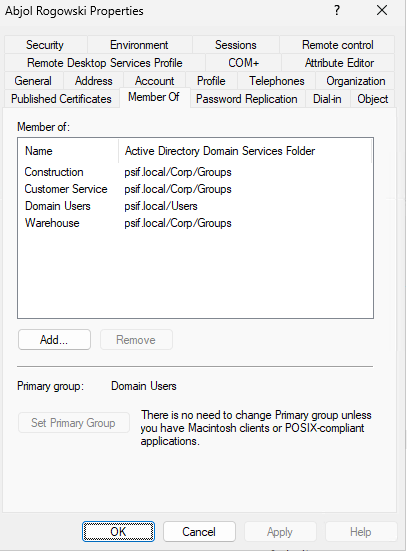
After running this, the user will be part of 3 random groups from this list (This is from my environment, create your own set or point to an existing OU with demo groups):
Result:
Entra ID
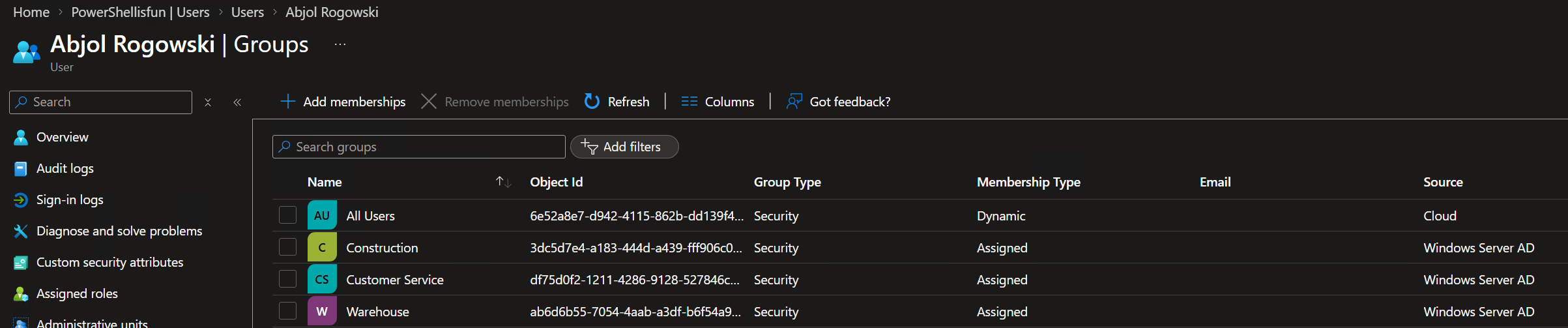
After creating all the users, resetting their passwords, and adding them to random groups… The users were visible in Entra ID as well due to Entra Cloud Sync. It sure took a while to sync the initial 5000 user accounts; this batch of 50 was a lot quicker.
And the same user as above from Active Directory is now also in Entra ID with the same groups (Which are also synced by Entra Cloud Sync)
Note: If you have enabled Password Write-Back and Self-Service Password Reset… Be sure not to enable it for these users, or disable it…
Wrapping up
And that’s how you can bulk create demo accounts for testing scripts, nice and a lot better than click-ops 😉 Have a lovely weekend!